
In this post, I will show you a new Intune device enrollment option recently introduced by Microsoft to fix a long pending enrollment issue for personal or BYOD-type devices that allowed the devices to get automatically enrolled into Intune when users sign into any of the Microsoft Office apps like Teams, Outlook, or Edge, etc with their organization credentials.
When users launch any of the Microsoft 365 apps on their personal device and sign in with their organization credentials, they go through the work or school account registration flow. Many users click through without understanding the impact, and suddenly you have personal devices showing up in Intune, compliance policies applying unexpectedly, and a messy device inventory.
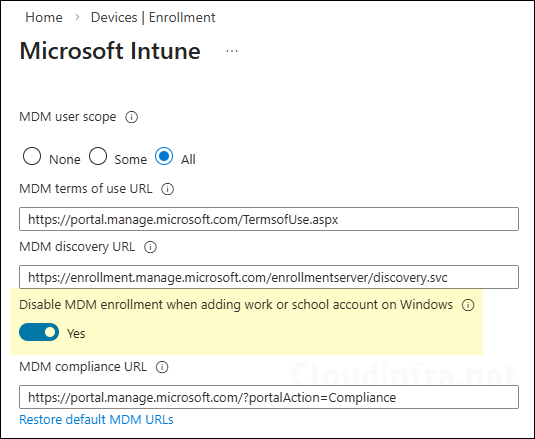
The new toggle switch is called Disable MDM enrollment when adding a work or school account on Windows. When enabled, it removes the MDM enrollment option during the app-initiated “Add work or school account” flow, allowing users to sign in without accidentally enrolling the device into Intune. Users will no longer see the screen that enrolls a personal device into Intune, which means they cannot accidentally enroll personal devices.
If you get an error -2145833241 during the work or school account registration flow, refer to the post: Device Management Could Not Be Enabled Error -2145833241 to resolve this issue.
Contents
What This New Setting Does?
Disable MDM enrollment when adding a work or school account on Windows toggle controls whether users with automatic enrollment configured are prompted to enroll their Microsoft Entra registered devices or new devices into MDM during the work or school account registration flow.
This setting controls if users who are in scope for MDM auto-enrollment will be prompted to MDM enroll their device when adding their work or school account on Windows. This applies only to Entra Registering/Work-Place Joining the Windows devices. For more information, go to https://learn.microsoft.com/intune/intune-service/enrollment/windows-enroll
In Summary
- This setting applies only to the users who are in MDM automatic enrollment scope.
- This setting applies only to Microsoft Entra registered and workplace-joined devices.
- This setting applies only to the users who add their account for the first time via Microsoft Edge or a native Microsoft app such as Teams.
Limitations
Before enabling Disable MDM enrollment when adding a work or school account on Windows, it is important to understand its limitations and what enabling this option actually changes in your environment.
- Does not block enrollment completely: It only removes the MDM enrollment option during the app-initiated “add work or school account” flow. Users can still enroll later via Windows Settings (Access work or school) if they are in the MDM user scope.
- Company Portal app: Users can still use the company portal app for device enrollment.
- Does not affect existing Intune enrolled devices: Enabling this new setting does not affect the devices that already exist in Intune. Only new devices will get the new work or school account registration flow. This setting also does not impact Windows Autopilot.
- Applies only to specific entry points: It targets the first-time add-account experience from Microsoft Edge or native Microsoft apps (for example, Teams). It does not apply to all possible sign-in or account-add paths.
- Still dependent on MDM user scope: The control is relevant only when the user is within MDM user scope = Some/All. If scope is misconfigured, results can be inconsistent.
- Does not guarantee no Entra device object: Even if Intune enrollment is suppressed in that flow, certain authentication and registration behaviors can still result in a device being Entra registered depending on user actions and tenant configuration.
- Conditional Access can still force a different outcome: If your CA policies require a compliant or managed device, users may still be blocked and pushed toward enrollment through other routes to regain access.
- Not a replacement for enrollment restrictions: If your goal is to prevent BYOD Windows enrollment entirely, configure device platform restrictions and block personal Windows devices.
- Preview limitations and change risk: This setting is still in public preview.
Disabling MDM Enrollment for Personal/BYOD Devices [App-Initiated Workflow]
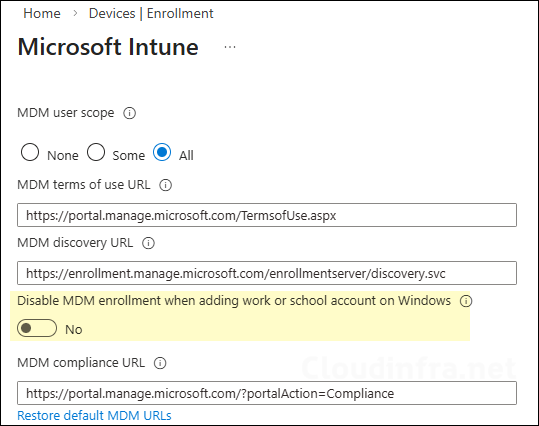
Now that we understand how this new setting works, let’s go through the steps to enable it in Intune. To enable this setting, navigate to Intune admin center > Devices > Device onboarding > Enrollment > Windows > Automatic Enrollment. On the automatic enrollment page, you will find this new toggle (Disable MDM enrollment when adding a work or school account) under the MDM user scope section. The screenshot below highlights this option and shows it in the enabled state. By default, it is turned off.
![Disabling MDM Enrollment for Personal/BYOD Devices [App-Initiated Workflow]](https://cloudinfra.net/wp-content/uploads/2026/03/Disable_MDM_Enrollment_BYOD_01.webp)
End User Experience
I will show you the user experience of signing on to a Microsoft 365 app like MS Teams on a personal device using their organization credentials. First, I will start with the user experience, keeping Disable MDM enrollment when adding a work or school account on Windows in a disabled state, and thereafter, we will enable it and see the experience.
Keeping Disable MDM enrollment when adding a work or school account on Windows toggle disabled
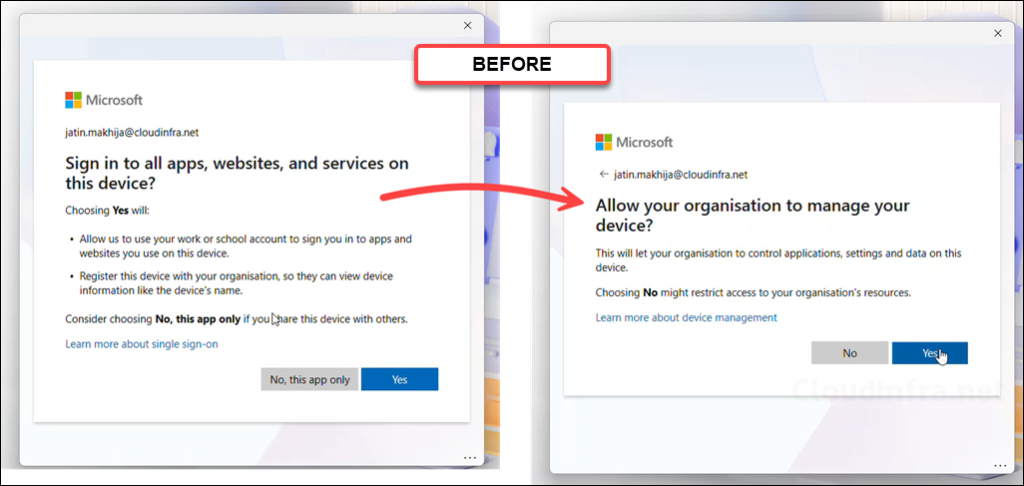
If the toggle is kept at its default configuration, which is a disabled/switched off position, then users will be presented with two screens as shown below.
- First screen: Sign in to all apps, websites, and services on this device?. Selecting Yes on this screen will register your device with Entra ID.
- Second screen: Allow your organization to manage your device?. Selecting Yes on this screen will enroll your device with Intune.
The screenshots below are from the work or school account registration flow when the Disable MDM enrollment when adding a work or school account toggle is left at its default Off state. When I sign in to the Microsoft Teams app using my organization credentials on a personal device, both prompts will show: one for Microsoft Entra registration and another for device management. If users click Yes on both screens, the device is registered in Entra as Microsoft Entra registered and is also enrolled into Intune device management.
The video below demonstrates the user sign-in experience when Disable MDM enrollment when adding a work or school account on Windows remains in its default Off state. You will notice that both the Microsoft Entra registration and device management prompts appear. If the user clicks Yes on both prompts, the device is registered in Microsoft Entra and also gets MDM enrolled.
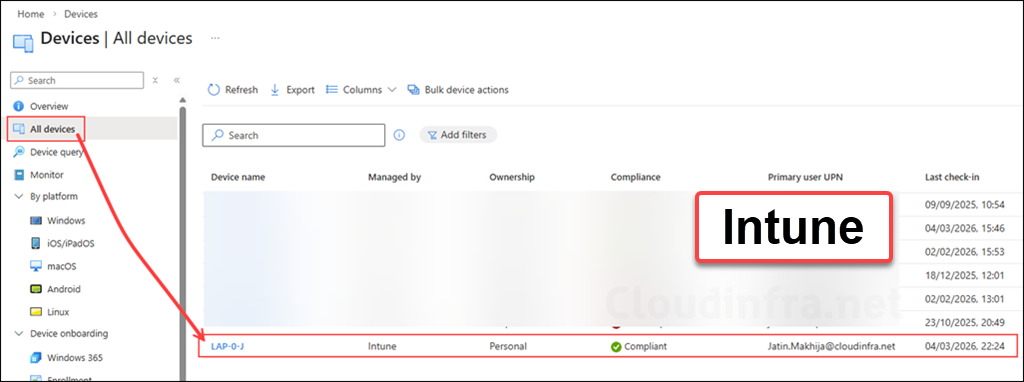
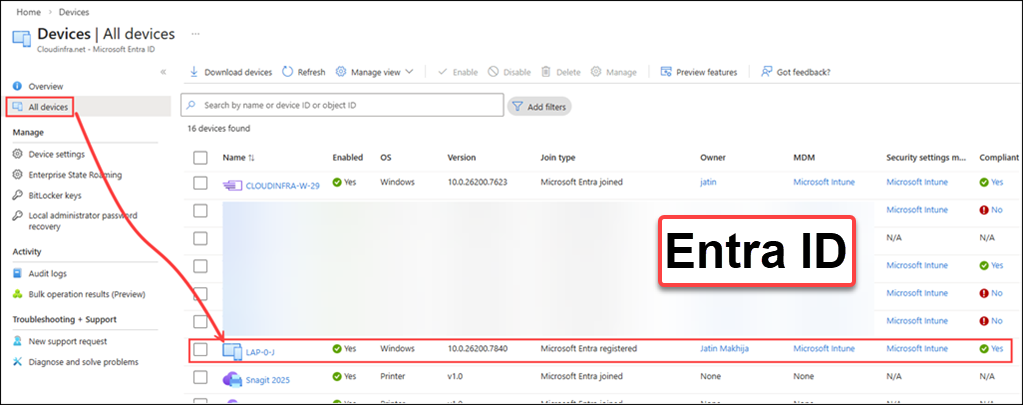
After the work or school account registration flow is completed, you will see a device object for the personal device created in Intune and Entra ID. The screenshots below show the device object for my personal device in Intune and Entra after completing the app-initiated “Add work or school account” flow.
Disable MDM enrollment when adding a work or school account on Windows toggle Enabled
The screenshots below show the work or school account registration flow when the Disable MDM enrollment when adding a work or school account toggle is enabled.
When signing in to the Microsoft Teams app with organizational credentials on a personal device, only the Microsoft Entra registration prompt appears. The second prompt related to device management and MDM enrollment does not appear.
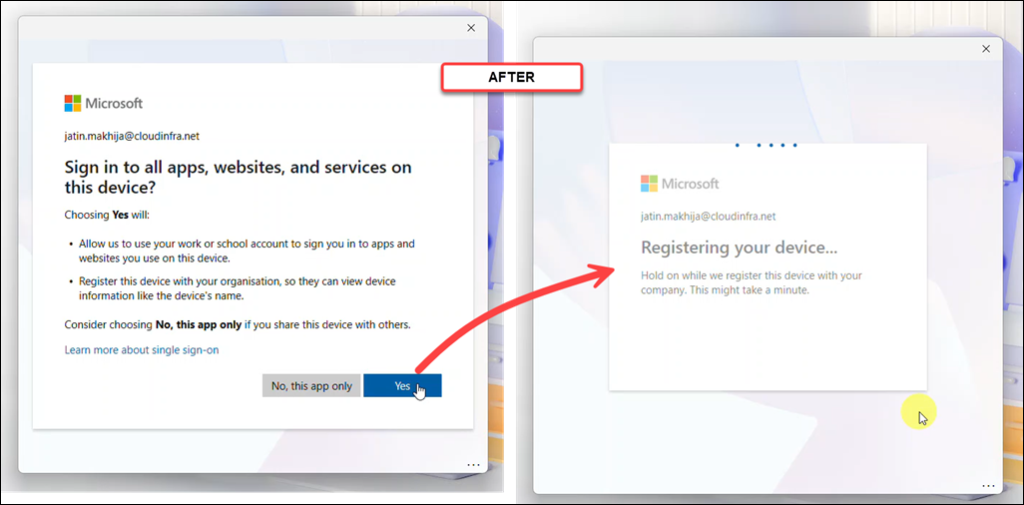
If you don’t want users to register a personal or BYOD device in Microsoft Entra ID or enroll it into Intune, instruct them to select No, this app only during the “Add work or school account” flow. This allows the user to sign in to the app using their work account without automatically enrolling the device into Intune and Entra. I also recommend enabling Disable MDM enrollment when adding a work or school account on Windows. This removes the MDM enrollment option from the app-initiated sign-in experience and helps prevent accidental Intune enrollment during account registration.
The video below demonstrates the user sign-in experience after enabling Disable MDM enrollment when adding a work or school account on Windows. You will notice that the second prompt related to device management does not appear. The device is registered only in Microsoft Entra ID and is not enrolled in Intune.
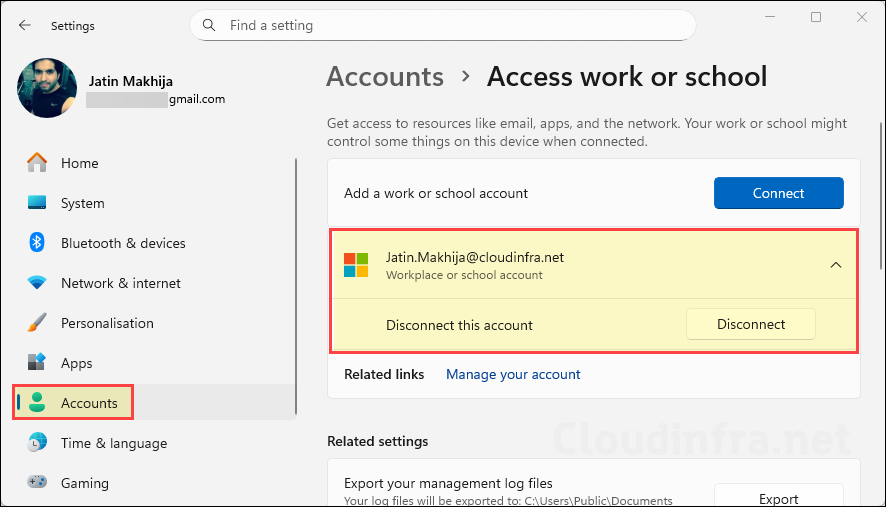
Go to Settings > Accounts > Access work or school. This page will show the Microsoft Entra ID connection. You will see only the Disconnect button and not the Managed by <org name> with the Info button. This indicates that the device is connected to Microsoft Entra ID but is not managed by Intune.
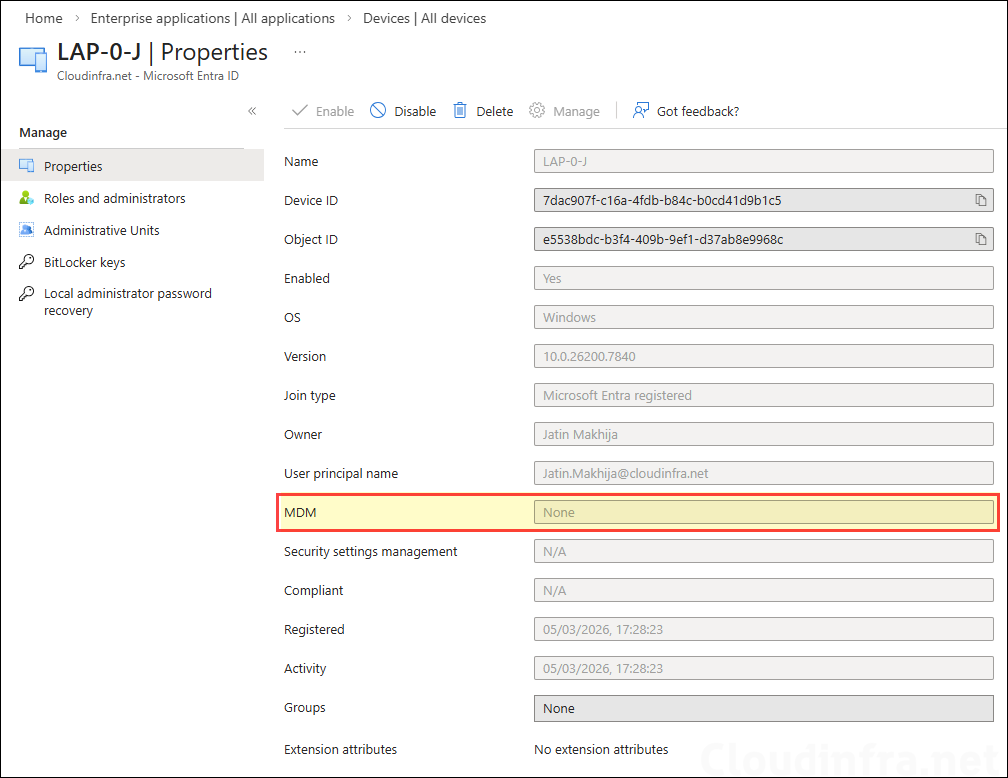
If you check the device properties in Entra, you will find that the MDM attribute is also set to None. That means the device is not enrolled into Intune.

How is this working together with hybrid-joined machines, which are configured for automatic MDM enrollment with Azure-AD Login configured with GPOs?
This toggle is mainly for reducing accidental enrollment of personal or BYOD Windows devices during app sign-in, not for changing intended enrollment behavior of hybrid corporate devices.
Finally, thanks for the info. I’ve always wondered the following:
I’ve disabled personally owned devices from enrolling through:
Devices -> Enrollment -> Enrollment platform restrictions.
I thought this actually made sure that it didn’t matter whether user clicked yes on the allow your organization to manage your device option. Is that actually correct?
I assume this option just makes it less confusing for the end user as the question just isn’t asked anymore?
Thank you!
Yes, a device platform restrictions policy is the right approach when you want to block personally owned devices. The new option basically improves the user experience by removing that prompt from the app-initiated sign-in flow, so users are less confused and less likely to attempt enrollment accidentally.
Got it, thanks a lot!