
The decimal error -2145833241 converts to 0x80192EE7 code (same issue, two formats). In the Microsoft 365 sign-in flow on Windows, this typically appears when the user signs in to an Office app (Teams, Outlook, M365 apps) and selects “Allow my organization to manage my device”. At that moment, Windows (via Web Account Manager) tries to complete Entra device registration plus Intune MDM enrollment.
The message “device management could not be enabled” is effectively saying, The identity sign-in succeeded, but the device management/registration part of the flow failed. A quick fix would be to disable the device management part completely by enabling disable MDM enrollment when adding a work or school account on Windows. This is a new toggle switch introduced to disable MDM enrollment of personal devices via app-initiated workflow.
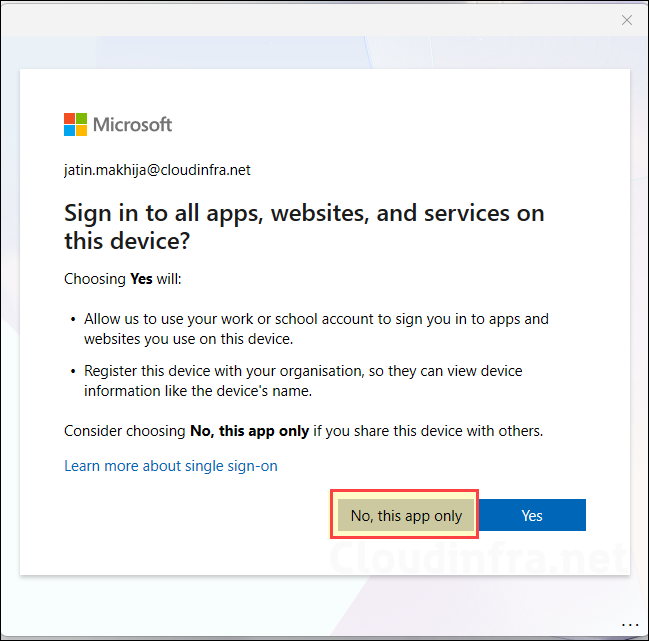
Another fix is simply choosing the correct path for the scenario. If the personal device does not need to be managed, the practical approach is to avoid MDM enrollment entirely by selecting Sign in to the app only option or No, this app only option. If your security model relies on app-level protection instead of device compliance for BYOD, disabling the enrollment trigger (or guiding users to app-only sign-in) prevents this error because Windows never attempts the MDM enrollment.
Where the tenant configuration is the root cause, the most frequent culprits are the Mobility (MDM and WIP) auto-enrollment settings. A mis-scoped MDM user scope, an unexpected WIP user scope configuration (WIP can affect BYOD behavior), or incorrect MDM URLs can break the automatic enrollment handshake. The recommended approach is verifying scopes and restoring the default MDM URLs, and most commonly, 0x80192EE7 error often involves disabling the WIP scope when it is not really used.
Your account was not set up on this device because device management could not be enabled. This device might not be able to access some resources, such as Wi-Fi, VPN, or email.
Error Code: -2145833241
Request Id: 99632c9b-ec3e-47da-999d-e11bad128800
Correlation Id: 6f56eaac-6d7c-41bc-b27d-094fa273ed6f
Timestamp: 2026-03-04T10:56:18.185Z
Message: Unknown error code: 0x80192ee7Error message on the screen
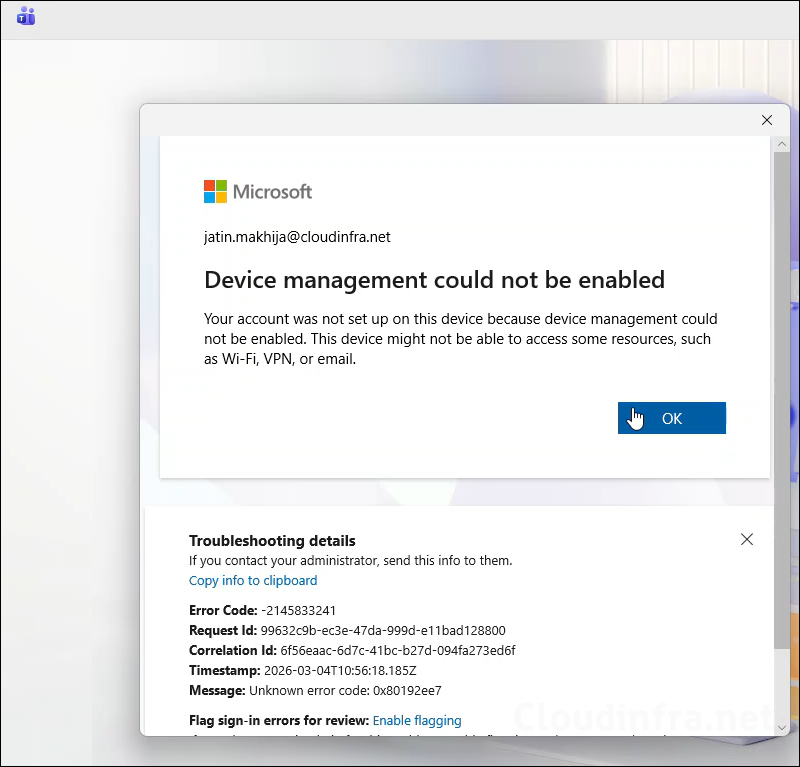
The video below demonstrates the app-initiated (e.g. Microsoft Teams) work or school account registration flow on a personal device. The error message appears during the device management registration stage. Despite the error message, the user can still sign in to the app successfully.
Contents
Click on No, this app only button
If the device does not need to be managed, then when signing in to an Office app on a personal Windows device, if you are prompted with a screen “Allow my organization to manage my device“, select No, sign in to this app only. If you get below screen, click on No, this app only. This avoids the enrollment path and typically lets the app sign in successfully (unless Conditional Access requires a compliant device). This will resolve unknown error code 0x80192ee7.
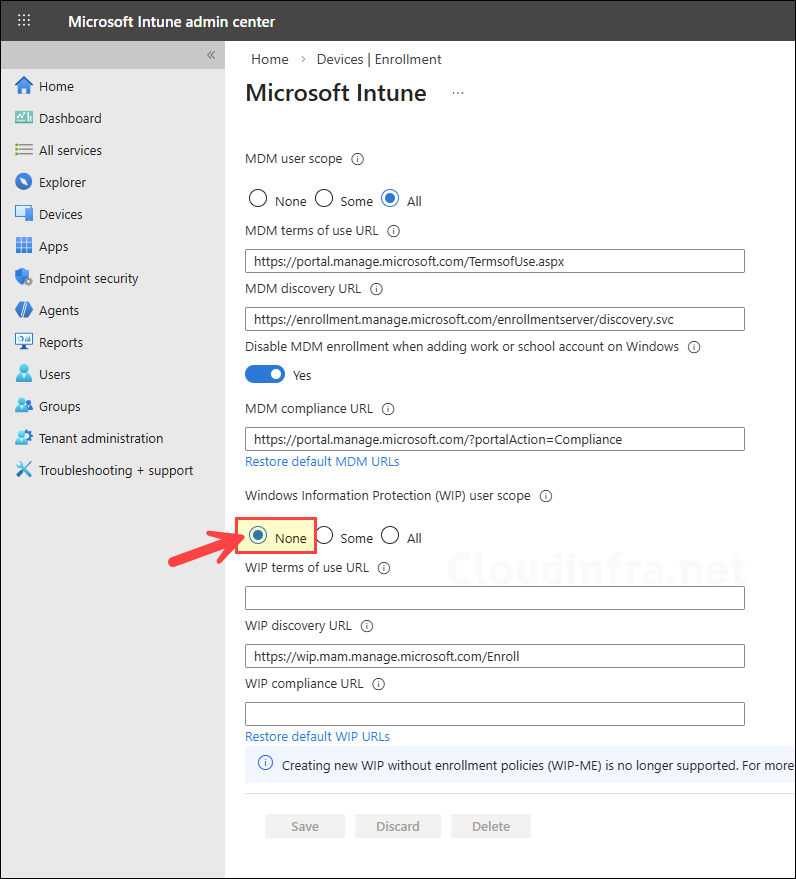
Set Windows Information Protection (WIP) user scope to None
If you are not using WIP, then set it to none and try the work or school account registration flow again. Sign in to Intune admin center > Devices > Device onboarding > Enrollment > Windows > Automatic Enrollment and set Windows Information Protection (WIP) user scope to None.
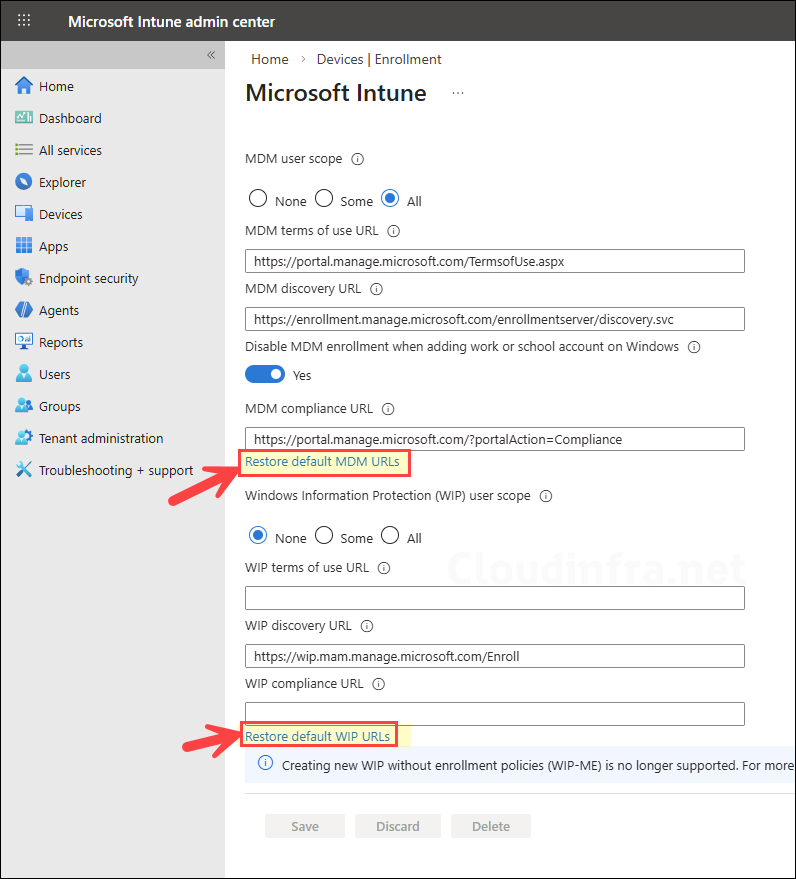
MDM User Scope and Default MDM URLs
Verify the MDM user scope to confirm whether the user is included. If it is set to All, then all users are included within the scope. If the MDM user scope is limited to a specific group, ensure that the user is a member of that group. You can also try restoring the MDM URLs to their default values by clicking on the Restore default MDM URLs restore option in the configuration settings. Then try the work or school account registration flow once again on the user’s device. Also check the user has an Intune license assigned.
In Summary:
- Ensure the user is included in the MDM user scope.
- Restore default MDM URLs if they were modified (terms of use URL, discovery endpoints, etc.).
- Confirm the user has a valid Intune / M365 license assigned.
Enrollment restrictions and device limits
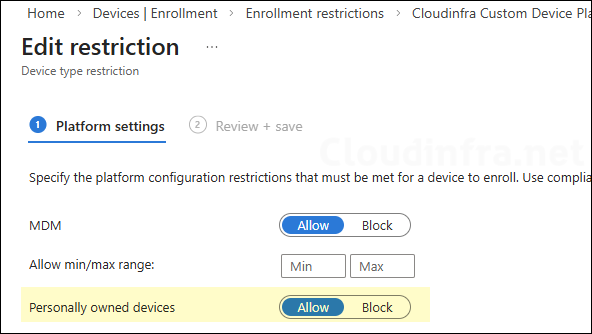
Check and confirm if personal Windows device enrollment is allowed or blocked in the device platform restrictions policy. Sign in to the Intune admin center > Go to Devices > Enrollment > Device platform restriction.
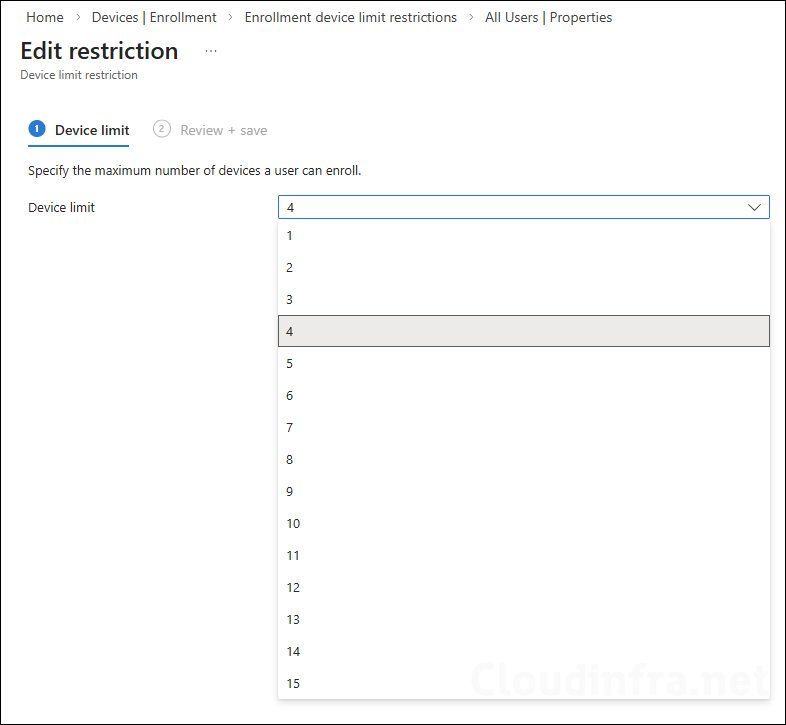
Sign in to the Intune admin center > Go to Devices > Enrollment > Device limit restriction. Check and confirm if the user is not hitting the device enrollment limit. The maximum limit you can set is 15 devices.
Disable MDM Enrollment for a Personal/BYOD Device
Microsoft has introduced an Intune setting (public preview) to disable MDM enrollment during “add work or school account”, which helps prevent accidental enrollment attempts (and errors like this) on BYOD. For more information, refer to my other post: Disable MDM enrollment when adding a work or school account on Windows.
