
In this post, I will show you how to enable/disable presentation settings in Windows via Intune. If you manage Windows 11 devices with Microsoft Intune, you may want to prevent users from turning on Windows Presentation Settings, sometimes informally called Presentation Mode. This Windows feature is designed to prepare a device for presenting by blocking system notifications and screen blanking, adjusting speaker volume, and optionally applying a custom background image.
In many managed environments, especially shared laptops, training-room PCs, kiosk-style devices, and tightly controlled corporate endpoints, it makes sense to disable this capability centrally so users cannot change presentation behavior on their own. If you want to disable Windows Mobility Center completely instead of specific feature, refer to the post that contains the Intune policy details: Enable/Disable Windows Mobility Center Via Intune.
Contents
What are Presentation Settings in Windows 11?
Windows Presentation Settings is a built-in Windows capability that helps keep a PC presentation-ready. When the feature is available, users can quickly configure the system to block notifications and screen blanking, adjust speaker volume, and apply a custom background image before presenting. Microsoft exposes policy controls for this feature in both user scope and device scope.
It is also important not to confuse this Windows feature with PowerPoint Presenter View or Microsoft Teams presenter modes. PowerPoint Presenter View is an Office presentation feature for speaker notes and slide controls, while Teams presenter modes are meeting features used when sharing content in Teams. They are separate from Windows Presentation Settings and are managed differently.
Why turn off Windows Presentation Settings?
In a managed enterprise environment, Windows Presentation Settings is usually not something every user needs. If your goal is to standardize the desktop experience, reduce unnecessary local changes, and keep device behavior predictable, disabling this feature can be a good control. This is especially useful on shared endpoints, standardized corporate laptops, and devices where local presentation tweaks are not part of the business requirement.
Prerequisites
- This setting applies to a supported Windows edition: Pro, Enterprise, Education, and IoT Enterprise / IoT Enterprise LTSC, including Windows 11 version 21H2 and later. Home edition is not supported.
- Your Windows devices are enrolled in Intune.
- Policy and Profile Manager as the minimum built-in role required for creating a Settings catalog profile.
Turn off Windows Presentation Settings using Intune
Now that we understand about the presentation settings in Windows, let’s see how to create an Intune policy to enable or disable it.
- Sign in to Intune admin center > Devices > Windows > Configuration > Create > New Policy.
- Platform: Windows 10 and later; Profile type: Settings catalog. Click Create.
- On the Basics tab, provide a Name and Description of the policy and click Next.
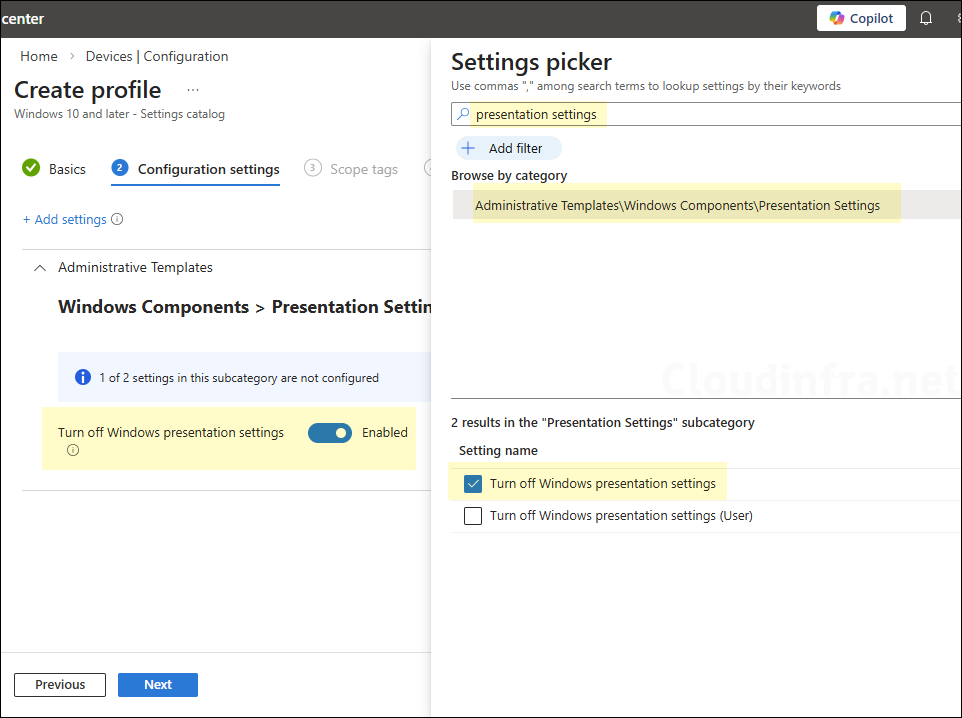
- On the Configuration settings tab, click on + Add settings and use the Settings picker to search for presentation settings and select Administrative Templates\Windows Components\Presentation Settings category. Select Turn off Windows presentation settings or Turn off Windows presentation settings (user) setting.
Settings Catalog Policy Details
| Profile type | Category | Setting | Status |
|---|---|---|---|
| Settings Catalog | Administrative Templates\Windows Components\Presentation Settings | Turn off Windows presentation settings | Set it to Enabled or Disabled |
This policy setting turns off Windows presentation settings. If you enable this policy setting, Windows presentation settings cannot be invoked. If you disable this policy setting, Windows presentation settings can be invoked. The presentation settings icon will be displayed in the notification area. This will give users a quick and easy way to configure their system settings before a presentation to block system notifications and screen blanking, adjust speaker volume, and apply a custom background image. Note: Users will be able to customize their system settings for presentations in Windows Mobility Center. If you do not configure this policy setting, Windows presentation settings can be invoked.
| Setting | Description |
|---|---|
| Turn off Windows presentation settings | device-scoped setting |
| Turn off Windows presentation settings (user) | User-scoped setting |
- Scope tags (optional): A scope tag in Intune is an RBAC label that you assign to resources such as policies, apps, and devices to control which administrators can view and manage them. For more information, see How to use scope tags in Intune.
- Assignments: Assign the policy to Microsoft Entra security groups that include the target users or devices. As a best practice, start with a small pilot group, and once validated, expand the assignment more broadly. For guidance on assignment strategy, see Intune assignments: User groups vs. device groups.
- Review + create: Review the deployment summary and click Create.
Update Intune Policies
The device check-in process might not begin immediately. If you’re testing this policy on a test device, you can manually kickstart Intune sync from the device itself or remotely through the Intune admin center.
Alternatively, you can use PowerShell to force the Intune sync on Windows devices. Restarting the device is another way to trigger the Intune device check-in process.
End User Experience
After the Intune policy is applied on the target devices, Windows Presentation mode will be enabled or disabled as per the policy setting configuration. To check and confirm if the policy has been applied successfully, follow below steps:
- Press Windows + R keys to open the Run dialog box.
- Type
mblctrto open Windows Mobility Center.
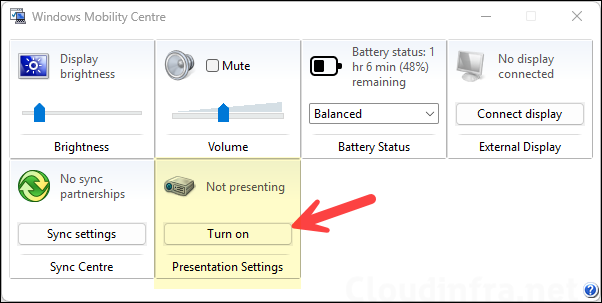
Another way to check and confirm if the Intune policy has been applied successfully or resulted in an error is to go to the Event Viewer > Applications and Services Logs > Microsoft > Windows > Devicemanagement-Enterprise-Diagnostics-Provider > Admin. Filter the logs for Event ID 813 or 814 and go through the logs to find the one relevant to your Intune deployment.
For troubleshooting, investigate using the Intune logs on the device or by collecting the logs remotely. Refer to the guide Collect Intune Logs from Windows Devices for collecting the Intune logs remotely via the Intune admin center.
