
This post is about configuring Copilot in Microsoft Edge via Intune. Microsoft Copilot experiences in Microsoft Edge can help users summarize web pages, work with contextual prompts, and access Copilot Chat directly from the browser.
In an enterprise environment, however, you usually do not want every Copilot-related setting left to user choice. You may want to decide whether the Copilot button appears in the Edge toolbar, whether Copilot can access the contents of the page being viewed, or whether the entire Edge sidebar should be disabled. For management of Copilot in Edge browser, policies are available in the Intune Settings catalog. I will discuss those policies, explain their usage, and end-user experience.
Contents
Copilot Specific Settings in Edge
There are various settings available for the management of Copilot in the Microsoft Edge browser. The list below shows a few of the actions you can use:
- Show or hide the Copilot icon in the Microsoft Edge toolbar.
- Allow or block Copilot from using page context such as the current webpage or PDF content.
- Disable the entire Edge sidebar, which also disables Copilot Chat in the sidebar.
Prerequisites
Before you configure Copilot in Microsoft Edge through Intune, make sure the following prerequisites are met:
- Microsoft Intune is set up, and the target Windows devices are enrolled.
- Users sign in to Microsoft Edge using a Microsoft Entra work or school account because the main Copilot controls discussed here apply to Entra ID Edge profiles rather than personal Microsoft accounts.
- Microsoft Edge version requirements are met:
- EdgeEntraCopilotPageContext requires Edge version 130 or later on Windows.
- Microsoft365CopilotChatIconEnabled requires Edge version 139 or later on Windows.
Copilot Specific Edge Policies in Intune
| Policy ID | Setting Name | Description |
|---|---|---|
| CopilotPageContext | Control Copilot access to page context for Microsoft Entra ID profiles | Controls whether Copilot can use page content in the Edge sidebar for Entra ID Edge profiles. This is used for page summarization and contextual prompts, but it does not control Copilot with enterprise data protection (EDP). Default behavior: For non-EU countries/regions, access is initially enabled. For EU countries/regions, access is initially disabled. |
| Microsoft365CopilotChatIconEnabled | Control whether Microsoft 365 Copilot Chat shows in the Microsoft Edge for Business toolbar | Controls whether the Microsoft 365 Copilot Chat icon appears in the Edge for Business toolbar for Microsoft 365 Copilot licensed and unlicensed users. If enabled >> shows the icon. If disabled >> it hides it. If unconfigured >> users can usually control it themselves. |
| EdgeEntraCopilotPageContext | Control Copilot access to Microsoft Edge page content for Entra account user profiles when using Copilot in the Microsoft Edge sidepane | Controls whether Copilot in the Edge sidepane can access page content for Entra-signed-in users. This covers page summarization and similar contextual requests, including Microsoft 365 Copilot Business Chat and Copilot with enterprise data protection (EDP). |
| ShareBrowsingHistoryWithCopilotSearchAllowed | Allow sharing tenant-approved browsing history with Microsoft 365 Copilot Search (User) | Controls whether Microsoft Edge shares tenant-approved, work-related browsing history with Microsoft 365 Copilot Search to improve search relevance. It applies to users signed in to Edge with an Entra ID account who have an eligible Microsoft 365 Copilot license. If enabled or not configured, sharing is on by default, and users can turn it off in Edge settings. If disabled, browsing history is not shared with Microsoft 365 Copilot Search. |
| EdgeCopilotEnabled | Enable Copilot | General Copilot on/off policy, but supported only for Android and iOS, not Windows or macOS. |
Configure Copilot Settings in Edge
Now that we understand the Copilot-specific settings that can be configured in the Microsoft Edge browser, let’s create an Intune policy. All of the above policies are available in the Intune Settings Catalog, which makes it straightforward to configure and assign them to users or managed devices.
- Sign in to Intune admin center > Devices > Windows > Configuration > Create > New Policy.
- Select Platform as Windows 10 and later > Settings catalog and click Create.
- On the Basics tab, provide a name and description of the policy and click Next.
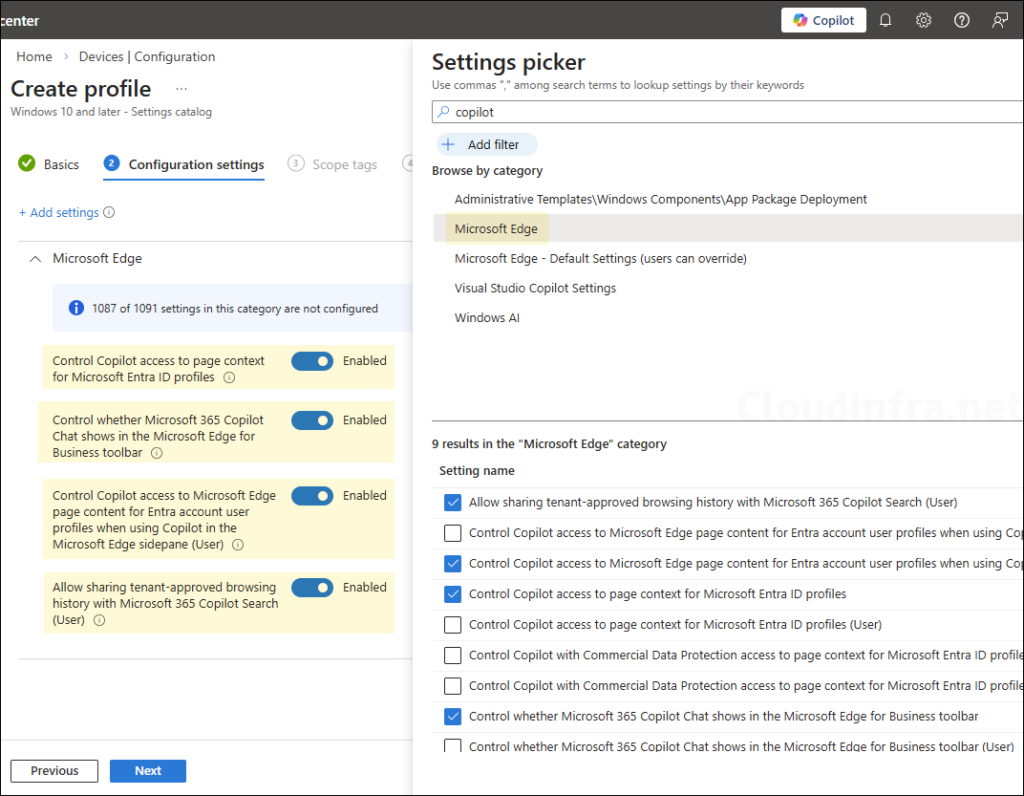
- Under the Configuration settings tab, search and add the below settings using the Settings picker and use the toggle switch to enable it:
- Control Copilot access to page context for Microsoft Entra ID profiles: This policy will not work with Copilot with enterprise data protection (EDP). Controls page-context access for Copilot.
- Control whether Microsoft 365 Copilot Chat shows in the Microsoft Edge for Business toolbar: Shows the Microsoft 365 Copilot Chat icon in Edge toolbar.
- Control Copilot access to Microsoft Edge page content for Entra account user profiles when using Copilot in the Microsoft Edge sidepane: Covers the broader Entra-based Copilot experience in the Edge sidepane, including Microsoft 365 Copilot Business Chat and Copilot with enterprise data protection. Controls page-context access for Copilot.
- Allow sharing tenant-approved browsing history with Microsoft 365 Copilot Search (User): To share tenant-approved, work-related browsing history with Microsoft 365 Copilot Search.
- Scope tags (optional): A scope tag in Intune is an RBAC label that you assign to resources such as policies, apps, and devices to control which administrators can view and manage them. For more information, see How to use scope tags in Intune.
- Assignments: Assign the policy to Microsoft Entra security groups that include the target users or devices. As a best practice, start with a small pilot group, and once validated, expand the assignment more broadly. For guidance on assignment strategy, see Intune assignments: User groups vs. Device groups.
- Review + create: Review the deployment summary and click Create.
End User Experience
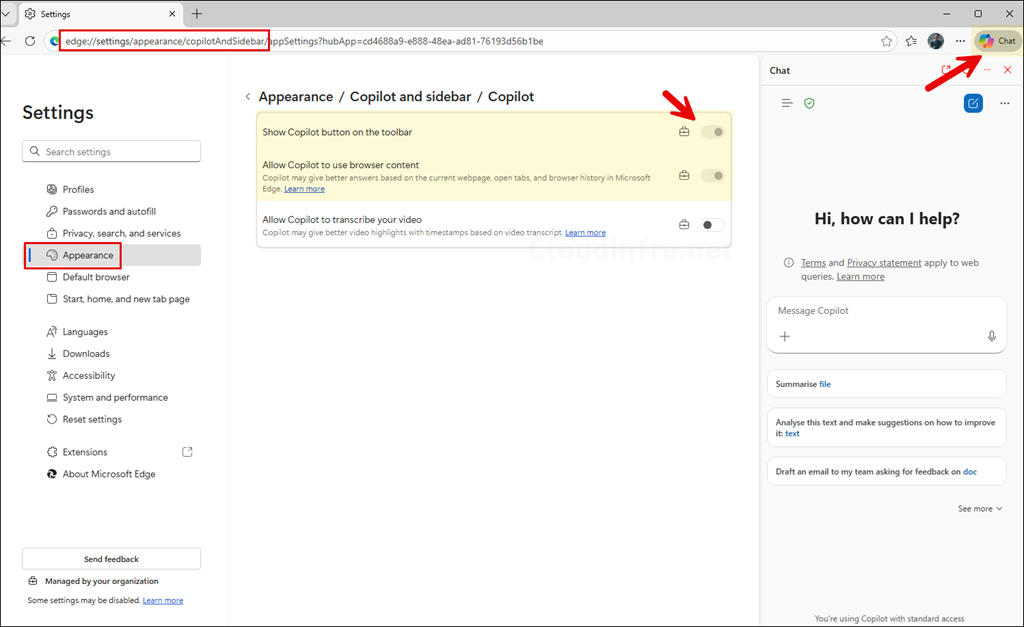
To verify that the policy has been applied, open Microsoft Edge on one of the target devices and navigate to Appearance. Under Other appearance settings, select Copilot and sidebar, and then under App-specific settings, click Copilot to review and confirm the configuration.
If Copilot is enabled in the Edge toolbar, a Copilot chat icon will appear in the top-right corner of the browser. This is another clear indication that the policy has been successfully applied to the device.
References
- Manage Microsoft 365 Copilot Chat | Microsoft Learn.
- Microsoft Edge Browser Policy Documentation Microsoft365CopilotChatIconEnabled | Microsoft Learn.
- Microsoft Edge Browser Policy Documentation CopilotCDPPageContext | Microsoft Learn.
- Microsoft Edge Browser Policy Documentation EdgeCopilotEnabled | Microsoft Learn.
