
In this post, I will show you how to fix autopilot device preparation error 80180003. If Windows Autopilot device preparation fails with error 80180003, the message usually means the user is not authorized to enroll the device into Intune during the Microsoft Entra join and MDM enrollment phase. In a user-driven device preparation deployment, the first major step is that the device joins Microsoft Entra ID and enrolls in Intune, so any issue with enrollment permissions or restrictions can stop the deployment at the start.
Autopilot device preparation requires Windows 11 and supports editions such as Pro, Pro Education, Pro for Workstations, Enterprise, Education, and Enterprise LTSC. Windows Home editions do not support Microsoft Entra join, which is a hard blocker for this scenario.
Contents
About 80180003 Error Code
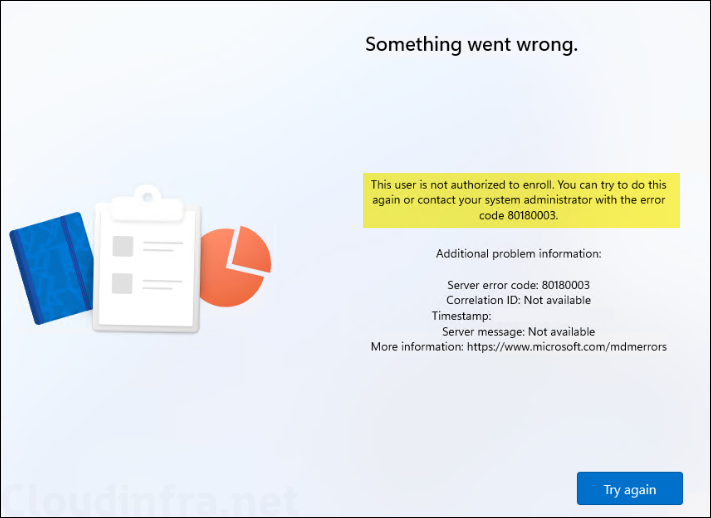
The 80180003 error code maps to the message “This user is not authorized to enroll.” There are four possible causes for this error code listed in the Microsoft Learn article. In addition to those, there are a few additional checks listed below that you can perform to troubleshoot this issue.
- Device limit reached: The user already reached the maximum allowed number of enrolled devices.
- Device platform restriction: The device is blocked by the device platform restrictions policy.
- Unsupported Edition: PC is running a Home edition.
- Microsoft Entra setting Users may join devices to Microsoft Entra is set to None.
- License Issue: User does not have an Intune license assigned.
- MDM Authority Issue: MDM authority on the Intune admin center is not set to Microsoft Intune.
The screenshot below shows the window with the error code information.
Check 1: Confirm Windows Edition
Start by checking the Windows edition on the device. Windows Home editions do not support Microsoft Entra join, and Device Preparation supports Windows 11 Pro, Pro Education, Pro for Workstations, Enterprise, Education, and Enterprise LTSC. If the device is running Home, Device Preparation will not complete correctly because the join itself is unsupported.
If the device is on Home edition, the fix is to upgrade it to Windows Pro or a higher supported edition before retrying Autopilot Device Preparation.
Check 2: Confirm Automatic Intune Enrollment
Windows Autopilot device preparation requires devices to be able to enroll in Intune automatically. Go to Microsoft Entra ID > Mobility > Microsoft Intune and set MDM user scope to All or Some. If you use Some, the affected user must be in one of the selected Microsoft Entra user groups. Refer to the link for steps to check automatic Intune enrollment: #enable-automatic-enrollment.
If this scope is missing or the user is outside the selected groups, the device preparation flow can fail before provisioning really begins. For that reason, verify the user is both licensed and inside the MDM enrollment scope before retrying the deployment. Refer to the link for understanding the prerequisites for Autopilot device preparation.
Check 3: Users may join devices to Microsoft Entra setting
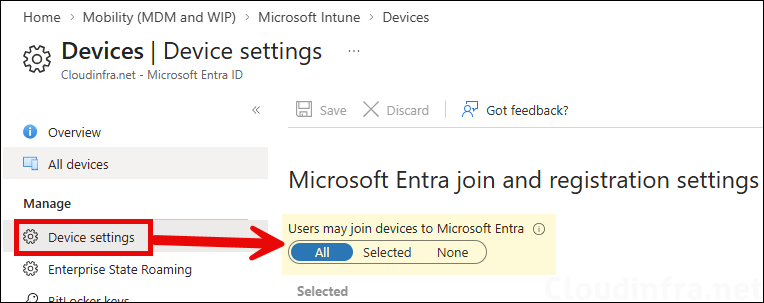
For device preparation user-driven Microsoft Entra join, users must be allowed to join devices to Microsoft Entra ID. Go to Microsoft Entra ID > Devices > Device settings and check Users may join devices to Microsoft Entra ID. Set it to All, or set it to Selected and include the affected user or a user group that contains them.
Check 4: Confirm Device Limit Restriction
Check and confirm the device limit restriction configured in the Intune admin center, and then verify how many devices the user has enrolled. If the device limit has been reached, the user will not be able to enroll another device and will receive the 80180003 error code. For more information on how to check the device limit restriction policy, refer to the steps here: #step-5-configure-device-platform-restrictions.
Check 5: Confirm Device Platform Restriction
Check and confirm the device platform restriction policy, which controls which devices can enroll in Intune. Ensure that Windows devices are allowed for enrollment. For more information, refer to the steps here: #step-5-configure-device-platform-restrictions.
This is one of the more important autopilot device preparation specific checks. Windows Autopilot Device Preparation only requires corporate identifiers for Windows if Intune enrollment restrictions are being used to block personal device enrollments. So if your tenant blocks personal Windows enrollment, add the device’s serial number, manufacturer, and model as a Windows corporate identifier in Intune before retrying the deployment. Otherwise, Intune can treat the device as personal and block enrollment, which can show up as 80180003 during Device Preparation.
Check 6: Confirm MDM Authority
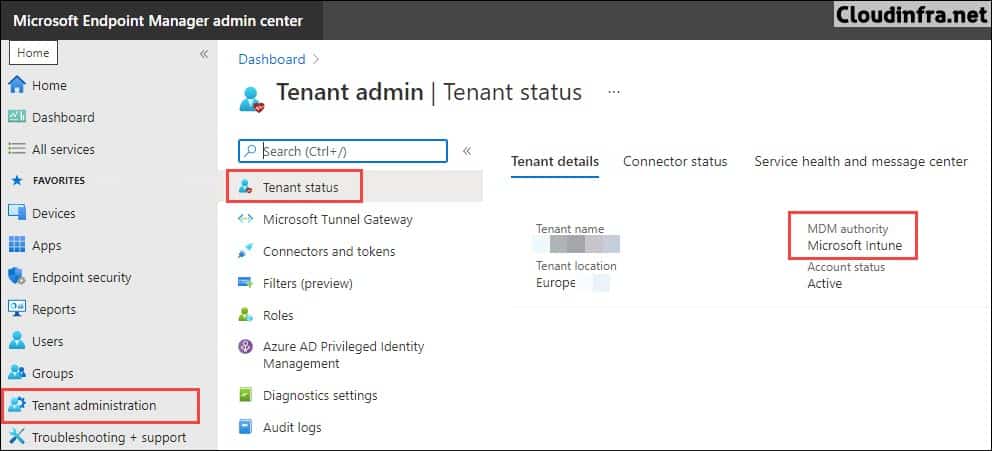
Check and confirm if MDM authority is correctly set to Microsoft Intune. If it’s showing apart from this value, like Unknown, then update it to Microsoft Intune.
Check 7: Confirm Device Preparation Policy Is Actually Used
If the device shows the normal Enrollment Status Page instead of the device preparation experience, the device probably is not running a device preparation deployment. That can happen if the device is already registered as a classic Windows Autopilot device or if a Windows Autopilot profile is assigned, because the Autopilot profile takes precedence over the device preparation policy.
Confirm that the user signing in during OOBE is a member of the user group assigned to the Device Preparation policy and that a device group is selected in that policy. If any of those assignments are wrong, the expected deployment can fail or never start correctly.
Collect logs if 80180003 still appears
For Windows Autopilot logs, check Event Viewer > Applications and Services Logs > Microsoft > Windows > ModernDeployment-Diagnostics-Provider > Autopilot.
For MDM enrollment logs, check Applications and Services Logs > Microsoft > Windows > DeviceManagement-Enterprise-Diagnostics-Provider.
Use the built-in MDM report via Settings > Accounts > Access work or school > [account] > Info > Create report. If you need a full diagnostics bundle, use the command below. That report includes Autopilot ETLs, provisioning ETLs, MDM HTML/XML reports, registry dumps, and the main MDM event logs.
mdmdiagnosticstool.exe -area "DeviceEnrollment;DeviceProvisioning;Autopilot" -zip "C:\Users\Public\Documents\MDMDiagReport.zip"For Device Preparation specifically, when provisioning fails during OOBE, an Export logs option is shown. Current known issues is that the logs are saved to the first USB drive without a browse dialog and without a success message, so admins should insert a USB drive before using that option.
To remotely collect Intune logs, refer to the link: Collect Intune logs from Windows Devices.
Conclusion
In Windows Autopilot Device Preparation, 80180003 is usually an enrollment authorization problem, not an app installation problem. The most common fixes are correcting MDM automatic enrollment, allowing the user to join devices to Microsoft Entra ID, removing device-limit blockers, and making sure Windows enrollment restrictions are not blocking the device. On tenants that block personal Windows enrollment, adding a corporate identifier is also a key Device Preparation-specific check.
