
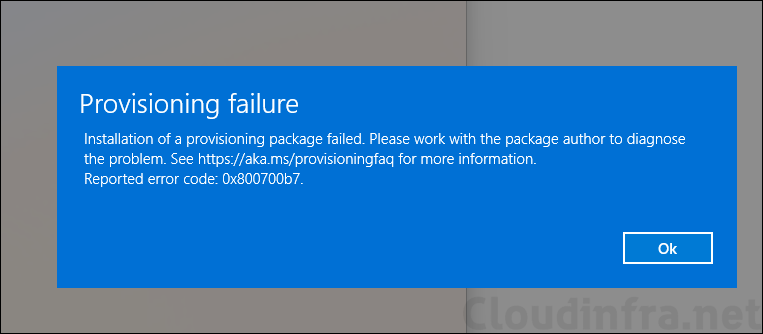
In my previous post, I provided a detailed step-by-step guide on how to bulk enroll Windows 11 devices in Intune using a provisioning package, including different methods for applying a provisioning package. When enrolling Windows 11 devices in Microsoft Intune using a provisioning package (.ppkg file), you may encounter the following error:
Provisioning failure: Installation of a provisioning package failed. Please work with the package author to diagnose the problem.
Reported error code: 0x800700b7
Contents
What is Error 0x800700b7?
Provisioning failure error 0x800700b7 maps to the Win32 error ERROR_ALREADY_EXISTS (183), which means “Cannot create a file when that file already exists.” In a provisioning scenario, this generally indicates that Windows encountered an existing object, configuration, or provisioning state while attempting to apply settings from the provisioning package.
Causes of Error 0x800700b7
Below are some common causes of Windows provisioning error code 0x800700b7:
- A provisioning package was previously installed on the device.
- The previous provisioning attempt failed but left some configuration behind.
- The device is already connected to a work or school account.
- The device is already joined to Microsoft Entra ID or enrolled in Intune.
- Another provisioning package contains conflicting configuration.
- The package is being applied to a Windows Autopilot device and contains join, enrollment, or device-name settings.
- A setting, file, account, or other object that the package attempts to create already exists.
- The provisioning package is in a corrupted state.
Fix Intune Enrollment Error 0x800700b7
If you want to apply a new provisioning package when an existing package is still installed on the device, you must first remove the existing provisioning package and then apply the new one. To remove a provisioning package from a Windows 11 device, follow the steps below:
- Go to Settings > Accounts > Access work or school > Add or remove a provisioning package.
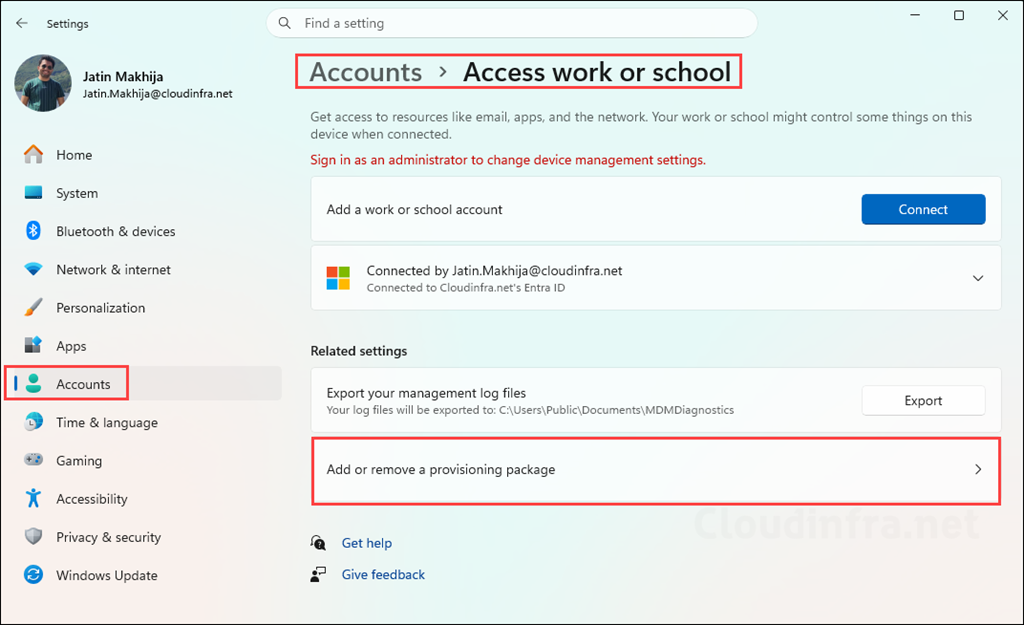
- Check whether the provisioning package, or an older version of it, is already installed on the device. Select the package and click Remove. If you are not signed in with an administrator account, a User Account Control (UAC) prompt will appear. Enter the administrator credentials to continue. Once successfully authenticated, the provisioning package will be removed from the device.
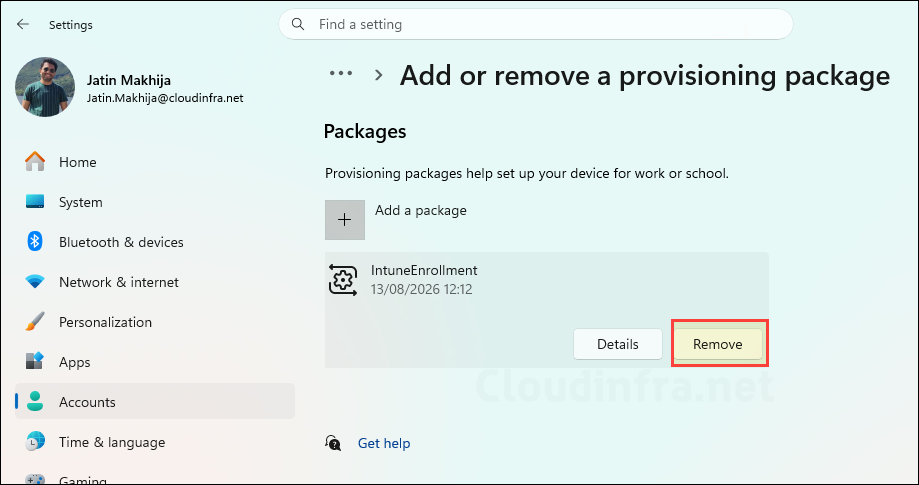
- After the existing provisioning package has been removed successfully, you can apply the new provisioning package (
.ppkgfile). This time, the package should install successfully without encountering error code 0x800700b7. Go to the blog post to learn the steps for installing a provisioning package on Windows 11: Bulk Enroll Windows 11 To Intune Via Provisioning Package.
Remove Provisioning Package via PowerShell
You can also use PowerShell to check for existing provisioning packages and remove them directly from the command line. Let’s go through the steps.
- Open Windows PowerShell as administrator and run below command:
Get-ProvisioningPackage -AllInstalledPackagesThe command displays provisioning packages currently installed on the Windows device.
- Review the output and locate the package that you want to remove. You can remove a specific provisioning package using its Package ID.
Remove-ProvisioningPackage -PackageId "<PackageID>"Remove-ProvisioningPackage -PackageId "2d77d9a2-xxxx-xxxx-xxxx-xxxxxxxxxxxx"Further Troubleshooting
Removing the existing provisioning package should resolve error code 0x800700b7 and allow you to apply the new package successfully. However, if you continue to experience issues, you can try the additional troubleshooting steps below:
Check Event Logs
If error 0x800700b7 persists, Event Viewer can provide more information about the specific setting or component that failed. Open Event Viewer and go to Applications and Services Logs > Microsoft > Windows > Provisioning-Diagnostics-Provider > Admin. Look for error events generated around the same time you attempted to apply the provisioning package.
Review the events immediately before and after the 0x800700b7 error. The logs may identify the CSP, setting, account, file, application, or configuration that Windows was attempting to create when the conflict occurred. This is particularly useful when the provisioning package contains additional settings or configurations beyond Microsoft Entra join and Intune enrollment.
Check Registry Keys
Open Registry Editor (regedit) and navigate to HKEY_LOCAL_MACHINE\SOFTWARE\Microsoft\Provisioning\Diagnostics\ProvisioningPackages. Check for leftover entries from an old or failed provisioning package. If you can clearly identify an obsolete package entry, back up the registry first, and then remove only the specific key associated with that package. Restart the device and try applying the .ppkg file again.
PPKG Corruption
The provisioning package may be corrupted or may not have been created correctly. Recreate the provisioning package using Windows Configuration Designer, copy the new .ppkg file to the device, and try applying it again.
