
Outlook Error 500 usually appears when you try to open Outlook on the web (OWA) at outlook.office.com (or a related Microsoft 365 URL) and the session cannot be established. In most cases, Outlook desktop continues to work, which is a strong signal that the issue is related to web sign-in/session state, role-based admin evaluation, or mailbox provisioning and configuration rather than a general Exchange outage.
In this guide, I’m focusing on solutions that are aligned with Microsoft guidance and have a consistent success rate in real tenant troubleshooting. I’m also separating the fixes by the exact Error 500 message you see, because the root cause and resolution methods are different.
Contents
Before You Start
- Confirm you are troubleshooting Outlook on the web (not desktop Outlook): Error 500 in this context is most commonly tied to the web experience and the Microsoft 365 authentication flow. The steps below assume the user is accessing Outlook via a browser on outlook.office.com or https://outlook.office.com/mail/ or through the Microsoft 365 app launcher.
- Check if this is isolated or widespread: If multiple users are affected, treat it as a potential service incident first. Microsoft recommends checking Service health in the Microsoft 365 admin center. Sign in to the Microsoft 365 admin center > Go to Health > Service health and review Exchange Online advisories/incidents and any authentication-related notices.
- Capture the “More details” information (if available): When Outlook shows More details, capture the correlation ID, timestamp, and any additional codes. This materially speeds up troubleshooting in Entra sign-in logs and support cases.
Error 500: Repeating redirects detected
This error means the browser is stuck in an authentication loop. The most common root causes are:
- Corrupted or conflicting cookies/session tokens for Microsoft 365 endpoints.
- Multiple signed-in accounts in the same browser profile.
- Role-related issues for users with multiple Microsoft 365 admin roles (this is surprisingly common).
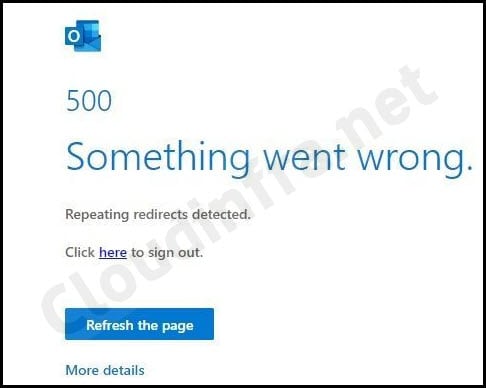
Step 1: Validate browser compatibility and eliminate extension impact
Unsupported or outdated browsers can break modern sign-in flows. Microsoft documents supported browsers for Outlook on the web and Microsoft 365 for the web here: Supported browsers for Outlook on the web and Outlook.com – Microsoft Support.
- Use the latest version of Microsoft Edge, Google Chrome, or Mozilla Firefox.
- Try InPrivate (Edge) or Incognito (Chrome) mode.
- If Incognito works, the issue is almost always cookies, cached site data, or extensions.
Step 2: Clear site data for Microsoft 365 sign-in endpoints
Instead of clearing site data for all websites, take a targeted approach and only perform the cleanup for Microsoft 365 sign-in endpoints to break the redirect loop. Below steps will guide you on how to perform this cleanup in Edge and Chrome browsers.
Steps (Edge/Chrome)
- Open browser Settings.
- Go to Privacy and security > Cookies and other site data (or Site data).
- Search and remove site data for these domains (remove what matches your environment):
- outlook.office.com
- office.com
- microsoft365.com
- login.microsoftonline.com
- Close the browser completely (all windows), then reopen and try again.
Step 3: Sign out everywhere to invalidate stale sessions
If you continue to get the repeating redirects detected error even after clearing the site data, then try to force sign-out your sessions from everywhere to break the redirect loop by invalidating cached sessions.
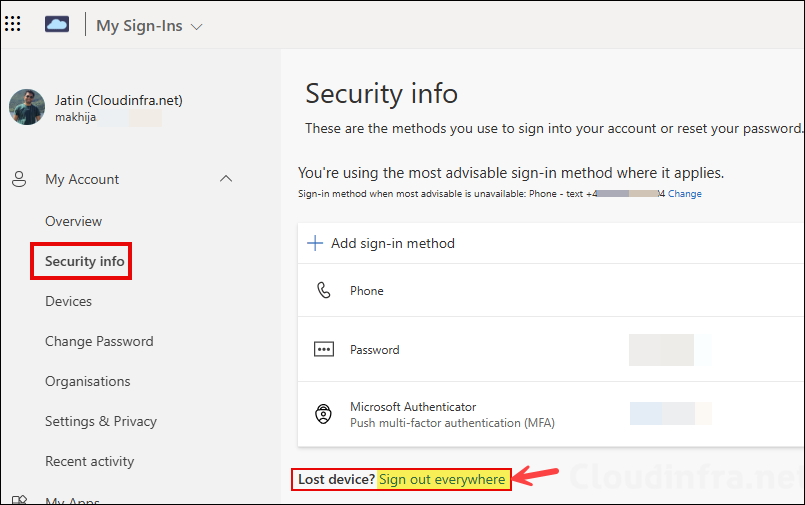
- Go to the user’s account portal and open Security info.
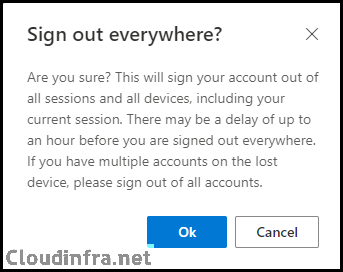
- Use Sign out everywhere. This may take time to propagate depending on account type and session state.
- Wait a few minutes, then try Outlook on the web again.
Step 4: If the user has admin roles, reduce roles and retest (high success rate)
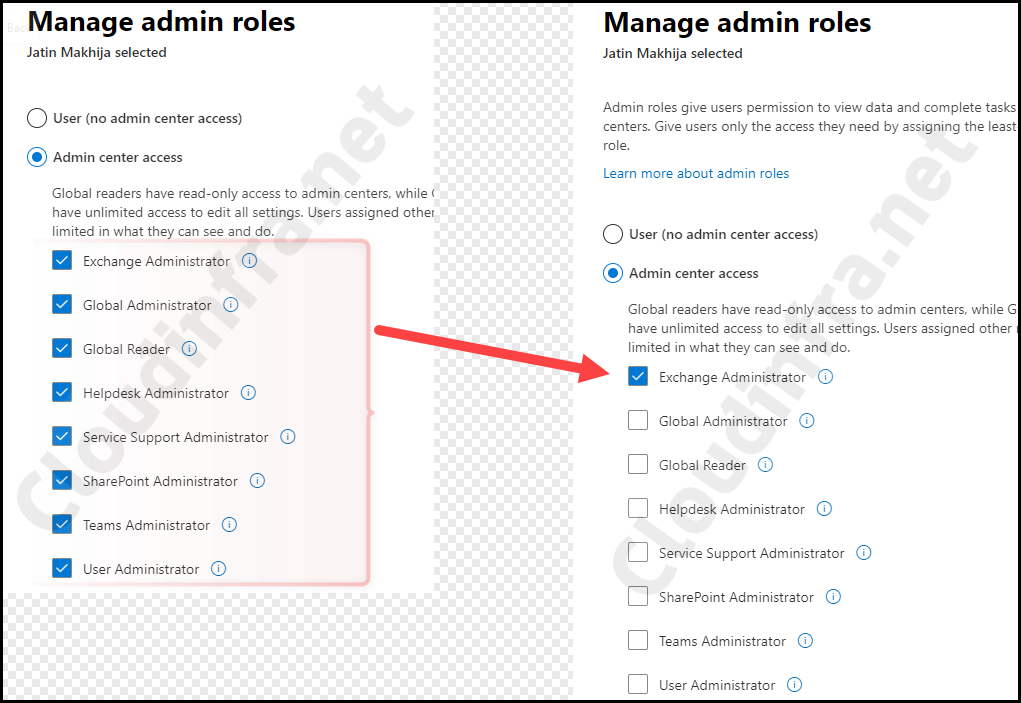
A user can have multiple admin roles. For example, a user may be an Exchange Administrator, Power BI Administrator, Security Administrator, SharePoint Administrator, Teams Administrator, Helpdesk Administrator, or User Administrator. This error occurs because the user has too many admin roles assigned.
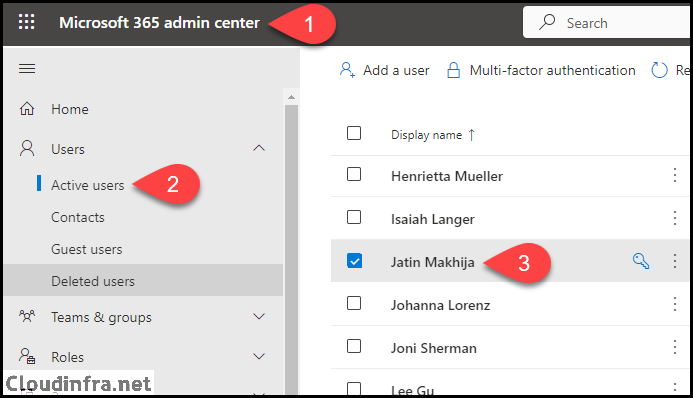
- Sign in to the Microsoft 365 admin center with admin rights.
- Go to Users > Active Users > Select the affected user.
- Under Roles, select Manage roles.
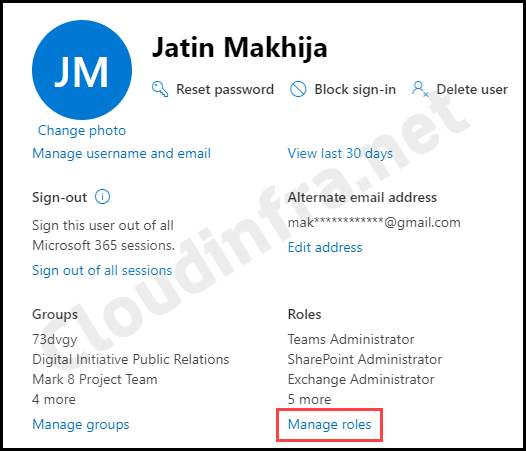
- Remove any admin roles the user does not actively need.
- Save changes and retest Outlook on the web.
Step 5: Windows SSO token reset
If the redirect loop happens across browsers on the same Windows device, the culprit can be Windows Web Account Manager (WAM) or device-level token storage used for SSO. Microsoft provides troubleshooting for Microsoft 365 sign-in/authentication failures that includes verifying WAM plug-ins and using supported remediation paths.
- Sign out of Office apps on the device (Teams, Outlook desktop, OneDrive).
- Reboot the device.
- Try Outlook on the web again.
If the issue persists, use Microsoft’s sign-in troubleshooting guidance for WAM-related sign-in failures and plugin health checks: Can’t Sign In to Microsoft 365 Desktop Applications – Microsoft 365 Apps | Microsoft Learn.
Error 500: We couldn’t find a mailbox for this account
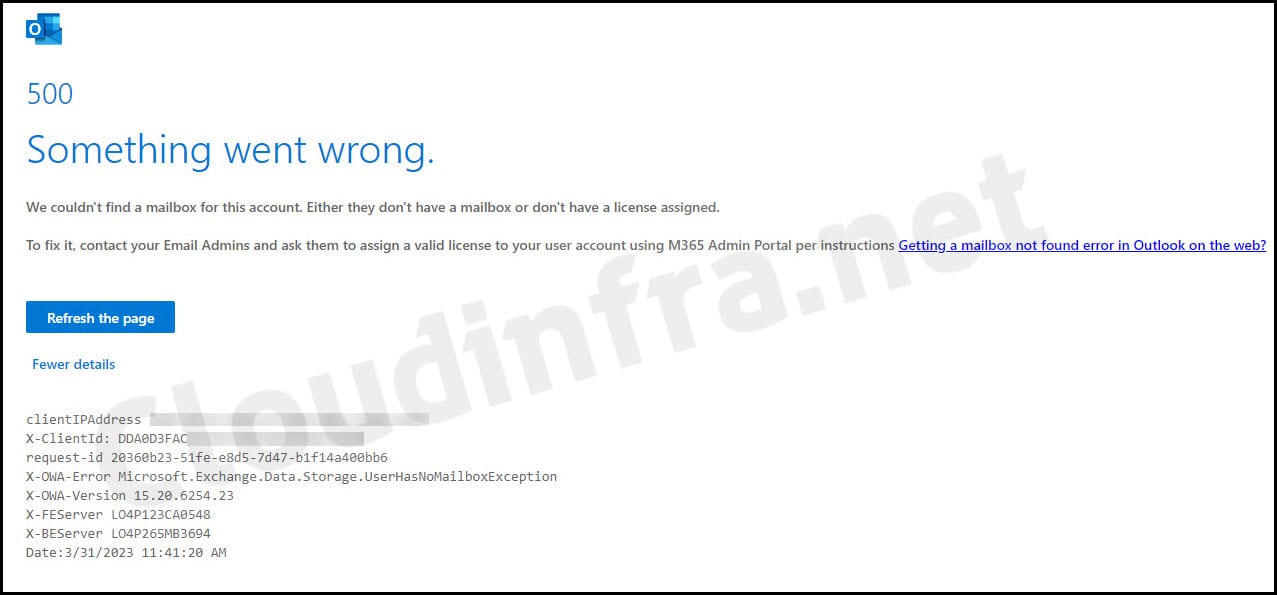
This error, Outlook Error 500: Something went wrong. We couldn’t find a mailbox for this account; is not a browser session issue. It is almost always one of these:
- No Exchange Online license (or Exchange service plan disabled)
- Mailbox not provisioned yet (recent licensing change)
- OWA access disabled for the mailbox.
- Attempting to sign in directly to a shared mailbox account (not supported as a standard operation).
| Error 500: Something went wrong |
|---|
| We Couldn’t find a mailbox for this account. Either they don’t have a mailbox or don’t have a license assigned. To fix it, contact your Email Admins and ask them to assign a valid license to your account using M365 Admin Portal per instructions. |
Step 1: Confirm Exchange Online licensing and mailbox provisioning
If the user truly has no Exchange Online entitlement, OWA will show this message. A mailbox may also take time to provision after assigning a license (especially immediately after account creation or changes).
- In Microsoft 365 admin center > Users > Active users > select user.
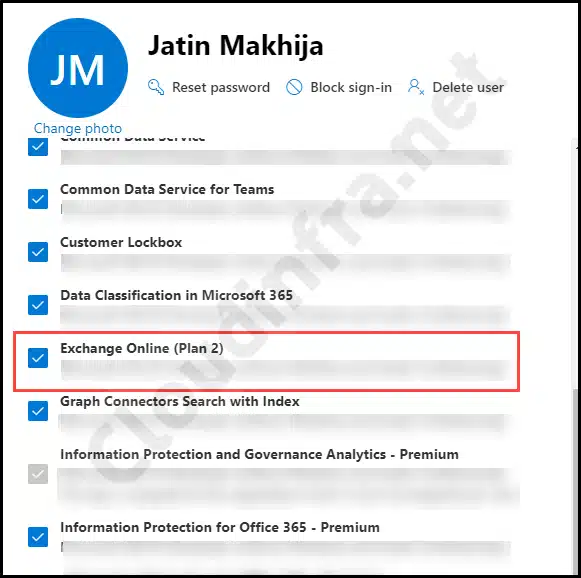
- Open Licenses and apps.
- Confirm the user has a license that includes Exchange Online and that the Exchange service plan is enabled. If licensing was just assigned or changed, wait and retry after provisioning time.
Step 2: Verify if mailbox exists in Exchange Online
Even with a license, you should confirm the mailbox object exists. If the mailbox is not present and the user is licensed, recheck that Exchange Online is enabled in the license and allow time for provisioning.
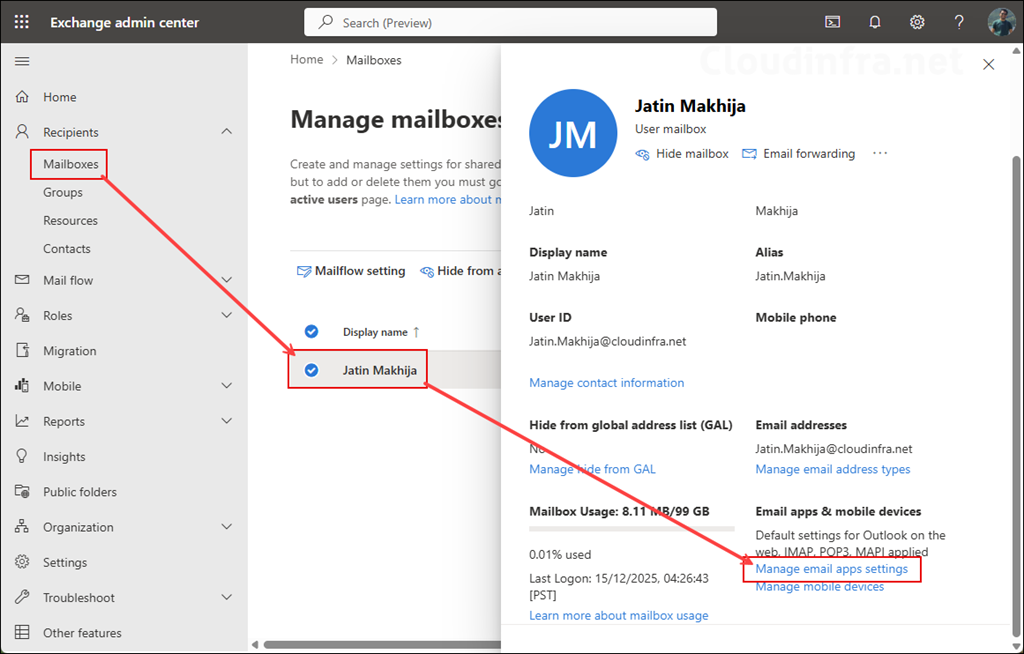
- Open the Exchange Admin Center (EAC): https://admin.exchange.microsoft.com/.
- Go to Recipients > Mailboxes.
- Search for the user and confirm the mailbox is present.
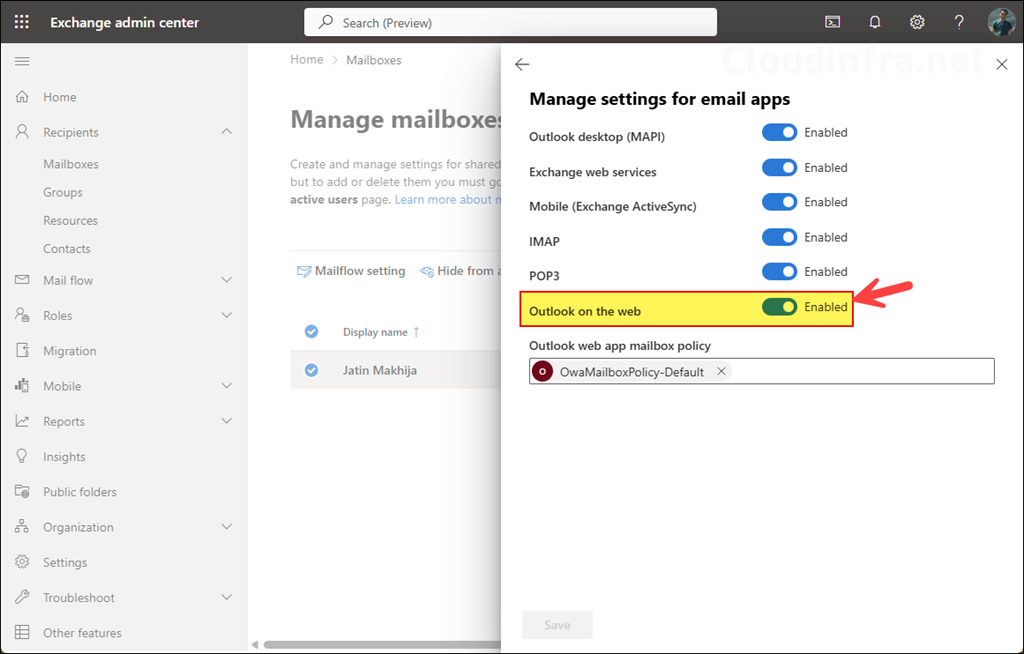
Step 3: Ensure Outlook on the web is enabled for the mailbox
A mailbox can exist but still be blocked from OWA. Check to confirm if Outlook on the web is enabled or disabled at the mailbox level.
- Open the Exchange Admin Center (EAC): https://admin.exchange.microsoft.com/.
- Go to Recipients > Mailboxes. Select the mailbox.
- Click on Manage email apps settings.
- Ensure Outlook on the web is Enabled.
Configure mailbox settings via PowerShell
Set-CasMailbox -OWAEnabledTip
Step 4: Shared mailbox warning
If someone is trying to sign into a shared mailbox directly, you can hit mailbox or access errors. To open the shared mailbox, correct way is to sign in as the licensed user then Open another mailbox.
- A shared mailbox doesn’t require its own license in many cases, but users who access it must be licensed.
- You shouldn’t use the shared mailbox account to sign in.
- Directly accessing a shared mailbox via Outlook Web App in Microsoft 365 is not supported in the direct-login sense and can lead to failures (including blank page scenarios).
Step 5: Mailbox was deleted or is soft-deleted
If the user previously had a mailbox and licensing looks correct now, the mailbox may be in a deleted or soft-deleted state. This could be the reason for getting Error 500: We couldn’t find a mailbox for this account error.
Step 6: Check Service Health
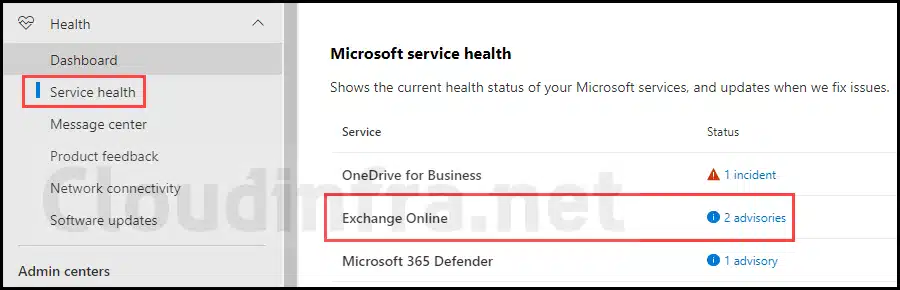
Regularly monitor the Service health status in the Microsoft 365 admin center, especially if many users in your organization are experiencing the same issue. You can often find relevant information in this section if there are any issues with Exchange Online services. To check the Service health, follow these steps:
- Sign in to the Microsoft 365 admin center using admin rights > Go to Health > Service health.#
- Check Exchange Online service status.
Escalate to Microsoft Support
If you have tried all the steps and the issue persists, raise a support ticket with Microsoft. Below are the scenarios when you should open an MS support ticket.
- The issue affects many users, and Service Health does not show a matching incident.
- You have validated licensing, mailbox presence, and OWA enablement, but the mailbox still cannot be opened.
- Redirect loops persist after cookie cleanup, sign-out everywhere, and role rationalization.
Make sure to capture as much information as possible about the issue for the MS support engineer.
- Screenshot of the exact error.
- “More details” correlation info (correlation ID, timestamp).
- URL user is using to access Outlook on the web.
- Whether the user has admin roles.
- Confirmation of Exchange Online license and mailbox status
