
In this blog post, I will show you 3 ways to export software inventory report from Intune. Microsoft Intune can provide a practical “software inventory” view using the discovered apps dataset (sometimes referred to as app inventory). This report helps you identify installed applications and versions across managed devices, validate standardization efforts, and support application consolidation. This is not a traditional CMDB-grade inventory. The dataset depends on platform support, device management state, and refresh intervals.
Contents
What Discovered Apps report includes
The discovered apps dataset is built from Intune’s inventory collection and differs by platform. For Windows, inventory includes discovered apps, application name, platform, application version, device count, and application publisher information.
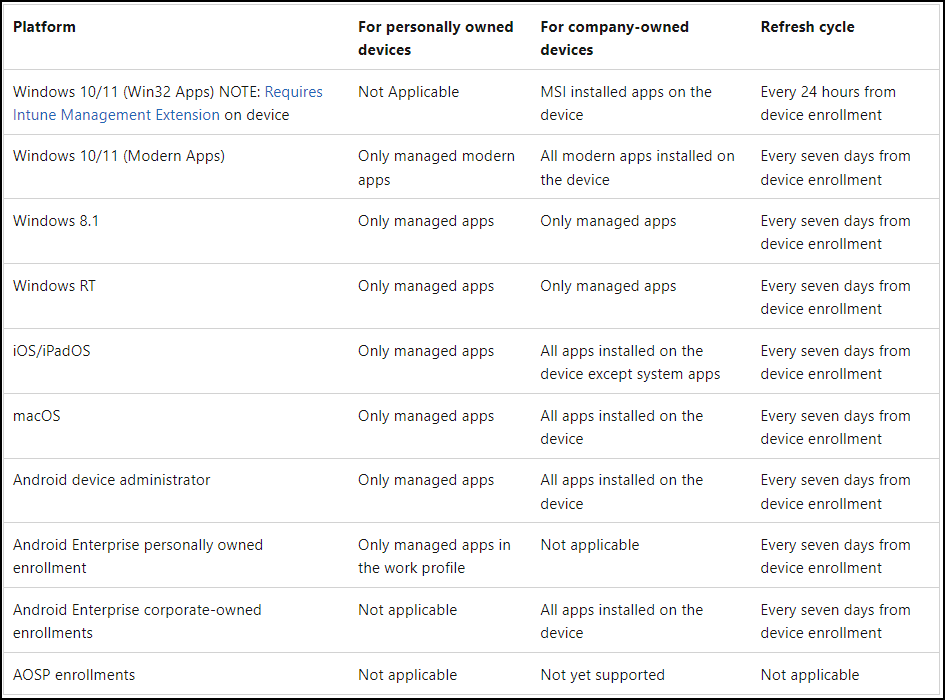
For iOS/iPadOS, personal devices report managed apps only; behavior changes starting with iOS/iPadOS 26 (system apps can also appear). Android: AOSP is not supported for this report. Co-managed devices: not supported for the discovered apps report. For more details about what’s included for each platform along with refresh cycle, refer to the table: Discovered Apps – Microsoft Intune | Microsoft Learn.
Software Inventory Report Use Case (Example)
One common use case for regularly generating and reviewing a software inventory report is to ensure that devices have only organization-approved applications installed. When users have local administrator rights on Intune-managed devices, controlling application installations becomes challenging unless you are using App Control for Business.
You can export the list of applications detected on users devices and review it for any non-standard or unapproved software. If such applications are identified, you can follow up with the user and plan their removal. Even when users do not have administrator rights on their devices, it is still a good practice to review the software installed across your device estate to verify that only approved applications are present.
Intune Discovered Applications
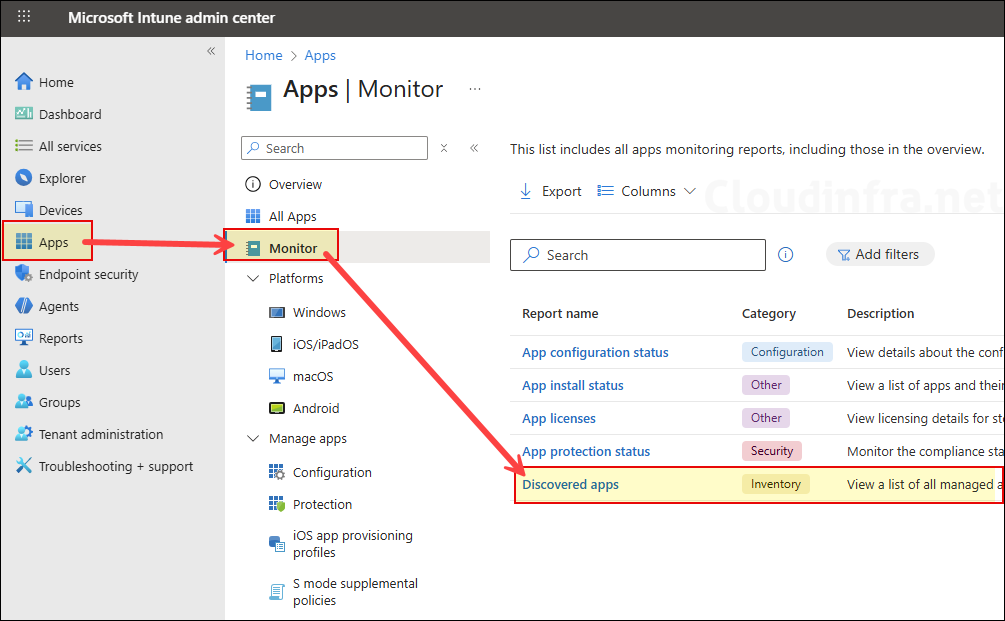
Intune automatically discovers apps from your organization’s Intune-enrolled devices. The apps can be exported into a CSV file and act as a software inventory for your tenant. You can view the discovered apps from Intune admin center > Apps > Monitor > Discovered Apps. For personal devices, Intune will never gather information on unmanaged applications. However, on corporate devices, all applications, whether managed or not, are collected for reporting purposes.
Intune App Discovery Refresh Interval
The general refresh cycle for discovered apps is every 7 days, except for Win32 apps, which refresh every 24 hours. For Intune-managed devices, app discovery runs automatically every 7 days from the device enrollment date. This process detects any application installed on the device, whether it was installed manually by the user or deployed via Intune. All detected applications are listed in the app discovery report.
It is important to note that on unmanaged, BYOD, or personal devices, only Intune-managed applications (apps deployed and managed through Intune) are reported in app discovery. Any applications installed manually by users on BYOD devices are not detected or included in the app discovery report.
- Intune app discovery report refreshes every 7 days from the enrollment time of each device (not a weekly refresh for the entire tenant).
- The Discovered Apps report includes application information gathered through the Intune Management Extension for Win32 Apps, collected every 24 hours.
Below screenshot shows useful information for determining the Intune app discovery refresh cycle for managed devices. Below table shows that the Intune app discovery refresh cycle is 7 days for all platforms and app types, except for Win32 apps, which refresh every 24 hours from device enrollment.
Option 1: Export Full Software Inventory Report for All Devices
This method exports the tenant-level inventory based on the discovered apps dataset and is the most common approach when you want a global view. To export a complete software inventory report, follow below steps:
- Sign in to the Intune admin center > Apps > Monitor > Discovered Apps.
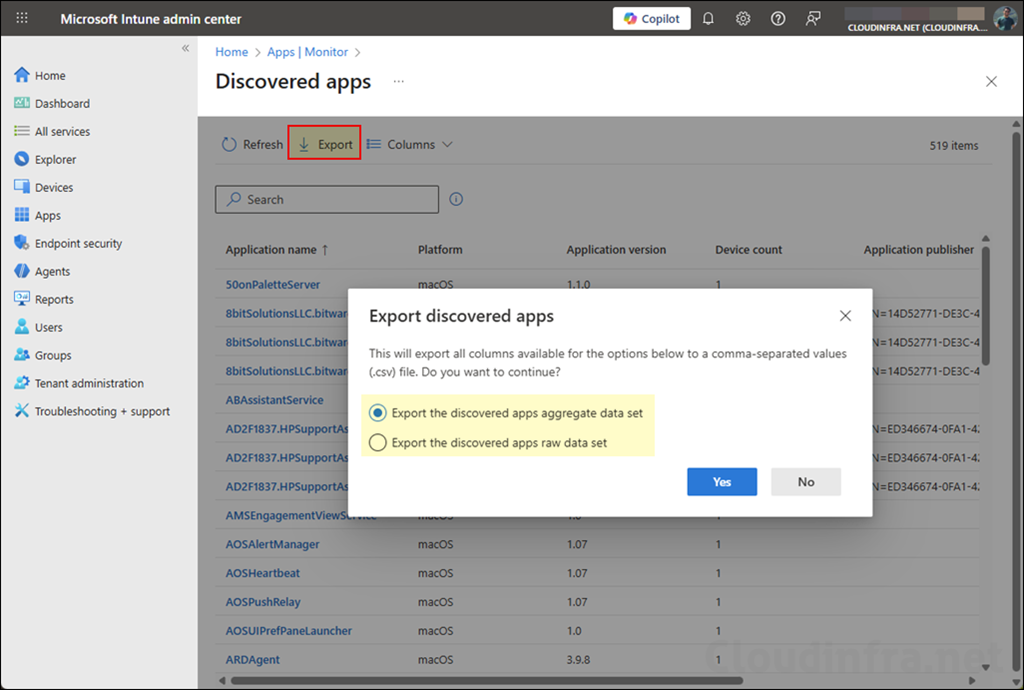
- Click Export to export the discovered apps report; you will be presented with the following two options to choose from:
- Export the discovered app’s aggregate data set
- Export the discovered app’s raw data set
You have two report options: one offers an aggregate data set, while the other provides a raw data set. Your choice between the two depends on the level of detail you require in your report about the installed applications on Intune-managed devices.
The aggregate data set is suitable if you prefer a concise summary. However, the raw data set is better if you need a more in-depth and detailed view of the data. Your decision should align with your specific reporting needs and the granularity you want in the report.
- Aggregate (summary): best for high-level reporting (app name/version with counts).
- Raw dataset: best for in-depth analysis and filtering in Excel/Power BI
Let’s check the information contained in both these reports. When you export either report, it will be compressed into a Zip file. After extracting the ZIP file, you will find a CSV file inside. Open the CSV file to review the information it contains.
About Export the discovered apps aggregate data set Report
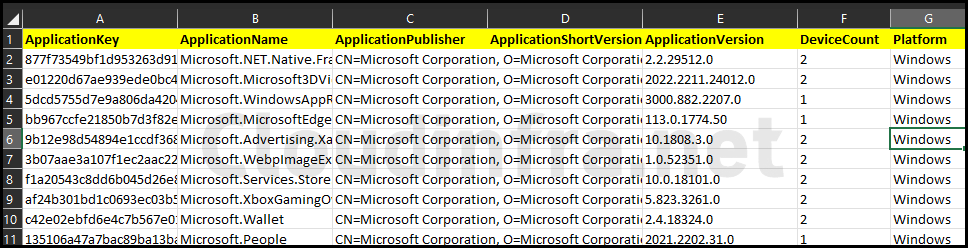
When you select this option to export the Intune app discovery report, it will include the following columns of information:
- ApplicationKey
- ApplicationName
- ApplicationPublisher
- ApplicationShortVersion
- ApplicationVersion
- DeviceCount
- Platform
About Export the discovered apps raw data set Report
If you opt for this option when exporting the Intune app discovery report, it will include the following columns of information. If you require device name and username information in addition to the installed application’s data, selecting this option during the export is the way to go.
- ApplicationKey
- ApplicationName
- ApplicationPublisher
- ApplicationShortVersion
- ApplicationVersion
- DeviceId
- DeviceName
- OSDescription
- OSVersion
- Platform
- UserId
- EmailAddress
- UserName
Option 2: Export Per Device Software Inventory Report
Use this method when troubleshooting a specific endpoint, validating standard build baselines, or confirming whether a specific application/version is present.
- Sign in to the Intune admin center > Devices > All devices > Click on any device.
- Click on Discovered Apps under the Monitor category.
- Click on Export to export the list of Installed software on this device.
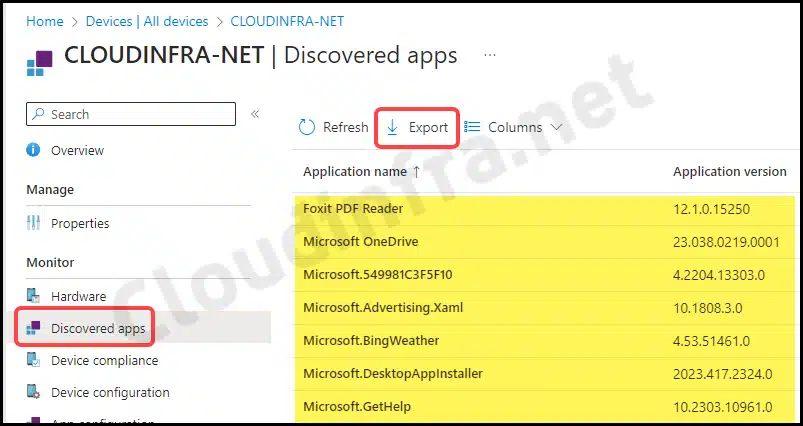
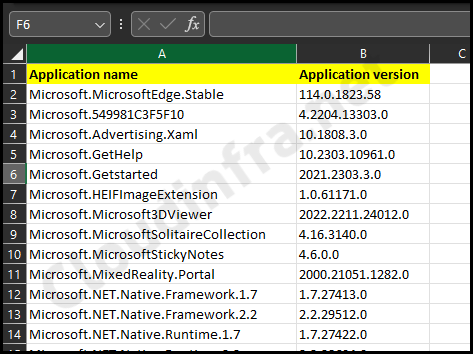
The report will be downloaded directly as a CSV file when you export per-device software inventory. This report will contain only two columns of information: one column will display the application name, and the other will show the application version information. As shown in the below screenshot, this report is a simplified version compared to when you export the Intune app discovery report from the Monitor > Discovered apps.
If you require more detailed information about the apps, use Option 1: Apps > Monitor > Discovered Apps and select Export the discovered apps raw data set.
Option 3: Export Intune Software Inventory using Microsoft Graph PowerShell
Another way to export the software inventory to a CSV file from Microsoft Intune is by using Microsoft Graph PowerShell. First, install the Microsoft Graph PowerShell module on your computer, then download the script from my GitHub repository and execute it on your device.
The script uses Connect-MgGraph with the required permission scopes (DeviceManagementManagedDevices.Read.All). Therefore, ensure that you sign in with an account that can grant delegated admin consent for these permissions. If your account does not have this capability, request admin consent from a global administrator, provided your tenant configuration allows it.
Install Microsoft PowerShell Graph Module (skip this if already installed)
Install-Module Microsoft.Graph -Scope CurrentUser -AllowClobber -ForceDownload Export-IntuneSoftwareInventory.ps1 script from GitHub: Export-IntuneSoftwareInventory.ps1 at master · Jatin-Makhija-sys/Powershell-Scripts · GitHub. The location where the report will be generated is already included in the script, which is C:\temp\Intune-DetectedApps.csv. You can change the location in the script variable: $OutputPath.
Execute Export-IntuneSoftwareInventory.ps1 PowerShell script
.\Export-IntuneSoftwareInventory.ps1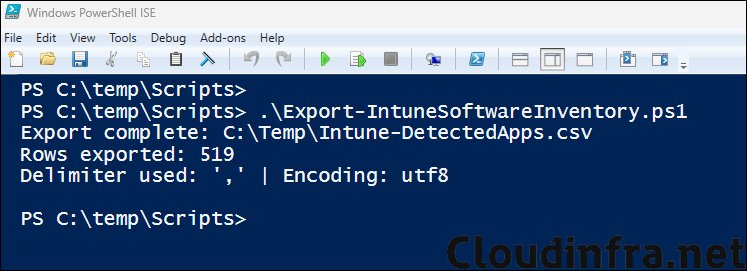
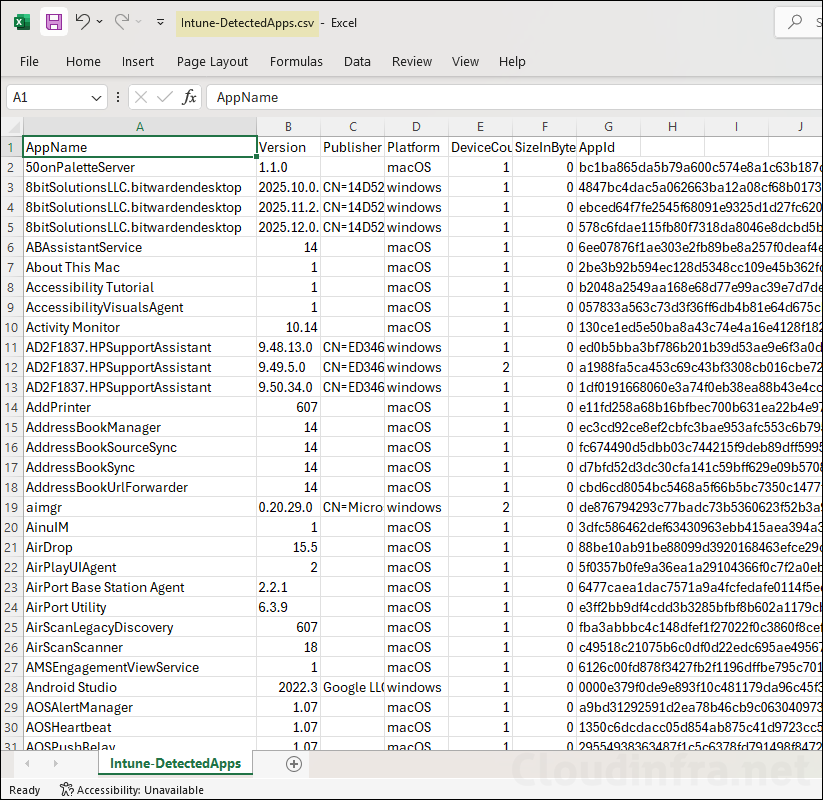
Below is the exported Intune-DetectedApps.csv file, which contains AppName, Version, Publisher, Platform, DeviceCount, SizeInBytes, and AppId information.
Conclusion
In this blog post, we’ve explored exporting a software inventory report for all Intune-managed devices. You can also choose to export this inventory for individual devices. The per-device app discovery report offers a simplified overview, comprising mainly the application name and version information. If you prefer the Microsoft Graph PowerShell method, then use the given script to export the software inventory report.
