
In this post, I will show how to create a scheduled task using Intune. Scheduled Tasks remains one of the most dependable ways to run automation on Windows devices. They are particularly useful when you need an action to run on a predictable schedule, at user sign-in, at device startup, or when the device becomes idle. As an example, I will demonstrate deploying a scheduled task via Intune that reboots a Windows device every day at 3:00 AM.
To create a scheduled task, we will use Intune device remediations, which require a detection script and a remediation script. The detection script checks whether the scheduled task exists on the device. If it does not exist, the remediation script runs and creates the scheduled task. Let’s review the steps.
Contents
Create Intune Device Remediations Script Package
The script package contains both the detection and remediation scripts. The detection script checks whether the scheduled task exists, and if required, the remediation script creates the scheduled task. To create an Intune device remediation script package, follow the steps below.
Before proceeding, download Detection_scheduledtask.ps1 and Remediation_scheduledtask.ps1 scripts from my GitHub repository. I have also provided the script content below that can be used to create the detection and remediation PowerShell scripts.
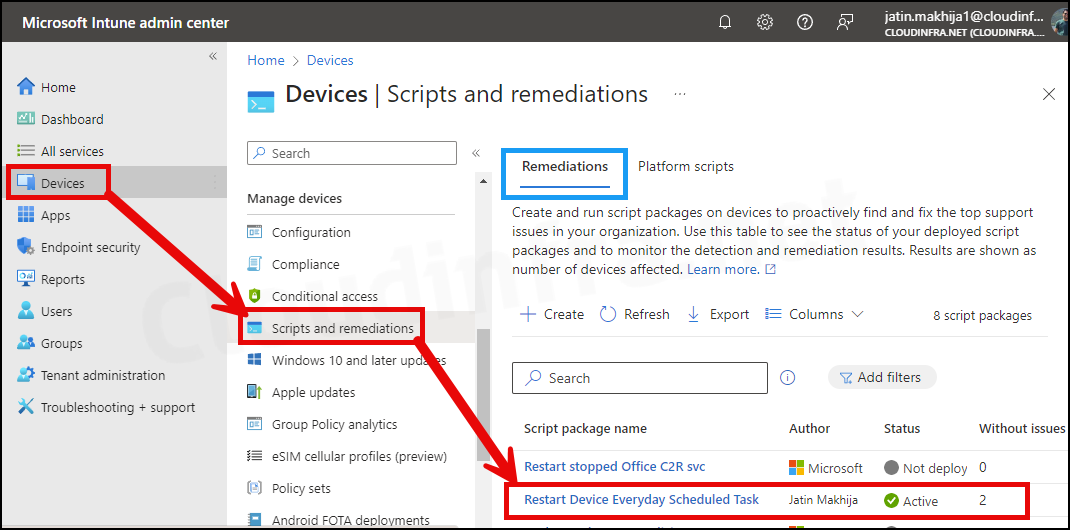
- Sign in to the Intune admin center > Devices > Scripts and remediations > Click on + Create under the Remediations tab.
- Basics Tab: Provide the name and description of the remediation. For example: Restart Device Everyday Scheduled Task.
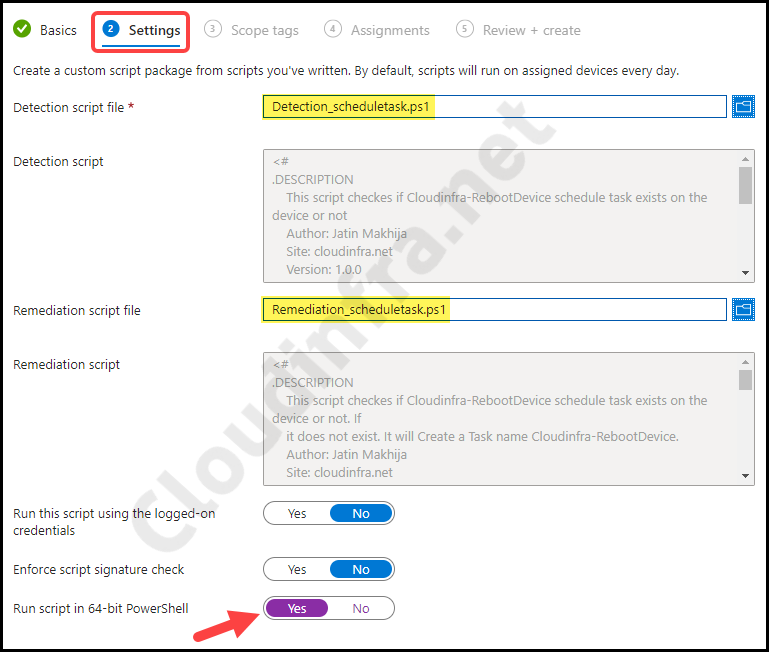
- Settings Tab: Browse to detection and remediation scripts and configure below settings.
- Detection script file: Browse to the detection script Detection_scheduledtask.ps1.
- Remediation script file: Browse to remediation script Remediation_scheduledtask.ps1.
- Run this script using the logged-on credentials: No
- Enforce script signature check: No
- Run script in 64-bit PowerShell: Yes
Detection_scheduledtask.ps1
<#
.SYNOPSIS
    Detection script: Scheduled Task existence check.

.DESCRIPTION
    Detects whether a specific scheduled task exists.

.NOTES
    Author  : Jatin Makhija
    Site    : cloudinfra.net
    Version : 1.0.0

    Exit codes:
      0 = Task exists (no remediation required)
      1 = Task does not exist (remediation required)
#>

$taskName = "Cloudinfra-RebootDevice"
$taskStatus = Get-ScheduledTask | Where-Object { $_.TaskName -eq $taskName }
if ($taskStatus) {
    Write-Host "Task already Exists. No Action Needed."
    Exit 0
}
Else {
    Write-Host "Task does not exist, Remediation required"
    Exit 1
}
Remediation_scheduletask.ps1
<#
.SYNOPSIS
    Remediation script: Create Cloudinfra-RebootDevice scheduled task if missing.

.DESCRIPTION
    This script checks if the Cloudinfra-RebootDevice schedule task exists on the device or not. If it does not exist. It will create a task named Cloudinfra-RebootDevice.

.NOTES
    Author  : Jatin Makhija
    Site    : cloudinfra.net
    Version : 1.0.0

    Exit codes:
      0 = Task exists or created successfully
      1 = Task creation failed
#>

$taskName   = "Cloudinfra-RebootDevice"
$taskstatus = Get-ScheduledTask | Where-Object { $_.TaskName -eq "Cloudinfra-RebootDevice" }

if (!$taskstatus) {
    try {
        Write-Host "Cloudinfra reboot device task does not Exists. Creating Task."

        $STaction  = New-ScheduledTaskAction -Execute 'c:\windows\system32\shutdown.exe' -Argument '-r -t 0'
        $STtrigger = New-ScheduledTaskTrigger -Daily -At 3am
        $STSet     = New-ScheduledTaskSettingsSet
        $STuser    = New-ScheduledTaskPrincipal -UserID "NT AUTHORITY\SYSTEM" -LogonType ServiceAccount -RunLevel Highest

        Register-ScheduledTask -TaskName "Cloudinfra-RebootDevice" -TaskPath "\" -Action $STaction -Settings $STSet -Trigger $STtrigger -Principal $STuser

        Exit 0
    }
    Catch {
        Write-Host "Error in Creating scheduled task"
        Write-Error $_
        Exit 1
    }
}
Else {
    Write-Host "Task already Exists, No Remediation required"
    Exit 0
}
- Scope tags (optional): A scope tag in Intune is an RBAC label that you assign to resources such as policies, apps, and devices to control which administrators can view and manage them. For more information, see How to use scope tags in Intune.
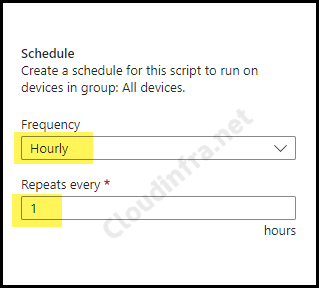
- Assignments: Click on + select groups to include to add an Entra security group containing Windows devices. You can also select the schedule to run this script package. You have three options: Once, hourly, or Daily. For information on assignments to users or devices, see Intune assignments: User groups vs. Device groups.
- Review + create: Review the deployment summary and click Create.
Sync Intune Policies
The device check-in process might not begin immediately. If you’re testing this policy on a test device, you can manually kickstart Intune sync from the device itself or remotely through the Intune admin center.
Alternatively, you can use PowerShell to force the Intune sync on Windows devices. Restarting the device is another way to trigger the Intune device check-in process.
Monitoring
- Sign in to the Intune admin center > Devices > Scripts and Remediations.
- Click on the Remediation script package you want to monitor, for example, Restart Device Everyday Scheduled Task.
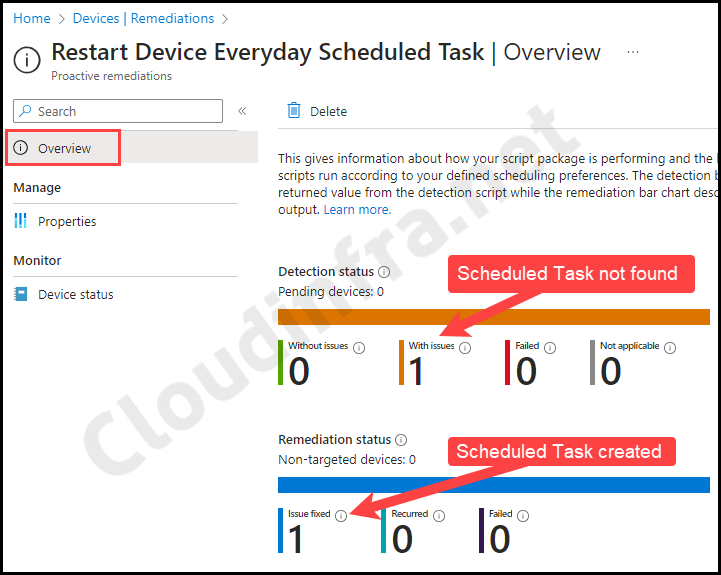
- Go to the Overview page. The screenshot below shows that the detection script identified an issue, indicating that it could not find the Cloudinfra-RebootDevice scheduled task on the device. However, the remediation status is marked as Issue Fixed, which confirms that the remediation PowerShell script successfully created the scheduled task on the target device.
End User Experience
After the deployment is completed successfully, a scheduled task (as per the remediation script) will be created on the target devices. To check and confirm, follow below steps:
- Go to Start and search for the Task Scheduler application.
- Launch the application and click on Task Scheduler Library.
- You can find a new scheduled task created called Cloudinfra-RebootDevice or the name of the task you have provided in the remediation script. Verify the scheduled task configuration, which should also be according to the remediation script.
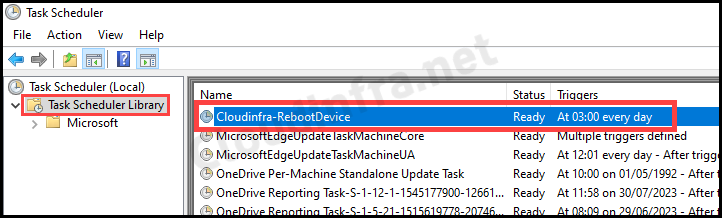
You can also confirm the scheduled task on the target devices using below PowerShell command. Replace the name of the scheduled task with the one you want to verify.
Confirm the task exists
Get-ScheduledTask -TaskName "Cloudinfra-RebootDevice"Confirm the task last run result
Get-ScheduledTaskInfo -TaskName "Cloudinfra-RebootDevice"Confirm the action and trigger (optional)
(Get-ScheduledTask -TaskName "Cloudinfra-RebootDevice").Actions
(Get-ScheduledTask -TaskName "Cloudinfra-RebootDevice").Triggers
Troubleshooting
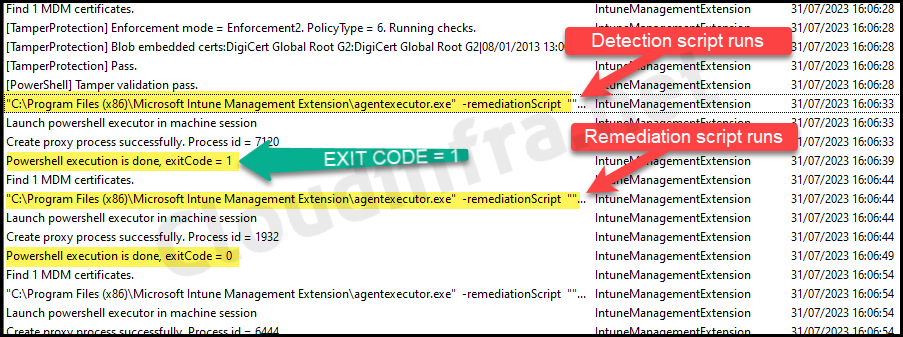
If you encounter any issues, review the Intune Management Extension logs to confirm whether the detection and remediation scripts were executed on the device and to identify any errors. The Intune Management Extension logs are located at C:\ProgramData\Microsoft\IntuneManagementExtension\Logs. Open the most recent IntuneManagementExtension.log file and search for the relevant Intune deployment entries to troubleshoot further.
Create a Scheduled Task to Run a PowerShell Script
You may have a requirement to run a PowerShell script on a specific schedule. In such cases, you can create a scheduled task, similar to the approach demonstrated in the previous section. You can reuse the same script and update the $STaction variable, which uses the New-ScheduledTaskAction cmdlet.
Ensure that the PowerShell script you want to schedule is first copied to the target devices before referencing its path in the scheduled task configuration. Below is an example of an updated $STaction variable that runs a PowerShell script located at C:\AllScripts\RestartWindows.ps1. I have a dedicated blog post on scheduling PowerShell scripts with Intune. Refer to Scheduling PowerShell scripts with Intune post for more detailed information on this topic.
$STaction
$STaction = New-ScheduledTaskAction -Execute '"C:\Windows\System32\WindowsPowerShell\v1.0\powershell.exe"' -Argument '-ExecutionPolicy Bypass -File "C:\AllScripts\RestartWindows.ps1"'
Hi,
I would like to remove a scheduled task using Intune.
Like you did, but to remove
You would need to create two Powershell scripts, One to Detect the Scheduled task and a Remediate script to delete that Scheduled task.
i realised if using proactive and remediation and i have set this “$STSet = New-ScheduledTaskSettingsSet -DontStopIfGoingOnBatteries -AllowStartIfOnBatteries”, it will not take effect.
running manually will take effect.