
In this blog post, I will show you how to find and export the last successful sign-in date of Microsoft Entra ID users using Microsoft Graph PowerShell. You can check a single user, export all users to CSV, or create a report for users listed in a text file. This information can help you review accounts that may no longer need access to your organization.
An Entra ID sign-in report shows authentication activity. It does not tell you when someone last read an email, edited a SharePoint document, or used every Microsoft 365 service. For those questions, use Microsoft 365 usage reports alongside the sign-in report.
Contents
Sign in Property to Use
Microsoft Graph exposes these fields through the user’s signInActivity property:
| Property | Meaning |
|---|---|
| lastSuccessfulSignInDateTime | Most recent successful interactive or non-interactive sign-in |
| lastSignInDateTime | Most recent interactive sign-in attempt, including failures |
| lastNonInteractiveSignInDateTime | Most recent non-interactive sign-in attempt, including failures |
Use lastSuccessfulSignInDateTime as the primary field when reviewing account inactivity. A failed authentication attempt should not make an otherwise inactive account appear active. Non-interactive authentication can occur through applications acting on behalf of a user. Therefore, a recent successful timestamp does not necessarily mean the person recently typed their password or actively worked in an application.
The successful sign-in property became available on December 1, 2023, and older data was not backfilled. A blank value should be reported as No successful sign-in recorded, rather than Never logged in. The summary is stored with the user object, so it can retain a timestamp older than the detailed sign-in log retention period.
Prerequisites
- Microsoft Entra ID P1 or P2 licensing for access to this sign-in activity data.
- Microsoft Graph delegated permissions:
User.Read.AllandAuditLog.Read.All, with administrator consent. - An account with at least the Reports Reader role for the delegated workflow.
- PowerShell 7 is recommended.
- A local folder where you can save the CSV report.
The examples read directory information and write local files. They do not disable users or change tenant settings. You do not need to assign a global administrator to the reporting account.
1. Get Last Sign-in Information from Entra admin center
- Sign in to the Microsoft Entra admin center.
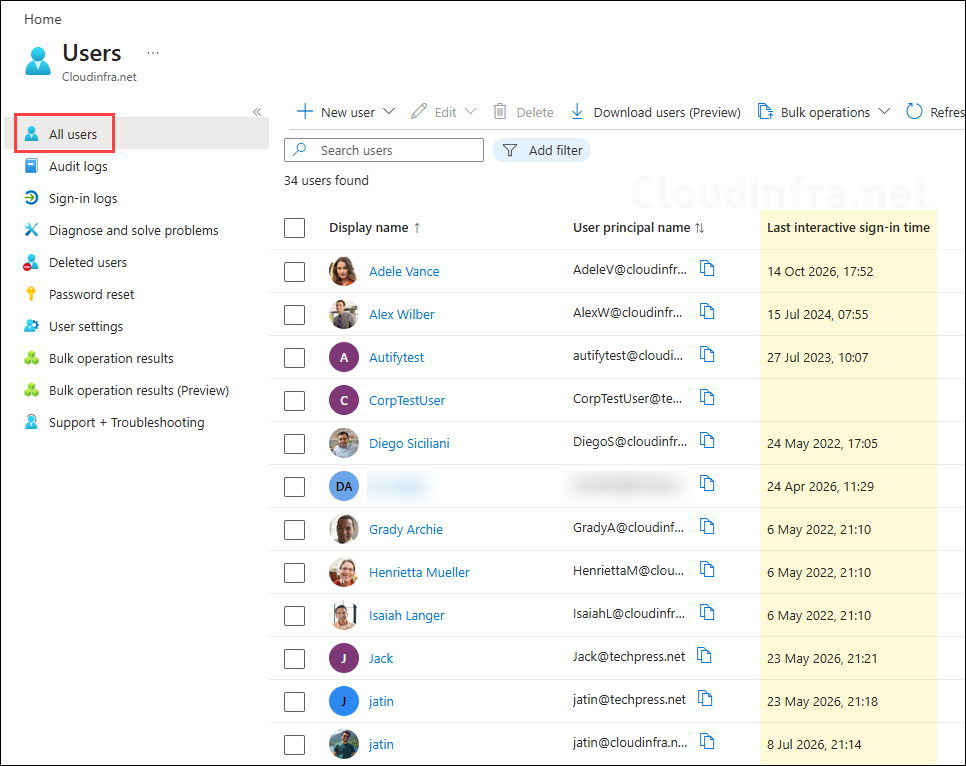
- Browse to Entra ID > Users.
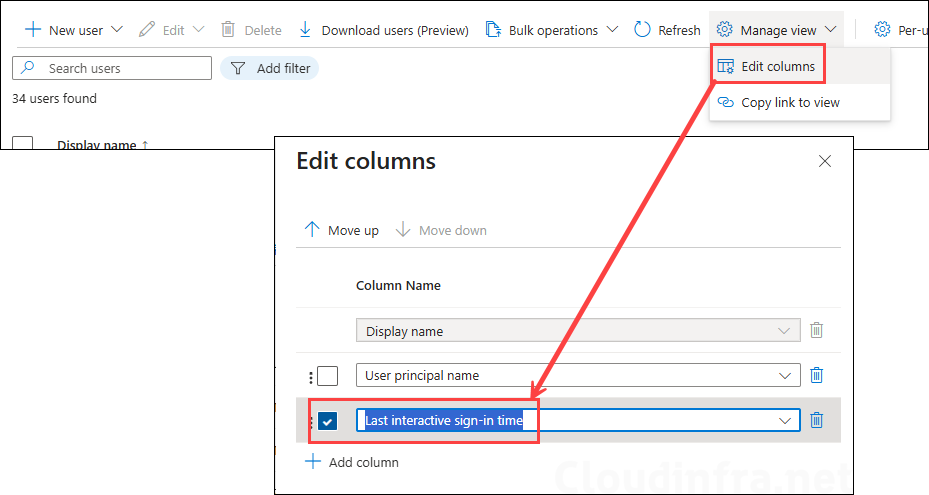
- Select Manage view > Edit columns.
- Add Last interactive sign-in time and save the view.
- For investigation, select a user and open their Sign-in logs. Check the event status, application, and sign-in type before interpreting the date.
The interactive column is not the same as the last successful sign-in field used below. The summary may take up to 24 hours to update. Use detailed logs when investigating recent activity.
2. Get Last Sign-in Information using Graph PowerShell [For One Entra ID User]
- Install and Import the required Microsoft Graph PowerShell modules
Install-Module Microsoft.Graph.Authentication -Scope CurrentUser
Install-Module Microsoft.Graph.Users -Scope CurrentUser

Import-Module Microsoft.Graph.Authentication
Import-Module Microsoft.Graph.Users- Connect to Microsoft Graph using the required scopes. Replace
<your-tenant-id>with your tenant ID. Complete the sign-in and consent process. If approval is required, ask an authorized administrator to grant consent.
Connect-MgGraph -TenantId '<your-tenant-id>' `
    -Scopes 'User.Read.All', 'AuditLog.Read.All' `
-ContextScope Process -NoWelcome- Verify the connection
Get-MgContext | Select-Object Account, TenantId, AuthType, ScopesReplace the example UPN with the user’s actual UPN. When requesting SignInActivity for a single user, pass the object ID (GUID) to -UserId. A UPN can produce the error Get By Key only supports UserId and the key has to be a valid Guid.
The first query resolves the UPN without requesting sign-in activity; the second uses the returned ID. Explicitly request SignInActivity; it is not returned by default. These commands use the Microsoft Graph v1.0 SDK, so a beta module is not needed.
# Resolve the UPN to an object ID
$Identity = Get-MgUser -UserId 'adelev@cloudinfra.net' `
    -Property Id -ErrorAction Stop
# Retrieve sign-in activity using the object ID
$User = Get-MgUser -UserId $Identity.Id `
-Property Id, DisplayName, UserPrincipalName, SignInActivity `
-ErrorAction Stop# Display the results
$User | Select-Object DisplayName, UserPrincipalName,
@{Name='LastSuccessfulSignIn'; Expression={
$_.SignInActivity.LastSuccessfulSignInDateTime
}},
@{Name='LastInteractiveAttempt'; Expression={
$_.SignInActivity.LastSignInDateTime
}},
@{Name='LastNonInteractiveAttempt'; Expression={
$_.SignInActivity.LastNonInteractiveSignInDateTime
}} | Format-List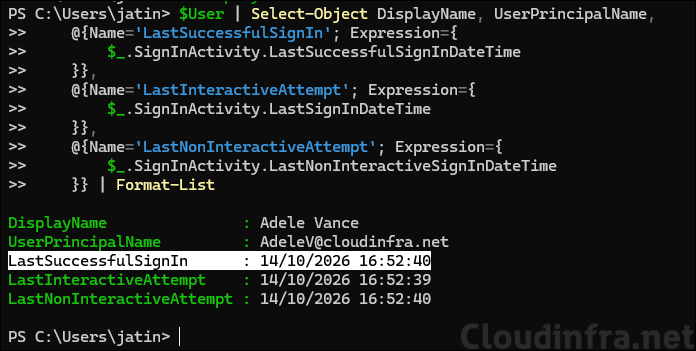
3. Export Last Sign-in Information to CSV using Graph PowerShell [For Bulk Entra ID Users]
Use the script Export-EntraLastSignIn.ps1 given below. Run it after connecting to Microsoft Graph. By default, it exports all users. To export selected users, supply a text file containing one UPN per line. The script keeps lookup errors separate from missing sign-in data and formats timestamps explicitly in UTC.
- Connect to Microsoft Graph using the required scopes. Replace
<your-tenant-id>with your tenant ID.
Connect-MgGraph -TenantId '<your-tenant-id>' `
    -Scopes 'User.Read.All', 'AuditLog.Read.All' `
-ContextScope Process -NoWelcome- Execute the script
Export-EntraLastSignIn.ps1on the PowerShell console. You can optionally provide a text file containing one user principal name per line. If not provided, by default it will export the information for all Entra users. You can download this script from my GitHub repository link: Export-EntraLastSignIn.ps1.
.\Export-EntraLastSignIn.ps1- Below columns are exported to CSV:
- UserId
- DisplayName
- UserPrincipalName
- UserType
- CreatedDateTimeUtc
- LastSuccessfulSignInUtc
- LastInteractiveAttemptUtc
- LastNonInteractiveAttemptUtc
- DaysSinceLastSuccessfulSignIn
- SignInDataStatus
- LookupError
- ReportGeneratedUtc

This includes member and guest user objects, whether or not they have Microsoft 365 licenses. It does not inventory service principals or managed identities. The script uses -All to retrieve every page. When selecting signInActivity, Graph allows a maximum page size of 500 users. The bulk path retrieves user summaries instead of querying the event log separately for every account.
If you want to export this information for selected users only, create a text file at C:\Temp\UPNs.txt and add one User Principal Name (UPN) per line, as shown in the example below. Save the file and run the following PowerShell command to export the information for those users. If a UPN is invalid or a lookup request is denied, it will be recorded as a lookup failure rather than being counted as an inactive user.
.\Export-EntraLastSignIn.ps1 -UPNFile 'C:\Temp\UPNs.txt' `
    -OutputPath 'C:\Temp\SelectedUsers-LastSignIn.csv'
4. Find Users With No Successful Sign-in for 90 Days
The following example filters the above exported report. It includes users with a known successful sign-in at least 90 days ago:
$Report = Import-Csv 'C:\Temp\Entra-LastSignIn.csv'
$Report | Where-Object {
    $_.SignInDataStatus -eq 'Successful sign-in recorded' -and
    $_.DaysSinceLastSuccessfulSignIn -ne '' -and
    [int]$_.DaysSinceLastSuccessfulSignIn -ge 90
} | Export-Csv 'C:\Temp\Review-90Days.csv' -NoTypeInformation -Encoding utf8
Review missing successful sign-in data separately:
$Report | Where-Object {
    $_.SignInDataStatus -eq 'No successful sign-in recorded'
} | Export-Csv 'C:\Temp\Review-NoSignInData.csv' -NoTypeInformation -Encoding utf8
Before disabling an account, check its creation date, purpose, owner, employment status, and relevant application activity. A newly created user and an older account with missing data should not receive the same treatment. Guest accounts also require review in the context of their access to your tenant.
5. Retrieve a Recent Successful Interactive Sign-in Event
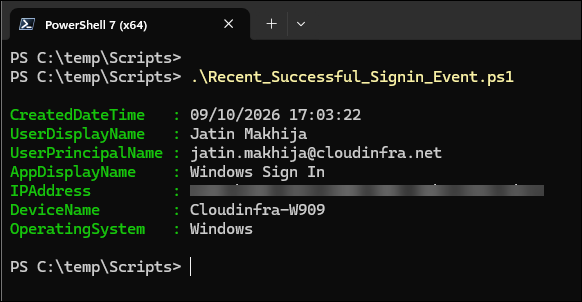
Use detailed logs when you need the application, IP address, or device associated with a sign-in. Install the reporting module. The API returns the newest events first. This example deliberately filters for successful interactive events; it is not a replacement for the combined interactive and non-interactive summary field.
Detailed sign-in logs are retained for seven days with Entra ID Free and 30 days with P1/P2. Graph sign-in log access requires the appropriate premium licensing. Changing a query to 90 days does not recover expired events. Configure log export to Azure storage or an analytics destination in advance if you require longer event history.
Install-Module Microsoft.Graph.Reports -Scope CurrentUser
Import-Module Microsoft.Graph.Reports

$User = Get-MgUser -UserId 'adelev@cloudinfra.net' -ErrorAction Stop
$Since = [DateTimeOffset]::UtcNow.AddDays(-30).ToString(
    "yyyy-MM-dd'T'HH:mm:ss'Z'"
)

$Filter = "userId eq '$($User.Id)' and createdDateTime ge $Since and status/errorCode eq 0 and isInteractive eq true"
$Event = Get-MgAuditLogSignIn -Filter $Filter -Top 1 -ErrorAction Stop

if ($Event) {
    $Event | Select-Object CreatedDateTime, UserDisplayName,
        UserPrincipalName, AppDisplayName, IpAddress,
        @{Name='DeviceName'; Expression={$_.DeviceDetail.DisplayName}},
        @{Name='OperatingSystem'; Expression={$_.DeviceDetail.OperatingSystem}}
}
else {
    Write-Host 'No matching successful interactive event in the available logs.'
}
Other Alternatives
Microsoft 365 usage reports
If your actual question is when someone last used a Microsoft 365 workload, use Graph usage reports. For example, getOffice365ActiveUserDetail supports reporting periods of 7, 30, 90, and 180 days and requires Reports.Read.All. Delegated access also requires an appropriate administrator role.
GET https://graph.microsoft.com/v1.0/reports/getOffice365ActiveUserDetail(period='D180')Workload-specific reports, such as Teams user activity and SharePoint activity, provide service activity dates. Treat them as complementary evidence, rather than substituting their dates for authentication timestamps.
Troubleshooting
| Issue | What to check |
|---|---|
Get-MgUser is not recognized | Install and import Microsoft.Graph.Users in the PowerShell session you are using. |
Get-MgAuditLogSignIn is not recognized | Install and import Microsoft.Graph.Reports. |
| Get By Key only supports UserId and the key has to be a valid Guid | Resolve the UPN to an object ID without requesting SignInActivity, then request SignInActivity using that ID. |
| 403, insufficient privileges, or authorization denied | Check the tenant, consented scopes, reporting role, and licensing. Reconnect after access changes. |
| Blank sign-in timestamps | Confirm SignInActivity was requested and access is correctly configured. Missing timestamps alone do not establish that an account was never used. |
| Recent activity is missing | Allow for summary update delays, and check detailed sign-in logs. |
| Only some users are returned | Use -All; do not treat one page as the entire tenant. |
| HTTP 429 throttling | Respect the service’s retry guidance and avoid large parallel batches of individual lookups. Use the all-users summary query for tenant-wide exports. |
| No historical sign-in events | Check retention and any archive configured before the events expired. |
A command-not-found error is a local command discovery problem. Granting Global Administrator does not install a missing module. Keep module troubleshooting separate from service authorization errors.
Disconnect When Finished
Disconnect-MgGraph