
In this blog post, I will show you the steps to block Command Prompt access using Intune. Blocking Command Prompt (cmd.exe) is a common hardening step to reduce casual misuse (for example, users running unknown scripts, basic recon commands, or ad-hoc configuration changes). In Microsoft Intune, the cleanest approach is to use a Settings catalog profile that configures the same underlying Windows policy exposed via the DisableCMD setting in the ADMX_ShellCommandPromptRegEditTools Policy CSP.
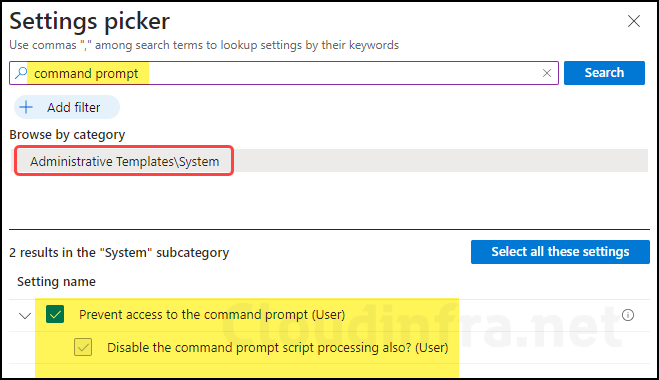
There is an additional setting you can configure: Disable the command prompt script processing also? (User). This setting controls whether execution of batch scripts or login scripts (that require a command shell for execution) should be blocked as well. Most commonly, this should be set to No. However, if you want to take block all approach, like blocking command prompt access and also blocking .bat or .cmd script execution, in that case you can select Yes.
Contents
Block Command Prompt using Intune Policy
- Sign in to the Intune admin center > Devices > Configuration > Create > New Policy.
- Platform: Windows 10 and later. Profile type: Settings Catalog
- Basics: Provide a name and description of the profile.
- Configuration settings: Click on + Add settings and search for the command prompt in the settings picker. Select Prevent access to the command prompt (User) to configure.
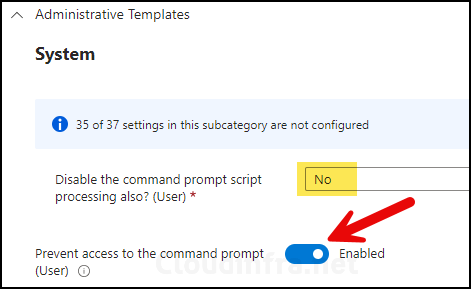
- Set prevent access to the command prompt (User) toggle to Enabled. This will not allow users to launch the Command prompt on their device.
- Disable the command prompt script processing also? (User): Set this to No.
- Scope tags (optional): A scope tag in Intune is an RBAC label that you assign to resources such as policies, apps, and devices to control which administrators can view and manage them. For more information, see How to use scope tags in Intune.
- Assignments: Assign the policy to Microsoft Entra security groups that include the target users or devices. As a best practice, start with a small pilot group, and once validated, expand the assignment more broadly. For guidance on assignment strategy, see Intune assignments: User groups vs. device groups.
- Review + create: Review the deployment summary and click Create.
Sync Intune Policies
The device check-in process might not begin immediately. If you’re testing this policy on a test device, you can manually kickstart the Intune sync from the device itself or remotely through the Intune admin center.
Alternatively, you can use PowerShell to force the Intune sync on Windows devices. Restarting the device is another way to trigger the Intune device check-in process.
Monitoring Deployment Progress
- Sign in to the Intune admin center > Devices > Configuration.
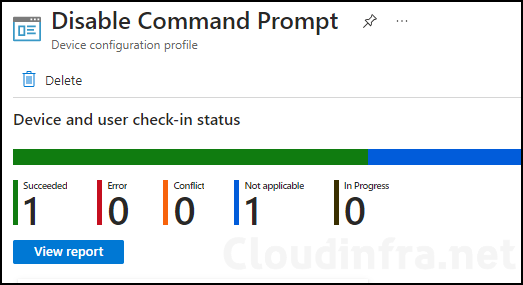
- Choose the Device Configuration profile you want to work with, and at the top of the page, you’ll see a quick view of the Success, Failure, Conflict, Not Applicable, and In Progress status.
- Click on View report to access more detailed information.
End User Experience
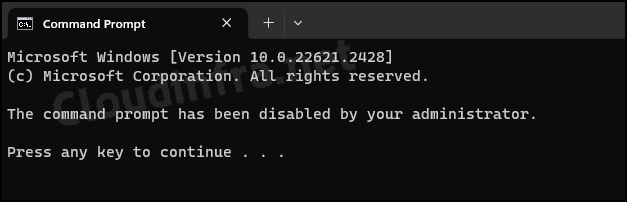
Once this policy has been successfully applied on target devices, when users launch the command prompt from the start menu or using the Run dialog box, they will receive the message below in the command prompt window.
The command prompt has been disabled by your administrator. Press any key to continue.
Open the registry editor and navigate to HKEY_CURRENT_USER\Software\Policies\Microsoft\Windows\System. On the right-hand side, find a Dword entry called DisableCMD which should be set to 2. If DisableCMD value is 2, this allows batch files execution on the device. If it’s set to 1, that means you must have configured the Disable the command prompt script processing (User) setting to Yes, which does not allow execution of batch files on the device.
FAQs
Method 2: OMA-URI setting for blocking Command Prompt
./User/Vendor/MSFT/Policy/Config/ADMX_ShellCommandPromptRegEditTools/DisableCMD.
Use a String data type and provide the below value. Set a value of 2 to block command prompt access, and a value of 1 will block command prompt access and execution of batch and cmd scripts.
<enabled/>
<data id=”DisableCMDScripts” value=”2″/>
Method 3: Registry key for blocking Command Prompt access for all users on a device
As discussed earlier, the registry key is HKEY_CURRENT_USER\Software\Policies\Microsoft\Windows\System, and a DWORD entry DisableCMD of value 2 will block Command Prompt access. Setting it to 1 will also block batch file .cmd script file execution along with command prompt access.
Where can I find logs related to the Device Configuration Profile?
Open Start > Event Viewer. Navigate to Applications and Services Logs > Microsoft > Windows > DeviceManagement-Enterprise-Diagnostics-Provider > Admin. Search for Event ID 813 or 814 and go through the logs to find the one related to the deployment.
I want to read more about the DisableCMD Policy Setting
You can read more about it at the link: ADMX_ShellCommandPromptRegEditTools Policy CSP – Windows Client Management | Microsoft Learn
