In this post, I will show you how to automatically put tabs to sleep in Edge via Intune. If users keep dozens of tabs open, Microsoft Edge’s Sleeping tabs feature can significantly reduce CPU and memory consumption by putting inactive background tabs into a low-resource state. In an enterprise environment, relying on users to manually manage this is not a good idea, so the best approach is to enable Sleeping tabs via Settings catalog and then tune the timeout and exclusions for business-critical sites. Below is a quick listing of the settings catalog policies we will be configuring via Intune.
| Profile type | Category | Setting |
|---|---|---|
| Settings Catalog | Microsoft Edge\Sleeping Tabs settings | 1. Block Sleeping Tabs on specific sites 2. Configure Sleeping Tabs 3. Set the background tab inactivity timeout for Sleeping Tabs |
Contents
About Sleeping Tabs in Edge
Sleeping tabs in Edge reduces resource usage by putting idle background tabs to sleep after a defined period of inactivity. By default, Edge sleeps tabs after 2 hours, and users can adjust this in Edge settings if you do not enforce it via policy. The value for this could be anywhere from 5 minutes to 12 hours. Users can manually adjust this by going to the edge://settings/system/managePerformance page in Edge.

Sleeping is different from discarding; sleeping keeps the tab present, and it typically resumes quickly when clicked, while discarding unloads the tab and requires a reload. The “auto discard sleeping tabs” policy (covered later) controls this behavior.
Prerequisites
Before deploying Edge performance policies, confirm these fundamentals:
- Devices are enrolled in Intune.
- Windows 10/11 supported builds for Settings catalog Edge policy management.
- Microsoft Edge is installed.
- Avoid policy conflicts: do not target the same users/devices with multiple Edge configuration channels that conflict (for example, Settings catalog plus other overlapping Edge configuration methods).
Recommended Configuration
Below is the recommended approach when configuring auto-sleep settings for tabs in Microsoft Edge. You can also exclude specific websites so they remain active and are not affected by the sleeping tabs policy. Identify any critical web applications and exclude them by using the Block Sleeping Tabs on specific sites policy. In the following sections, I will explain these policies in more detail.
- Enable sleeping tabs (enforced):
SleepingTabsEnabled. - Set a shorter timeout than the default 2 hours, for example, 15-30 minutes.
SleepingTabsTimeout. - Exclude critical web apps that must stay active (calling, dashboards, real-time apps).
SleepingTabsBlockedForUrls. - Optionally enable auto-discard for long-sleeping tabs on constrained devices (VDI, low-RAM etc.).
AutoDiscardSleepingTabsEnabled.
Configure Sleeping tabs in Edge Using Settings Catalog
My recommended approach for configuring sleeping tabs in the Edge browser is by using Settings catalog policy, Let’s take a look:
- Sign in to the Intune Admin Center > Devices > Configuration > + Create > New Policy.
- Select Platform type as Windows 10 and later. Select Profile type as Settings Catalog.
- Click on Create.
- On the Basics tab, provide a name and description of the policy. Click Next.
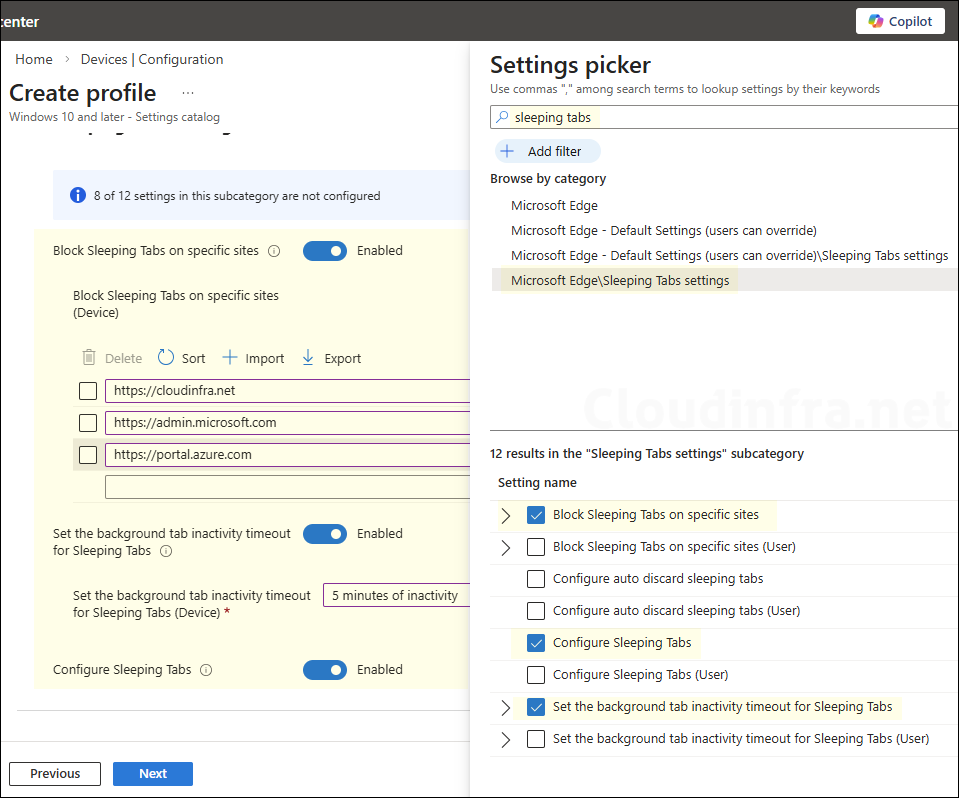
- On the Configuration settings tab, click + Add settings. In the Settings picker, search for sleeping tabs. Click on the Microsoft Edge\Sleeping Tabs settings category and select below settings:
- Block Sleeping Tabs on specific sites: Some sites should never sleep (web softphones, monitoring dashboards, time tracking, certain intranet portals). Sites excluded here are excluded from other performance optimizations like efficiency mode and tab discard.
- Configure Sleeping Tabs: Sleeping tabs is on by default in many Edge builds, but users can toggle it off unless you enforce it. This setting lets you explicitly turn it on/off.
- Set the background tab inactivity timeout for Sleeping Tabs: This policy controls the idle time (in seconds) before Edge sleeps background tabs. Microsoft lists the supported mappings, including 900 seconds (15 minutes), 1800 seconds (30 minutes), and 3600 seconds (1 hour). For demonstration purposes, I will configure the tabs to sleep after 5 minutes of inactivity.
Another optional but recommended performance policy you can configure in Edge is Configure auto discard sleeping tabs. This setting discards tabs that have been sleeping for 1.5 days to reclaim additional memory. When a user returns to a discarded tab, the page reloads. This setting is particularly useful on VDI or AVD environments, low-RAM devices, or shared workstations where long-running browser sessions are common and memory optimization is important.
- Scope tags (optional): A scope tag in Intune is an RBAC label that you assign to resources such as policies, apps, and devices to control which administrators can view and manage them. For more information, see How to use scope tags in Intune.
- Assignments: Assign the policy to Microsoft Entra security groups that include the target users or devices. As a best practice, start with a small pilot group, and once validated, expand the assignment more broadly. For guidance on assignment strategy, see Intune assignments: User groups vs. device groups.
- Review + create: Review the deployment summary and click Create.
Update Intune Policies
The device check-in process might not begin immediately. If you’re testing this policy on a test device, you can manually kickstart Intune sync from the device itself or remotely through the Intune admin center.
Alternatively, you can use PowerShell to force the Intune sync on Windows devices. Restarting the device is another way to trigger the Intune device check-in process.
End User Experience
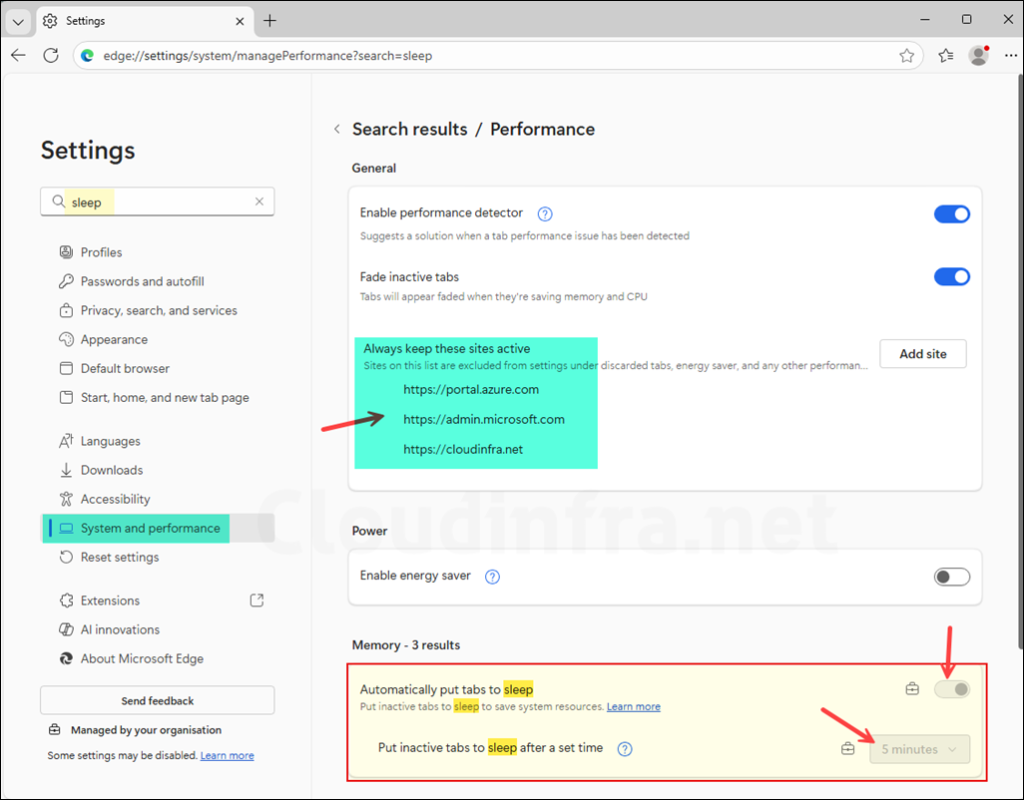
After the Intune policy is applied to the target devices, the Sleeping tabs configuration is enforced according to the policy settings. The screenshot below, taken from one of the target devices, confirms that the policy has been applied successfully. To verify this, type edge://settings/system/managePerformance in the Edge address bar to open the Performance settings page directly and confirm that the Sleeping tabs settings are applied as configured. Alternatively, open the Microsoft Edge browser and search for sleep in the Settings page to review the configured policies.
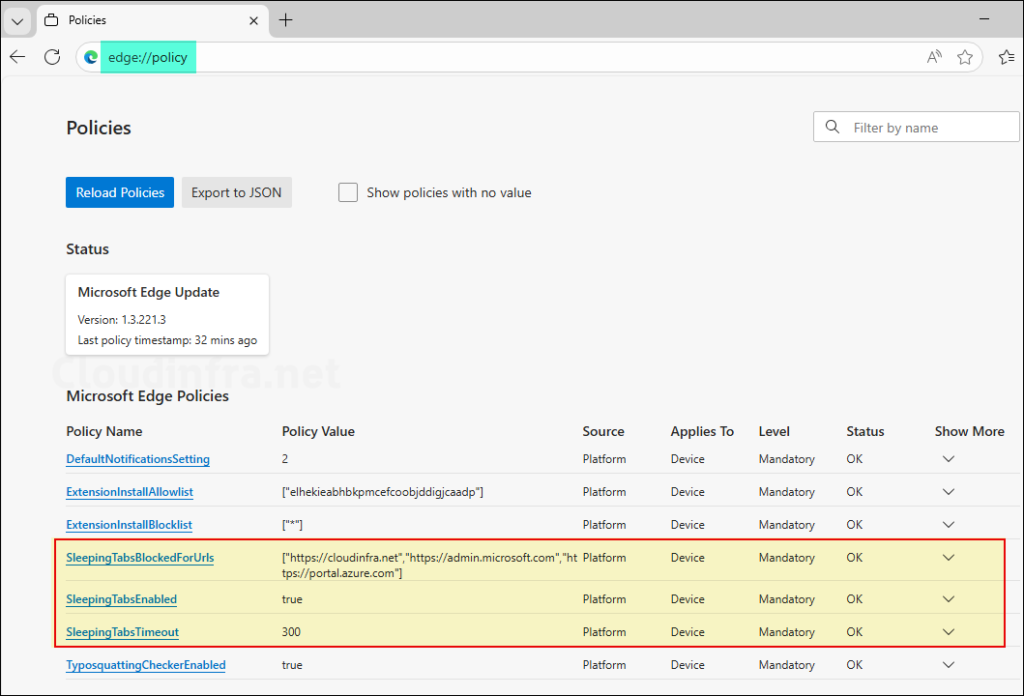
Another way to verify that the policies are applied is to open the Microsoft Edge browser and type edge://policy in the address bar. On this page, confirm that the Sleeping tabs policies are listed and reflect the values configured in your Intune policy.