
In this blog post, I will show you how to resolve an issue where downloads from SharePoint, Exchange Online, and OneDrive are blocked even when the Windows device is compliant. In this scenario, you have a Conditional Access (CA) policy that uses Session controls with Conditional Access App Control to block downloads from Microsoft 365 services such as SharePoint, Teams, and Exchange Online. In the same policy, you have excluded compliant devices by using a device-based condition so that compliant devices should be allowed to download.
However, users on compliant devices still cannot download files. If you have additional Defender for Cloud Apps policies or Conditional Access policies that are meant to apply only to non compliant devices, those controls may also not behave as expected.
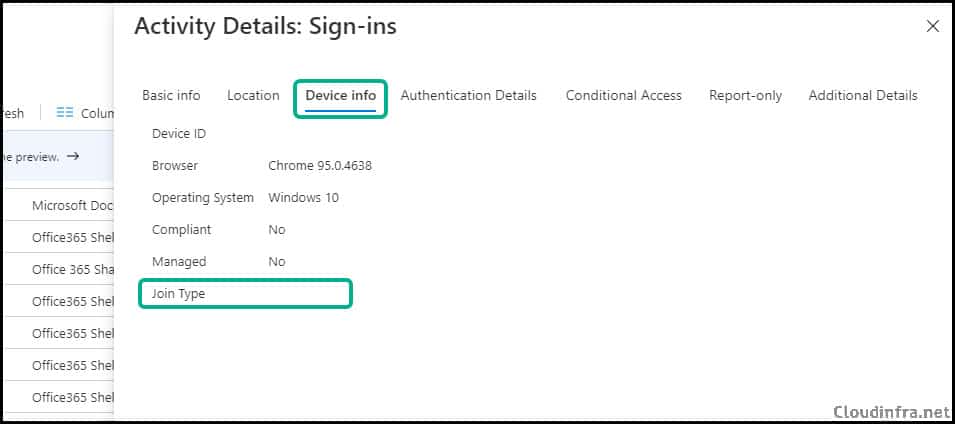
When you check the user’s Sign in logs in the Entra ID admin center, you see:
- Join type is blank
- Compliant is reported as No
This means that even though the device is compliant in Intune, the browser is not sending device identity and compliance information to Entra ID. Entra therefore evaluates the session as coming from an unknown or unmanaged device, and your CA policy that excludes compliant devices does not apply.
This behavior is most commonly seen when users access cloud apps using browsers like Google Chrome or Microsoft Edge without the correct browser integration, or when they use private browsing where cookies and device signals are blocked.
Contents
Why Downloads Are Blocked Even on a Compliant Device
Device-based conditional access depends on the browser being able to send device information (device ID, join type, and compliance state) during the sign-in. If this device information is missing, Entra ID treats the device as not compliant with Join type: Blank and Compliant: No.
As a result:
- Any CA policy that requires device to be marked as compliant will fail.
- Any CA policy that uses Defender for Cloud Apps session controls and excludes compliant devices will not exclude these sessions, so downloads remain blocked.
The fix is not in the Conditional Access policy itself, but in how the browser is configured to send device identity. Microsoft documents clearly suggest that the device based Conditional Access only works with specific combinations of operating systems and browsers and that private browsing or disabled cookies will break the device check.
Supported Browsers for Device Based Conditional Access
To satisfy a device based policy such as Require device to be marked as compliant, the following operating system and browser combinations are supported:
| Operating system | Supported browsers |
|---|---|
| Windows 10 and later | Microsoft Edge, Google Chrome, Firefox 91+ |
| Windows Server 2019, 2022, 2025 | Microsoft Edge, Google Chrome |
| macOS | Microsoft Edge, Google Chrome, Firefox 133+, Safari |
| iOS | Microsoft Edge, Safari |
| Android | Microsoft Edge, Google Chrome |
| Linux desktop | Microsoft Edge |
| Microsoft reference | https://learn.microsoft.com/en-us/entra/identity/conditional-access/concept-conditional-access-conditions#supported-browsers |
Important points:
- Device check fails if the browser is running in incognito/InPrivate mode or if cookies are disabled.
- Microsoft Edge 85+ requires the user to be signed in to the Edge profile with their work account so that device identity is passed correctly. Otherwise, it behaves like Chrome without any device integration.
Microsoft Single Sign-On (SSO) Extension vs. CloudAPAuthEnabled
On Windows 10 and Windows 11, Google Chrome can send device signals to Entra ID in two supported ways:
- Enable the CloudAPAuthEnabled policy (recommended).
- Deploy the Microsoft Single Sign On extension (previously called Windows Accounts extension).
From the official Conditional Access conditions documentation:
- Chrome 111+ is supported for device-based Conditional Access, but the
CloudAPAuthEnabledpolicy must be enabled. - On Windows 10 version 1703 and later, you can either:
- Enable Chrome CloudAPAuthEnabled, or
- Install the Microsoft Single Sign On Chrome extension.
Both options allow Chrome to send device identity and compliance information so that Conditional Access can evaluate the device correctly.
Option 1: Configure CloudAPAuthEnabled for Chrome (no Extension)
You can set CloudAPAuthEnabled value to 1 for Google Chrome via Intune. This will resolve the issue and send the device information, including compliance state data, to Entra ID. Refer to the post Chrome SSO With Entra ID Using Intune for implementing this. For Firefox, use this post to implement SSO: Firefox SSO with Entra ID using Intune. Below are the details of the CloudAPAuthEnabled registry key.
Path: HKEY_LOCAL_MACHINE\Software\Policies\Google\Chrome
Name: CloudAPAuthEnabled
Type: DWORD
Value: 1
Option 2: Install Microsoft Single Sign On Extension
Alternatively, you can install the Microsoft Single Sign On Extension, which was previously called the Windows Accounts Extension. To install and use this extension, follow below steps:
- Install the Microsoft Single Sign On Chrome extension for the user.
- Sign in to the extension with your organizational account.
- Sign in to SharePoint, OneDrive,or Outlook on the web using Chrome.
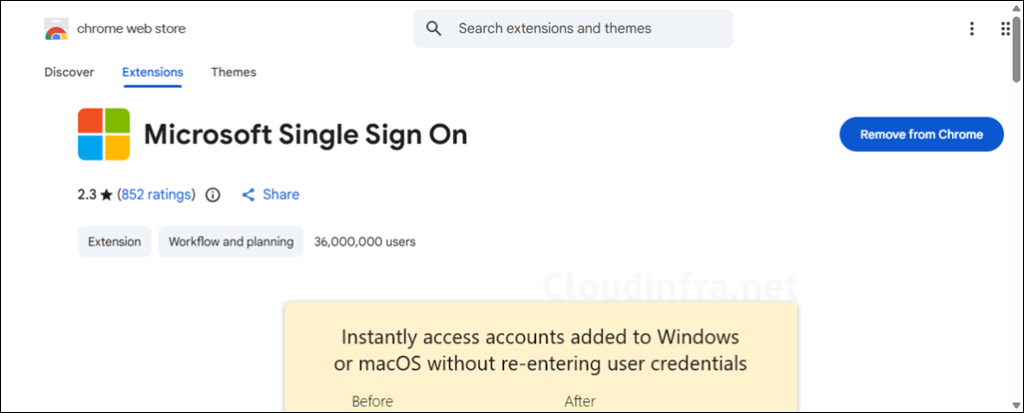
| About Microsoft Single Sign On Extension |
|---|
| Sign in to supported websites with accounts on Windows 10/11 Use this extension to sign in to supported websites with Microsoft work or school accounts on Windows (10 and later versions) or macOS (11 and later versions). If you have a Microsoft Entra ID on your Windows or macOS computer, this extension enables improved Single Sign On for supported websites. You may still see additional authentication prompts like multi-factor verification depending on the access requirements for various applications, resources, and organizations. This extension is required for certain device-based conditional access policies for Microsoft Entra ID. https://learn.microsoft.com/en-us/entra/identity/conditional-access/concept-conditional-access-conditions#supported-browsers |
Once installed and signed in, the extension links the logged on Windows account with the browser session and passes device information to Entra ID. In the sign-in logs, you should now see:
- Join type: Hybrid Azure AD joined or Entra joined (as applicable).
- Compliant: Yes, for devices that are marked compliant in Intune.
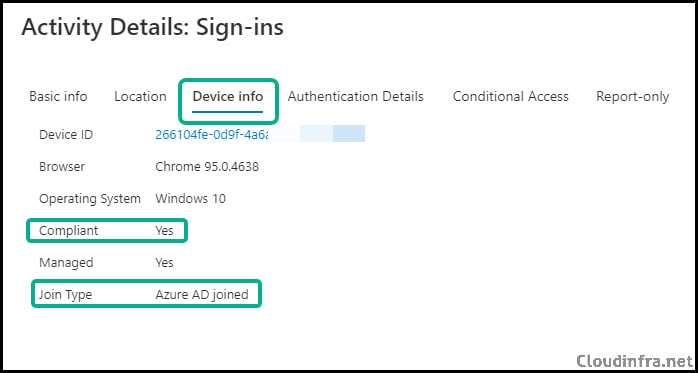
At this point, your Conditional Access policy that excludes compliant devices will allow downloads as intended, and your Defender for Cloud Apps session controls will only apply where expected.
Microsoft Edge Browser Support
When using the Microsoft Edge browser, sign in using your organization account by using below steps:
- Open Microsoft Edge browser application.
- Select Profile image in the browser taskbar.
- Click on Sign in.
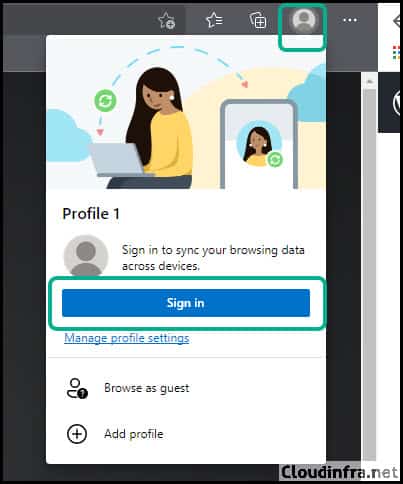
- Select or use your organization email ID and password to sign in to the Microsoft Edge browser.
You should be able to download the documents from Sharepoint/OneDrive/MS Teams or any other Microsoft 365 application, provided you are on a compliant device, and your IT administrator has allowed downloading files on a compliant device.
Conclusion
In this blog post, we have seen how to send device compliance status to Entra ID when using the Google Chrome browser. You will need either the Microsoft Single Sign On extension or the CloudAPAuthEnabled setting configured to 1. Microsoft Edge natively supports authentication with Entra ID, so no extension is required for the Edge browser.

Hi,
I have similar case: I have used Filter for devices in Conditional Access to exclude devices with logic “device ownership equal Company” but it does not seem to work:
– devices that are non-compliant/not enrolled into Intune are applied with the session control.This is Correct!
-devices that are non-compliant and has “Company” device ownership attribute still get applied with session control, which is weird as there is an exclusion!
May I know how to fix it?