
In this post, I will show you how to enable/disable Windows Mobility Center via Intune. If you manage Windows 11 devices with Microsoft Intune, you may want to disable Windows Mobility Center to keep the user experience consistent and reduce access to local device controls that are not needed in your environment. If you want to disable a specific setting inside Windows Mobility Center, like Presentation Settings, refer to the post that shows the policy details: Enable/Disable Presentation Settings in Windows Via Intune.
Contents
What is Windows Mobility Center?
Windows Mobility Center is a built-in feature in Windows (mainly designed for laptops) that provides a centralized interface to quickly manage common mobile device settings such as display brightness, volume, battery status, power plans, wireless connectivity, external display settings, and presentation mode. It allows users to adjust these settings from a single window instead of navigating through multiple system menus, making it especially useful for users who frequently move between locations or connect to projectors and external displays.
Why disable Windows Mobility Center?
Organizations may choose to disable Windows Mobility Center to prevent users from modifying system settings that could affect device configuration, security, or corporate policies. Mobility Center provides quick access to controls that may conflict with other centrally managed settings deployed through tools like Intune or Group Policy. In enterprise environments, disabling it helps maintain consistent device configurations, prevent users from bypassing IT-enforced policies, and reduce the risk of misconfiguration, particularly on managed corporate devices such as kiosks, shared devices, or tightly controlled laptops.
Enable/Disable Windows Mobility Center Intune Policy
- Sign in to Intune admin center > Devices > Windows > Configuration > Create > New Policy.
- Platform: Windows 10 and later; Profile type: Settings catalog. Click Create.
- On the Basics tab, provide a Name and Description of the policy and click Next.
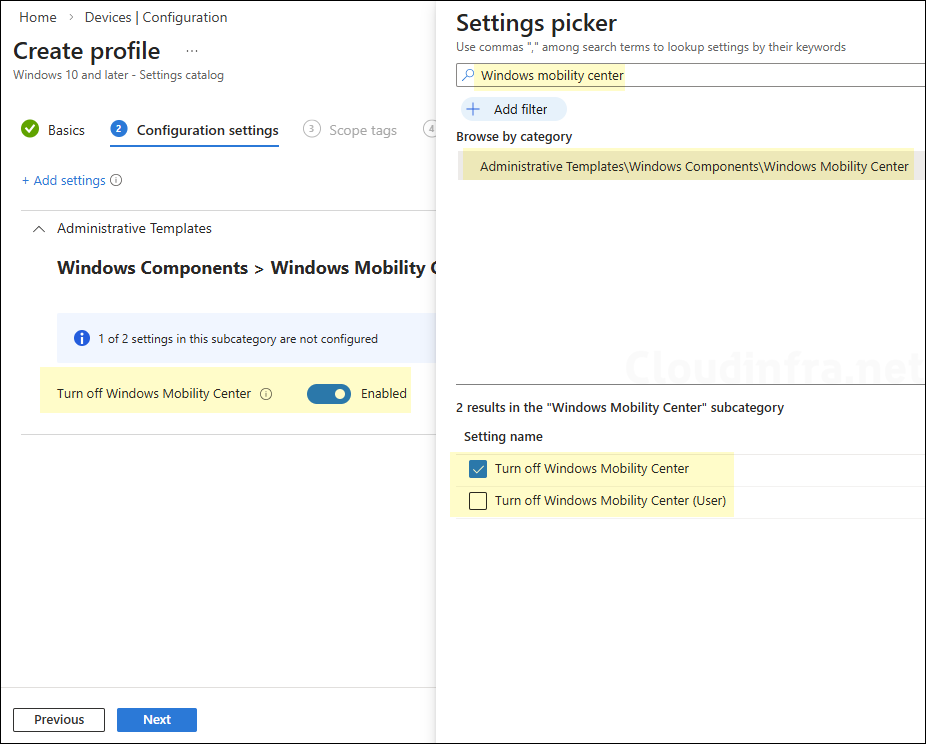
- On the Configuration settings tab, click on + Add settings and use the Settings picker to search for Windows Mobility Center and select the Administrative Templates\Windows Components\Windows Mobility Center category. Select Turn off Windows Mobility Center or Turn off Windows mobility center (user) setting.
Settings Catalog Policy Details
| Profile type | Category | Setting | Status |
|---|---|---|---|
| Settings Catalog | Administrative Templates\Windows Components\Windows Mobility Center | Turn off Windows Mobility Center | Set it to Enabled or Disabled |
| Setting | Description |
|---|---|
| Turn off Windows Mobility Center | device-scoped setting |
| Turn off Windows Mobility Center (user) | User-scoped setting |
- Scope tags (optional): A scope tag in Intune is an RBAC label that you assign to resources such as policies, apps, and devices to control which administrators can view and manage them. For more information, see How to use scope tags in Intune.
- Assignments: Assign the policy to Microsoft Entra security groups that include the target users or devices. As a best practice, start with a small pilot group, and once validated, expand the assignment more broadly. For guidance on assignment strategy, see Intune assignments: User groups vs. device groups.
- Review + create: Review the deployment summary and click Create.
Update Intune Policies
The device check-in process might not begin immediately. If you’re testing this policy on a test device, you can manually kickstart Intune sync from the device itself or remotely through the Intune admin center.
Alternatively, you can use PowerShell to force the Intune sync on Windows devices. Restarting the device is another way to trigger the Intune device check-in process.
End User Experience
After the Intune policy is applied on the target devices, Windows Mobility Center will be enabled or disabled as per the policy setting configuration. To check and confirm if the policy has been applied successfully, follow below steps:
- Press Windows + R keys to open the Run dialog box.
- Type
mblctrto open Windows Mobility Center; it should not work if you have disabled it in the policy.
