
In this blog post, I will show you the steps to bulk import devices into an Entra security group. Entra security groups let you organize devices, making it easy to apply policies and deploy apps to those devices.
When you need to target a specific set of Windows devices for Intune assignments, Autopilot profiles, compliance policies, or phased rollouts (for example, “Production Ring 1″, “Production Ring 2” etc.), adding devices to a Microsoft Entra security group is still one of the most practical approaches. The challenge is doing it at scale without manually clicking Add members hundreds of times.
This guide covers the most relevant options, including the portal Bulk operations workflow (CSV import), a reliable Microsoft Graph PowerShell method, and the recommended alternative in many scenarios: dynamic device groups so you do not have to bulk import.
Notes
- Your group must be a Security group with Assigned membership if you plan to import members. Dynamic device groups cannot be manually populated.
- To run bulk import in the portal, you must be at least a Groups Administrator or owner of the group.
- For CSV imports, use the device Object ID (not Device ID / Entra device ID). Using the wrong identifier is the most common reason for “Bad Request” style failures.
- Bulk operations can fail or time out if the job does not complete within an hour. When this happens, split the batch into smaller files.
Contents
Method 1: Bulk import devices using CSV (Entra portal)
Download the CSV template, populate it with device object IDs, then upload it using Bulk operations > Import members. Let’s take a look at the steps:
Step 1: Download the CSV Template
You can download the template from either the Intune admin center or the Entra admin center:
- Option 1: Download a CSV template from the Intune admin center: Groups > click on your group > Members > Bulk operations > Import members > Download.
- Option 2: Download a CSV template from the Entra admin center: Groups > All groups > your group > Members > Bulk operations > Import members > Download.
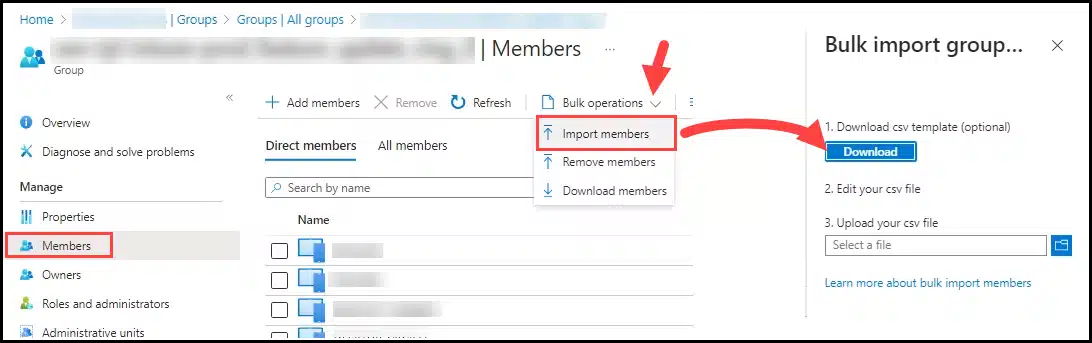
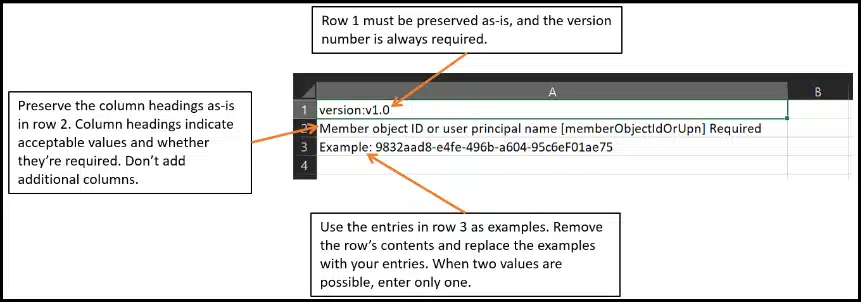
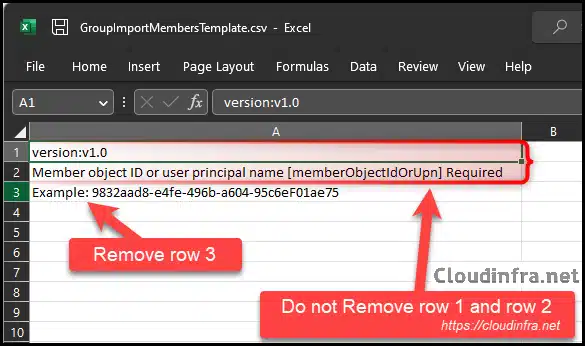
- Open the CSV template file and ensure that the version number is retained. You can remove the example row 3. We will explore this further and learn how to find the Object ID and add it to the file with the correct formatting in the next steps.
Step 2: Gather Device ObjectIDs
You can either get the device object IDs from Entra admin center or by using Microsoft Graph PowerShell method (explained later in the post).
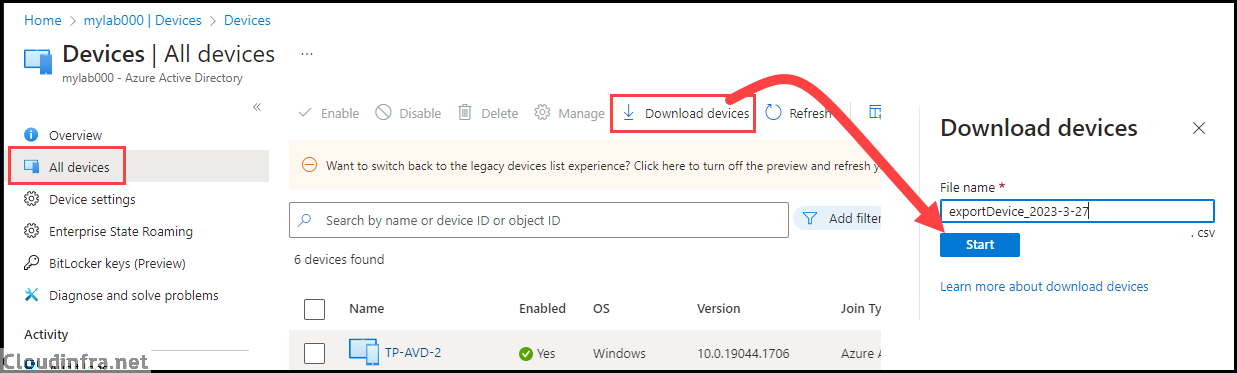
- Sign in to the Entra admin center > Devices > All devices.
- Click on Download Devices to download a report of all devices.
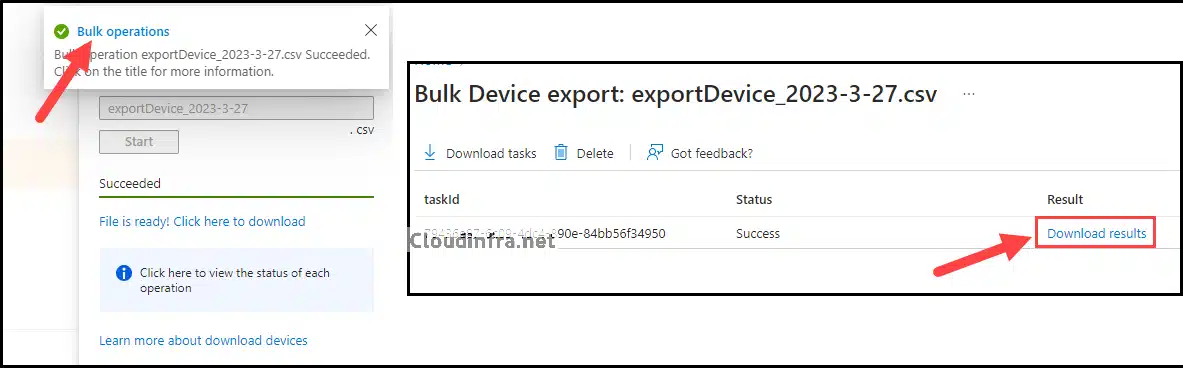
- Once the export process is finished, you’ll receive a notification confirming the successful completion of the operation. To access the Bulk operations, click on the link in the notification. Alternatively, if you missed the notification, you can find it in the bell icon or notification icon at the top. Click on the Bulk Operations link from there.
- After clicking on Bulk operations, you’ll see that the Bulk device export job has been completed, and the results are available for download. Click on the Download results link to retrieve a device inventory report in CSV format.
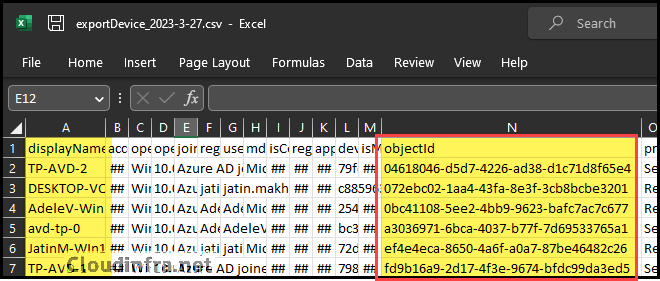
- When you open the CSV file, you’ll discover information about the devices in your organization. Among the columns, you’ll find the ObjectID. This information is needed for the CSV template file you downloaded earlier.
Step 3: Add ObjectIDs to CSV Template
Open the CSV template file downloaded earlier. Keep row 1 (version) and row 2 (header). Remove row 3, as it’s just an example to illustrate what the Object ID value should look like.
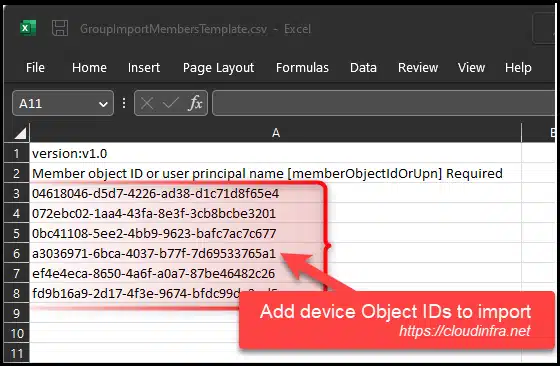
- Add each device Object ID on its own row.
Step 4: Upload and monitor status
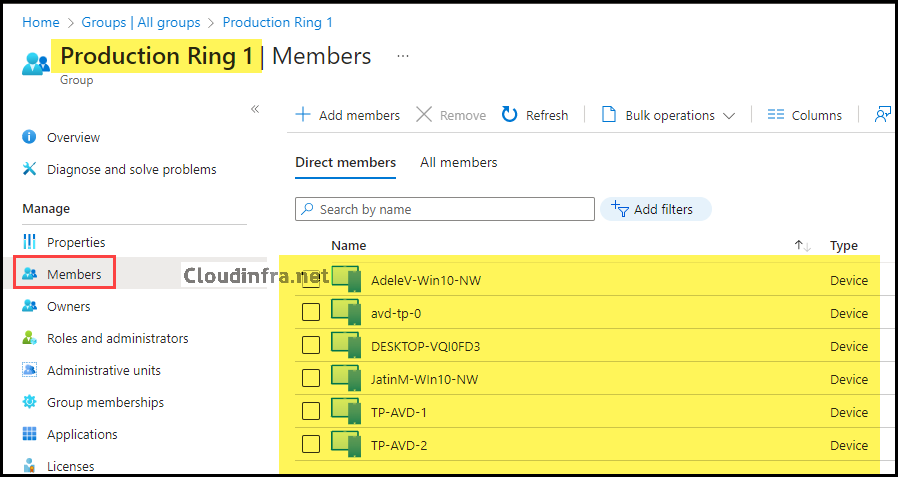
We have completed the preparation of our CSV template file and populated it with the device object IDs that we want to import into our example Entra security group, Production Ring 1. You can access Groups blade either from Entra admin center or Intune admin center.
- Sign in to the Intune admin center > Groups > Click on the group where you want to add devices.
- Click on Members on the left-hand side
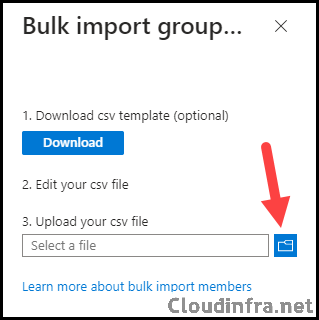
- Upload the file in Bulk operations > Import members, click Submit, then monitor the job from the notification and bulk operation results.
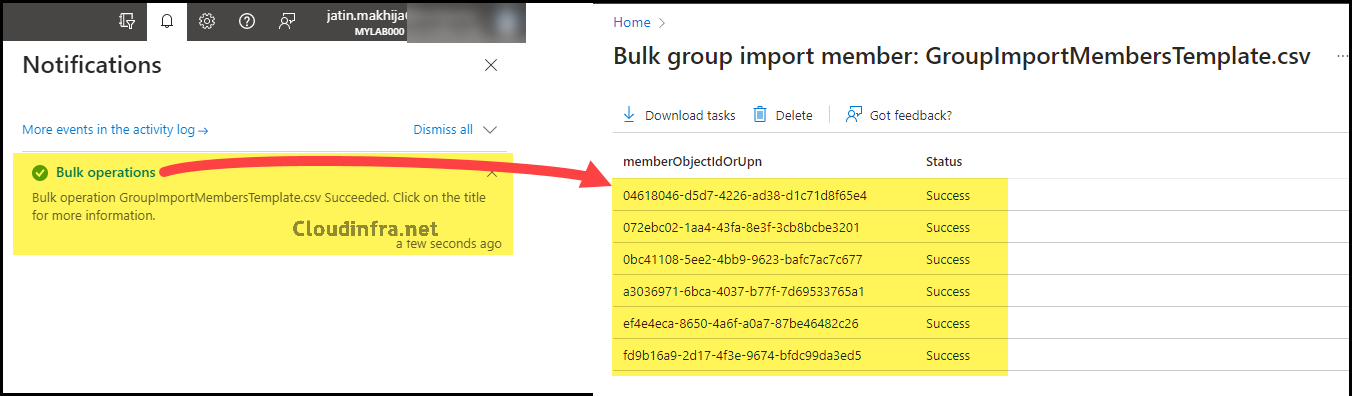
- Devices are successfully imported into our example Entra security group Production ring 1.
Method 2: Bulk add devices with Microsoft Graph PowerShell
If portal bulk import is slow, inconsistent, or failing (which does happen), Graph PowerShell is the cleanest fallback because it gives you deterministic results, proper error handling, and repeatability. Microsoft Graph supports adding devices as members of a security group through the /groups/{id}/members/$ref relationship. The API also documents expected responses, including 204 No Content for success and 400 Bad Request if the object is already a member.
Option A: Add devices to a group using a CSV of device Object IDs (recommended)
In this option, we will use device object IDs to add devices to the Entra security group. Create a CSV file named DevicesToAdd.csv with a single column and the header DeviceObjectId.
DevicesToAdd.csv
DeviceObjectId
204aa5a3-fc09-4584-8efc-487658da87e4
2c7eb830-133f-4092-aae3-a5bd12bdb9fe
32839789-1e31-4a4a-86f1-dd85cc443ada
3d2d8c6a-ea30-4690-b613-4932a1599595
49dea15b-085a-491d-89b3-3768127944bc
4c414438-6e14-4630-a7de-3380a3b24634
5f19dfdf-31ff-4899-a6a3-a7befc8a4fcf
77774da9-be7c-492a-b1d8-234139291ff9
79d52525-6fda-4c53-be3c-92d1477ed2ad
Download the PowerShell script Add_bulkDevice_using_IDs_Entra_Group.ps1. Update the $GroupId variable with the ID of the Entra security group, and update the $CsvPath variable to point to the CSV file containing the device object IDs you want to import. Then execute the script on PowerShell 7 console. Before executing, ensure that you have installed Microsoft Graph PowerShell module on your computer using below command:
PowerShell 7
Install-Module Microsoft.Graph -Scope CurrentUser -Force -AllowClobber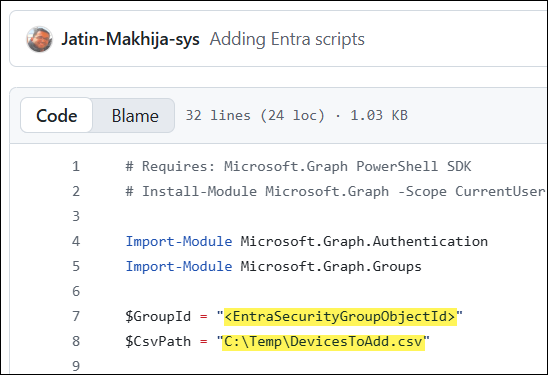
This script has been tested successfully on PowerShell version 7.6.0. The screenshot below shows the execution of the script, which adds devices from the DevicesToAdd.csv file to the specified group.
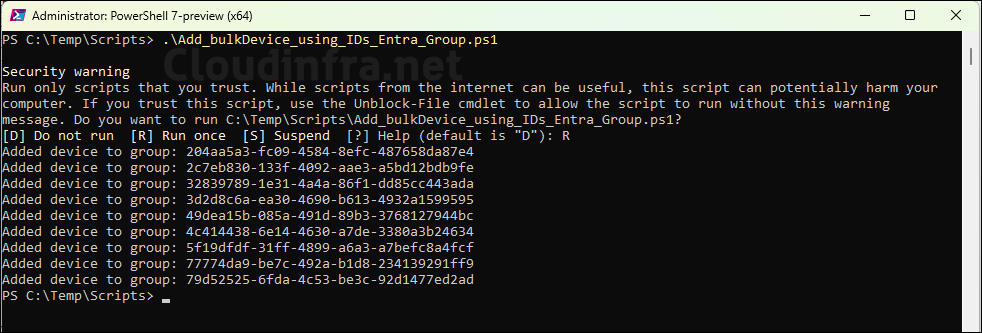
Option B: Add devices by device name
If you want to add devices to the Entra security group by using device names, use the PowerShell script Add_bulkDevice_using_names_Entra_Group.ps1. Update the $DeviceNames variable in the script with the device names you want to add. You can also modify the script to use a CSV file of device names instead of specifying the device names directly in the script.
Method 3: Avoid bulk imports by using Dynamic Device Groups
If the reason you are bulk importing is “I need Ring 1 / Ring 2 device targeting”, consider whether a dynamic device group can do the job instead. For Windows Autopilot, Microsoft explicitly documents dynamic membership rules using device.devicePhysicalIds, including targeting all Autopilot devices and targeting devices by group tag (OrderID).
Example 1: Collect all Autopilot devices
(device.devicePhysicalIDs -any (_ -startsWith "[ZTDid]"))
Example 2: Collect Autopilot devices with a specific group tag
(device.devicePhysicalIds -any (_ -eq "[OrderID]:cloudinfra-device"))
Troubleshooting: Bad Request Error
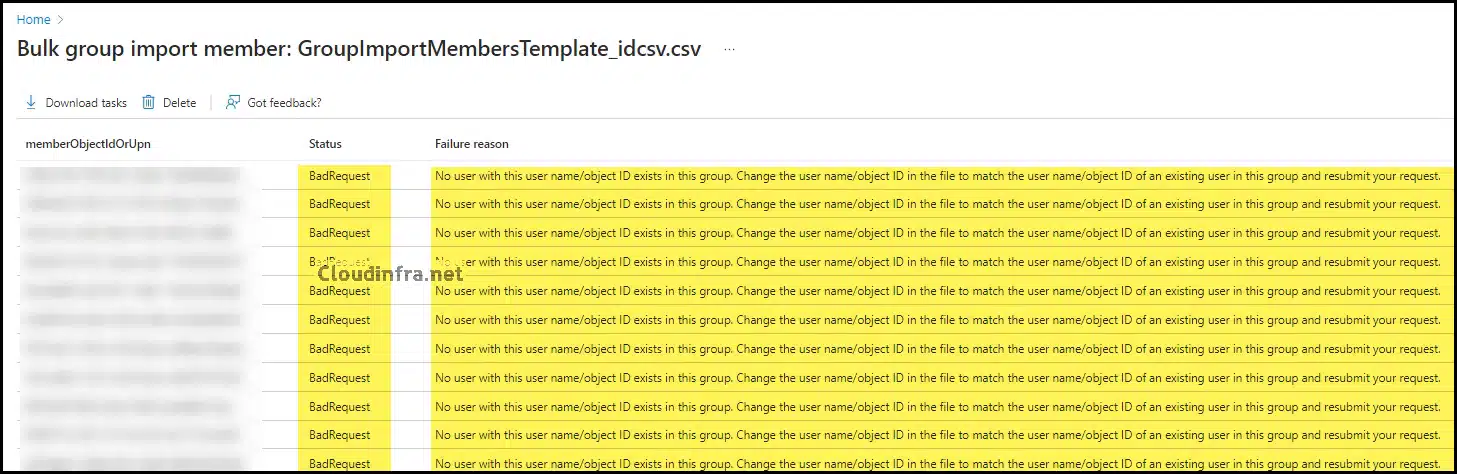
If you encounter an error, such as a Bad Request error, while importing devices via the Bulk operation method, you may see the following error message: No user with this user name/object ID exists in this group. Change the user name/object ID in the file to match the user name/object ID of an existing user in this group and resubmit your request.
I’ve encountered this issue a few times when importing devices into an Entra Security group using the Bulk operations method. It happened because I used the Entra device ID instead of the required Object ID in the CSV file. To avoid this error, use the ObjectID in the CSV file, as per the template’s requirements. After populating the device Object IDs in the CSV file, upload the template and successfully import the devices into an Entra security group.
If you receive a Status 404 (NotFound) error, the most likely cause is that the DevicesToAdd.csv file contains device IDs instead of device object IDs. Ensure that the CSV file includes only the Object IDs of the devices, not the Device IDs.
Error
Added device to group: 0a225b50-52f6-476c-b938-0b7af90da8c9
New-MgGroupMemberByRef_Create: C:\Temp\Scripts\Add_bulkDevice_using_IDs_Entra_Group.ps1:21
Line |
  21 |          New-MgGroupMemberByRef -GroupId $GroupId -BodyParameter @{
     |          ~~~~~~~~~~~~~~~~~~~~~~~~~~~~~~~~~~~~~~~~~~~~~~~~~~~~~~~~~~
     | Resource '6b42511b-86c2-4af5-b3de-163a46202a19' does not exist or one of its queried reference-property objects
     | are not present.  Status: 404 (NotFound) ErrorCode: Request_ResourceNotFound Date: 2026-01-12T21:27:41  Headers:
     | Cache-Control                 : no-cache Vary                          : Accept-Encoding
     | Strict-Transport-Security     : max-age=31536000 request-id                    :
     | c5a0d808-1016-448a-a136-47c8caa449bb client-request-id             : e38a4b58-23c6-41b0-a0bb-53e3be666478
     | x-ms-ags-diagnostic           : {"ServerInfo":{"DataCenter":"UK
     | South","Slice":"E","Ring":"5","ScaleUnit":"006","RoleInstance":"LN2PEPF00013DFE"}} x-ms-resource-unit
     | : 1 Date                          : Mon, 12 Jan 2026 21:27:40 GMT

  Recommendation: See service error codes: https://learn.microsoft.com/graph/errors
Added device to group: 6b42511b-86c2-4af5-b3de-163a46202a19
Conclusion
In this blog post, you have learned the steps to import devices into an Entra security group using the bulk operations method. Once you have the CSV template file sorted, it’s a straightforward process. Use Object IDs in the CSV file; otherwise, it will throw an error. You can also utilize the MS Graph PowerShell script, which will make the task even quicker.

and what if you have 10000 computers in the environment but only want to add 300 in the said Azure group?
exporting list with 10000 deviceIDs to get 300 that you need is not optimal!
its actually bullshit.
if i am gettign an export from a different platform and the file does not have object ids, its that much more extra to match those device hostnames with object ids, just to import into a plaform that already has all those relationships known on the backend. its just stupid for ms to require that.