
In this blog post, I will show you the steps to create and retrieve secrets from Azure Key Vault using Azure CLI. With Azure CLI, you can:
- Create an Azure Key Vault.
- Store a secret in the vault.
- Retrieve the secret value from the vault when needed.
This is a very common pattern when you want to keep passwords, connection strings, keys, and other sensitive values out of scripts and configuration files.
Contents
Prerequisites
Before we begin with the process, let’s take a look at the requirements first:
- An Azure subscription.
- Azure CLI installed locally or access to Azure Cloud Shell.
- Permission to create resources in a resource group.
If you are running Azure CLI locally:
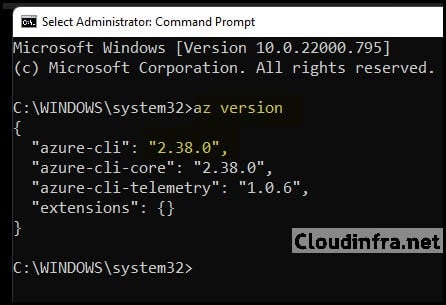
- Install Azure CLI (Windows example): Download and install using the MSI or winget, as described in the official documentation. Install the Azure CLI on Windows | Microsoft Learn. After installation, open a new Command Prompt or PowerShell window and run:
az versionto verify the CLI is installed and to confirm the installed version.
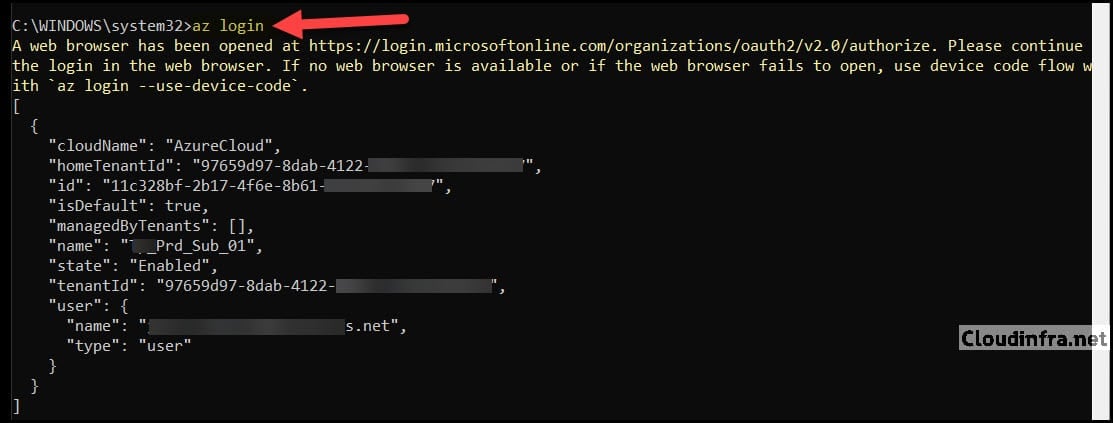
- Sign in to Azure with your user account:
az loginThis opens a browser window for interactive sign-in. Once you sign in, Azure CLI caches your credentials locally, and you can start running commands.
If you prefer not to install anything locally, you can run all of these commands in Azure Cloud Shell from the Azure portal. Cloud Shell already includes the latest Azure CLI.
Step 1: Create a Resource Group (Optional)
If you don’t already have a resource group that you want to use for the Key Vault, create one using the below command. Replace the name and location with values that make sense for your environment.
az group create --name "UkSouthRg" --location "UKSouth"Step 2: Create Azure Key Vault
Next, create an Azure Key Vault using az keyvault create.
az keyvault create \
  --name "newKeyVaultUKSouth01" \
  --resource-group "UkSouthRg" \
  --location "UKSouth"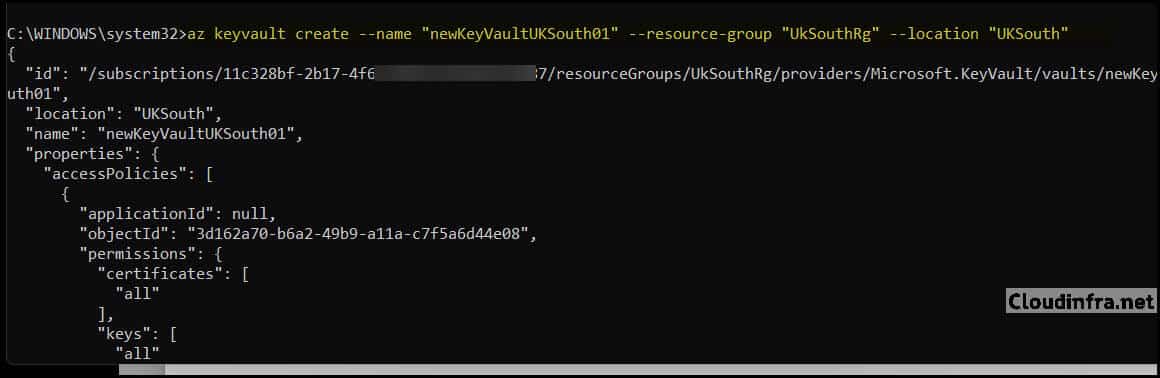
Key points:
- Key Vault name must be unique across Azure and must:
- Be 3 to 24 characters.
- Contain only letters, numbers, and hyphens.
- Location must be a valid Azure region (for example, UKSouth, EastUS, etc.).
The command output includes, among other properties:
- name: the vault name (newKeyVaultUKSouth01 in this example)
- vaultUri: the URI of the vault, for example, https://newkeyvaultuksouth01.vault.azure.net/
Applications use this URI to access secrets over the Key Vault REST API.
Step 3: Give your account permission to manage secrets (RBAC)
On new deployments, Microsoft recommends using Azure RBAC for Key Vault data plane access. In that model, having Owner/Contributor on the resource group or subscription isn’t enough; you also need a Key Vault data role. To grant your user permission to manage secrets in this vault, assign the Key Vault Secrets Officer role at the vault scope:
az role assignment create \
  --role "Key Vault Secrets Officer" \
  --assignee "<your-user-upn>" \
  --scope "/subscriptions/<subscription-id>/resourceGroups/UkSouthRg/providers/Microsoft.KeyVault/vaults/newKeyVaultUKSouth01"
Replace:
- <your-user-upn> with your UPN, for example, user@cloudinfra.net.
- <subscription-id> with your subscription ID.
If your Key Vault is still using the older access policy model and you created the vault, your account may already have full permissions to manage secrets, in which case this step is effectively already satisfied.
Step 4: Create a Secret in Azure Key Vault using Azure CLI
To create a secret in Azure Key Vault using Azure CLI, use az keyvault secret set.
Example:
az keyvault secret set \
  --vault-name "newKeyVaultUKSouth01" \
  --name "SqlAdmin" \
  --value "Jhne&(nol@jdn88HHG"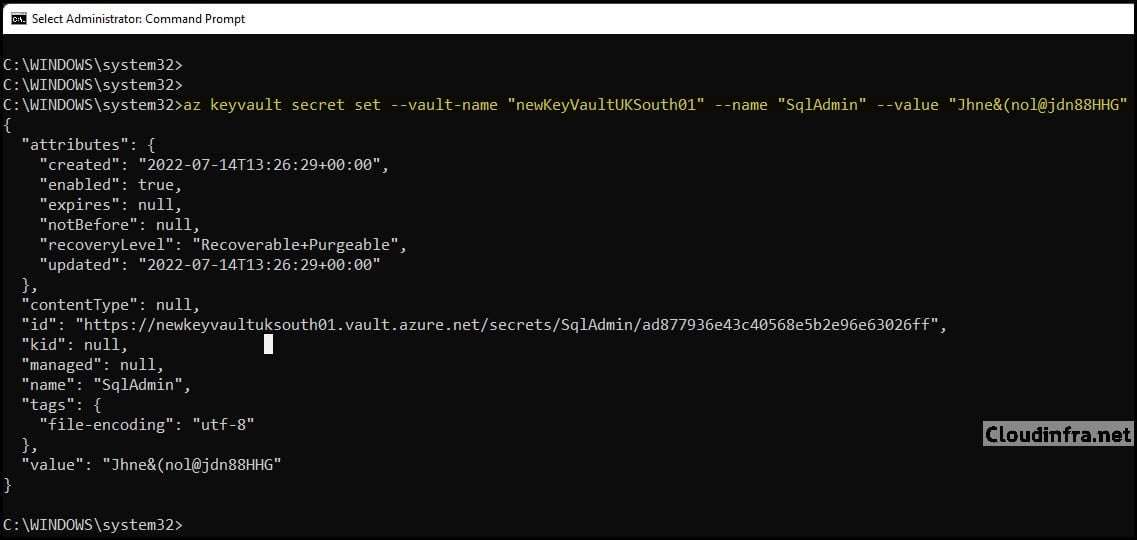
This command:
- Creates a secret named SqlAdmin in the vault
newKeyVaultUKSouth01if it does not exist. - If a secret with that name already exists, it creates a new version of that secret.
- Stores the specified value securely in the vault.
Secret naming rules:
- Secret name must be 1–127 characters.
- Must start with a letter.
- Can contain letters, digits, and hyphens only.
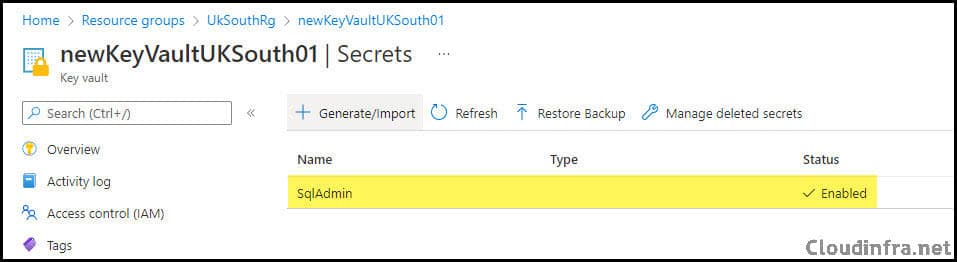
You can confirm that the secret is created by:
- Browsing to the Key Vault in the Azure portal, then going to Objects > Secrets, or
- Listing secrets with: az keyvault secret list –vault-name “newKeyVaultUKSouth01”
Step 5: Retrieve a Secret from Azure Key Vault using Azure CLI
To retrieve a secret, use az keyvault secret show.
Example:
az keyvault secret show \
  --name "SqlAdmin" \
  --vault-name "newKeyVaultUKSouth01"
This returns the full JSON representation of the secret, including metadata and attributes like id, contentType, attributes, etc.
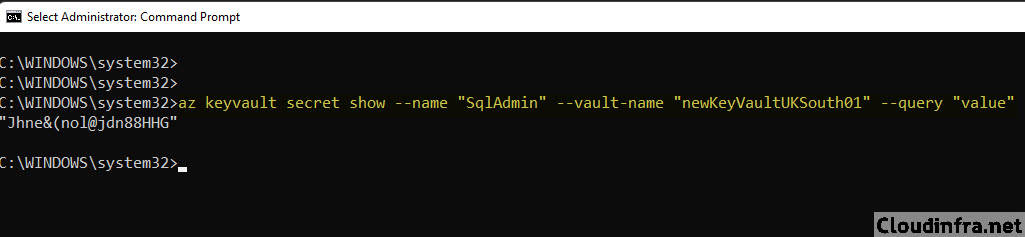
If you only want the secret value in plain text, use the –query parameter, as in your original example:
az keyvault secret show \
  --name "SqlAdmin" \
  --vault-name "newKeyVaultUKSouth01" \
  --query "value" \
  -o tsv
--query "value"filters the JSON to just thevalueproperty-o tsvremoves quotes and outputs the raw value, which is convenient for scripting
Working with multi-line secrets (optional but useful)
If you want to store multi-line values (for example, JSON, private keys, or certificates), you should not pass them directly with --value on the command line. Instead:
- Save the content to a file, for example, secretfile.txt.
- Use the
--fileparameter:
az keyvault secret set \ --vault-name "newKeyVaultUKSouth01" \ --name "MultilineSecret" \ --file "secretfile.txt"Retrieve the secret like any other:
az keyvault secret show \ --name "MultilineSecret" \ --vault-name "newKeyVaultUKSouth01" \ --query "value"Key Vault will store the multi-line secret and return it with \n for newlines when using CLI.
Clean up (optional)
If this was just a test and you want to remove everything, you can delete the resource group and all resources in it:
az group delete --name "UkSouthRg" --yes --no-waitThis removes the Key Vault, secrets, and any other resources in that group.
