
In this post, I will show you how to install Power BI Desktop using Intune. Power BI Desktop is a Windows app for building data models and interactive reports by connecting to multiple data sources and shaping data with Power Query. You publish the finished reports to the Power BI service to share dashboards and collaborate across your organization. It’s a free app to download from the link Download Microsoft Power BI Desktop.
The easiest way to deploy this app to Windows devices via Intune is to use the Microsoft Store app (new) deployment method. Another option is to use the Enterprise App Catalog method or the Win32 app deployment method. If you use the Microsoft Store app (new) method, the app will be automatically kept up to date when a new version is released.
Contents
Prerequisites
- Intune enrollment on Windows 10/11 devices.
- Intune Management Extension (IME) available on the device (needed for Win32 apps and also for Microsoft Store app (new) deployment).
- Power BI Desktop 64-bit: 32-bit version is no longer supported.
Method 1: Using Microsoft Store App (New)
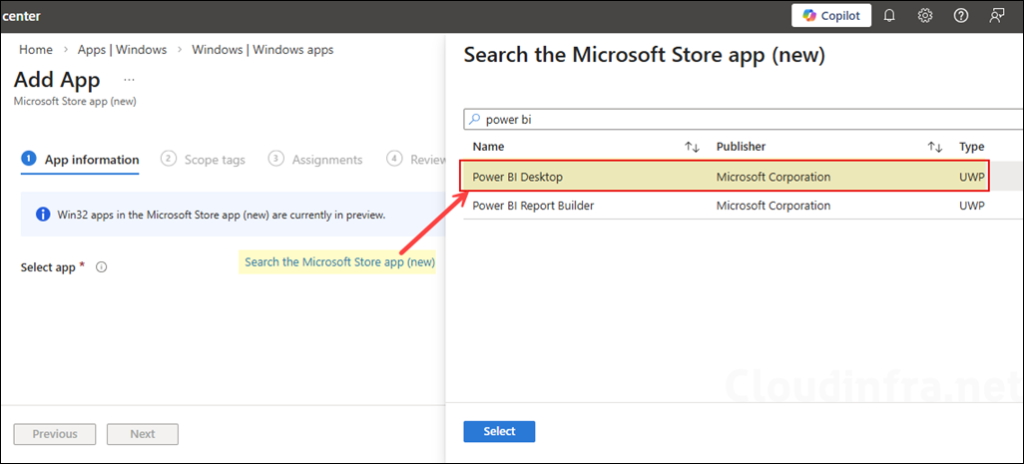
The first deployment method is to use the Microsoft Store app (new) deployment option in Intune to deploy the Power BI Desktop app. I will not cover the detailed step-by-step process here, as it is already explained in my other post on deploying Microsoft Store app (new) applications. Follow the steps outlined in that post, select and assign Power BI Desktop from the Microsoft Store. The screenshot below shows the availability of the app in the Microsoft Store catalog.
Method 2: Using Enterprise App Catalog
Enterprise App Catalog is a collection of pre-packaged Win32 applications prepared by Microsoft and made available for deployment through the Intune admin center. The catalog includes both Microsoft and third-party applications. For more details, refer to the post How to Update Enterprise App Catalog Apps. This post is about updating enterprise app catalog apps but will give you an idea of how to deploy the apps using this method, including Power BI Desktop.
Method 3: Using Win32 app deployment method
This is the most flexible but complex approach compared to the above two deployment methods. For this you will need to download the EXE of the app from Download Microsoft Power BI Desktop and convert it to an Intunewin file. For step-by-step instructions, use the guide How to Deploy Win32 Apps using Intune.
Troubleshooting
- Check the logs (Win32 and Store deployments): For IME-driven installs, logs are typically here: C:\ProgramData\Microsoft\IntuneManagementExtension\Logs. Use CMTrace.exe to read the logs. You can also collect the logs remotely; refer to this guide for more details: Collect Intune logs from Windows Devices.
- App shows installed, but users cannot launch: Confirm users are not launching Power BI Desktop under SYSTEM context. This is unsupported due to WebView2.
- Power BI Desktop crashes or fails to launch: Use the Microsoft provided crash report locations for the EXE build for analysis.
Conclusion
For most orgs, deploy Power BI Desktop via Microsoft Store app (new) in Intune because it is Microsoft-recommended and minimizes lifecycle overhead with automatic updates. Use Enterprise App Catalog if you have EAM licensing and want Microsoft-hosted Win32 packaging with Intune-managed update workflows. Use a Win32 packaged EXE when Store is blocked or you need strict version control, using Microsoft-documented silent switches like -quiet, -norestart, and ACCEPT_EULA=1 with a solid detection rule.
