
In this post, I will show you how to manage efficiency mode in Edge via Intune. Efficiency mode in Microsoft Edge is designed to reduce CPU, RAM, and power usage so that laptops last longer on battery and heavy devices stay cooler. When efficiency mode is enabled (default state), it will put the inactive background tabs to sleep after ~30 minutes.
By default, on Windows laptops, Efficiency mode is available and only kicks in automatically when the device goes into Windows Battery Saver. On Windows desktops, it is effectively off unless you change it. On macOS, it is available and automatically turns on when the battery drops to about 20 percent. On Linux, it is available but stays off until the user manually enables it in Edge settings.
To learn more about the efficiency mode, go to the link: Learn about performance features in Microsoft Edge – Microsoft Support. Below is the Intune settings catalog policy to configure efficiency mode in Edge.
| Profile type | Category | Setting | Status |
|---|---|---|---|
| Settings Catalog | Microsoft Edge\Performance | Efficiency mode enabled: device scoped setting Efficiency mode enabled (User): User scoped setting | Set it to Enabled or Disabled |
Contents
What is Efficiency Mode in Microsoft Edge?
Efficiency mode is part of Edge’s optimized performance features. When it is active, Edge changes how it uses system resources to save power and memory. Efficiency mode is usually set to a balanced setting by default, and devices without a battery typically do not enable it automatically.
Efficiency mode is not the same thing as the Windows Task Manager efficiency mode that you can toggle on a process. They can both affect browser performance, but they are controlled differently.
Benefits of keeping efficiency mode enabled in Microsoft Edge:
- Lower process priority using Windows EcoQoS to reduce CPU usage.
- Aggressively put inactive tabs to sleep.
- Reduce background timers and activity for background tabs.
Applies when:
- Users work mostly on battery-powered laptops.
- You want to improve battery life during travel, meetings, or field work.
- Most workloads are light browsing, email, documentation, and SaaS apps.
- You would like to optimize CPU and memory on low spec hardware.
Efficiency mode comes in two modes: balanced savings (default and recommended) and maximum savings. Below are the differences between the two:
| Balanced savings (recommended) | Maximum savings |
|---|---|
| Reduces CPU and memory usage moderately while trying to keep the active tab smooth and responsive. | Aggressively limits CPU and memory usage, prioritizing power saving over responsiveness. |
| Puts inactive tabs to sleep after a longer idle period, so background sites keep running for a while. | Puts inactive tabs to sleep much sooner and more often, so background sites are paused quickly. |
| Suitable for most users, typical office/SaaS workloads, web browsing, and streaming with minimal impact. | Can cause visible slowdowns, delayed background tasks, and more frequent pausing of media or web apps. |
| Good balance between performance and battery life; recommended default for laptops. | Best when battery life is critical (very low battery, travel) or on very low-power hardware where every bit of saving matters. |
Why Should You Disable Efficiency Mode in Edge?
Below are some reasons to disable efficiency mode in Edge browser:
- Users report that Edge feels slow or laggy, and performance improves as soon as they toggle Efficiency mode off.
- Business critical web apps use heavy client-side scripts or real-time dashboards.
- Users do a lot of media or conferencing (Teams, Zoom, WebRTC) and see frame drops.
- You run Edge in VDI or Remote Desktop environments where power savings are less important than responsiveness.
- You want a consistent performance profile in a lab or test environment.
For most enterprises, the right answer is often to keep it enabled on battery but control it centrally and disable it where it causes issues.
Enable or Disable Efficiency Mode in Edge Intune Policy
Now that we understand about the efficiency mode in Edge, let’s look at the Intune policy to manage this setting.
- Sign in to Intune admin center > Devices > Windows > Configuration > Create > New Policy.
- Platform: Windows 10 and later; Profile type: Settings catalog. Click Create.
- On the Basics tab, provide a Name and Description of the policy and click Next.
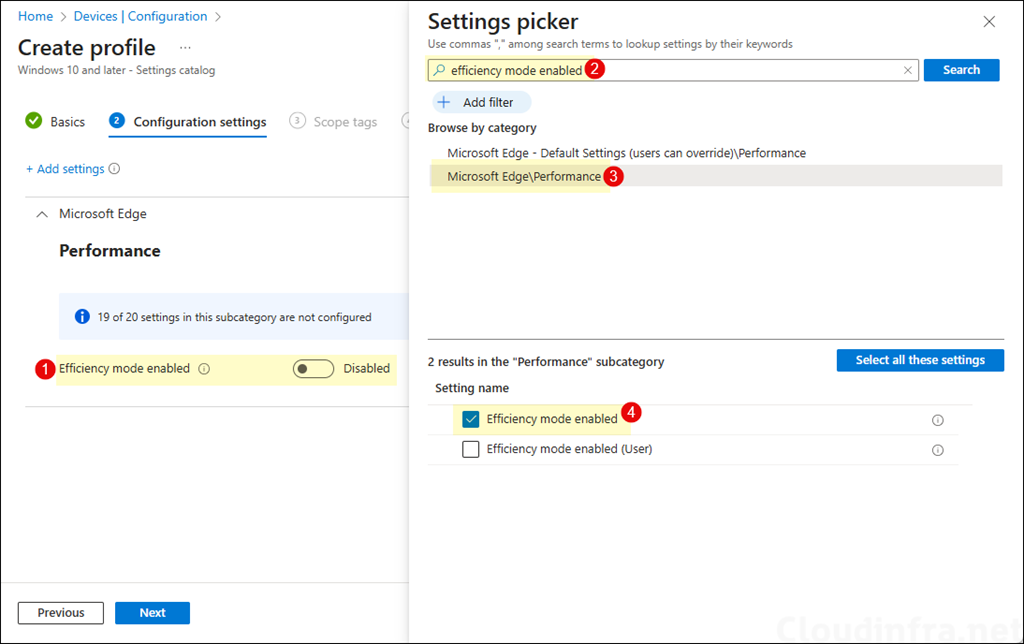
- On Configuration settings tab, click on + Add settings and use the Settings picker to search using efficiency mode enabled keyword and select Microsoft Edge\Performance category. Select Efficiency mode enabled setting. To disable it, simply keep it in the disabled state and apply the policy.
| Setting | Description |
|---|---|
| Efficiency mode enabled | device scoped setting |
| Efficiency mode enabled (User) | User scoped setting |
Enables efficiency mode, which helps extend battery life by saving computer resources. By default, efficiency mode is enabled for devices with a battery and disabled otherwise. If you enable this policy, efficiency mode will become active according to the setting chosen by the user. You can configure the efficiency mode setting using the ‘EfficiencyMode’ (Configure when efficiency mode should become active) policy. If the device does not have a battery, efficiency mode will always be active. If you disable this policy, efficiency mode will never become active. The ‘EfficiencyMode’ and ‘EfficiencyModeOnPowerEnabled’ (Enable efficiency mode when the device is connected to a power source) policies will have no effect. If you don’t configure this policy, efficiency mode will be enabled for devices with a battery and disabled otherwise. Users can choose the efficiency mode option they want in edge://settings/system. Learn more about efficiency mode: https://go.microsoft.com/fwlink/?linkid=2173921
About Efficiency mode enabled setting (official Microsoft definition)
- Scope tags (optional): A scope tag in Intune is an RBAC label you add to resources (policies, apps, devices) to limit which admins can see and manage them. For more information, read: How to use Scope tags in Intune.
- Assignments: Assign the policy to Entra security groups that contain the target users or devices. As a best practice, pilot with a small set first; once validated, roll it out more broadly. For guidance on assignment strategy, see Intune assignments: User groups vs. Device groups.
- Review + create: Review the deployment summary and click Create.
Update Intune Policies
The device check-in process might not begin immediately. If you’re testing this policy on a test device, you can manually kickstart Intune sync from the device itself or remotely through the Intune admin center.
Alternatively, you can use PowerShell to force the Intune sync on Windows devices. Restarting the device is another way to trigger the Intune device check-in process.
End User Experience
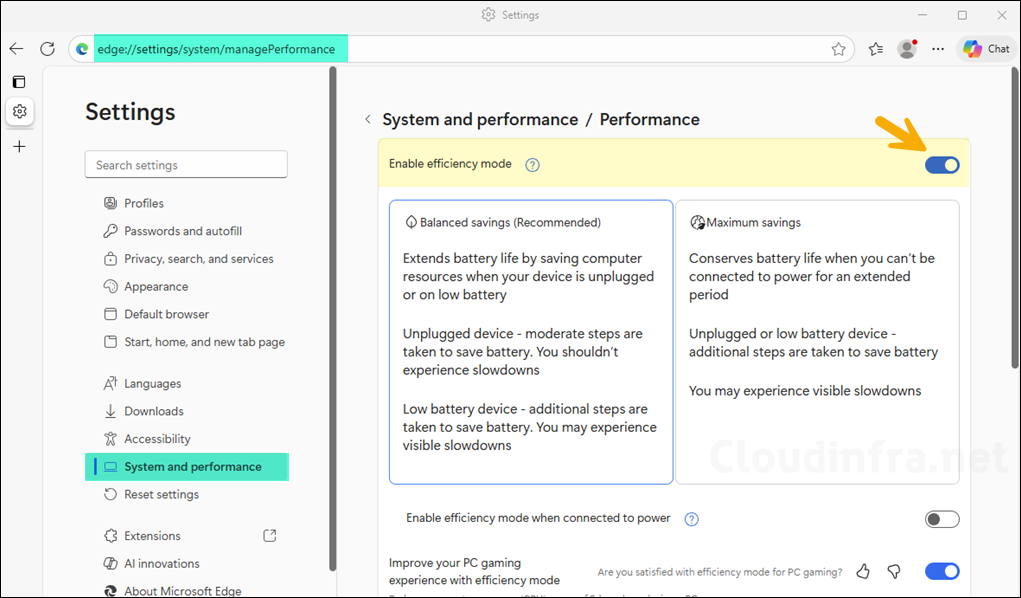
After the Intune policy is applied on the target devices, Edge efficiency mode will be set as configured in the policy. To check and confirm if the policy has been applied successfully, follow below steps:
- Open Microsoft Edge browser, and in the address bar, type edge://settings/system/managePerformance.
- Check the state of Enable efficiency mode setting.
Another way to check and confirm if the Intune policy has been applied successfully or resulted in an error is to go to the Event Viewer > Applications and Services Logs > Microsoft > Windows > Devicemanagement-Enterprise-Diagnostics-Provider > Admin. Filter the logs for Event ID 813 or 814 and go through the logs to find the one relevant to your Intune deployment.
