
This guide focuses on removing the Microsoft Copilot app (consumer experience) from Windows 11 and covers both end-user removal and enterprise-safe removal. There are multiple ways to remove or uninstall the Copilot app from Windows devices. If you are managing Windows 11 devices through Intune and the devices are updated to the latest feature update (25H2 or later), you can use a Settings Catalog policy called Remove default Microsoft Store packages from system. From there, select the Copilot app and assign the policy to the target devices. Another approach is to prevent users from launching the Copilot app while keeping it installed. This can be achieved by using AppLocker or App Control for Business.
Contents
Consumer vs. Commercial Copilot
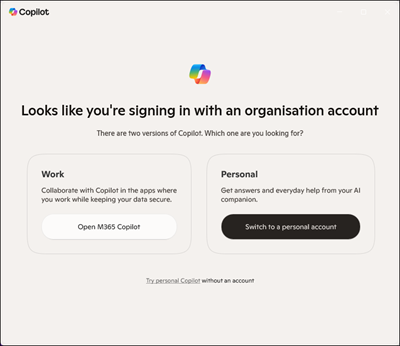
- Microsoft Copilot app (consumer): does not support Microsoft Entra sign-in. If a user tries to sign in with Entra, they are redirected to Microsoft 365 Copilot Chat (https://m365.cloud.microsoft/chat) in their default browser. The screenshot below shows the screen you will get when you try to sign in with your organization account on the consumer version of Copilot app.
- Microsoft 365 Copilot app (commercial entry point): used for Entra authenticated users (separate app/experience).
Method 1: Remove Copilot from Start menu (right-click)
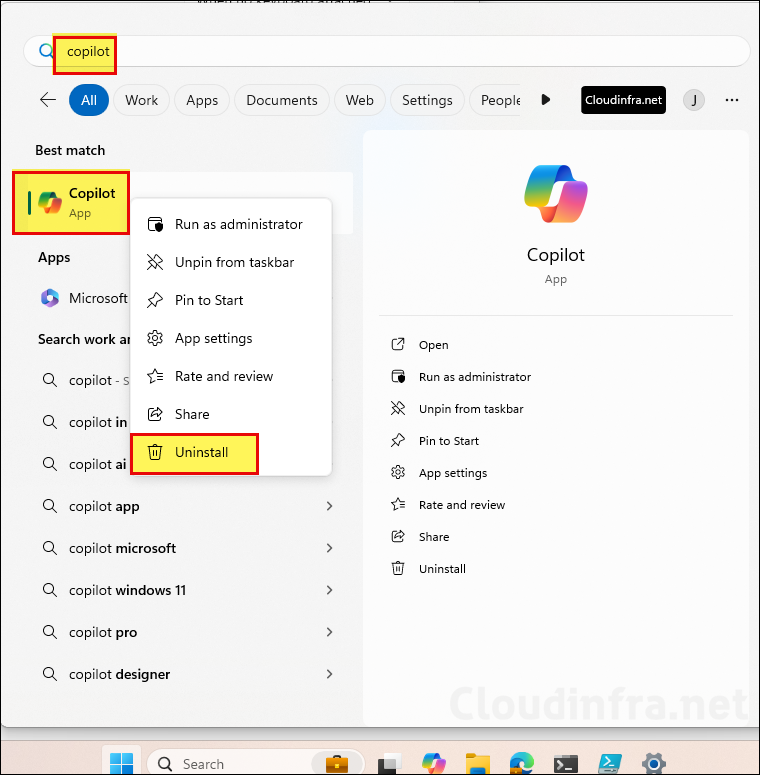
This is the simplest “user action” path when the app is installed for that user. Open Start and search for the Copilot app, then right-click on it and select Uninstall. Use this method when you have a few devices or to manually validate the uninstall method.
Method 2: Remove Copilot App from Settings (Installed Apps)
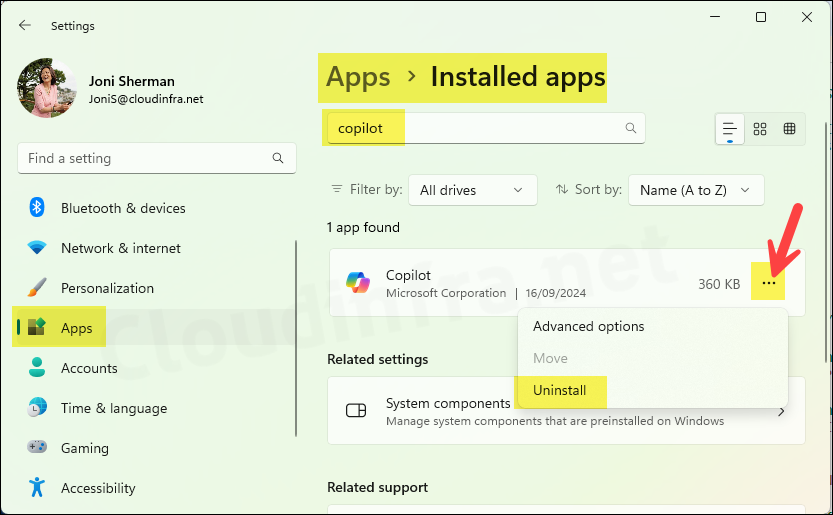
You can also use this method to remove the Copilot app from Windows 11 devices. This method uses the settings app and removes the app from the installed apps list.
- Press Win + I keys together to open the Settings app.
- Go to Apps > Installed apps.
- Search for the Copilot app and click on three dots > Select Uninstall.
Method 3: Remove Copilot app using PowerShell [For Current User]
You can uninstall or remove the Copilot app using a PowerShell command. This method will target the current logged-in user. Open PowerShell (standard user is usually sufficient for current-user uninstall) and run below commands.
Check if Copilot app is installed
Get-AppxPackage -Name "Microsoft.Copilot"

or

Get-AppxPackage | Where-Object {$_.Name -Like '*Microsoft.Copilot*'}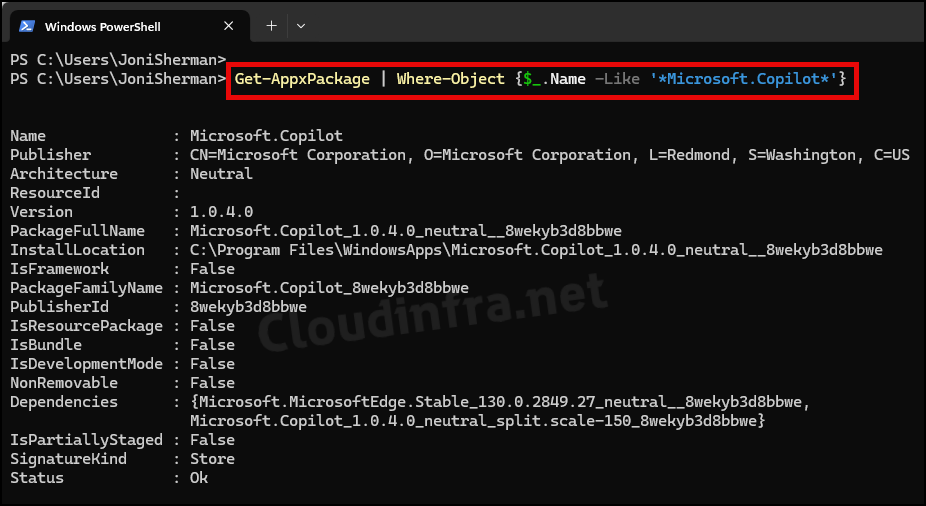
Uninstall Copilot for current user
Get-AppxPackage | Where-Object {$_.Name -Like '*Microsoft.Copilot*'} | Remove-AppxPackage -ErrorAction ContinueMethod 4: Remove Copilot app using PowerShell [For All Users]
Open the PowerShell console as administrator and execute below command to Uninstall Copilot for All users using the device.
Uninstall Copilot for All Users
Get-AppxPackage -AllUsers | Where-Object {$_.Name -Like '*Microsoft.Copilot*'} | Remove-AppxPackage -AllUsers -ErrorAction ContinueAlternative commands to remove Copilot app
# Get the package full name of the Copilot app
$packageFullName = Get-AppxPackage -Name "Microsoft.Copilot" | Select-Object -ExpandProperty PackageFullName

# Remove the Copilot app
Remove-AppxPackage -Package $packageFullName
Method 5: Remove Copilot App using Winget
- Open PowerShell console as administrator and execute
winget list.
List all packages using winget
winget list- Copy the Package Id of Copilot app.
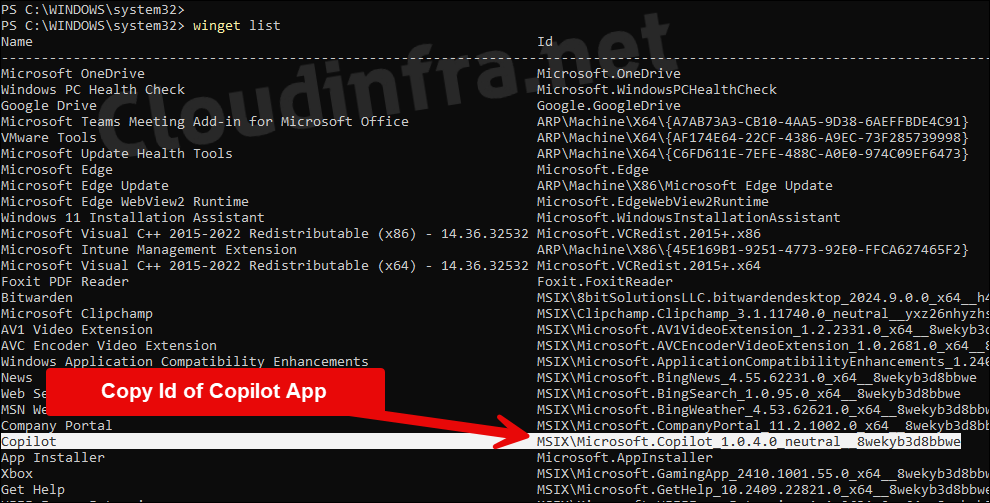
- Execute below command to remove Copilot using Winget.
Uninstall Copilot using Winget
winget uninstall --id MSIX\Microsoft.Copilot_1.0.4.0_neutral__8wekyb3d8bbwe
Method 6: Remove Copilot App using Intune Policy (for 25H2 or later)
If you are managing Windows 11 devices through Intune and the devices are updated to the latest feature update (25H2 or later), you can use a Settings Catalog policy called Remove default Microsoft Store packages from system. This also prevents users from installing the app again. Therefore, it’s the most recommended option if you can use it in your organization.
Reinstall Copilot App on Windows 11 Devices
Use any of the below methods to reinstall Copilot app on Windows 11 devices.
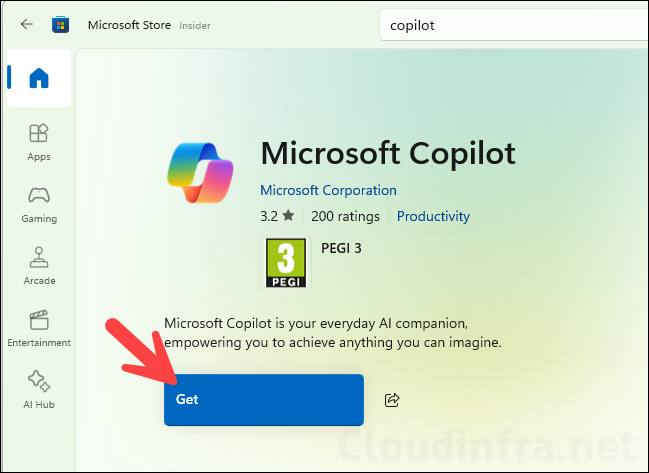
Using Microsoft Store
Search for the Microsoft Copilot app in the Microsoft Store and click on Get to install the app.
Download Copilot App EXE Installer
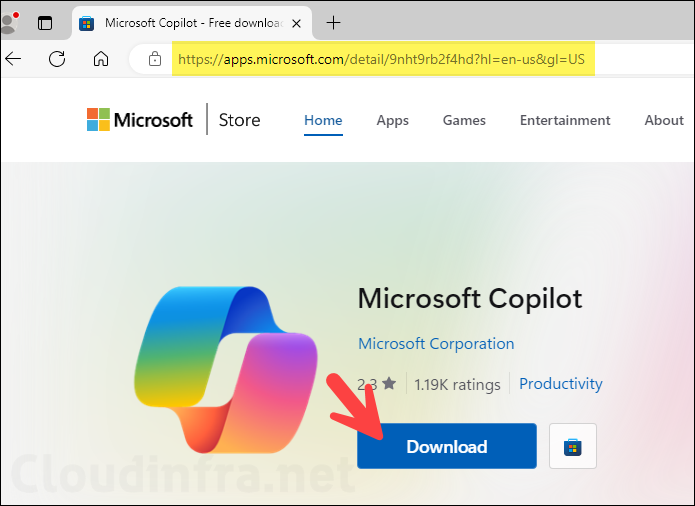
You can download Microsoft Copilot app executable file that can be used to distribute the app on multiple computers. To download Microsoft Copilot Installer.exe file, Open any web browser and visit the link: https://apps.microsoft.com/detail/9nht9rb2f4hd?hl=en-us&gl=US and click on the Download button.
Install Copilot app using Winget
You can also use Winget to install Copilot app on Windows 11 devices. Launch PowerShell console as administrator and execute the following command:
Winget install -s msstore --id 9nht9rb2f4hd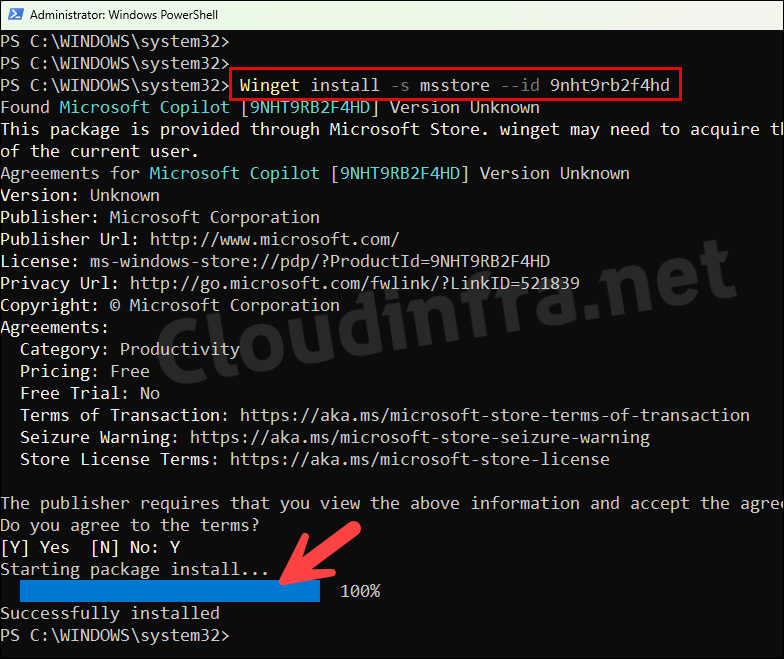
Deploy Copilot app using Intune
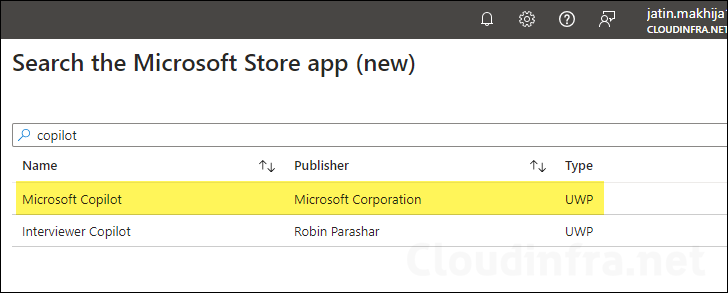
You can also deploy Copilot app using Intune. This app is available for deployment from Microsoft Store. For detailed guidance on how to deploy Microsoft store (new) apps, refer to the blog post: Deploy Microsoft Store Apps using Intune.

No he recibido la actualización con copilot. La recibiré más adelante? cuándo?
[I have not received the update with copilot. Will I receive it later? when?]
Could you please provide the Exact Windows 11 version you are using? You will get it when Windows 11 23H2 will be released. However, If you want to get a Preview version of it on a Windows 11 device today, You need to Install this Update manually or by checking for Windows updates: https://catalog.update.microsoft.com/Search.aspx?q=KB5030310