In this post, I will show you how to fix Windows App Authentication Error 0x80080005 for AVD & W365. If users suddenly started seeing Windows App authentication failures (0x80080005) when connecting to Azure Virtual Desktop (AVD) or Windows 365 (W365), and the timing aligns with January 2026 Patch Tuesday, this is very likely a Windows update regression on the endpoint. January 13, 2026, security update KB5074109 can cause credential prompt failures during Remote Desktop connections in Windows App, impacting both AVD and Windows 365.
The good news is that Microsoft released out-of-band (OOB) fixes, first on January 17, 2026 (KB5077744) and then a newer OOB update via the Windows Update release channel on January 24, 2026 (KB5078127). Installing the appropriate OOB update on affected endpoints resolves the issue.
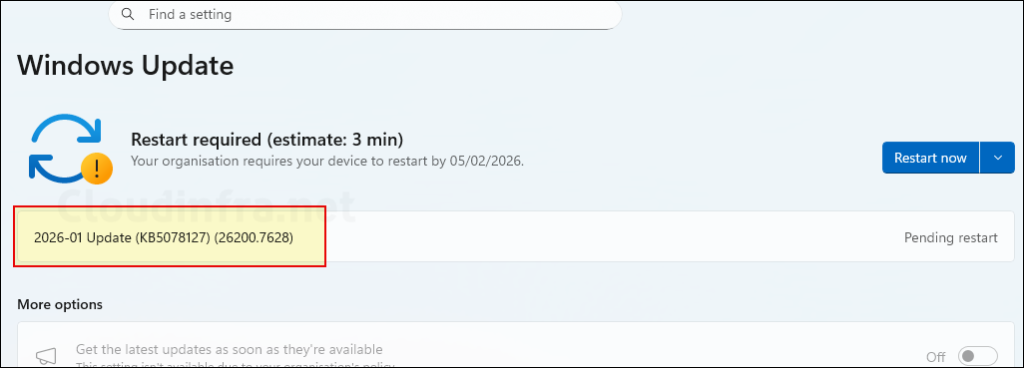
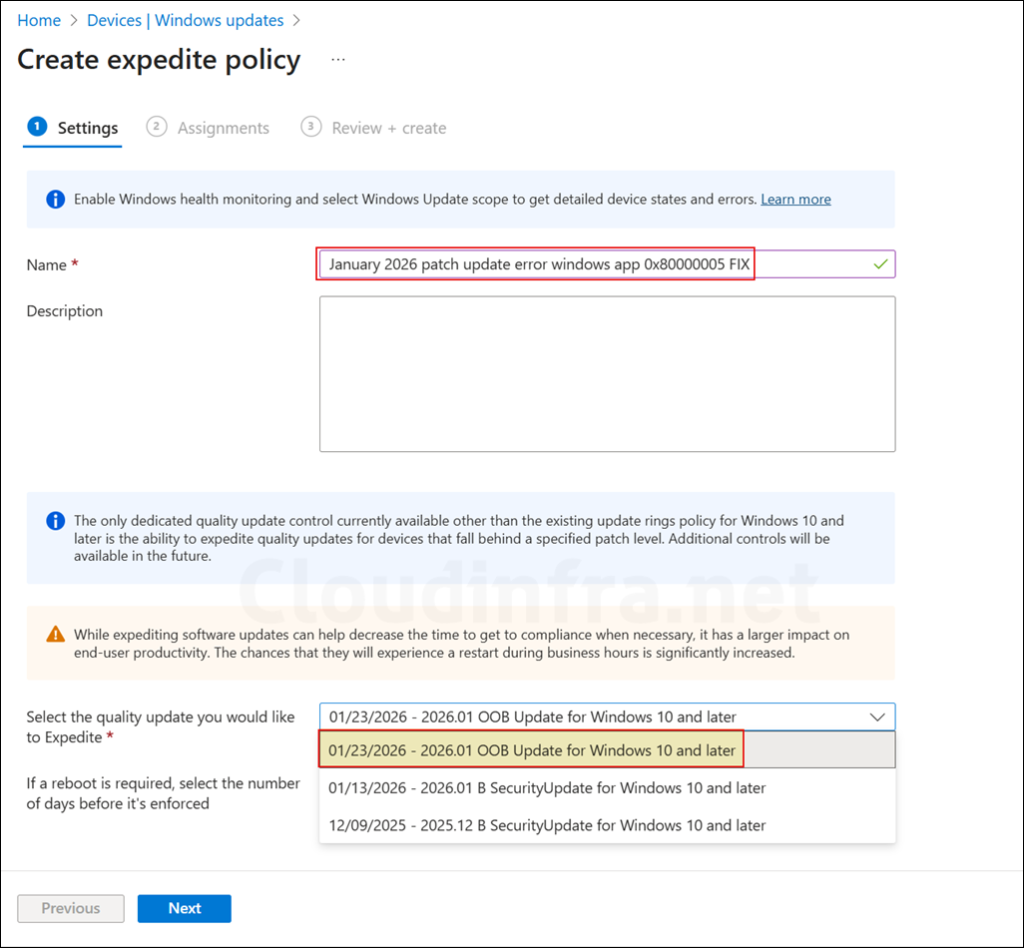
The screenshot below shows the deployment of the KB5078127 OOB patch on Windows 11 devices via Intune Expedite policy.
Contents
User Experience
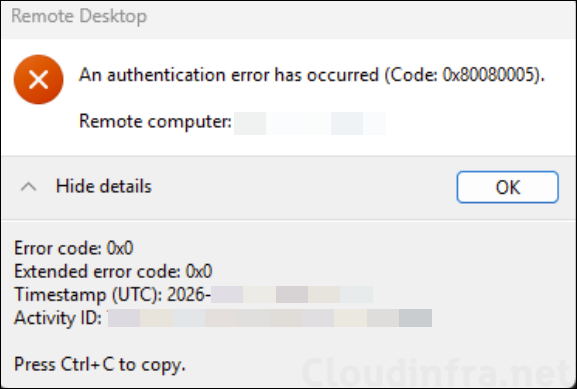
Windows App connects to the feed but fails when launching an AVD desktop/RemoteApp or Windows 365 Cloud PC. Sign-in fails at the credential prompt stage and returns 0x80080005. Below screenshot shows the error message when you try to connect to AVD or Windows 365.
Step 1: Confirm the endpoint is impacted by KB5074109
First check and confirm if the issue is because of KB5074109. Open the Settings app on the affected device > Windows update > Update history. Look for January 13, 2026, KB5074109 in the installed updates list. If KB5074109 is present and Windows App sign-in started failing after that installation, proceed to the fix provided in this post.
Step 2: Install the latest OOB fix from Windows Update (KB5078127, January 24, 2026)
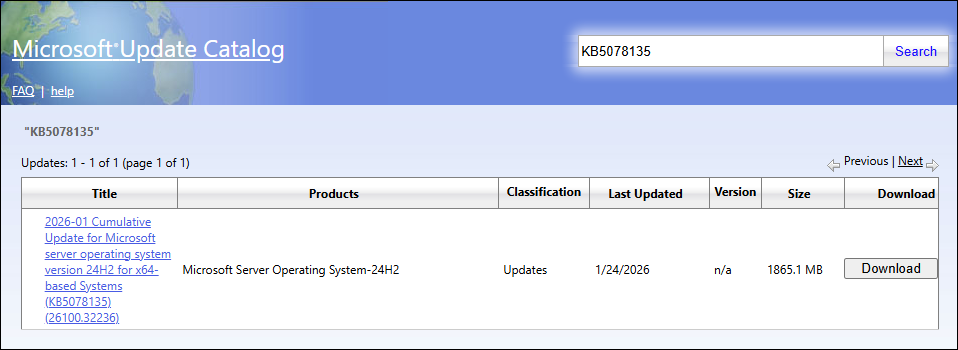
Microsoft’s current recommended resolution is the newer OOB update released January 24, 2026 (KB5078127). For more details about this patch, click on this link: January 24, 2026—KB5078127 (OS Builds 26200.7628 and 26100.7628) Out-of-band – Microsoft Support. The update is applicable to Windows 11, version 25H2 and 24H2 devices. After you install the KB5078127 patch, Windows app authentication issue (0x80080005) will be resolved. If you are getting this error on Windows Server 2025, then install the patch KB5078135 to resolve the issue.
Installing KB5078127 patch will also resolve the recent issues with OneDrive and Dropbox apps. This update is offered through Windows Update for devices running Windows 11. This update is cumulative and includes security fixes and improvements from the January 13, 2026, security update (KB5074109) and the out-of-band update (KB5077744) from January 17, 2026. It is also available for manual download from the Microsoft Update Catalog.
After installing the Windows update released on and after January 13, 2026, some applications became unresponsive or encountered unexpected errors when opening files from or saving files to cloud-based storage, such as OneDrive or Dropbox. In certain Outlook configurations that store PST files on OneDrive, Outlook may hang and fail to reopen unless the process is terminated or the system is restarted. Users may also see missing sent items or previously downloaded emails being re‑downloaded.
KB5078127 fixes in addition to Windows App Authentication Error 0x80080005
- For Windows 11 25H2/24H2, install the KB5078127 update to resolve the issue.
- For Windows Server 2025, install KB5078135 to resolve the issue.
| Operating system | Version | Install this KB to Resolve 0x80080005 |
|---|---|---|
| Windows 11 | 25H2 / 24H2 | KB5078127 |
| Windows 11 | 23H2 | KB5078132 |
| Windows 10 | ESU (22H2) and Enterprise LTSC 2021 | KB5078129 |
| Windows 10 | Enterprise LTSC 2019 | KB5078131 |
| Windows Server | 2025 | KB5078135 |
| Windows Server | 2022 | KB5078136 |
| Windows Server | 2019 | KB5078131 |
Installing KB5078127 OOB Update on Windows 11 25H2/24H2
There are multiple ways to install the KB5078127 out-of-band (OOB) update on Windows 11 version 25H2 and 24H2 systems. These include manual installation, deployment through Microsoft Intune, WSUS, or installation using Configuration Manager (SCCM).
Manual Installation
You can download the patch KB5078127 from Microsoft Update Catalog site and install it on the affected Windows 11 devices manually.
- Download KB5078127 from Microsoft Update Catalog site: Microsoft Update Catalog (direct link).
- Install it either by double-clicking on the installer file or use the below PowerShell command to install the update. Replace the path in the below command with where the patch is downloaded.
Install kb5078127
Add-WindowsPackage -Online -PackagePath "C:\Users\jatin\Downloads\windows11.0-kb5078127-x64_2669c24d8d8227e7992853d32fb4e95873bbe6bf"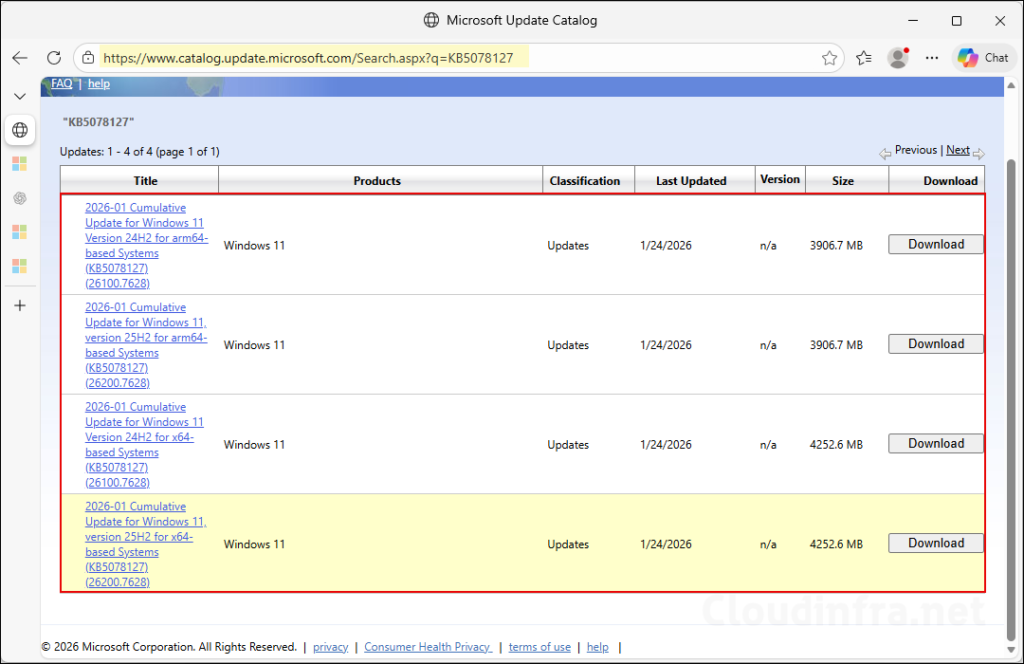
Microsoft Intune
If you are managing Windows 11 version 25H2 or 24H2 devices through the Intune admin center, follow the steps below to install the out-of-band update KB5078127 by using an Expedite policy.
- Sign in to the Intune admin center > Devices > Windows updates > Under the Quality updates tab, click + Create and then select Expedite policy.
- On the Settings tab, configure the following settings and click Next.
- Name: Use a clear naming convention.
- Description: Include the CVE reference or business reason.
- Select the quality update you would like to Expedite: Use the drop-down to select the OOB update you want to expedite (as shown in the screenshot for KB5078127).
- If a reboot is required, select the number of days before it’s enforced: You can choose the number of days before a device is automatically restarted. If you select 0, the device restarts immediately after the expedited updates are installed. However, if users are actively working on the device, an immediate restart can be disruptive. Although users are notified, they have limited time to save their work.
WSUS
- In Microsoft Update Catalog, search KB5078127, open the correct entry (Win11 24H2/25H2 x64/ARM64) and copy the UpdateID.
- On the WSUS server, use Microsoft’s PowerShell-based import method to import by UpdateID (not by importing the .MSU file).
- In the WSUS console, locate KB5078127 and approve it for the required WSUS computer group(s).
Configuration Manager/SCCM
- In ConfigMgr, run Software Updates Synchronization so KB5078127 appears in All Software Updates.
- Add KB5078127 to a Software Update Group (SUG), then download the update content and distribute it to distribution points.
- Deploy the SUG to the target collection as required, with Available time = ASAP and Deadline = ASAP, then reboot as per your standard update/restart policy.
Installing KB5078135 OOB Update on Windows Server 2025
There are several ways to install the KB5078135 out-of-band (OOB) patch on Windows Server 2025. Depending on how updates are managed in your organization, use the appropriate OOB or emergency patching process in the tool you use to deploy updates to Windows servers. For manual installation, download the patch from the Microsoft Update Catalog (direct link) and double-click the downloaded installer file to install it.