
- Applies to: Windows 10 and Windows 11
- Microsoft Edge: Version 77 or later
In this blog post, I will show you how to configure Microsoft Edge as the default browser using Intune. We can do this by configuring the default app associations for Edge applications on Windows 10 and Windows 11 devices so that web links and supported file types open in Edge.
If your organization’s Windows devices are enrolled and managed using Intune, you can deploy a device configuration profile that sets Microsoft Edge as the default browser on all targeted devices.
At a high level, we are going to perform below tasks:
- Configure Edge as the default browser on a reference device.
- Export the default app association XML from that device.
- Remove non-Edge associations from the XML.
- Convert the XML to base64.
- Deploy it using Intune with the Default Associations Configuration settings catalog policy or by using OMA-URI ApplicationDefaults/DefaultAssociationsConfiguration.
You can reuse the same process to set other browsers (for example, Google Chrome or Firefox) as the default.
Contents
Step 1: Generate Default App Association XML
First, create a clean default app association XML file from a Windows 10 or Windows 11 device.
Set Microsoft Edge browser as the default browser manually
If you are still using Windows 10 devices, then use the steps for Windows 10; otherwise, just use the steps for Windows 11 devices to manually set Edge as default browser.
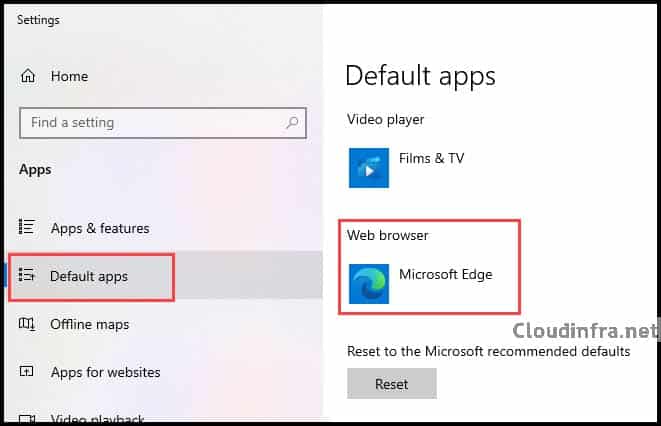
On a Windows 10 device:
- Sign in to the device and open Settings > Apps > Default apps.
- Under Web browser, select Microsoft Edge as the default.
On a Windows 11 device:
- Sign in to the device and open Settings > Apps > Default apps and search for Microsoft Edge.
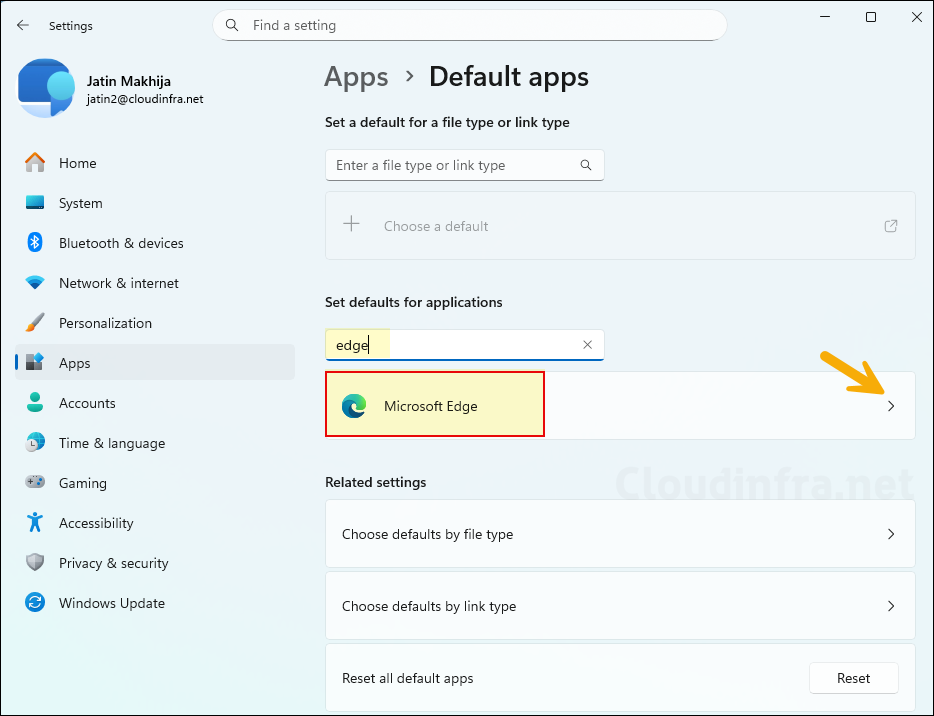
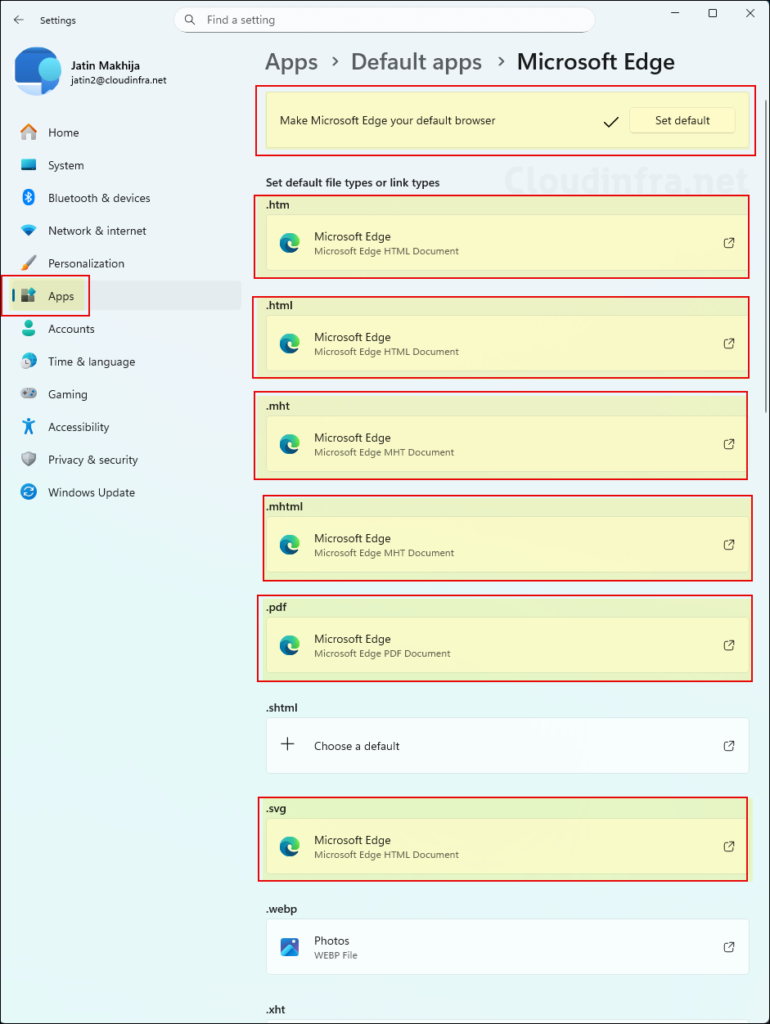
- Click the Set default button to make Microsoft Edge the default browser. Then update the default app association for each extension you want to open in Edge. For example, select .htm, .html, .mht, .mhtml, .svg, and .pdf, and set each of them to open with Microsoft Edge.
Generate App Associations XML File
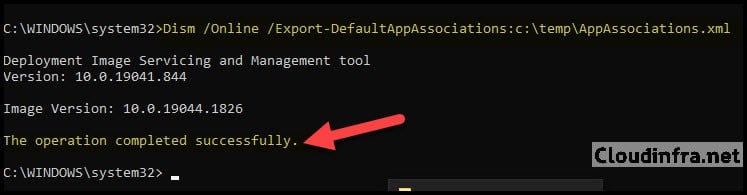
- Open Command Prompt as an administrator and run the command shown below. Update the file path for AppAssociations.xml to the folder where you want the file to be generated. In this example, I am using the C:\temp folder.
Dism /Online /Export-DefaultAppAssociations:"C:\temp\AppAssociations.xml"
- Open C:\Temp\AppAssociations.xml in a text editor.
- Remove all associations that are not related to Microsoft Edge. The file should look similar to the example shown below. You can also remove specific Edge associations if needed. For example, if you do not want PDF files to open in the Edge browser by default, remove the line highlighted in the XML file. Otherwise, review the XML, and if it meets your requirements, you can use it to set the default app associations for the Edge browser.
<?xml version="1.0" encoding="UTF-8"?>
<DefaultAssociations>
  <Association Identifier=".htm" ProgId="MSEdgeHTM" ApplicationName="Microsoft Edge" />
  <Association Identifier=".html" ProgId="MSEdgeHTM" ApplicationName="Microsoft Edge" />
  <Association Identifier=".mht" ProgId="MSEdgeMHT" ApplicationName="Microsoft Edge" />
  <Association Identifier=".mhtml" ProgId="MSEdgeMHT" ApplicationName="Microsoft Edge" />
  <Association Identifier=".pdf" ProgId="MSEdgePDF" ApplicationName="Microsoft Edge" />
  <Association Identifier=".svg" ProgId="MSEdgeHTM" ApplicationName="Microsoft Edge" />
  <Association Identifier=".xht" ProgId="MSEdgeHTM" ApplicationName="Microsoft Edge" />
  <Association Identifier=".xhtml" ProgId="MSEdgeHTM" ApplicationName="Microsoft Edge" />
  <Association Identifier=".xml" ProgId="MSEdgeHTM" ApplicationName="Microsoft Edge" />
  <Association Identifier="ftp" ProgId="MSEdgeHTM" ApplicationName="Microsoft Edge" />
  <Association Identifier="http" ProgId="MSEdgeHTM" ApplicationName="Microsoft Edge" />
  <Association Identifier="https" ProgId="MSEdgeHTM" ApplicationName="Microsoft Edge" />
  <Association Identifier="microsoft-edge" ProgId="MSEdgeHTM" ApplicationName="Microsoft Edge" />
  <Association Identifier="microsoft-edge-holographic" ProgId="MSEdgeHTM" ApplicationName="Microsoft Edge" />
  <Association Identifier="ms-xbl-3d8b930f" ProgId="MSEdgeHTM" ApplicationName="Microsoft Edge" />
  <Association Identifier="read" ProgId="MSEdgeHTM" ApplicationName="Microsoft Edge" />
</DefaultAssociations>
Version and Suggested Attributes
Starting in Windows 11 22H2, you can optionally use the Version and Suggested attributes in the XML to control how often associations are reapplied. For example, Suggested="true" only applies that association once per Version instead of at every sign-in.
- Version: The Version value is used to control when suggested associations are applied. If you increment the version number in the default app associations XML, the suggested associations will apply once. They will not apply again until the version number is incremented again.
- Suggested: By default, if you do not specify the Suggested attribute, it is interpreted as false. This means the default app association will be applied at every sign-in. If you set Suggested to true, the default app association will be applied only once. When you increase the Version number in the XML, any association where Suggested is set to true will be applied one additional time and will not apply again until the Version number is incremented again. This is a similar concept to the applyOnce attribute of Start menu layout configuration and the PinGeneration attribute when configuring taskbar pins on Windows 11.
I will modify our AppAssociations.xml file to take advantage of these attributes and demonstrate how they work. Below is my updated XML file, which uses the Version and Suggested attributes. I am starting with Version=”1″ and adding Suggested=”true” for the Association Identifier=”.pdf”. This means the default app association for PDF will be applied only once. If a user later changes the PDF default app from Edge to another application, such as Adobe Reader, our Intune deployment will not reapply or overwrite this app association.
If you want to set the default PDF association back to Edge again, you will need to increase the Version number from 1 to 2 and redeploy the Intune policy. Increasing the Version number signals Intune to apply the default app association one more time, until the Version number is incremented again.
For all other app associations where Suggested=”true” is not used, the default app associations will be applied at every sign-in. If a user changes any of these associations, they will be reset according to the XML file.
<?xml version="1.0" encoding="UTF-8"?>
<DefaultAssociations Version="1">
  <Association Identifier=".htm" ProgId="MSEdgeHTM" ApplicationName="Microsoft Edge" />
  <Association Identifier=".html" ProgId="MSEdgeHTM" ApplicationName="Microsoft Edge" />
  <Association Identifier=".mht" ProgId="MSEdgeMHT" ApplicationName="Microsoft Edge" />
  <Association Identifier=".mhtml" ProgId="MSEdgeMHT" ApplicationName="Microsoft Edge" />
  <Association Identifier=".pdf" ProgId="MSEdgePDF" ApplicationName="Microsoft Edge" Suggested="true" />
  <Association Identifier=".svg" ProgId="MSEdgeHTM" ApplicationName="Microsoft Edge" />
  <Association Identifier=".xht" ProgId="MSEdgeHTM" ApplicationName="Microsoft Edge" />
  <Association Identifier=".xhtml" ProgId="MSEdgeHTM" ApplicationName="Microsoft Edge" />
  <Association Identifier=".xml" ProgId="MSEdgeHTM" ApplicationName="Microsoft Edge" />
  <Association Identifier="ftp" ProgId="MSEdgeHTM" ApplicationName="Microsoft Edge" />
  <Association Identifier="http" ProgId="MSEdgeHTM" ApplicationName="Microsoft Edge" />
  <Association Identifier="https" ProgId="MSEdgeHTM" ApplicationName="Microsoft Edge" />
  <Association Identifier="microsoft-edge" ProgId="MSEdgeHTM" ApplicationName="Microsoft Edge" />
  <Association Identifier="microsoft-edge-holographic" ProgId="MSEdgeHTM" ApplicationName="Microsoft Edge" />
  <Association Identifier="ms-xbl-3d8b930f" ProgId="MSEdgeHTM" ApplicationName="Microsoft Edge" />
  <Association Identifier="read" ProgId="MSEdgeHTM" ApplicationName="Microsoft Edge" />
</DefaultAssociations>
Step 2: Encode App Associations XML to base64 format
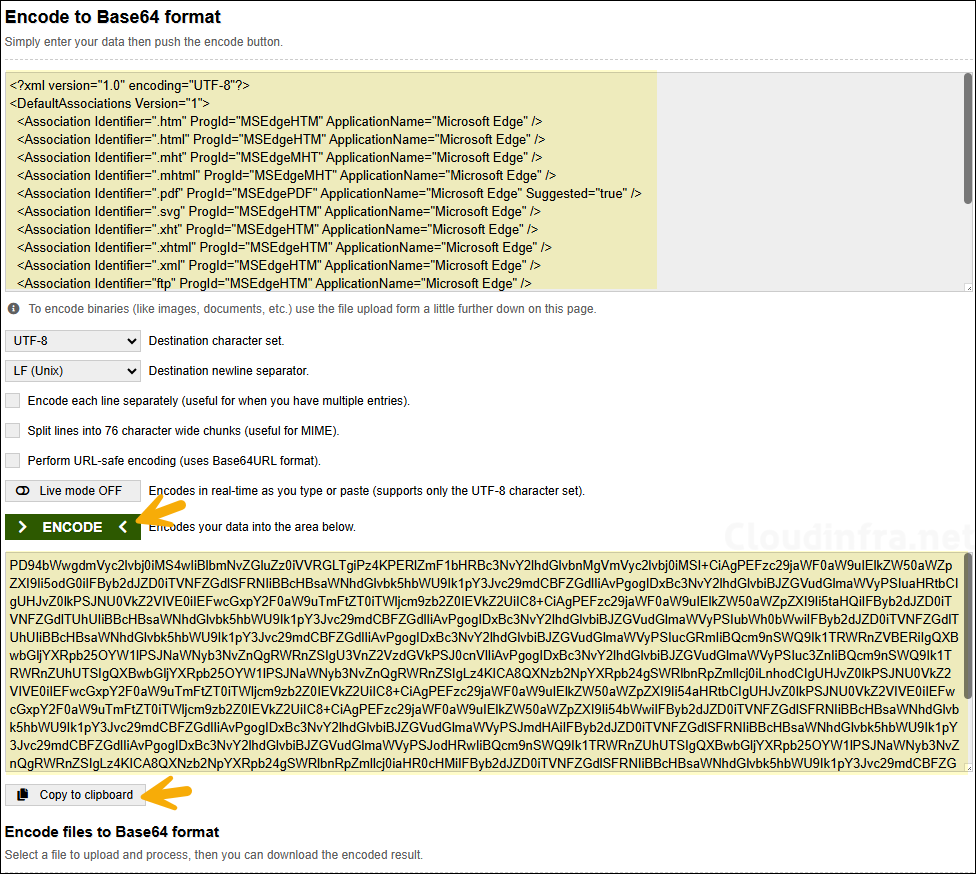
Intune uses the DefaultAssociationsConfiguration policy, which expects the XML content to be base64-encoded.
- Click on the base64encode link or use any of your preferred base64 encoder tool.
- Copy the entire contents of AppAssociations.xml.
- Paste the XML into the encoder and click Encode.
- Copy the base64 output and save it in a text file. You will paste this value into Intune in the next step.
Step 3: Create Intune Device Configuration Profile
We will now create a device configuration profile that uses the Default Associations Configuration setting in the Settings Catalog to set Edge as the default browser.
- Sign in to the Intune Admin Center > Devices > Configuration > + Create > New Policy.
- Select Platform type as Windows 10 and later. Select Profile type as Settings Catalog.
- Click on Create.
- Basics: Provide a Name and Description of the Policy. Click Next.
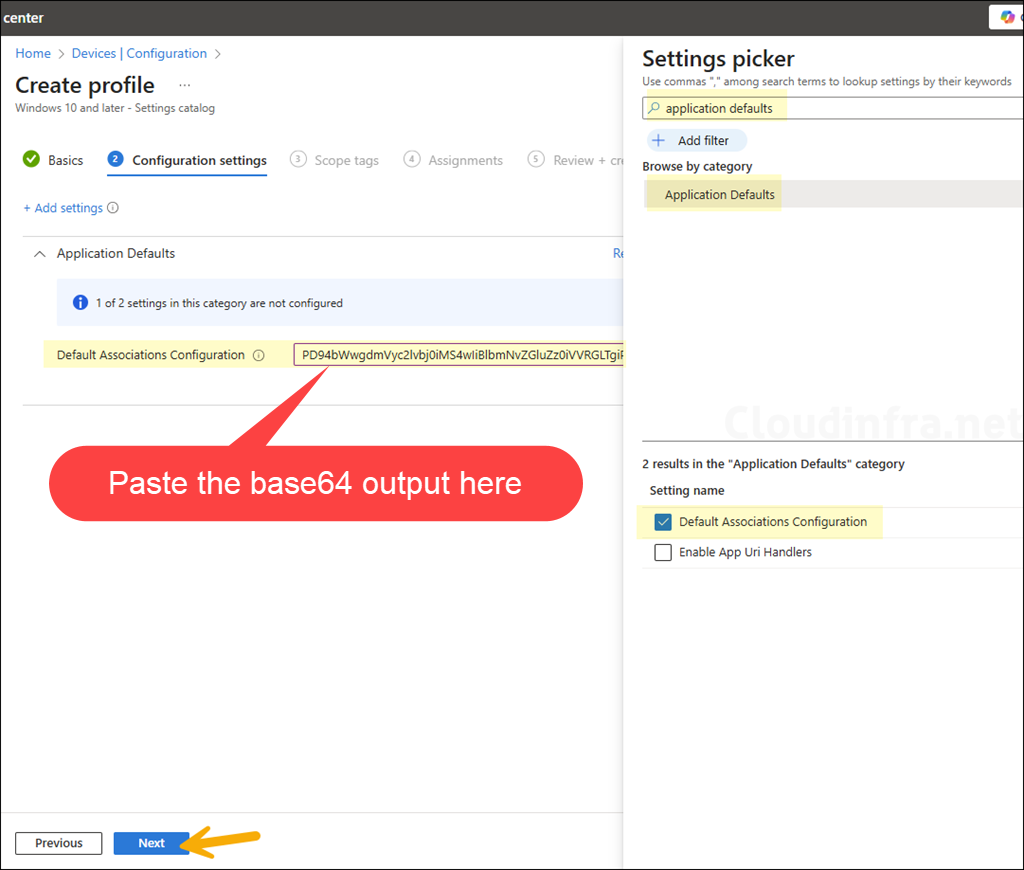
- On the Configuration settings tab, click + Add settings. In the Settings picker, search for
Application Defaults. Expand Application Defaults. Select Default Associations Configuration. Close the Settings picker. In the Default Associations Configuration text box, paste the base64 encoded value from Step 2.
- Scope tags (optional): A scope tag in Intune is an RBAC label you add to resources (policies, apps, devices) to limit which admins can see and manage them. For more information, read How to use Scope tags in Intune.
- Assignments: Assign the policy to Entra security groups that contain the target users or devices. As a best practice, pilot with a small set first; once validated, roll it out more broadly. For guidance on assignment strategy, see Intune assignments: User groups vs. Device groups.
- Review + Create: Review the policy and click on Create to create it.
Sync Intune Policies
The device check-in process might not begin immediately. If you’re testing this policy on a test device, you can manually kickstart the Intune sync from the device itself or remotely through the Intune admin center.
Alternatively, you can use PowerShell to force the Intune sync on Windows devices. Restarting the device is another way to trigger the Intune device check-in process.
Monitoring Intune Policy Deployment
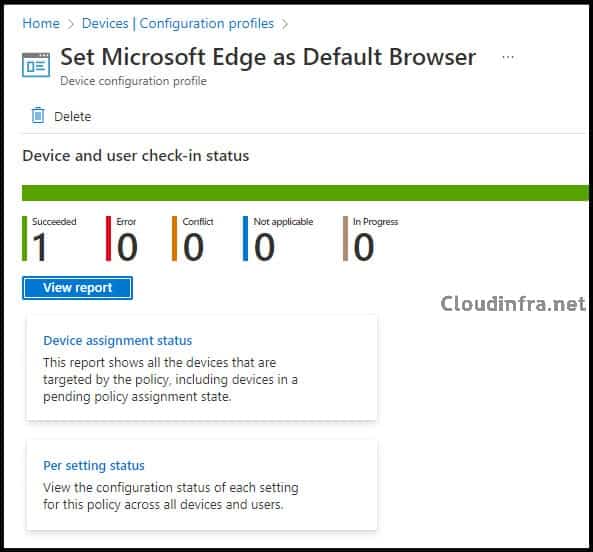
To confirm that the Edge default browser policy has been deployed:
- In the Intune admin center, go to Devices > Configuration.
- Search for your device configuration profile (for example, Set Microsoft Edge as Default Browser).
- Open the profile and review the Overview and Device status / User status tabs for deployment results.
End User Experience
Once the policy is applied and the user signs in on the target device, Microsoft Edge will be set as the default browser. There are several ways to confirm whether the policy has been applied on the device. Let’s go through those options:
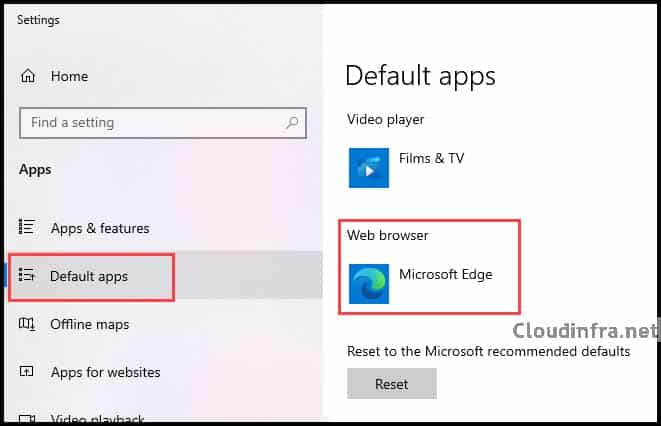
Verify on Windows 10 Using Settings App
- Open Settings > Apps > Default apps. Scroll to the Web browser section.
- You should see Microsoft Edge listed as the default browser.
If a user manually changes the default browser to something else (for example, Google Chrome), the DefaultAssociationsConfiguration policy will set it back to Edge according to the XML behavior.
Verify on Windows 11 Using Settings App
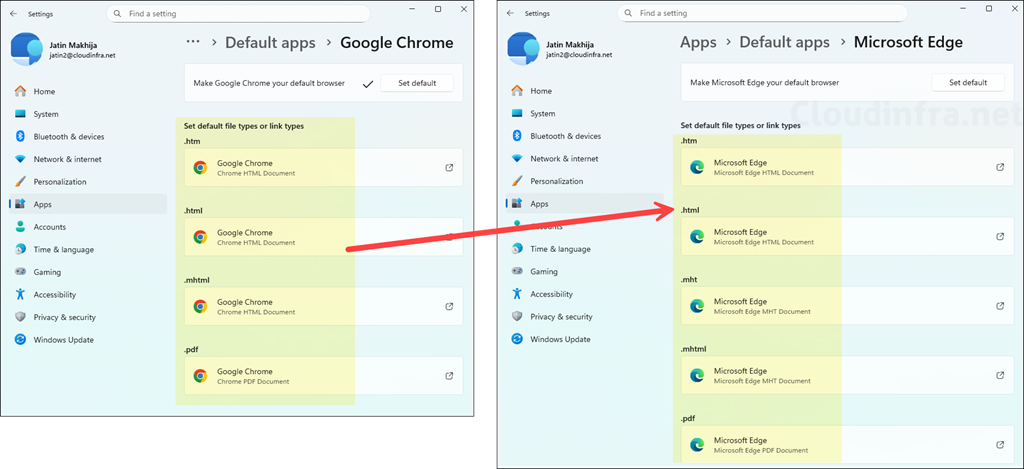
- Open Settings > Apps > Default apps. Search for Microsoft Edge and check the default associations for .htm, .html, .mht, .mhtml, .svg, and .pdf and other default app associations you have configured via the XML file. Ensure that all of them are now configured to open with Microsoft Edge by default.
The screenshot below shows the before and after results of applying the Intune policy. On the test device, Google Chrome was initially set as the default browser. After the policy was applied, the default app associations defined in the XML file were updated, and Microsoft Edge became the default browser.
Verify Default App Association using Registry
Follow the steps below to verify that the default app association setting has been applied successfully.
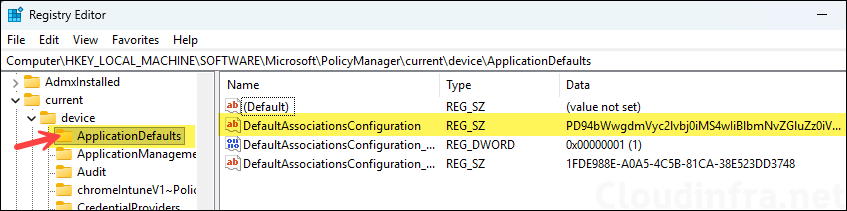
- Open the Registry Editor (regedit) on the target Windows device.
- Navigate to:
HKEY_LOCAL_MACHINE\SOFTWARE\Microsoft\PolicyManager\current\device\ApplicationDefaults - Confirm that the DefaultAssociationsConfiguration entry exists and contains a base64 string. If this reg entry is present, the policy is on the device and ready to apply at sign-in.
Verify Default app association using Event Viewer
You can also check via Event Viewer to confirm if the Default app association Policy has been deployed to targeted devices. Please follow the below steps to check:
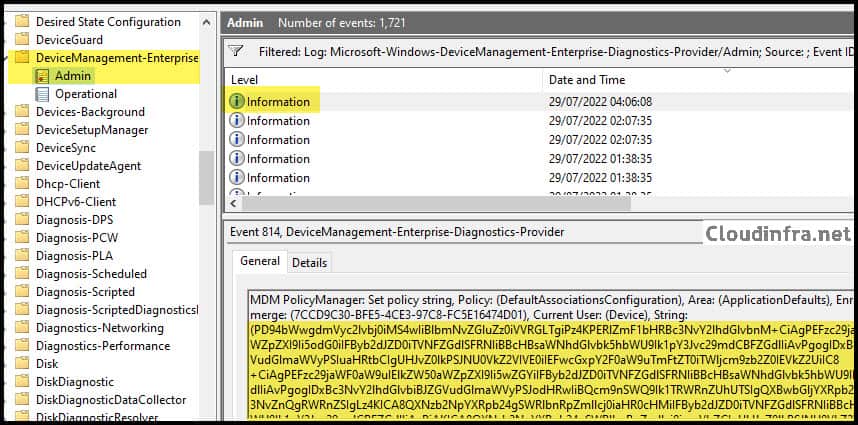
- Open Start > Event Viewer. Navigate to Applications and Services Logs > Microsoft > Windows > DeviceManagement-Enterprise-Diagnostics-Provider > Admin. Filter for Event ID 814.
- Look for entries where Policy is DefaultAssociationsConfiguration and ensure the base64 XML shown matches the configuration you deployed.
OMA-URI Setting for Deploying Default App Association
Using the Settings Catalog is the recommended and most user-friendly method for configuring default app associations in Intune. However, you can still deploy the same configuration using a Custom profile and the underlying OMA-URI path.
| Name | MicrosoftEdgeDefaultBrowser |
| Description | Set Microsoft Edge as Default Browser. |
| OMA-URI | ./Vendor/MSFT/Policy/Config/ApplicationDefaults/DefaultAssociationsConfiguration |
| Data type | String |
| Value | base64 encoded output value |
Conclusion
This post showed how to configure Microsoft Edge as the default browser on Windows 10 and Windows 11 using Intune. The key steps are:
- Set Edge as default on a reference device.
- Export and trim the DefaultAssociations XML.
- Base64-encode the XML.
- Deploy it through Intune using the Default Associations Configuration setting in the Settings Catalog (or the equivalent OMA-URI).
You can follow the same pattern to make Google Chrome, Firefox, or another browser the default instead of Edge. In that case, set the desired browser as default on your reference device before exporting the XML, then deploy the updated XML through the same Intune policy.
References
- Set Microsoft Edge as the default browser on Windows and macOS | Microsoft Docs
- Export or Import Default Application Associations | Microsoft Docs
- Policy CSP – ApplicationDefaults – Windows Client Management | Microsoft Docs
