
This post is about demonstrating the process to customize OneDrive sync root folder name via Intune. By default, the local OneDrive for work or school folder is created as OneDrive – {organization name}. In many environments, that default naming convention is longer than necessary and can contribute to deeper path lengths when users sync nested folders and files.
Microsoft provides a OneDrive policy called Set a custom name for the OneDrive folder, and you can deploy it via Imported Administrative templates (Preview) method to customize the local sync root name across managed Windows devices. The setting is currently not available natively via Settings catalog; therefore, you would need to import OneDrive.admx files in Intune to configure this setting or use a PowerShell script (shown later).
Contents
Why Customize OneDrive Sync Root Folder Name?
Customizing the default local OneDrive sync root folder name increases the available path length for nested folders and files. This can help reduce the chance of path-length related sync issues, especially in environments with long department names, deep folder structures, or complex SharePoint and OneDrive libraries. The full OneDrive sync root folder path cannot exceed 120 characters, so using a shorter root name is a practical way to preserve more usable path length.
Intune Policy Setting
The supported setting is Set a custom name for the OneDrive folder. When enabled, OneDrive uses your specified custom name instead of the default OneDrive – {organization name} when it creates the sync root folder for new users.
| Profile type | Setting Name | Status |
|---|---|---|
| Imported Administrative templates (Preview) | Computer Configuration > OneDrive > Set a custom name for the OneDrive folder | Set it to Enabled and provide Tenant ID and new folder name. |
Prerequisites
Before you configure the policy, make sure the following prerequisites are in place:
- You have access to the Microsoft Intune admin center with permission to create configuration profiles. Use Policy and Profile Manager as the minimum built-in role for creating Intune policies.
- Windows devices are enrolled in Intune.
- OneDrive sync app is installed on target devices.
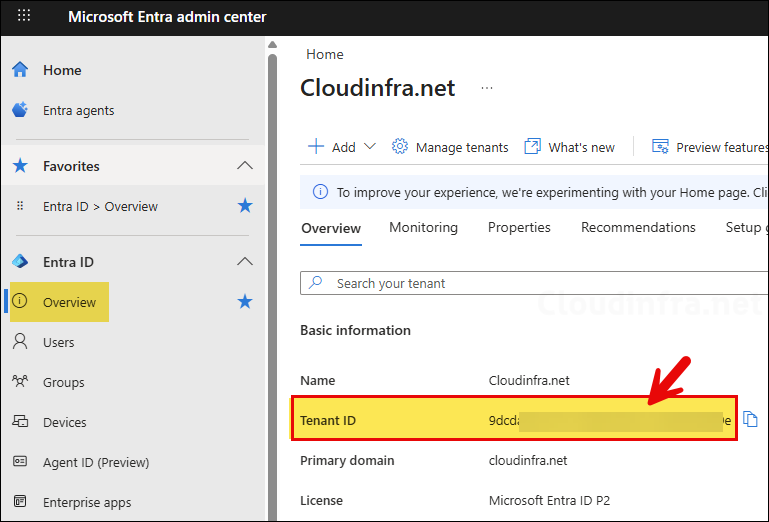
- You know your tenant ID, because this setting requires it. To find the tenant ID, go to Entra ID > Overview > Properties.
Important behavior to understand before deploying
This policy affects the local OneDrive sync root folder name, not the organization name in Microsoft 365 itself. If you enable the setting and specify a custom name, OneDrive uses that name when creating the sync root folder for new users. For users who are already syncing, users must unlink and relink their OneDrive account before the change takes effect. It’s recommended to change the sync root folder name before setting up OneDrive for new users so users do not need to unlink and relink later.
Naming rules and limitations
- You must provide at least one character.
- The custom folder name cannot be
OneDrive. - The full OneDrive sync root path cannot exceed 120 characters.
- The custom name cannot contain characters that are invalid for Windows folders.
Because of those rules, the best practice is to choose a short, clear name such as the company acronym or a short brand name rather than a long descriptive string. Use as few characters as possible to minimize the chance of max path issues.
How to Find Your Tenant ID
Tenant ID is required for configuring this Intune policy. You can copy the tenant ID and paste it somewhere in the notepad using the steps below:
- Sign in to the Microsoft Entra admin center.
- Go to Entra ID > Overview > Properties.
- Copy the Tenant ID value.
Upload Windows.admx and OneDrive.admx
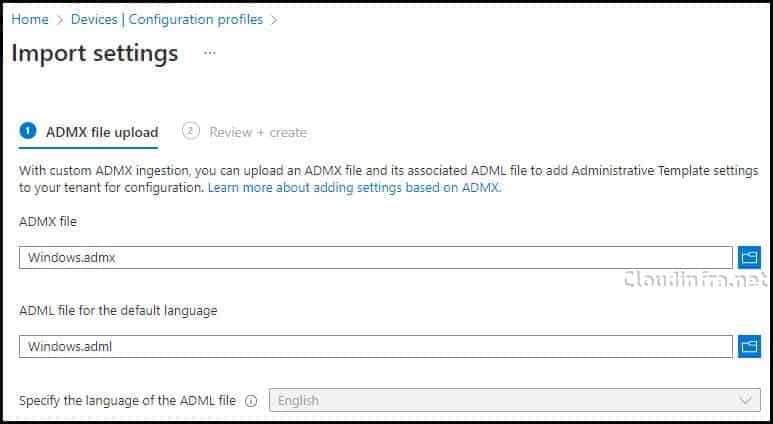
As of writing this post, the policy to customize the OneDrive sync root folder name is not available in the Settings Catalog. Therefore, you must use the OneDrive ADMX templates to create the policy. The OneDrive ADMX templates depend on the Windows ADMX template files. This means you must first import the Windows ADMX templates, followed by the OneDrive ADMX templates. If you attempt to import the OneDrive ADMX templates first, you will receive the following error: NamespaceMissing: Microsoft.Policies.Windows. Please upload it first ADMX Import Intune.
Step 1: Download and Import Windows ADMX Template Files
If you already have windows.admx template files imported into Intune, you can skip this step.
The first step is to download and import Windows ADMX template files into Intune. Always go with the latest version of ADMX files, as it will contain the most up to date settings. To download Windows 11 25H2 administrative templates, use the link #download-windows-11-25-h-2-administrative-templates. To import it into Intune, follow Step 3 on this post: #step-3-import-windows-admx-and-windows-adml-template-files.
Step 2: Import OneDrive ADMX Template Files
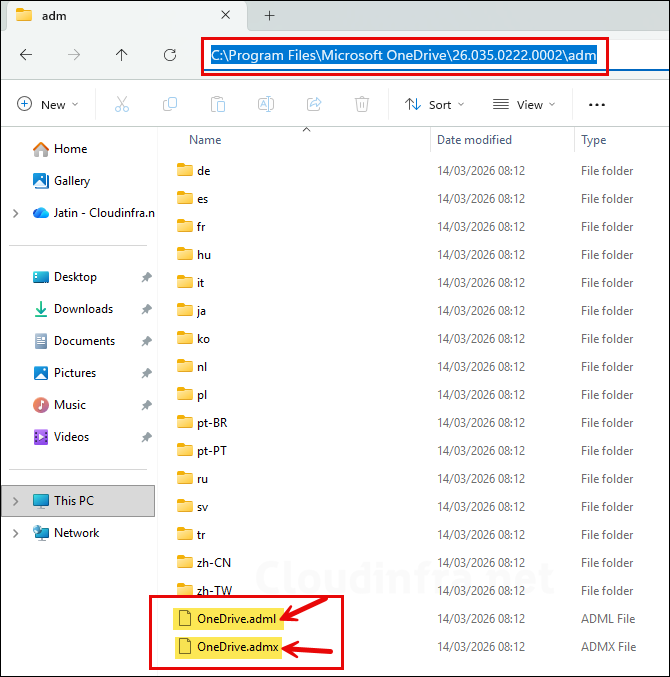
The next step is to import OneDrive ADMX template files into Intune. Install the latest version of OneDrive on a device or use a device that already has OneDrive installed, and go to the location C:\Program Files\Microsoft OneDrive\<version number>\adm folder and use OneDrive.adml and OneDrive.admx files for importing.
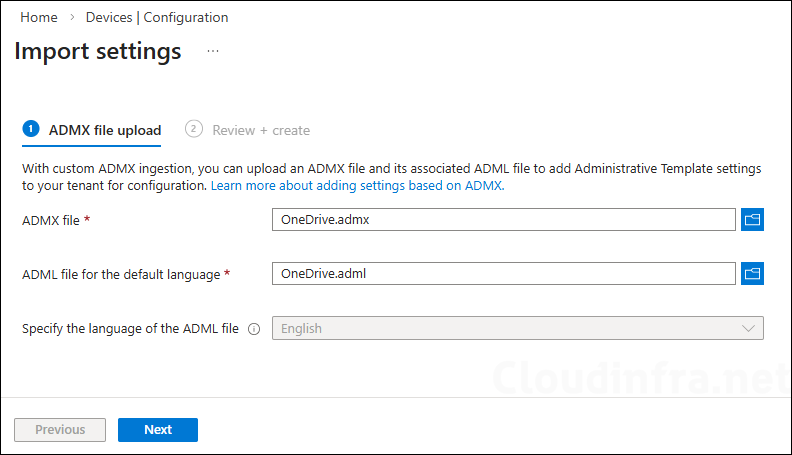
Go to Intune admin center > Devices > Configuration. Under the Import ADMX tab, click + Import. Browse to OneDrive.adml and OneDrive.admx files and import them in Intune.
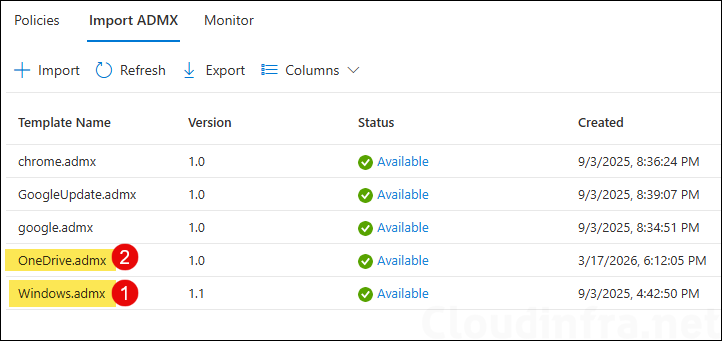
Finally, confirm that the Windows.admx and OneDrive.admx files have been successfully imported into Intune. The Status column should show Available. The screenshot below shows that both ADMX template files have been imported into Intune successfully.
Create an Intune Policy
Let’s now create an Intune policy and assign it to the Intune managed devices or users to customize the OneDrive sync root folder name:
- Sign in to Intune admin center > Devices > Windows > Configuration > Create > New Policy.
- Platform: Windows 10 and later. Profile type: Templates. Template Name: Imported Administrative templates (Preview).
- On the Basics tab, provide a Name and Description of the policy and click Next.
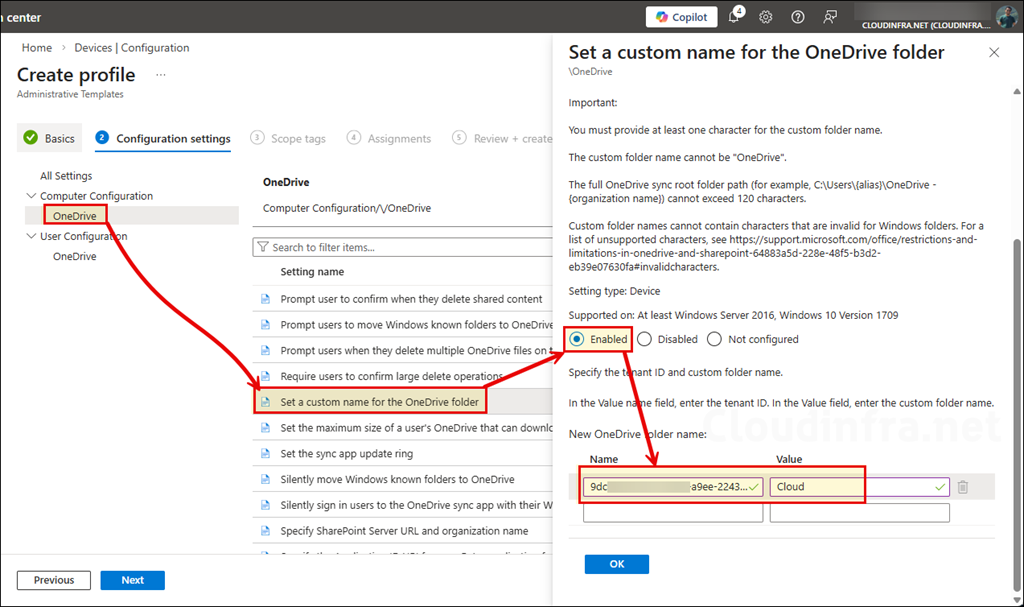
- Under the Configuration settings tab, navigate to Computer Configuration > OneDrive and select Set a custom name for the OneDrive folder policy setting.
- Provide the tenant ID, and in the value field provide the new name of the OneDrive sync root folder.
- I have provided the name as
Cloud, which means that it will change the name OneDrive – {organization name} to Cloud. I will show you how it looks when we go through the end-user experience, which will make it more clear where this name reflects.
For the steps to find the tenant ID of your organization, refer to the section in this post called How to Find Your Tenant ID.
- You must provide at least one character for the custom folder name.
- The custom folder name cannot be set as OneDrive.
- The full OneDrive sync root folder path (for example, C:\Users\{alias}\OneDrive – {organization name}) cannot exceed 120 characters.
- Custom folder names cannot contain characters that are invalid for Windows folders. For a list of unsupported characters, see https://support.microsoft.com/office/restrictions-and-limitations-in-onedrive-and-sharepoint-64883a5d-228e-48f5-b3d2-eb39e07630fa#invalidcharacters.
Important Points
This setting lets you customize the local OneDrive sync root folder name on users’ computers. By default, the folder name is “OneDrive – {organization name}.” Shortening this name increases the available path length for nested folders and files. If you enable this setting and provide a custom folder name, OneDrive will use that name when creating the sync root folder for new users. Users who are already syncing will need to unlink and relink their account for the change to take effect. To learn more, see https://learn.microsoft.com/en-us/sharepoint/use-group-policy. If you disable this setting, the folder name will revert to “OneDrive – {organization name}”. Users who were using a custom folder name will need to unlink and relink their account for the change to take effect. If you do not configure this setting, the default folder name will be used.
About Set a custom name for the OneDrive folder policy
- Scope tags (optional): A scope tag in Intune is an RBAC label that you assign to resources such as policies, apps, and devices to control which administrators can view and manage them. For more information, see How to use scope tags in Intune.
- Assignments: Assign the policy to Microsoft Entra security groups that include the target users or devices. As a best practice, start with a small pilot group, and once validated, expand the assignment more broadly. For guidance on assignment strategy, see Intune assignments: User groups vs. device groups.
- Review + create: Review the deployment summary and click Create.
End User Experience
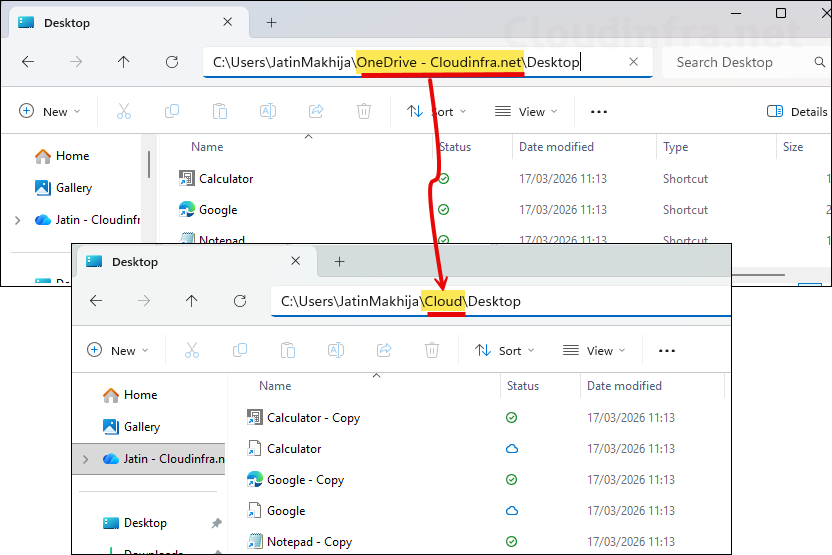
For new OneDrive setups, users will see the shorter custom local folder name instead of OneDrive – {organization name}. For existing synced users, the change does not automatically rename the current local sync root. Users need to unlink and relink their account before the new custom name can be used. Refer to the next sections of this post for the steps to unlink and relink a OneDrive account. Below screenshot shows the changes before and after applying the policy.
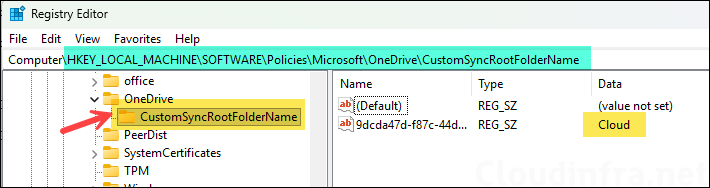
You can also verify whether the policy has been applied or not by checking the CustomSyncRootFolderName registry value.
HKEY_LOCAL_MACHINE\SOFTWARE\Policies\Microsoft\OneDrive\CustomSyncRootFolderName
Best Practices and Recommendations
- Keep the custom name short: Use as few characters as possible to minimize the likelihood of max path errors. A short acronym is usually better than a long organization name.
- Apply it before OneDrive setup: Change the sync root folder name before setting up OneDrive for new users so they do not need to unlink and relink later.
- Consider the default folder location too: There is also another OneDrive policy called Set the default location for the OneDrive folder. If path length is a broader issue in your environment, shortening the folder name and choosing a shorter default local path can help further reduce total path length.
- Avoid invalid or confusing names: Do not use the name as OneDrive by itself, and do not choose a name that may confuse users about whether they are looking at personal OneDrive or work/school OneDrive content. OneDrive for Business is typically displayed as OneDrive – [Organization Name], while personal OneDrive uses a different label.
Troubleshooting
- The new folder name is not showing for an existing user: This is expected in many cases. Users who are already syncing must unlink and relink their OneDrive account for the new folder name to take effect.
- The name is rejected: Check the naming rules; a custom name must contain at least one character, cannot be OneDrive, and cannot contain invalid Windows folder characters.
- The device still hits path length issues: A shorter sync root helps, but it does not remove all path-length limits. Windows Explorer and sync path limitations still apply, so you may also need to simplify deep folder structures or shorten the default local path.
Unlink and Relink OneDrive Account
Creating the above Intune policy and assigning it to users who are already syncing OneDrive will not automatically update the existing sync folder name on their devices. Users who are already syncing must unlink and then relink their OneDrive account for the new custom folder name to take effect. Let’s review the steps to unlink and relink a OneDrive account.
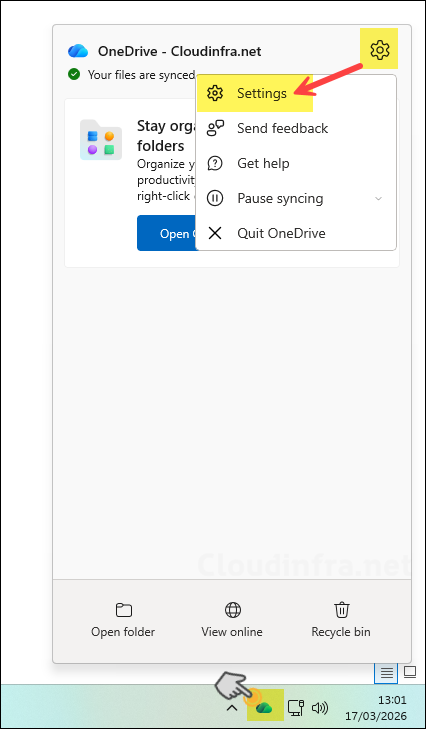
- Click on the OneDrive icon in the system tray > click on Settings Icon ⚙️ > click on Settings.
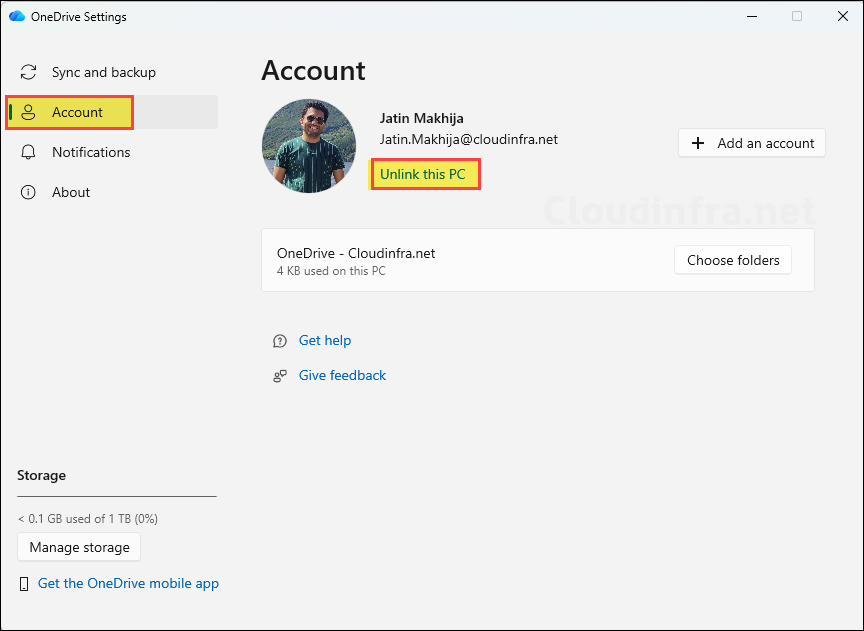
- Go to Account and click Unlink this PC.
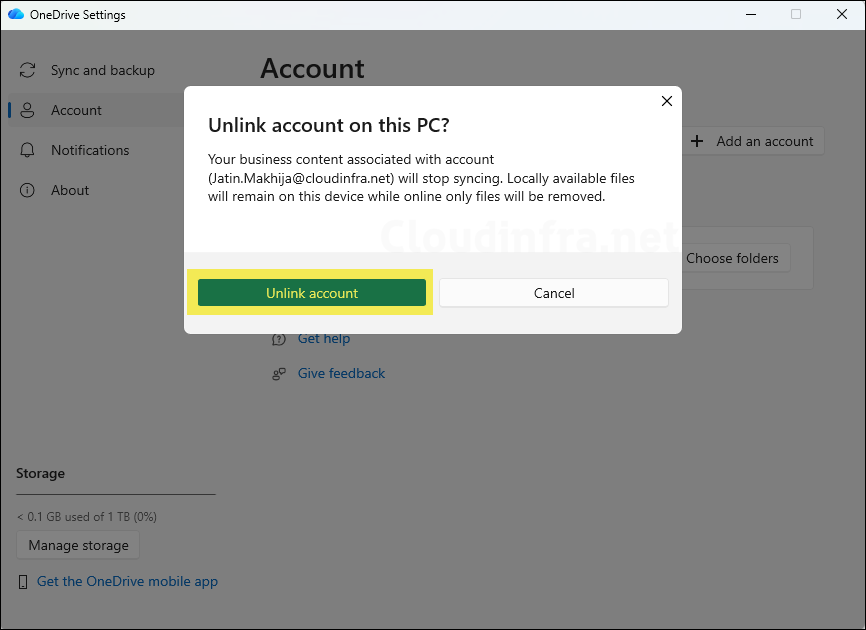
- Click on Unlink account.
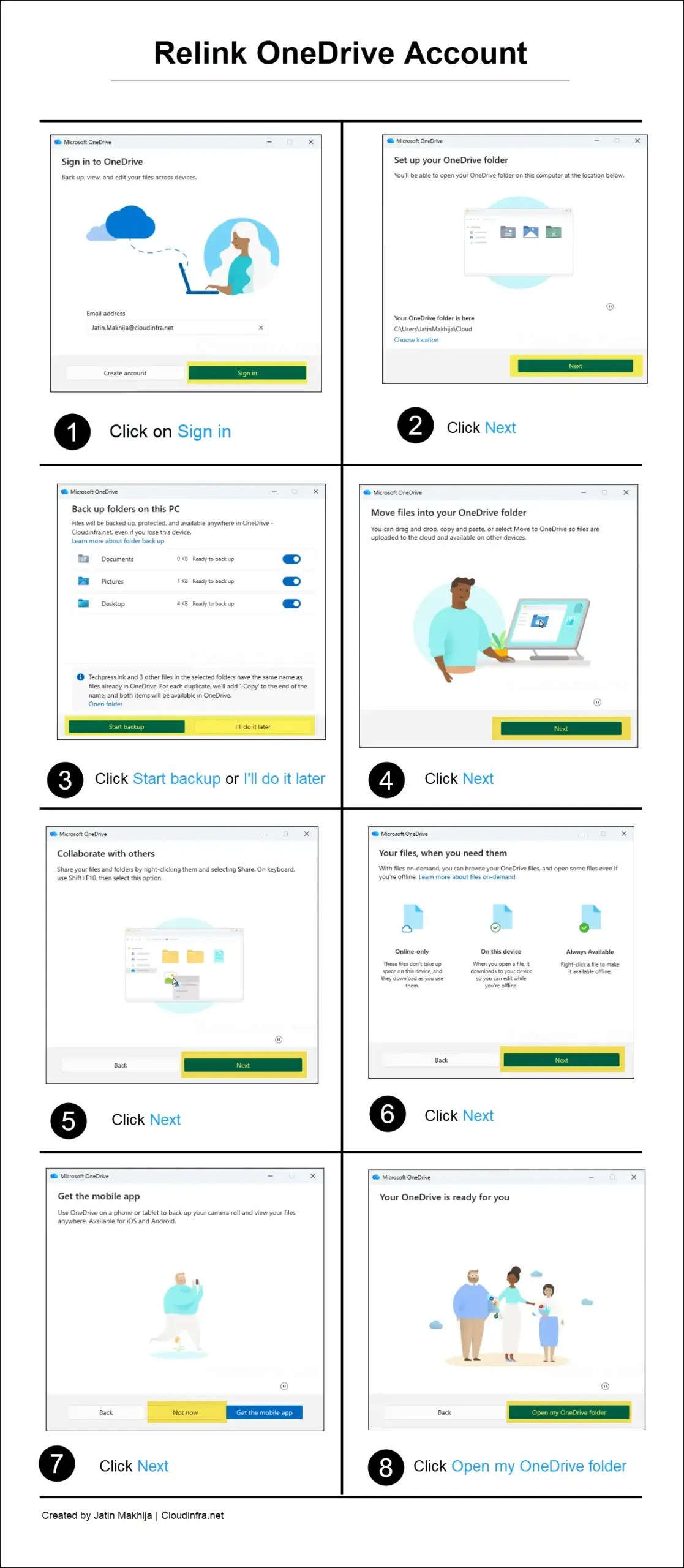
- Once you unlink the account, the Microsoft OneDrive sign-in window will automatically appear so you can configure it again. If the sign-in window does not appear, launch the OneDrive app manually by searching for it in the Start menu.
- Notice the OneDrive folder name in Screenshot 2, which shows C:\Users\JatinMakhija\Cloud. This also confirms that the new custom name we have set in the policy is applied. In my policy, I have set it to Cloud.
The screenshots below show the steps to relink a OneDrive account.
Set OneDrive Sync root folder name using PowerShell
If you do not want to use administrative templates in Intune, you can use a PowerShell script to set a custom name for the OneDrive sync root folder. Use the PowerShell script below and deploy it through Intune. Before deployment, update the $TenantID and $FolderName values. As a best practice, test the script on a test/pilot devices before rolling it out more broadly.
Set_OneDrive_Root_Folder_Name.ps1
$TenantId   = "11111111-2222-3333-4444-555555555555"

$FolderName = "Cloud"
$KeyPath = "HKLM:\SOFTWARE\Policies\Microsoft\OneDrive\CustomSyncRootFolderName"
if (-not (Test-Path $KeyPath)) {
    New-Item -Path $KeyPath -Force | Out-Null
}
New-ItemProperty -Path $KeyPath -Name $TenantId -Value $FolderName -PropertyType String -Force | Out-Null
Conclusion
If your organization uses long tenant or brand names, shortening the local OneDrive sync root folder name is a simple but effective way to reduce path length issues on Windows devices. Microsoft’s supported method for this is the Set a custom name for the OneDrive folder policy.
The preferred approach for configuring policies on Windows devices is to use the Settings Catalog. However, this policy is not yet available in the Settings Catalog. Therefore, you can use the OneDrive ADMX template setting or a PowerShell script to configure it. Once the setting becomes available in the Settings Catalog, you can switch to it for more centralized policy management.
For a clean rollout, deploy the setting early, keep the custom name short, and plan a separate communication for existing users who will need to unlink and relink their OneDrive account.

This won’t break syncing for existing users, correct? —they simply won’t benefit by the shortening of their OneDrive path.