
You can use Intune to allow or block cellular-related settings on managed devices. The available options depend on the device platform. Windows provides a direct setting to block or allow cellular data, while iOS/iPadOS and Android Enterprise provide cellular-related controls such as roaming, hotspot, and managed app cellular usage.
Cellular Data Settings by Platform
| Platform | Available control in Intune |
|---|---|
| Windows 10/11 | Allow or block cellular data completely. |
| iOS/iPadOS | Block data roaming, personal hotspot, cellular plan changes, and cellular data usage for managed apps. |
| Android Enterprise | Block roaming data services and block tethering or hotspot. |
Allow or Block Cellular Data Settings Catalog Policy
- Sign in to Intune admin center > Devices > Windows > Configuration > Create > New Policy.
- Platform: Windows 10 and later, Profile type: Settings catalog, Click Create.
- On the Basics tab, provide a name and description of the policy and click Next.
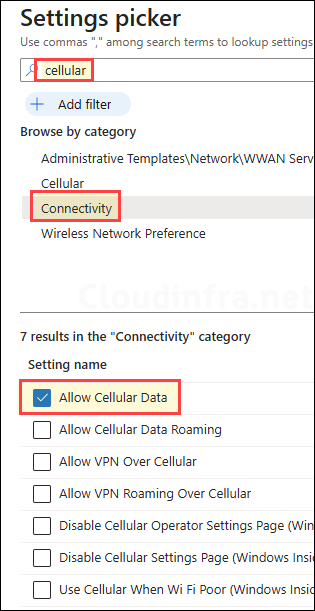
- On the Configuration settings tab, click on + Add settings and use the Settings picker to search using the cellular word and select Connectivity category. Then check the Allow Cellular Data setting as shown in the screenshot below.
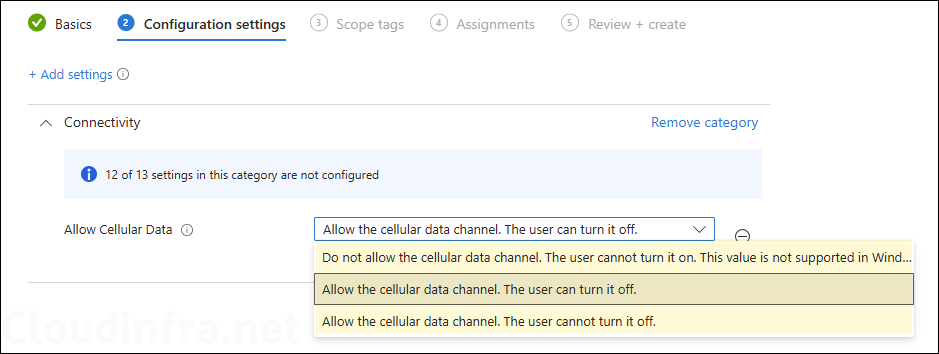
You will get below three options in the drop-down; select the one as per your requirements. The first option disables cellular data on the target device.
- Don’t allow the cellular data channel. The user can’t turn it on. This value isn’t supported in Windows 10, version 1511. — Selecting this option will disable cellular data on the target device; the user will not be able to turn the cellular data on.
- Allow the cellular data channel. The user can turn it off. — Select this option to allow cellular data channel and still allow the user to disable it.
- Allow the cellular data channel. The user can’t turn it off. — Select this option to allow cellular data channel and not allow the user to disable it.
- Scope tags (optional): A scope tag in Intune is an RBAC label that you assign to resources such as policies, apps, and devices to control which administrators can view and manage them. For more information, see How to use scope tags in Intune.
- Assignments: Assign the policy to Microsoft Entra security groups that include the target users or devices. As a best practice, start with a small pilot group, and once validated, expand the assignment more broadly. For guidance on assignment strategy, see Intune assignments: User groups vs. Device groups.
- Review + create: Review the deployment summary and click Create.
