
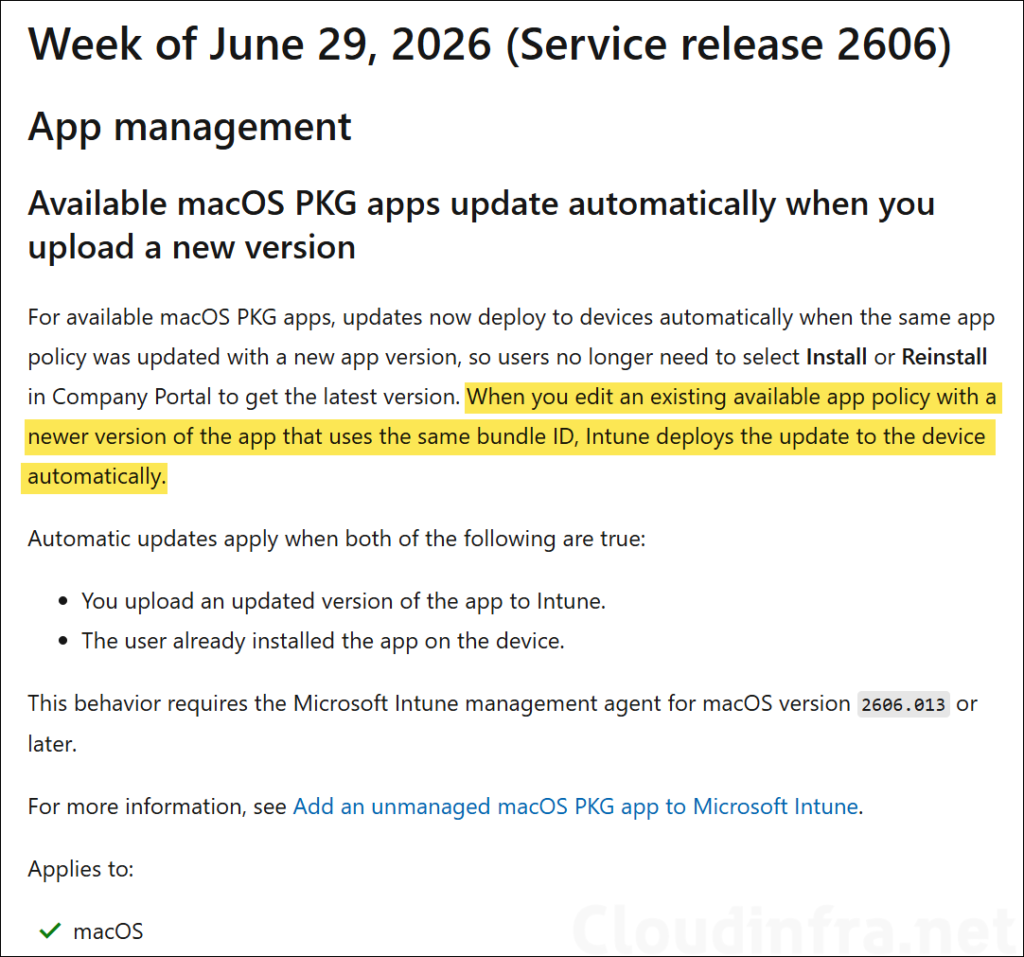
Starting with Intune Service Release 2606, Microsoft has simplified the process of updating macOS PKG applications. Instead of creating a new app deployment, administrators can edit the existing PKG app deployment in the Intune admin center and upload the newer version of the PKG file (with the same bundle ID) while keeping all existing deployment settings, assignments, and configurations unchanged. Intune automatically updates the deployed application to the new version without requiring any action from the user end.
In my previous blog post, I covered the complete process of deploying macOS PKG applications using Intune. If a newer version of a deployed PKG application becomes available, you can follow the steps in this post to update the existing deployment and keep your macOS applications up to date.
For this feature to work, the following conditions must be met:
- Upload a newer version of the PKG file to the same PKG app deployment in the Intune admin center.
- The application must already be installed on the user’s macOS device.
- Intune management agent for macOS version 2606.013 or later.
The screenshot below highlights the Intune Service Release 2606 Microsoft announcement for this feature. Read the information in the screenshot to learn more.
Contents
Steps to Automatically Update PKG Apps on macOS
Follow the steps below to understand how in-place updates for macOS PKG apps work in Intune. To demonstrate the process, I will use the Zoom Workplace application as an example.
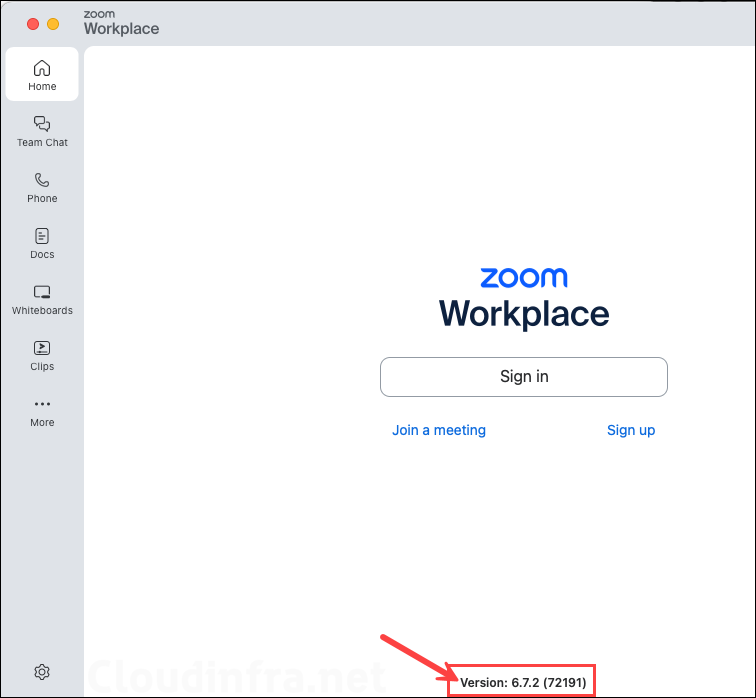
In this example, I have already deployed Zoom Workplace version 6.7.2 (72191) as a macOS line-of-business (PKG) app in Intune. I will now update the existing app policy with Zoom Workplace version 7.1.5 (84650) to demonstrate how Intune automatically deploys the newer version to devices without requiring users to reinstall the app.
The screenshot below shows Zoom Workplace already installed on my managed macOS device. The currently installed version is 6.7.2 (72191).
Step 1: Download the Latest PKG Installer File
Download the latest version of the PKG app that you want to update. In this example, I will download the latest Zoom Workplace PKG installer from the Download Zoom for Mac page.

Step 2: Edit the Existing App Policy
In the Intune admin center, edit the existing Zoom Workplace app deployment and upload the updated Zoom Workplace PKG file to deploy the new version to the target devices.
In this example, I will demonstrate the update process using the Line-of-business app deployment option. However, the same steps also apply if you originally deployed the application using the macOS (PKG) app type in Intune, as both deployment methods now support in-place updates for PKG applications.
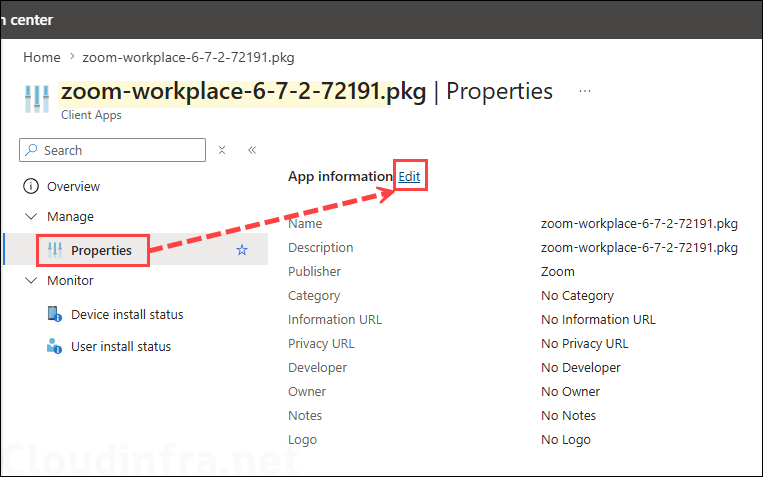
- Go to Intune admin center > Apps > macOS and select the app you want to update to the new version. I will select Zoom app deployment, click on Properties, and click on Edit next to App information.
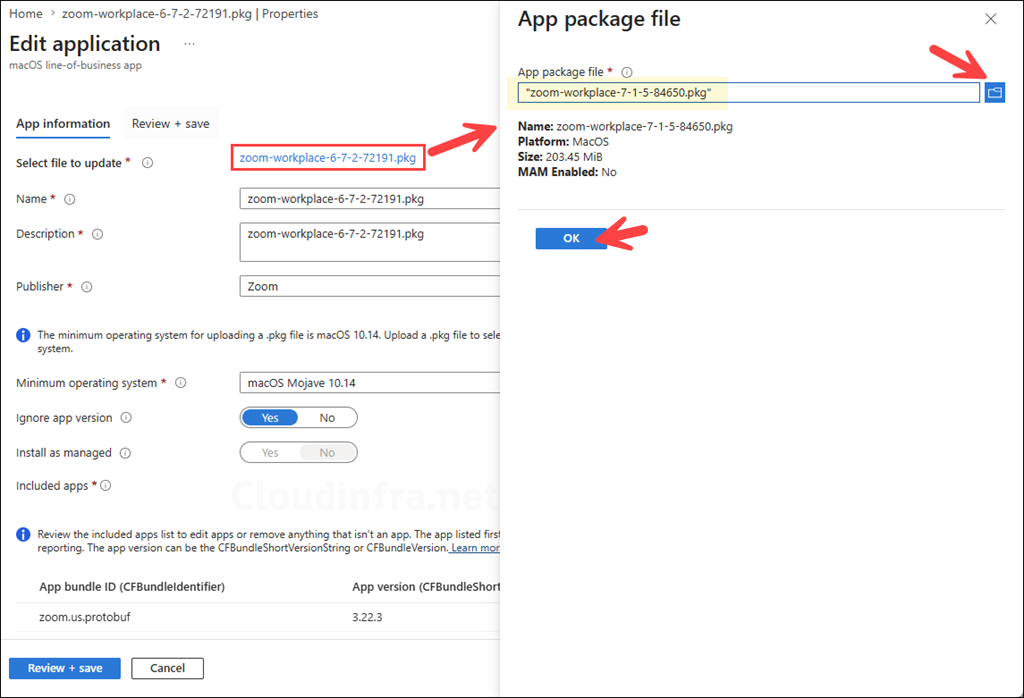
- Click on the old pkg file and then browse to the updated version of the pkg file. Click OK to save.
- Click Save.
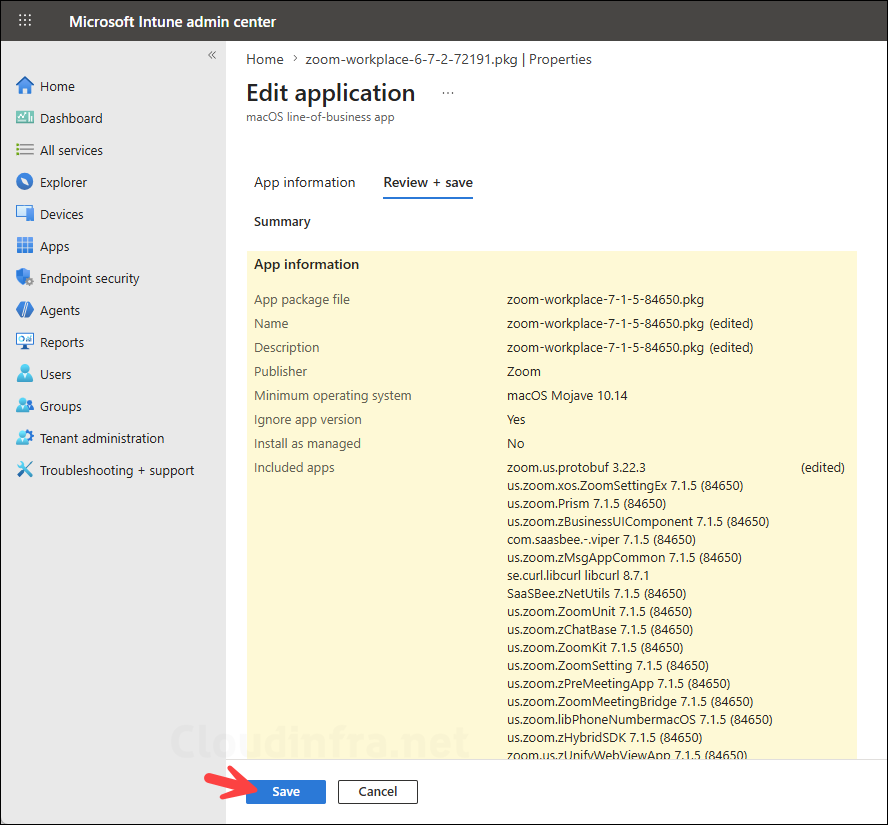
Step 3: Speed Up Intune Sync (Optional)
Intune will automatically perform a device check-in and deploy the updated app during the next scheduled sync. However, if you are testing the deployment and want to accelerate the process, you can manually initiate a device sync with Intune. This will trigger the app deployment and install the updated version quickly.
The most common way to manually sync a macOS device is through the Company Portal app. However, there are several other methods available to trigger a manual Intune sync. For a complete list of these methods, refer to the post Manually Sync macOS Devices with Intune.
Verify That the App Was Upgraded Successfully
There are many ways to verify that the application has been upgraded successfully. You can check the installation status in the 1) Intune admin center, 2) Company Portal app, or 3) by opening the application and confirming its installed version. You can also 4) review Intune log files to verify that the update was installed successfully or to troubleshoot any deployment issues. In the following sections, I will walk you through each of these verification methods.
1. Intune admin center
To verify the deployment status in Intune, go to Intune admin center > Apps > macOS, and then select the Zoom Workplace app deployment. On the Overview page, you can review the installation status, including the number of successful, failed, pending, and not applicable installations across your managed devices.
2. Company Portal App
Sign in to the macOS device and open the Company Portal app. Go to the Apps tab, locate the application, and verify that the displayed version matches the updated version that was uploaded to Intune.
3. Check Applications Folder
If you have access to one of the target macOS devices, one of the easiest ways to verify that the application has been updated is to open the Applications folder and launch the app. Most applications display their version information in an About window, which is typically accessible from the application menu or the Help menu. For Zoom Workplace, the installed version is displayed directly on the main application window, making it quick and easy to confirm that the upgrade was successful.
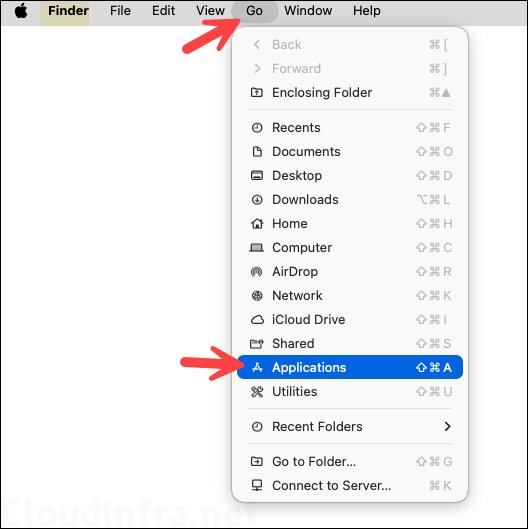
- Open Finder > Go > Applications.
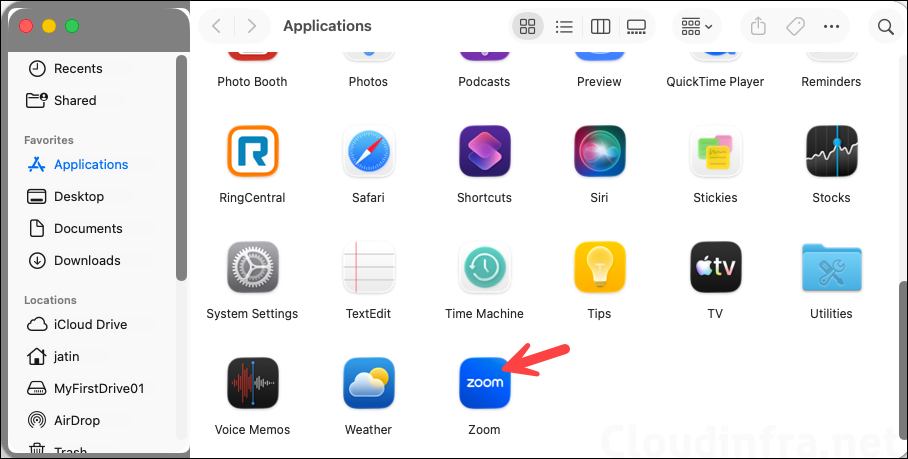
- To verify the upgrade, I will launch the Zoom Workplace application and check its installed version.
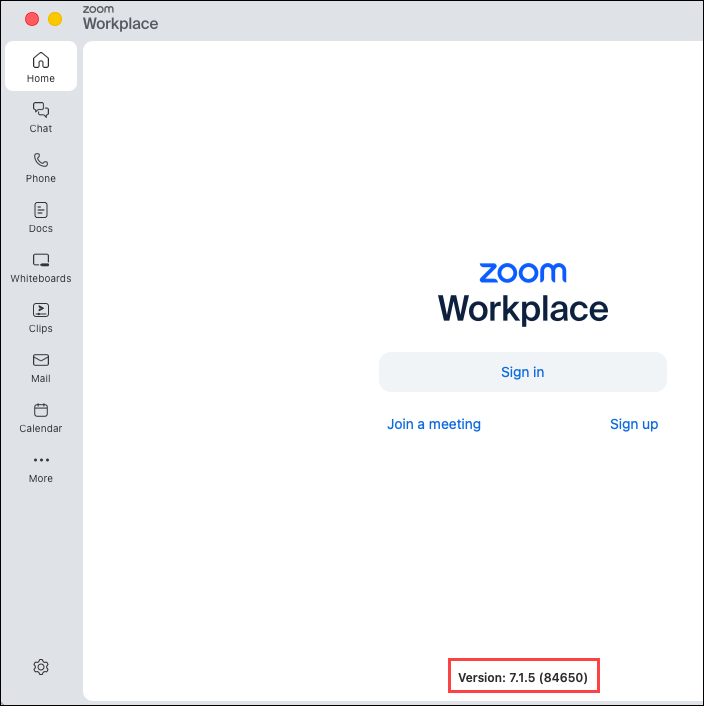
- As shown below, Zoom Workplace is now running version 7.1.5 (84650), which matches the version of the PKG file uploaded to Intune. This confirms that the application was successfully upgraded using the existing Intune app deployment, without requiring a new app policy.
4. Review Intune Logs / Troubleshooting
If you experience any issues while upgrading apps on macOS devices, you can review the Intune log files to troubleshoot the problem.
Open Finder, then go to Go > Go to Folder, and enter the following path:
/Library/Logs/Microsoft/Intune
This folder contains the Intune log files. Locate the most recent IntuneMDMDaemon log file by checking the Date Modified column, then double-click the file to open it. Use the search function to look for the name of the application to identify any errors or installation issues.
Another location where Intune logs are stored is:
~/Library/Logs/Microsoft/Intune
For more detailed guidance on collecting and analyzing Intune logs, refer to the post Collect Intune Logs from macOS Devices.
