
In this blog post, I will show you how to block Microsoft 365 apps using Conditional Access policy. I recently got a requirement to block access to all Microsoft 365 applications, such as Exchange Online, SharePoint Online, OneDrive, Microsoft Teams, and Microsoft Forms, on a specific set of devices, but not on all devices in the tenant.
Those devices follow a specific naming convention, for example, containing the string Win11 in the device name. We can use this naming convention with Filter for devices in Conditional Access so that only these devices are blocked from accessing Microsoft 365 apps. You can choose not to use a filter and target to block Microsoft 365 apps for all users. Using filters in conditional access is optional. To learn about what conditional access is ?, refer to the link: Microsoft Entra Conditional Access: Zero Trust Policy Engine – Microsoft Entra ID | Microsoft Learn.
Contents
Prerequisites
- You are using a tenant with Microsoft Entra ID P1 capabilities. Conditional Access requires Entra ID P1 (included in Microsoft 365 E3/E5, Business Premium, and similar plans).
- You have sufficient permissions, for example, the Security Administrator, Global Administrator, or Conditional Access Administrator role.
- Devices you want to target are registered in Microsoft Entra ID and appear in the Devices blade.
Best practices
- In production, exclude at least one emergency “break-glass” account from all conditional access policies, including this one, to avoid accidental tenant lockout.
- Start with the policy in Report-only mode, validate the impact using sign-in logs or the What If tool, and only then switch it to On to enforce.
Create a Conditional Access (CA) Policy
Follow the below steps to create a conditional access policy to block Microsoft 365 apps.
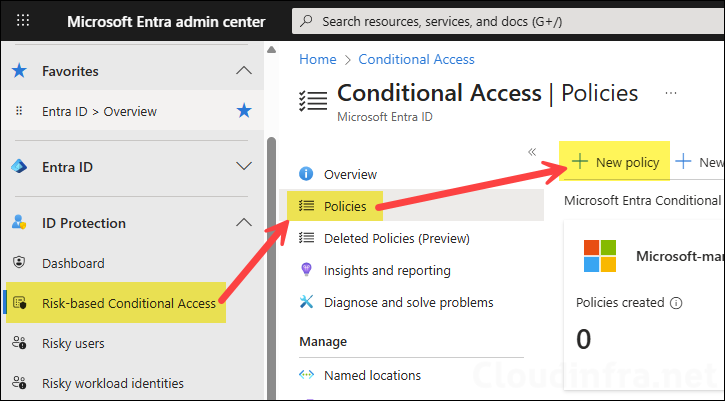
- Sign in to the Microsoft Entra admin center.
- Expand ID Protection > click on Risk-based Conditional Access > Policies.
- Click + New policy to create a new Conditional Access policy.
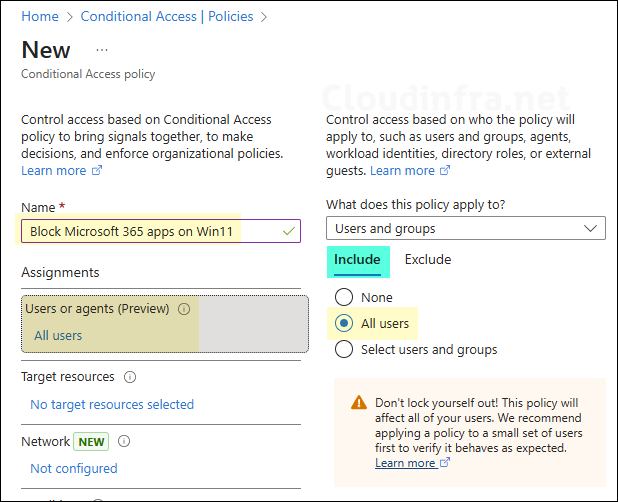
- Enter a name of the policy to clearly reflect on the purpose of this conditional access policy, for example, Block Microsoft 365 apps on Win 11 devices. Next, I will show you the settings you need to configure; the remaining settings that are not mentioned below can be left as Not configured for this scenario.
Users
- Under Users or agents > Include, select All users.
- Under Exclude, consider excluding:
- At least one emergency access (break-glass) account.
- Any service accounts that must retain access during testing.
Excluding a breakglass account ensures that every user trying to access Microsoft 365 apps from the targeted devices will be evaluated by this policy while still keeping a safe way in if something goes wrong.
Target resources
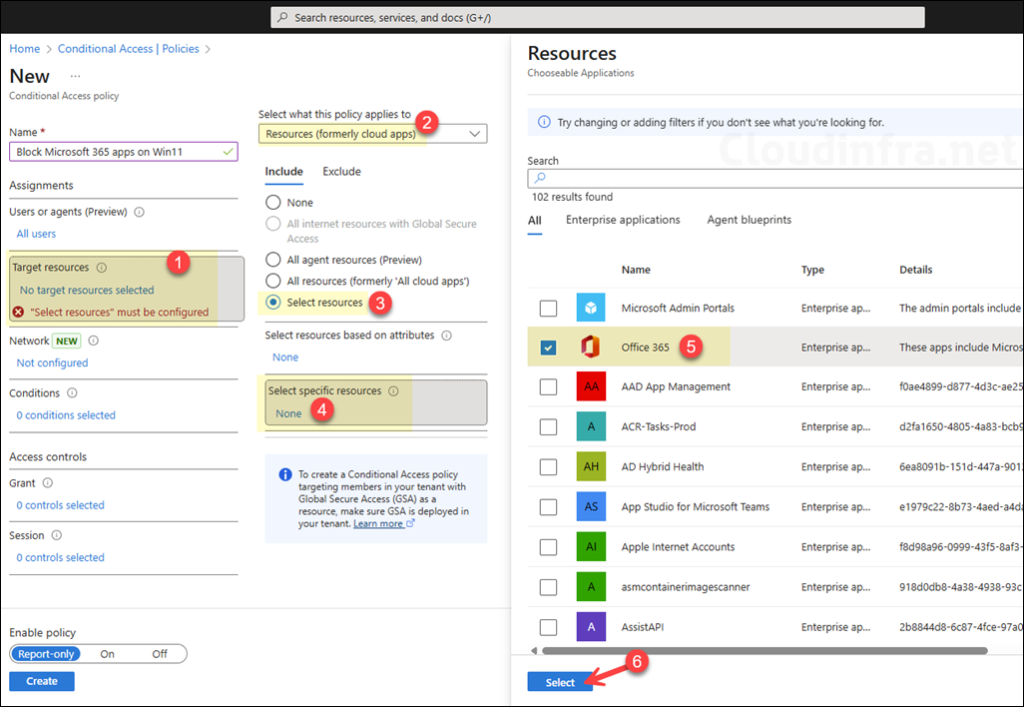
- Under Target resources, choose Resources (formerly cloud apps).
- Under Include, select Select resources. Then click on Select specific resources.
You now have two options:
- Block specific Microsoft 365 apps
- Selecting individual apps that you want to block, like Office 365 Exchange Online, Office 365 SharePoint Online, Microsoft Teams, Microsoft Forms, Office 365 Yammer, OneDrive for Business, etc.

- Block the “Office 365” suite app
If you use the Office 365 app, it will include Microsoft Flow, Microsoft Forms, Microsoft Teams, Office 365 Exchange Online, Office 365 SharePoint Online, Office 365 Yammer, and others. Select this, and it will automatically block all of these apps; there is no need to select and block these apps individually.
Conditions – Device platforms
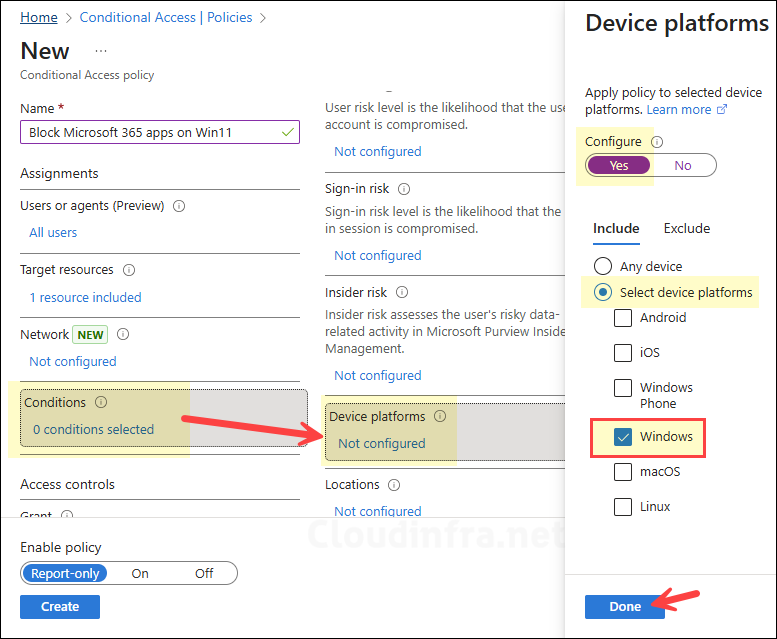
- Under Conditions > Device platforms, set Configure to Yes.
- Under Include, select Windows only.
This ensures that the policy applies only when the sign-in is coming from a Windows device.
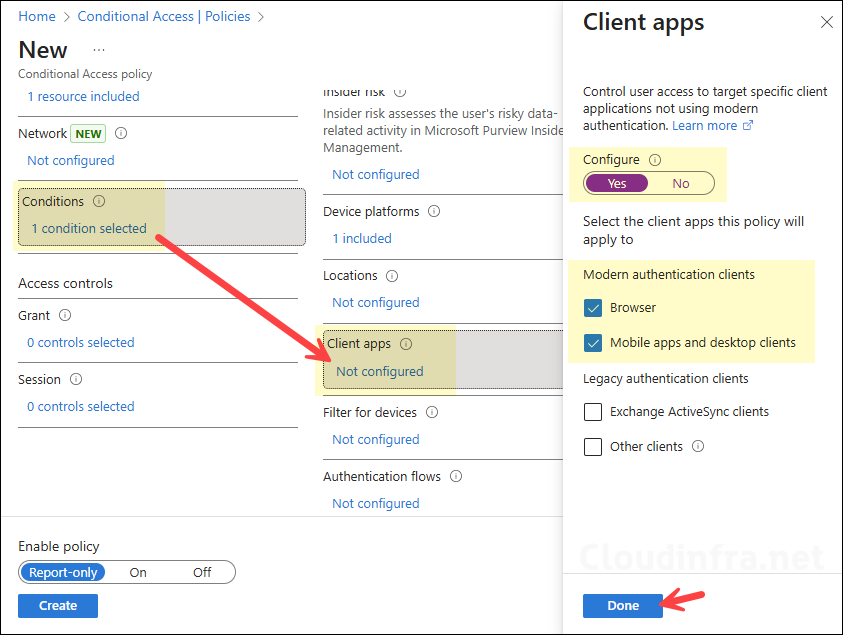
Conditions – Client apps
- Under Conditions > Client apps, set Configure to Yes.
- Select:
- Browser
- Mobile apps and desktop clients
This combination covers sign-ins from modern browsers, as well as rich desktop clients such as the Teams desktop app and Outlook desktop/mobile. If you would rather not block Microsoft 365 apps via browser, then uncheck the Browser checkbox.
Conditions – Filter for devices (Optional)
Next, we will use Filter for devices to scope the policy to only those Windows devices whose name contains Win11. This is just to show an example of how to use filtering in conditional access policy. You can define the filters as per your requirements. Please note that this step is totally optional; filtering provides administrators the ability to target or exclude specific devices from the policy. For more details, refer to the post: Filter for devices as a condition in Conditional Access policy – Microsoft Entra ID | Microsoft Learn
- Under Conditions > Filter for devices, set Configure to Yes.
- Set Devices matching the rule to Include filtered devices in policy.
- Select Edit filter and configure a rule similar to:
- Property:
displayName - Operator:
Contains - Value:
Win11
- Property:
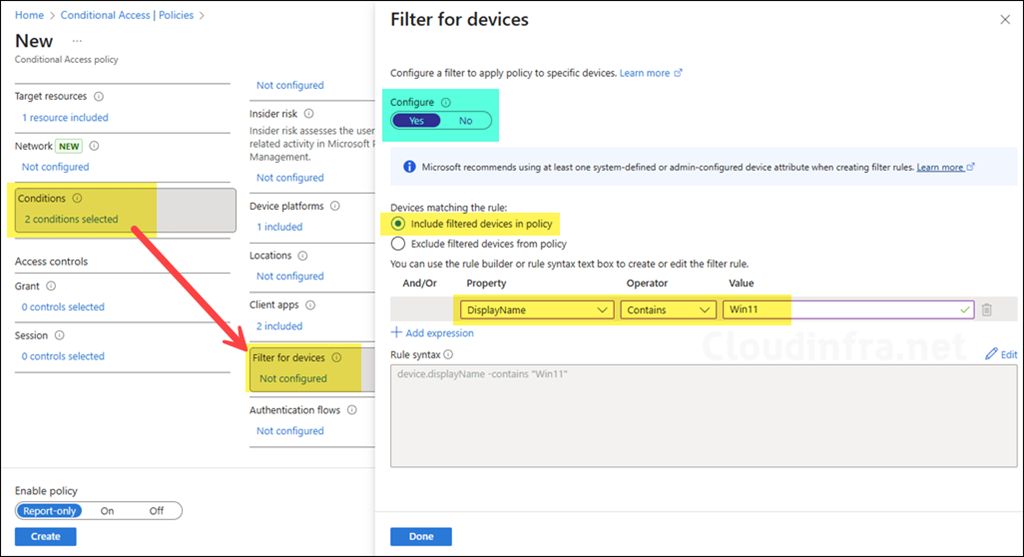
This generates a rule expression like:
device.displayName -contains "Win11"
The device filter condition evaluates device attributes stored in Entra ID during sign-in and includes only devices whose display name matches the rule. displayName is one of the supported properties for device filters.
In production, Microsoft recommends using at least one system-defined or admin-configurable attribute, such as deviceTrustType, operatingSystem, enrollmentProfileName, or custom extensionAttribute values where possible, since these tend to be more stable than display names. For lab scenarios or smaller environments, using a name-based filter like device.displayName -contains “Win11” is fine.
Access controls – Grant
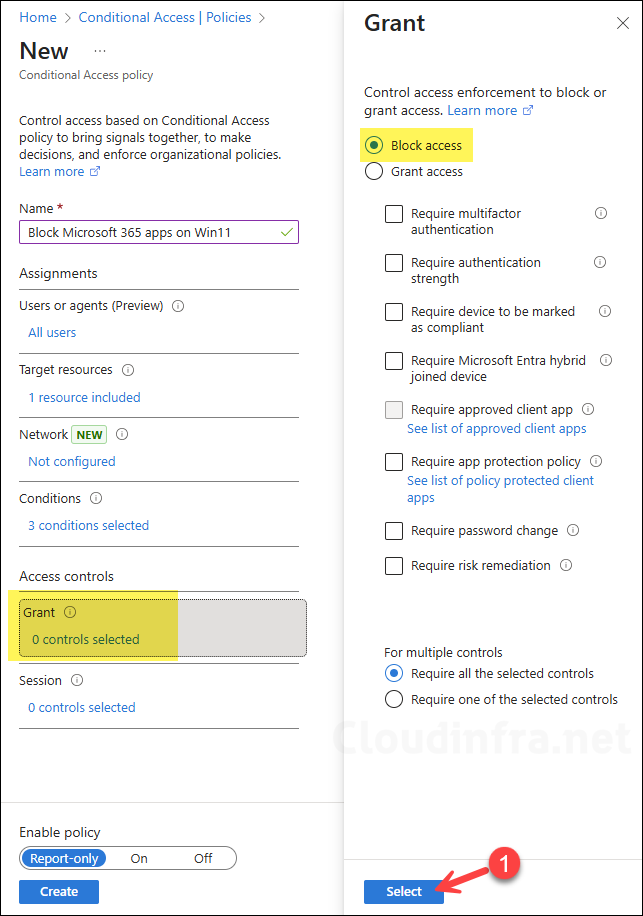
- Under Access controls > Grant, select Block Access.
- Select Select to confirm.
This ensures that any sign-in that matches all the assignments and conditions (user, app, platform, client app, and device filter) is blocked from accessing the selected Microsoft 365 apps.
Enable and test the policy
At the bottom of the policy:
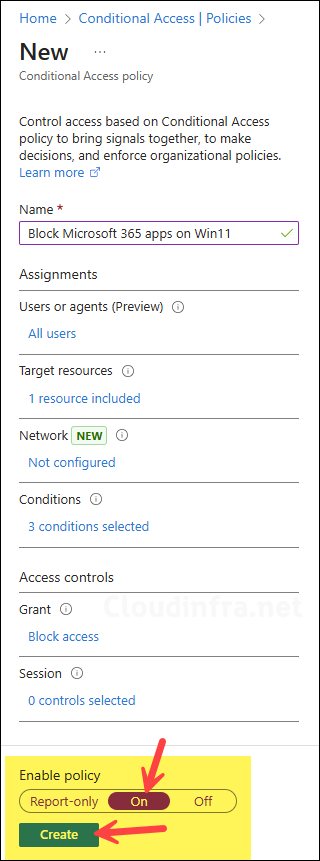
- Set Enable policy to Report-only initially.
- Select Create to save the policy.
Monitor the effect:
- Use sign-in logs and filter by the policy name to see which sign-ins would have been blocked.
- Optionally, use the What If tool in Conditional Access to simulate a sign-in from a test account and a device whose name contains Win11.
Once you are confident the policy behaves as expected, edit it and change Enable policy from Report-only to On.
End user experience
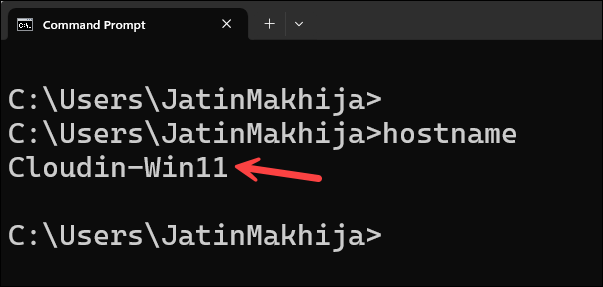
After the policy is enabled, users who sign in from targeted devices (for example, a machine named Cloudin-Win11) and try to access the blocked Microsoft 365 apps will see a Conditional Access error. I am signed in to the PC that has Win11 in its name. Our conditional access policy is applied only to computers with Win11 in their name, so I expect Microsoft 365 access to be blocked on this device. Let’s test it.
Test 1: Accessing Microsoft Teams App
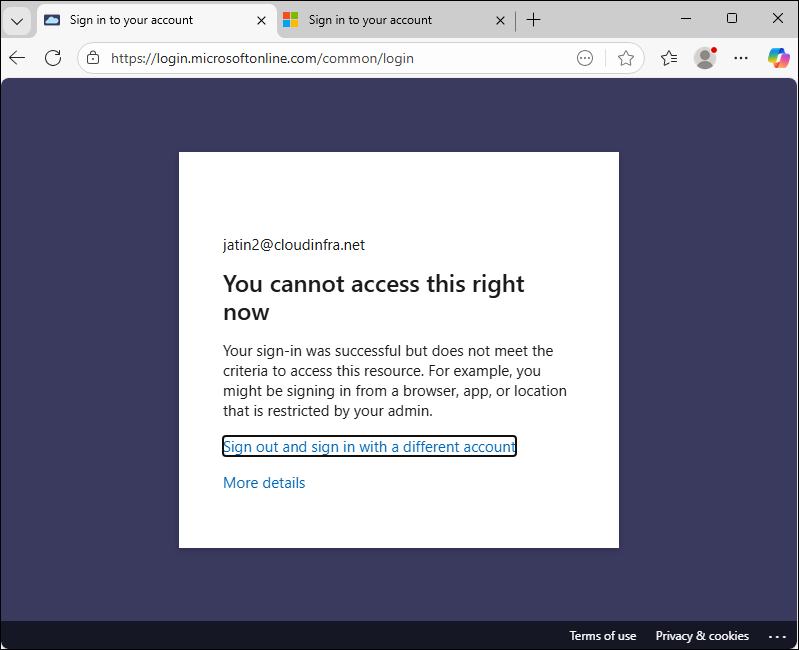
On my test PC named Cloudin-Win11, launching Microsoft Teams via web browser shows the below error message. This is expected and confirms that the Conditional Access policy is blocking the Teams app from this device. As we have selected Mobile apps and desktop clients in the clients apps section of the conditional access policy, Microsoft Teams desktop app will also be blocked, not just from the browser.
Your sign-in was successful but does not meet the criteria for accessing this resource. For example, you might be signing in from a browser, app, or location restricted by your admin.
Test 2: Accessing Outlook on the Web (OWA)
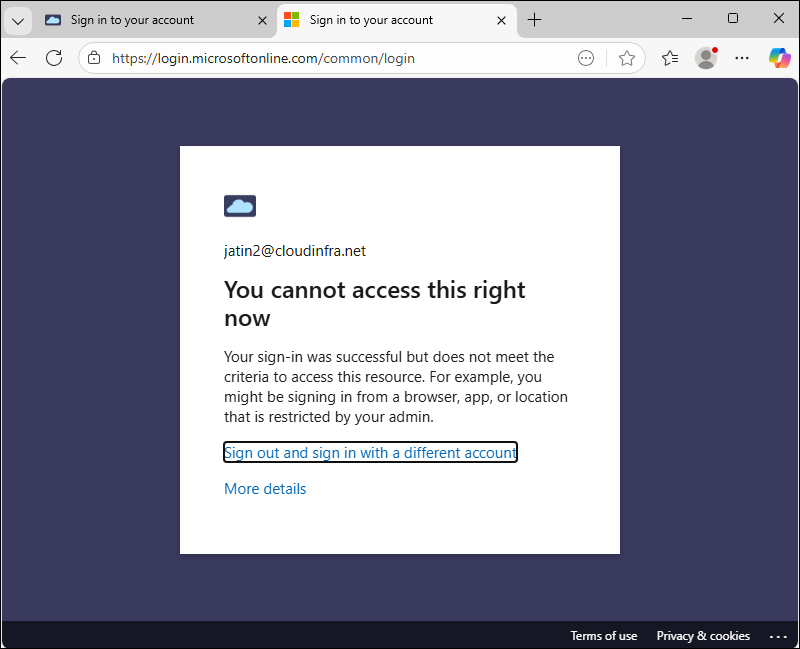
When trying to open Outlook on the web from the same device, the browser shows the same message. Again, this indicates that the policy is successfully blocking Exchange Online web access from devices whose display name contains Win11. As we have selected Mobile apps and desktop clients in the clients apps section of the conditional access policy, Microsoft Outlook desktop app will also be blocked, not just from the browser.
If you selected other Microsoft 365 apps in the conditional access policy, those applications will also be blocked as well. Test each of these apps to confirm that the Conditional Access policy is working as expected.
Your sign-in was successful but does not meet the criteria for accessing this resource. For example, you might be signing in from a browser, app, or location restricted by your admin.
Conclusion
In this post, we created a Microsoft Entra Conditional Access policy that:
- Targets all users (with recommended exclusions for emergency access breakglass accounts).
- Targets specific Microsoft 365 apps under Target resources.
- Applies only to Windows devices and to browser plus mobile/desktop clients.
- Uses an optional Filter for devices with a rule based on device.displayName -contains “Win11” so that only devices following a certain naming convention are affected.
- Uses Block access to prevent those devices from accessing Microsoft 365 apps.
Conditional Access remains a powerful way to protect Microsoft 365 and Entra-secured resources, and device filters give you precise control over which endpoints are impacted. With careful scoping, testing in Report-only mode, and appropriate exclusions, you can safely block Microsoft 365 apps from specific devices while keeping the rest of your environment fully functional.
