
If your organization wants to prevent users from running Snipping Tool, you can block it using AppLocker, Microsoft Intune, or Group Policy. The method you use depends on how your Windows 11 devices are managed and which version of Snipping Tool is installed.
In this post, I will walk you through the steps to block Snipping Tool using each of these methods. I will also explain how the settings work, how to check whether the restriction has been applied, and how to unblock Snipping Tool if required.
Blocking Snipping Tool does not prevent users from taking screenshots through every other application or Windows feature. If your organization needs to restrict screen capture more broadly, you will also need to review the other tools available on your devices. You can also uninstall snipping tool completely instead of just blocking it; refer to my other step-by-step guide here: Uninstall Snipping Tool From Windows 10/11.
Important
Contents
Select the Uninstall Method
Before you begin, review the methods below and choose the one that matches your requirement. For example, you may want to block the entire application or allow screenshots while preventing screen recording.
| Method | What it does | When to use it |
|---|---|---|
| AppLocker packaged app rule | Blocks the selected app package for specified users | When you want to restrict the modern packaged Snipping Tool app |
| Intune Settings catalog | Deploys the Windows policy that prevents Snipping Tool from running | When devices are enrolled in Intune; validate the installed app’s behaviour |
| Group Policy | Configures the same Windows restriction locally or through Active Directory | When you manage the relevant devices or users through Group Policy |
| Allow Screen Recorder policy | Controls recording within Snipping Tool | When screenshots should remain available but video recording should be blocked |
AppLocker identifies a packaged application using details such as its publisher and package name. With Intune or Group Policy, you can configure the Windows setting that prevents Snipping Tool from running. Whichever method you choose, test it with the Windows build and app version used in your organization before assigning it to more devices.
Before you begin
Start with a test device and a test user account so you can check the result before applying the restriction more widely. You will need local administrator permissions to configure the local policies. For Intune or domain Group Policy, use an account with permission to create and assign the relevant policies.
AppLocker enforcement no longer requires a specific Windows edition on Windows 11 with the applicable updates. However, the tools used to configure AppLocker may not be available on every edition. Before proceeding, refer to Microsoft’s documentation on AppLocker requirements.
If you plan to use the Snipping Tool policy through Intune or Group Policy, check its requirements separately. Microsoft lists support for Windows 11 Pro, Enterprise, Education, and IoT Enterprise editions. Confirm that your devices meet the policy requirements before assigning it. For the supported versions and editions, refer to Microsoft’s Snipping Tool policy documentation.
Method 1: Block Snipping Tool Using Applocker
The following steps create an AppLocker rule on one device. This allows you to test the configuration before deploying it more widely. If you need to block Snipping Tool across multiple devices, refer to the guide to create and deploy AppLocker rules via Intune: How To Implement AppLocker Using Intune.
Step 1: Open AppLocker and select Audit only
- Press Windows + R, enter
secpol.msc, and press Enter. - Expand Application Control Policies > AppLocker.
- Right-click AppLocker and select Properties.
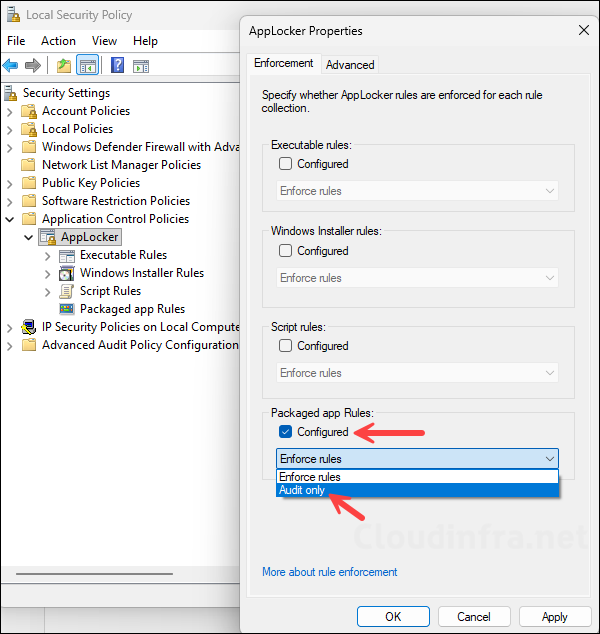
- On the Enforcement tab, select Configured for Packaged app Rules.
- Select Audit only and apply the change.
Audit mode lets you check which applications the rules would block before enforcement begins. Snipping Tool will still run during this stage. If the device already has centrally managed AppLocker policies, review those policies first, as they can affect the effective enforcement mode. Microsoft audit-mode guidance.
Step 2: Allow the Other Packaged Apps
If you are creating a new AppLocker policy to block only the Snipping Tool, right-click Packaged app Rules and select Create Default Rules. This creates a default allow rule for signed packaged apps. Review the rule before proceeding to the next step.
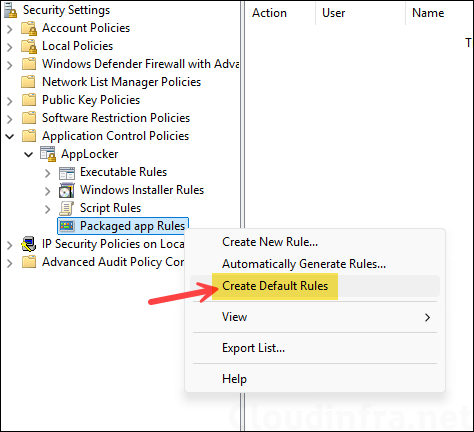
This is important because AppLocker uses an allow-list approach when rules are enforced. If you create only a deny rule without the necessary allow rules, other packaged applications may also be blocked. By creating the default allow rule, you allow signed packaged apps to run while the specific deny rule for Snipping Tool takes precedence.
If your organization already uses AppLocker with a restricted list of allowed applications, keep your existing rules and add the Snipping Tool deny rule to that policy. Do not create a broad allow rule in an existing restricted policy, as this could unintentionally allow applications that your organization has chosen to block. For more information, refer to Microsoft’s documentation on AppLocker default rules and How AppLocker rules work.
Step 3: Create the Snipping Tool Deny Rule
- Press Windows + R, enter
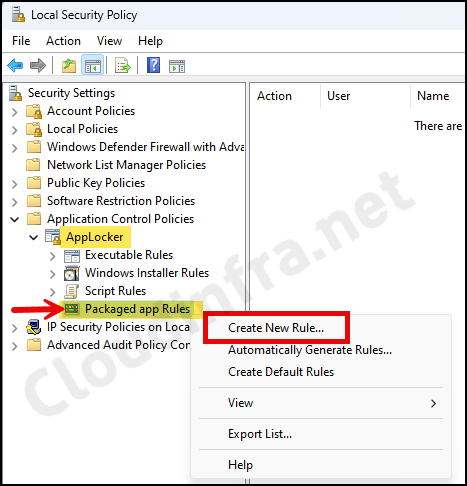
secpol.msc, and press Enter. - Expand Application Control Policies > AppLocker > Right-click on Packaged app Rules and click Create New Rule.
- Select Next on the introductory page.
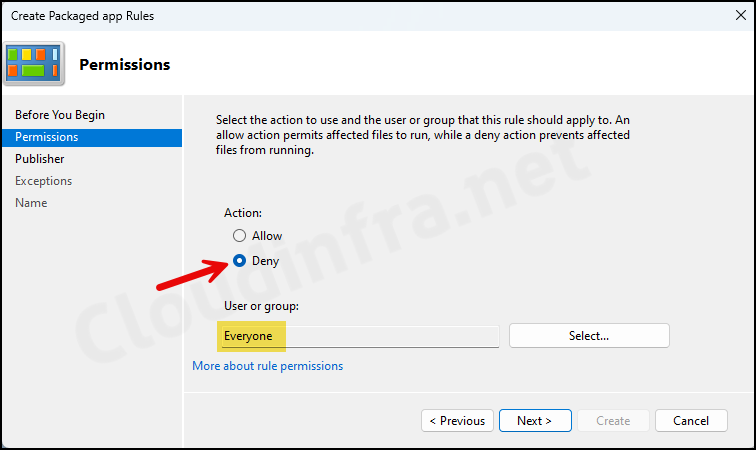
- Under Permissions, select Deny and select the user or group to restrict. Choose Everyone only if the restriction should include all users, including administrators.
- Select the installed packaged app reference option and select Snipping Tool.
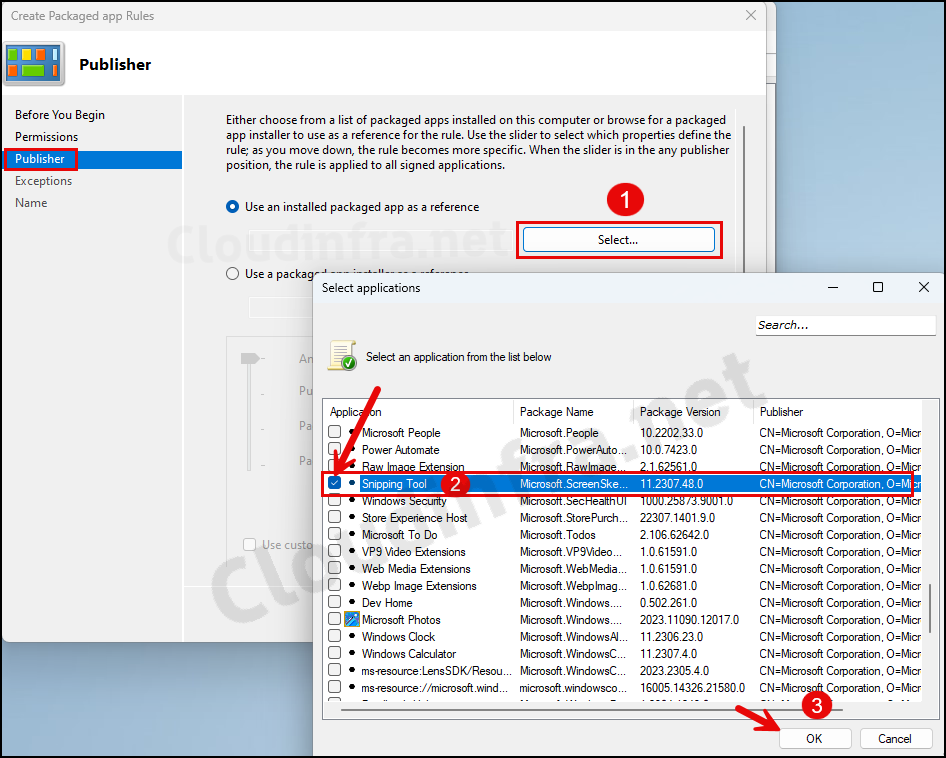
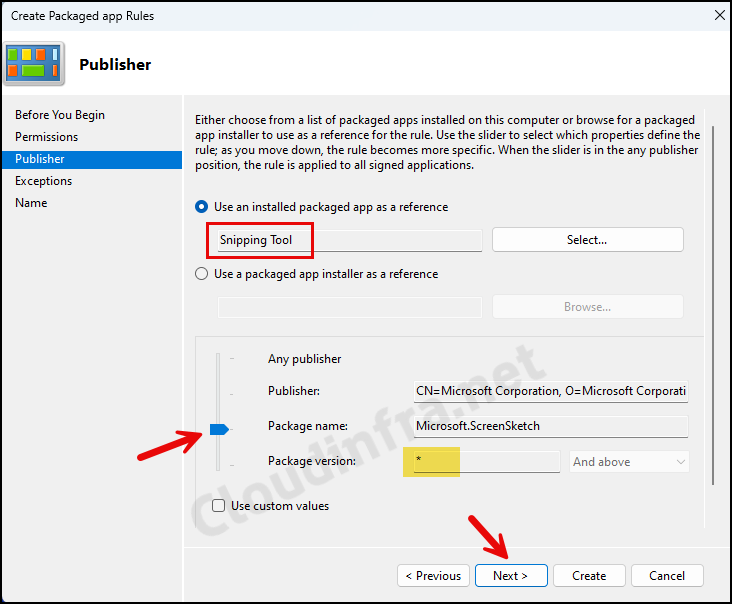
- Keep the publisher and package name specific to the selected app, but set the version scope to Any version. In the wizard, this means using the package-name level rather than the exact-version level.
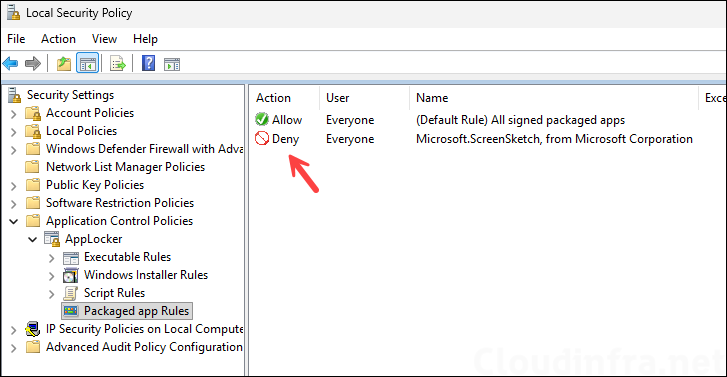
- Review the exceptions page, then name the rule Block Snipping Tool or keep it default and create it. If there are any issues creating this rule, refer to the link: creating packaged app rules.
Step 4: Check Application Identity
AppLocker uses the Application Identity service to identify applications and enforce its rules. If this service is not running on the target device, AppLocker will not enforce the policy. Launch PowerShell as an administrator and run the following command to check the service status:
Get-Service -Name AppIDSvcIf the service is stopped, run the following command to start it on your test device:
Start-Service -Name AppIDSvcIf you are deploying AppLocker through Group Policy, configure the service to start automatically. In the GPO, go to Computer Configuration > Windows Settings > Security Settings > System Services > Application Identity and configure automatic startup. This ensures that the service starts again after the device restarts. For more information, refer to Microsoft’s documentation on configuring the Application Identity service.
Step 5: Review the audit results and enforce
Sign in with the test account and launch the Snipping Tool. Then open Event Viewer > Applications and Services Logs > Microsoft > Windows > AppLocker and select Packaged app-Execution. Review the event for Snipping Tool and confirm that it refers to the account you used for testing. The following event IDs can help you understand the result.
| Event ID | Meaning |
|---|---|
| 8020 | The packaged app was allowed to run |
| 8021 | The app ran, but the policy would block it in enforcement mode |
| 8022 | AppLocker blocked the app from running |
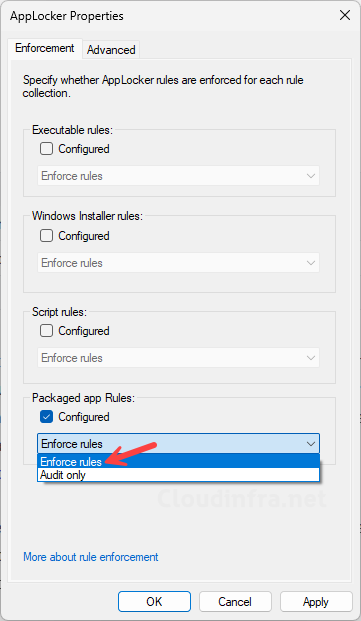
Before enabling enforcement, confirm that the audit event shows Snipping Tool would be blocked and that other required packaged apps are allowed. Once you have checked the results, return to AppLocker > Properties and change the packaged app collection to Enforce rules. Close Snipping Tool if it is already running, then try opening it again. For more information about the events, refer to Microsoft’s documentation on using Event Viewer with AppLocker.
End User Experience
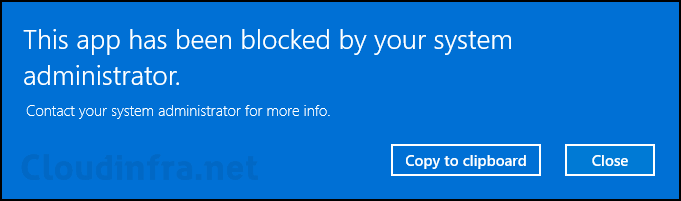
We have created an AppLocker deny rule specifically for the Snipping Tool application and configured it to apply to all versions of the app. This means that even if the application is updated to a newer version, the AppLocker deny rule will continue to block it. When a user tries to launch the Snipping Tool on the device, the following pop-up message will appear: “This app has been blocked by your system administrator.”
Method 2: Block Snipping Tool Using Intune
If your Windows 11 devices are managed through Intune, you can create a Settings catalog profile and configure Do not allow Snipping Tool to run. Follow the steps below to create the profile and assign it to a test group.
- Sign in to the Microsoft Intune admin center.
- Go to Devices > Manage devices > Configuration > Create > New policy.
- For Platform, select the Windows 10 and later. For Profile type, select Settings catalog.
- Enter a name, such as Windows 11 – Block Snipping Tool.
- Select Add settings and search for Do not allow Snipping Tool to run.
- Under the Administrative Templates settings for Windows Components > Tablet PC > Accessories, select the required setting. Check whether you are selecting the device or user variant.
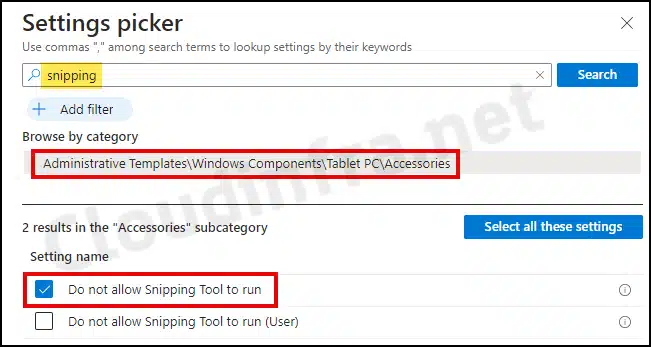
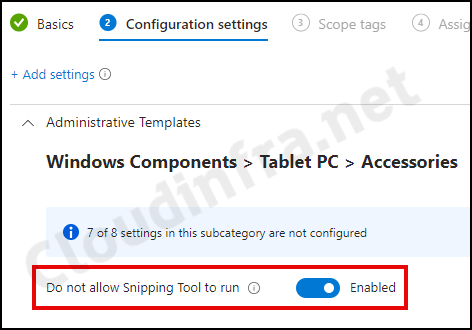
- Set it to Enabled, configure scope tags if needed, and assign it to a small test group containing the intended Windows 11 devices or users. Review the profile and select Create.
Set this policy to Enabled to block the Snipping Tool from running. Although the policy name describes a restriction, enabling it means that the restriction will be applied. Microsoft provides this setting for both device and user configurations. Use the device-based setting if you want to block Snipping Tool for all users on a device, or the user-based setting if you would like to apply the restriction to specific users.
Note
Method 3: Block Snipping Tool Using Group Policy
If you would like to configure the restriction on one device, press Windows + R, enter gpedit.msc, and press Enter. If your devices are managed through Active Directory, open Group Policy Management using gpmc.msc and edit the GPO you want to use for the restriction.
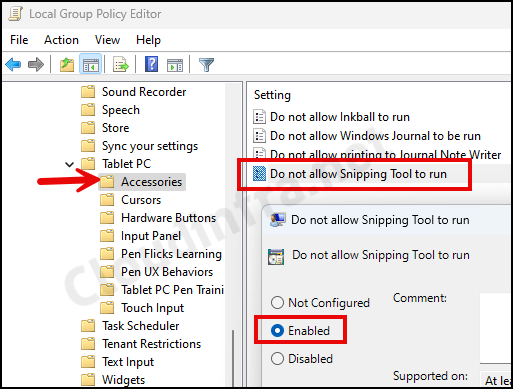
- Go to Computer Configuration > Administrative Templates > Windows Components > Tablet PC > Accessories. On the right-hand side, find the policy setting Do not allow Snipping Tool to run.
- Double-click the policy setting. Do not allow the Snipping Tool to run, and set it to Enabled.
- Link this GPO to an OU containing computers.
- Please note that a restart of the target device will be necessary for the policy changes to become active.
Block Only Screen Recording in Snipping Tool
If you want to allow users to take screenshots using the Snipping Tool but prevent them from recording videos, Microsoft provides a separate policy called Allow Screen Recorder.
This policy is supported on Windows 11 version 24H2 or later, including Enterprise, Education, and IoT Enterprise editions. It is a user-based policy, and Windows Pro is not listed as a supported edition for this setting. Therefore, check the Windows version and edition before deploying the policy.
To configure this setting using Group Policy, ensure that the required administrative templates are installed and navigate to User Configuration > Administrative Templates > Windows Components > Snipping Tool > Allow Screen Recorder. Set the policy to Disabled to prevent users from recording videos using the Snipping Tool.
If you are managing devices through Microsoft Intune, search for Allow Screen Recorder in the Settings catalog, review its requirements, and assign the policy to the appropriate users.
Once the policy is applied, users can continue using Snipping Tool to capture screenshots, but the screen recording feature will be disabled. This restriction applies only to Snipping Tool and does not prevent users from recording their screens using other applications. For more information, refer to Microsoft’s documentation on Allow Screen Recorder.
Troubleshooting
If the Snipping Tool still opens or other applications are affected, use the following checks to investigate the issue. Review the policy configuration and the result on the device before making further changes.
| Issue | What to check |
|---|---|
| AppLocker does not block the app | Confirm enforcement mode, application identity service status, user scope, and package identity. |
| Other packaged apps stop working | Review the collection’s allow rules and check that the deny rule targets one package rather than all Microsoft apps. |
| A new app version is no longer blocked | Check whether the rule was tied to one version or the package identity changed. |
| Intune reports Not applicable | Check OS build, edition, policy scope, and enrollment context. |
| Intune reports success, but capture works | Test the app and shortcut separately; verify the account receiving the policy. |
| The Group Policy setting is missing | Check the administrative templates and the management tools available on that edition. |
| Only some users are affected | Review user-scoped settings and AppLocker group membership. |
Frequently asked questions
Does blocking Snipping Tool uninstall it?
No. Blocking Snipping Tool prevents it from running through the restriction you configured. The application remains installed and may still appear in the Start menu.
Can I uninstall it instead?
Yes, if the installed version supports removal. However, uninstalling Snipping Tool does not automatically prevent users or a deployment process from installing it again. If your requirement is to prevent the application from running, use an application control policy as part of that configuration.
How do I unblock Snipping Tool?
To unblock Snipping Tool, update the policy that originally blocked it. If you used AppLocker, remove the Snipping Tool deny rule and confirm that an allow rule permits the application to run. If you used Intune or Group Policy, disable or stop configuring the restriction, refresh the policy, and test the application again. If it remains blocked, check whether another policy is applying the same restriction.
Keep the other AppLocker rules and the Application Identity service in place. Disabling the service or removing unrelated rules could also remove restrictions that your organization still needs.
Will this block every screenshot tool?
No. Users may still be able to capture information through other applications, browser features, or screen-sharing tools. If your organization needs to control those methods as well, review and configure them separately.
