
In this blog post, I will show you 6 ways to bypass spam filtering in Microsoft 365. There are legitimate scenarios where a trusted sender or partner domain is incorrectly flagged as spam (a false positive). In Microsoft 365, you can allowlist senders using several methods, but each option carries a different security impact.
Microsoft’s recommended approach is to use allow entries in the Tenant Allow/Block List (TABL) and submit false positives to Microsoft so the service can learn and reduce repeat blocking. Other allowlisting methods should be used only when TABL is not possible for your scenario.
Allowlisting does not guarantee delivery for messages identified as malware or high-confidence phishing. Those messages are designed to be quarantined regardless of most allowlist methods. For phishing simulations and SecOps mailboxes, Microsoft recommends using Advanced Delivery Policy, not mail flow rules or traditional allowlists.
Contents
Recommended Order of Allowlisting Methods
- Tenant Allow/Block List (TABL) allow entries (recommended).
- Exchange Online mail flow rule (transport rule).
- Outlook Safe Senders (per-mailbox).
- IP Allow List (default connection filter policy).
- Allowed senders/domains in anti-spam policies (least recommended).
Option 0 (Special case): Use Advanced delivery policy for phishing simulations or SecOps mailboxes
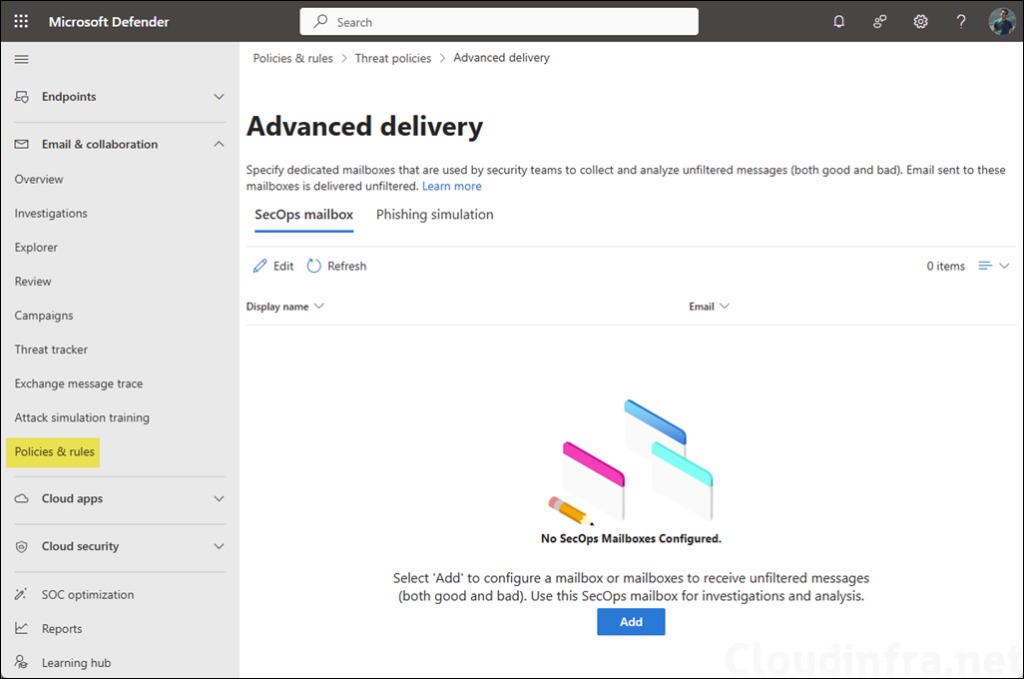
If your goal is to ensure delivery of phishing simulation emails (third-party) or to deliver unfiltered messages to a SecOps mailbox, configure Advanced Delivery. This is the supported and recommended bypass mechanism for these scenarios.
Steps (Defender portal)
- Go to Microsoft 365 Defender > Email & collaboration > Policies & rules > Threat policies.
- Under Rules, open Advanced delivery.
- Configure either:
- SecOps mailbox tab: Add the mailbox (must be an Exchange Online mailbox).
- Phishing simulation tab: Add simulation domains and sending IPs (and optionally URLs for non-email simulations).
Option 1: Tenant Allow/Block List (TABL)
TABL is Microsoft’s recommended allowlisting method for senders and domains. It is also the mechanism Microsoft uses when you “Allow this message” during admin submission workflows.
Add a Sender or Domain in Tenant Allow List
- Sign in to the Microsoft 365 Defender portal as a security administrator or a global administrator.
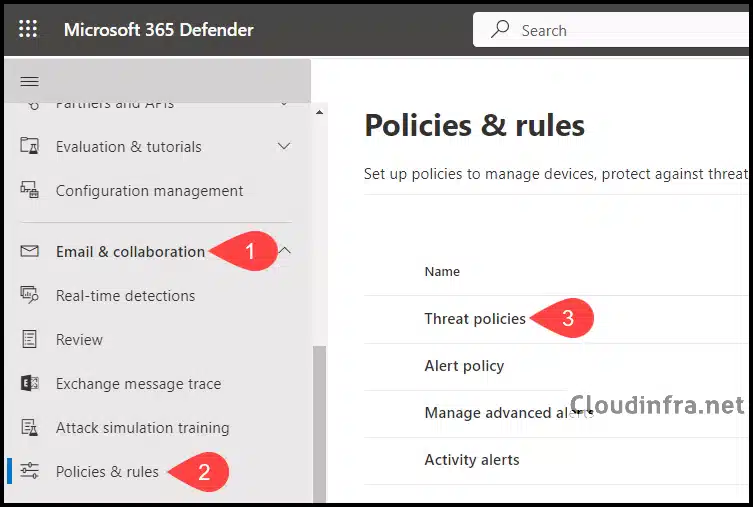
- Under Email & collaboration > Policies & rules.
- Click on Threat policies.
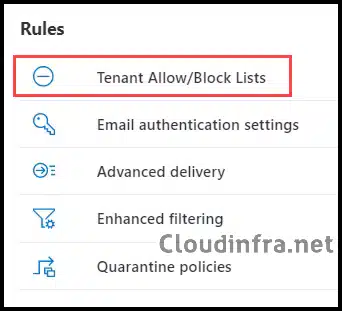
- Under Rules > Tenant Allow/Block Lists.
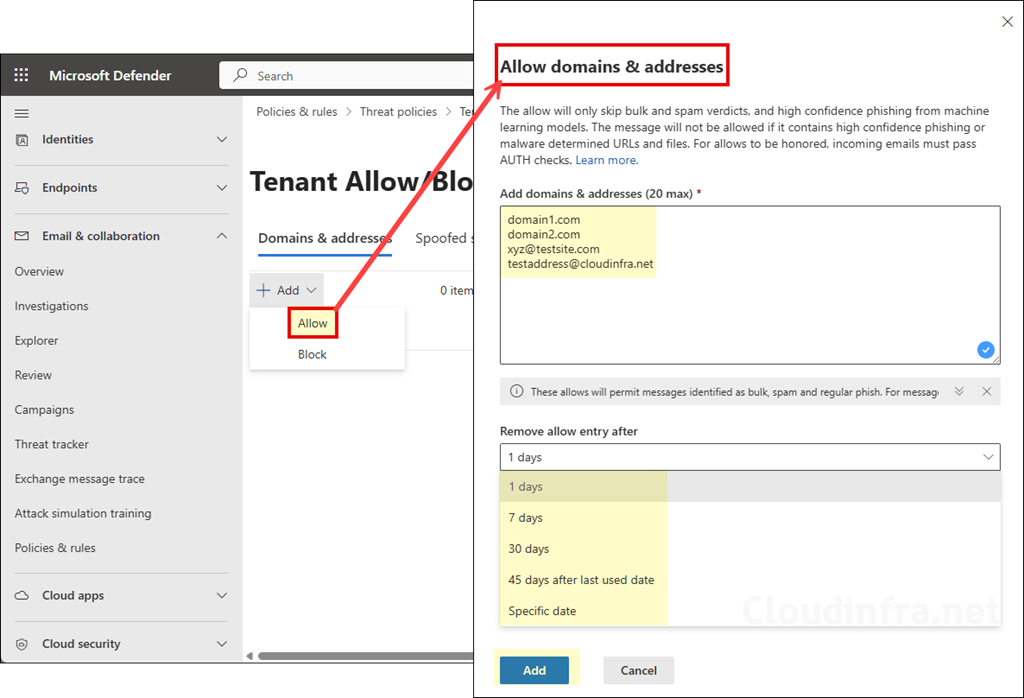
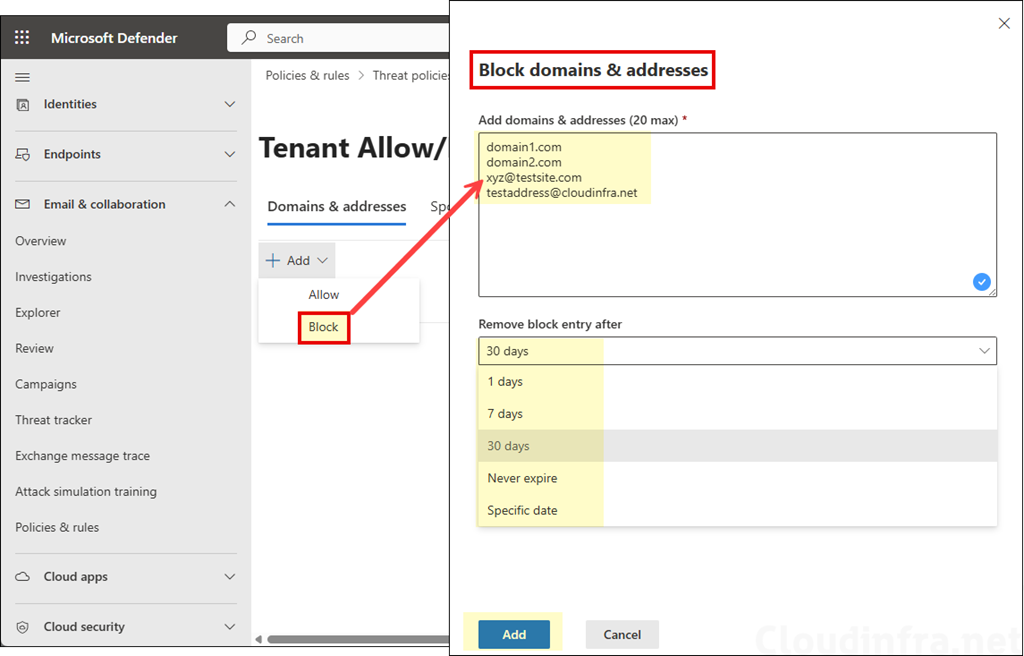
- Under Domains & Addresses, click + Add and select either Allow or Block as per your requirement. You can allow up to 20 domain & email addresses.
Allow entries are typically temporary. By default, many allow entries are removed after the system determines the entity is clean, or you can set an expiration up to 45 days (spoofed sender allows are a special case and do not expire).
- To block domains and email addresses, select Block and add the domains or email addresses, one per line. Similar to the allow list, you can add up to 20 domains or email addresses. Then configure Remove block entry after setting. Note that a Never expire option is also available for block entries. When this option is selected, block entries are never removed automatically and must be deleted manually from the block list.
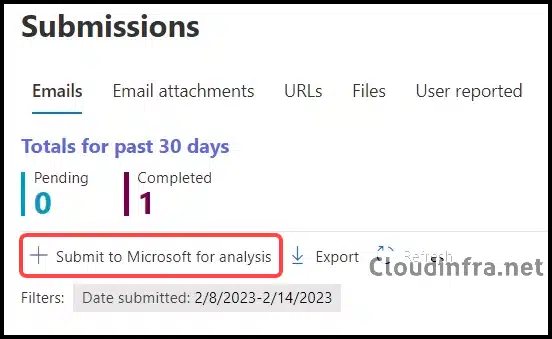
Optionally, you can submit a sample email to Microsoft for analysis and improve the email detection systems. Save the message as .eml or .msg (or obtain it from the affected mailbox). Use the link https://security.microsoft.com/reportsubmission and click Submit to Microsoft for analysis.
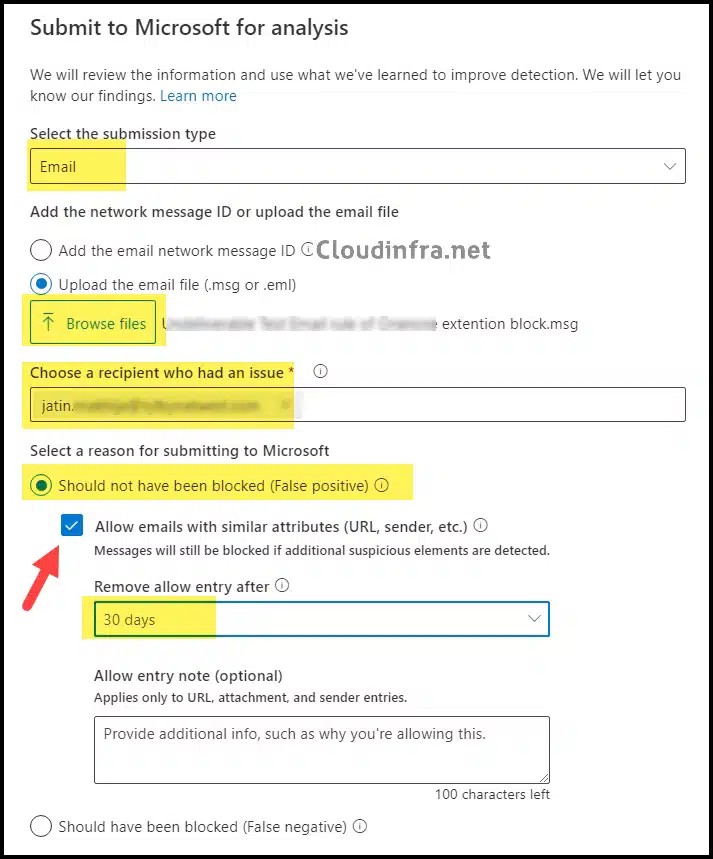
- On Submit to Microsoft for analysis page. Select below information:
- Select the submission type: Email
- Click on Browse files and select the saved email .msg file
- Choose a recipient who had an issue: Provide the email address of the recipient who reported this issue
- Select Should not have been blocked (False positive)
- Check the box Allow emails with similar attributes (URL, sender, etc.)
- Remove allow entry after: From the drop-down, select the number of days after the whitelisting should be removed.
Option 2: Create an Exchange Online mail flow rule
You can also create an Exchange Online mail flow rule and set the spam confidence level to -1 to bypass spam filtering. When you create this rule, use specific conditions and not just sender or domain name. Use this option when you want a controlled bypass for a specific external sender or domain.
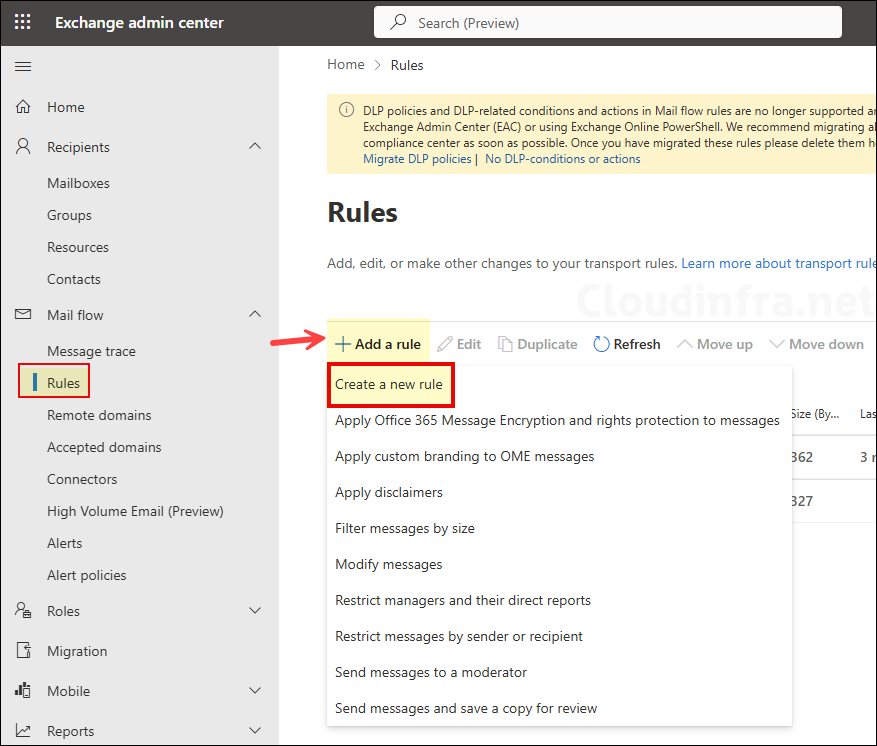
- Open Microsoft Exchange Admin Center > Mail flow > Rules > + Add a rule. From the drop-down, select Create a new rule.
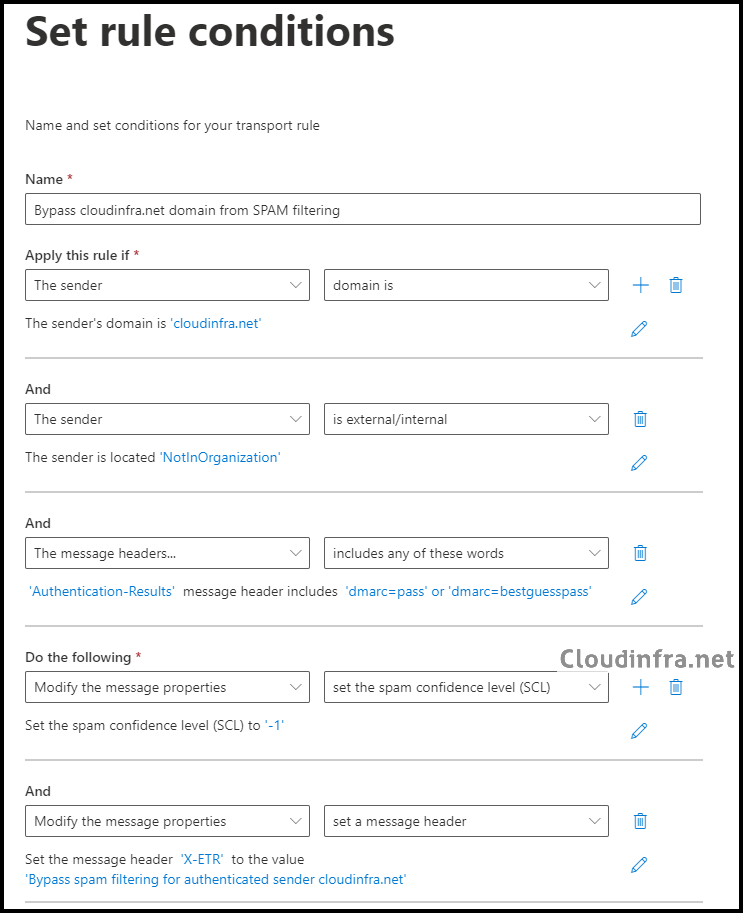
- On the Set rule conditions pane, define the conditions under which you want to bypass spam filtering. It is strongly recommended to add multiple conditions to increase rule strictness and reduce the risk of abuse. For example, if you know the source email server’s IP address, you can add it as an additional condition under Apply this rule if. This ensures the bypass rule is applied only to emails originating from a trusted source.
Rule configuration example:
- Name: Bypass <domainname> domain from spam filtering
- Apply this rule if:
- The sender domain is <domain name>.
- AND the sender is outside the organization.
- AND the message headers include any of the following:
- Header name: Authentication-Results
- Words: dmarc=pass or dmarc=bestguesspass
- Do the following:
- Modify the message properties to set the Spam Confidence Level (SCL) to -1
- AND Modify the message properties to add a message header:
- Header: X-ETR
- Value: Bypass spam filtering for authenticated sender <domain name>
This condition checks the email authentication results to confirm that the sending domain has passed DMARC validation. It helps ensure that the email is not spoofed and that the sender domain is authenticated before the spam filtering bypass rule is applied.
Header name: Authentication-Results and Words: dmarc=pass or dmarc=bestguesspass
- Configure the following rule settings and then click Next:
- Rule mode: Enforce.
- Keep all other settings at their default values.
- Review and click on Finish to create the rule.
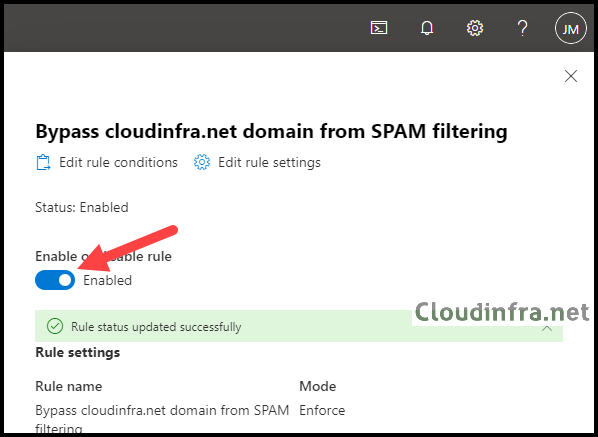
- When you create a transport rule in Exchange Online, it’s disabled by default. To enable it, select the rule and switch the toggle to On.
Option 3: Using Outlook Safe Senders list
Users can add senders/domains to Safe Senders in Outlook (Classic) and Outlook on the Web, but it only affects that mailbox. When a Safe Senders list is configured, emails or domains included in that list bypass content filtering and are delivered directly to the user’s inbox. Administrators can also manage Safe Senders lists using PowerShell. The cmdlet used for this purpose is Set-MailboxJunkEmailConfiguration.
You can use the following cmdlet to verify the blocked or allowed senders configured for a user mailbox.
Verify the blocked or allowed senders
Get-MailboxJunkEmailConfiguration -Identity "<MailboxIdentity>" | Format-List trusted*,contacts*,blocked*Option 4: Using IP Allow List
IP allowlisting is considered high risk because it can bypass spam filtering and sender authentication checks for all inbound emails originating from an IP address or range of IP addresses.
To add an IP address to the Allow IP list in the default connection filter policy, go to the Microsoft 365 Defender portal under Anti-spam policies. You must have security administrator permissions or be a member of the organization management role group to access and modify this policy. To add an IP address to the IP allow list, follow below sdrteps:
- Sign in to the Microsoft 365 Defender portal as a security administrator or global administrator.
- Under Email & collaboration > Policies & rules.
- Click on Threat policies.
- Click on Anti-spam under Policies.
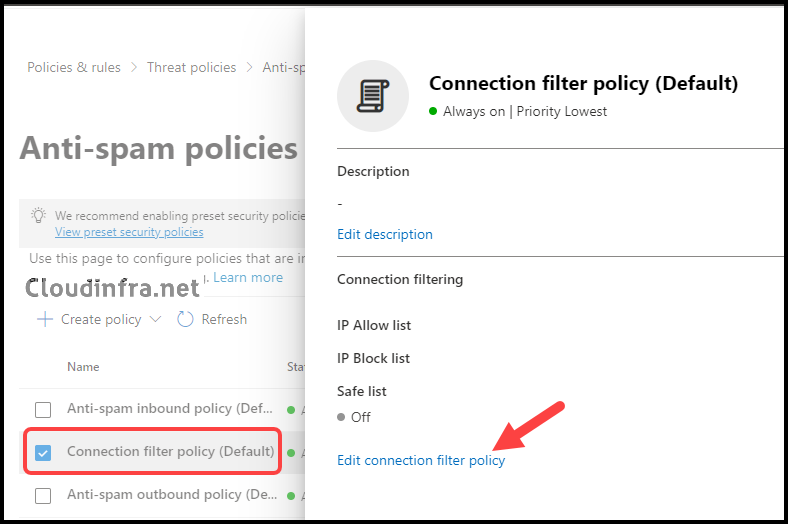
- Select the Connection filter policy (Default) and click Edit connection filter policy.
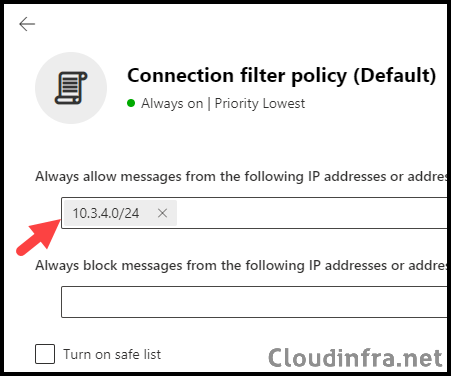
- Add the IP address or IP address range to the Always allow messages from the following IP addresses or address range section, and then click Save to finalize the configuration. You can also add a CIDR range as well, as shown in the screenshot below. For example, 10.3.4.0/24.
Option 5: Allowed Senders/Domains in Anti-Spam Policies
According to Microsoft, this is the least recommended option, as this bypass list will bypass most email protections and authentication checks, including all spam checks, spoofing checks, and phishing protection, except sender authentication checks (SPF, DKIM, DMARC). Sender authentication checks must be successfully passed to skip anti-spam filtering.
Use this option only temporarily or during email flow testing. A maximum of 1,000 entries can be added. If you need to add more than 30 entries, you must use PowerShell.
When adding a domain or sender to the Allow list in the Anti-Spam Inbound (default) policy, it’s important to regularly review and reassess this list every few weeks. The system may learn and adapt to the sender’s or domain’s behavior, potentially reducing the need to bypass them from content filtering. Periodic reviews help ensure that your email security settings remain effective and up-to-date.
Note
Let’s explore the process of whitelisting a domain or sender in the Anti-Spam Inbound policy:
- Sign in to the Microsoft 365 Defender portal as a security administrator or global administrator.
- Under Email & collaboration > Policies & rules.
- Click on Threat policies.
- Click on Anti-spam under Policies.
- Select the Anti-spam inbound policy (Default) and scroll down to the bottom of the policy to select Edit Allowed and blocked senders and domains.
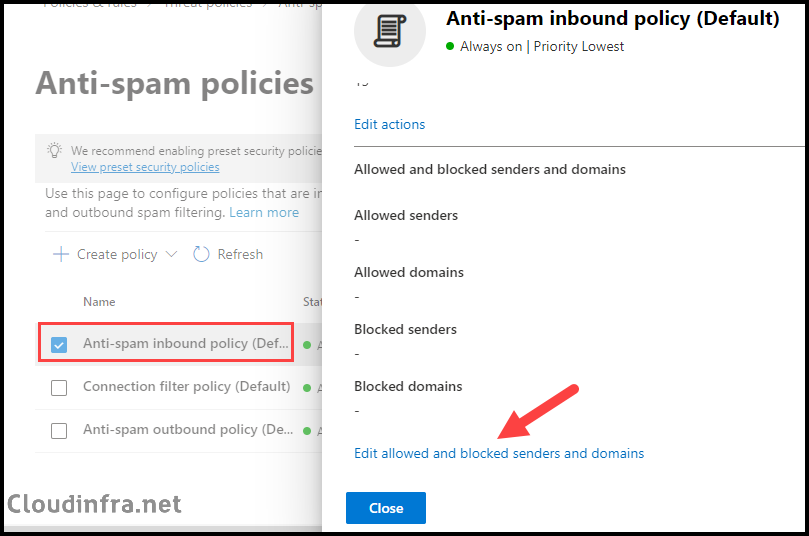
- Under the Allowed section, you will find Manage Senders and Allow domains link.
- Manage senders: Add the sender’s email address to the whitelist.
- Allow Domains: Add a domain to the whitelist.
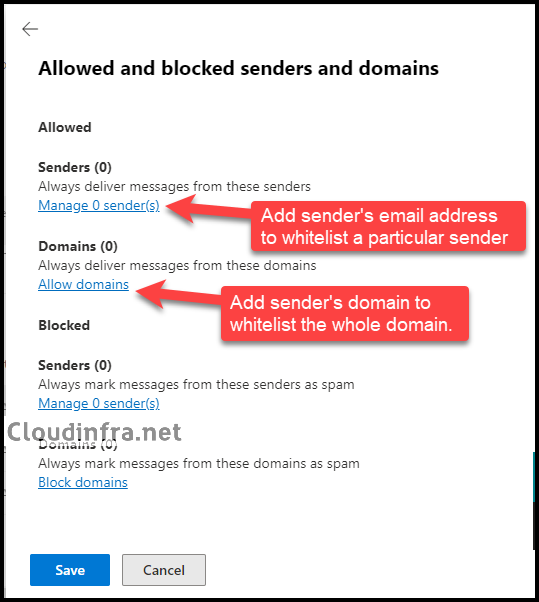
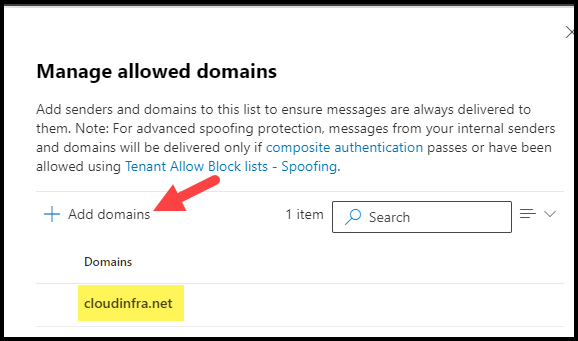
- I have clicked on Allow domains link and then clicked on + Add domains to add a domain, for example, cloudinfra.net. Similarly, you can add the domains or specific senders into this list to bypass spam filtering.
Allow or Block List of Anti-Phishing Policies
If you want to exempt a trusted sender or domain from anti-phishing protection, you can use the allow list in the anti-phishing policy. Let’s review the steps to configure this.
- Sign in to the Microsoft 365 Defender portal as a security administrator or global administrator.
- Under Email & collaboration > Policies & rules.
- Click on Threat policies.
- Click on Anti-phishing under Policies.
- Select the Office365 AntiPhish Default (Default), or if you have created a custom policy that protects all users, select that policy.
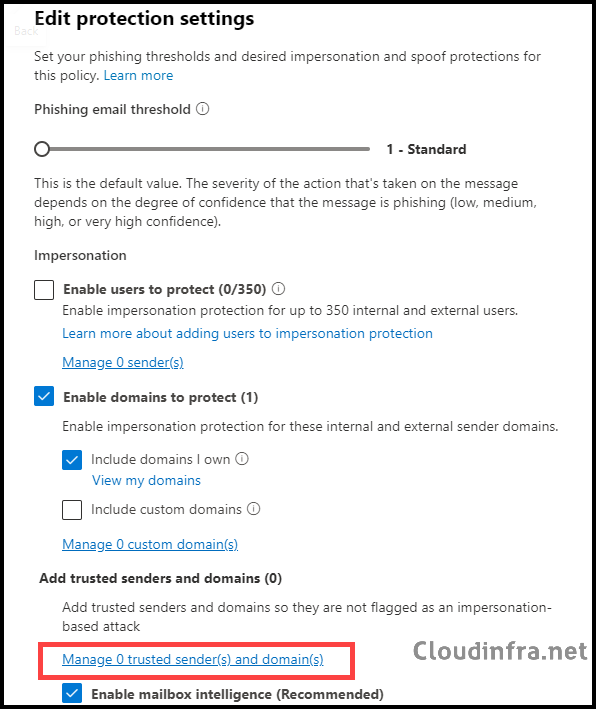
- Click on Edit Protection settings.
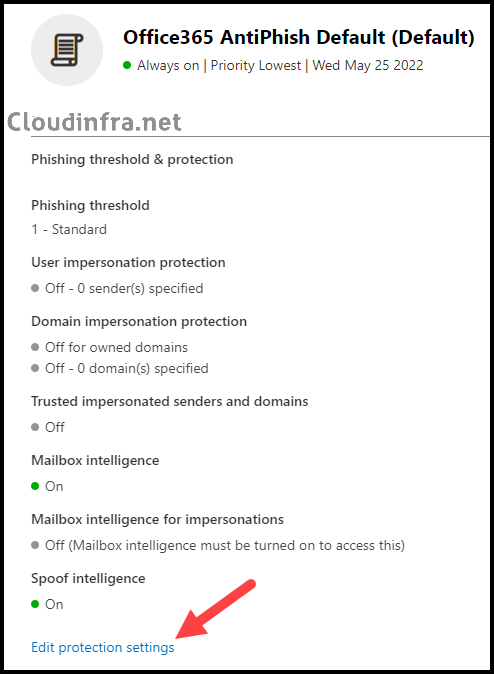
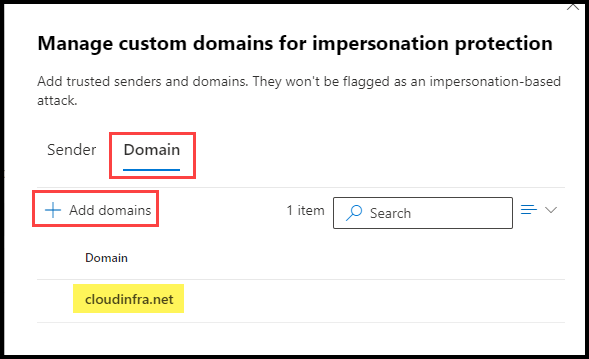
- Under Edit protection settings, click on Manage trusted sender(s) and domain(s) to whitelist a sender or domain.
- Click on the Sender tab to whitelist a sender email address or the Domain tab to add a domain.
Conclusion
If you must bypass spam filtering in Microsoft 365, start with Tenant Allow/Block List allow entries and admin submission for false positives, since this is Microsoft’s recommended approach. Use transport rules only with strict conditions and avoid bypassing for security testing scenarios, where Advanced delivery policy is the correct and supported method.
