
Microsoft Intune Properties Catalog can now be used to collect Windows Registry data from managed Windows devices. This provides an easier way for administrators to inventory registry settings across devices without deploying custom PowerShell scripts or remediation scripts. You can use the collected registry information for troubleshooting, configuration visibility, application state checks, and security investigations etc.
Microsoft announced this feature as part of the Intune July 2026 (2607) service release. Currently, registry data collection is limited to HKEY_LOCAL_MACHINE (HKLM) paths, which means you can collect device-level registry information but cannot query values under HKEY_CURRENT_USER (HKCU). Registry data collection through Device Inventory is included with Microsoft Intune Plan 1.
In this post, I will show you how to read/collect Windows Registry data using Intune Properties Catalog. We will explore different registry data collection methods, deploy the policy to Windows devices, and view the collected registry data in the Intune admin center.
Currently, Intune doesn’t provide a built-in organization-wide report for registry data collected through Properties Catalog. The collected information can be viewed on a per-device basis under Device Inventory > Registry. Microsoft has indicated that broader reporting and exploration capabilities for registry inventory are planned for future Intune releases.
Contents
Registry Information You Can Collect
To collect registry information from managed Windows devices, create a Properties Catalog policy and define the registry key and values you want to collect. Then assign the policy to the target Windows devices using a Microsoft Entra security group.
On the target Windows device, Microsoft Device Inventory Agent processes the inventory request, collects the configured registry information, and sends the results back to Intune. The agent can collect and report the following registry data:
| Registry Information | Example |
|---|---|
| Registry key path | HKEY_LOCAL_MACHINE\SOFTWARE\Microsoft\Windows NT\CurrentVersion |
| Value name | DisplayVersion |
| Value type | REG_SZ |
| Value data | 25H2 |
Registry Collection Limitations
There are some limitations to be aware of when using Intune Properties Catalog to collect registry data. Let’s look at the current limitations below:
- Supports HKEY_LOCAL_MACHINE (HKLM) paths only; HKEY_CURRENT_USER (HKCU) and other user-specific hives aren’t supported.
- A maximum of 100 registry keys per device can be collected.
- Individual registry values are limited to 6 KB.
- Registry collection is non-recursive; nested subkeys aren’t automatically scanned.
- The same value across subkeys option checks only immediate child keys.
- Intune may block values that appear to contain sensitive data, such as credentials, secrets, tokens, or private keys.
- Registry inventory is read-only; it can’t create, modify, or delete registry values.
- Initial inventory collection can take up to 24 hours.
- A manual Intune sync doesn’t guarantee an immediate registry inventory refresh.
- Collected data may remain visible for up to 28 days after the policy is deleted.
- There is no separate 32-bit/64-bit registry view selector, so WOW6432Node paths may need to be specified explicitly for 32-bit apps on 64-bit Windows.
If a registry value exists but contains no data, the collection succeeds and the value is reported as empty. If the specified registry path or value name does not exist on a device, the collection result for that device is reported as Not found. Collection continues on all other targeted devices, so a missing value on one device does not affect results from devices where the registry value exists.
Collect Windows Registry Data Using Intune [Steps/Demo]
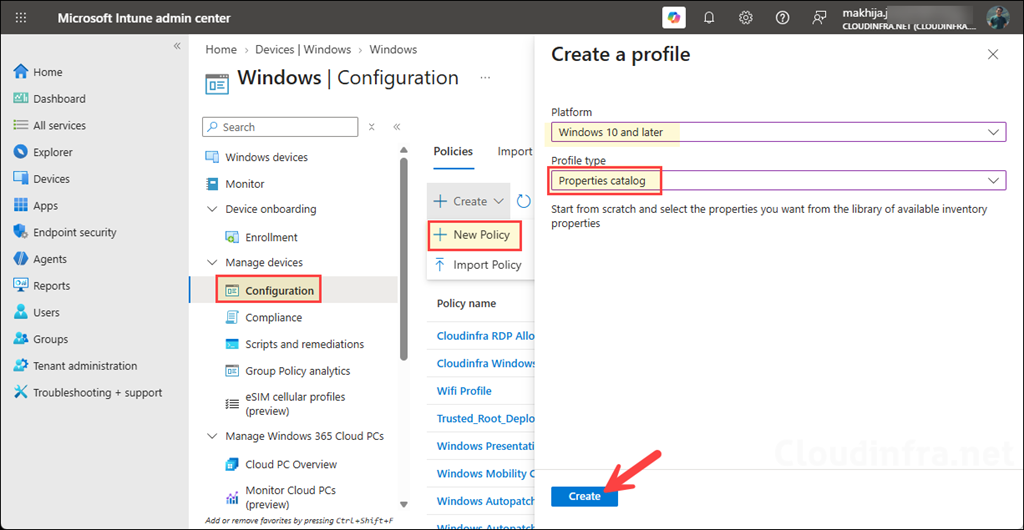
- Sign in to the Intune admin center and go to Devices > Windows > Configuration > Create > New Policy. Select Windows 10 and later as the Platform and Properties catalog as the Profile type, then click Create.
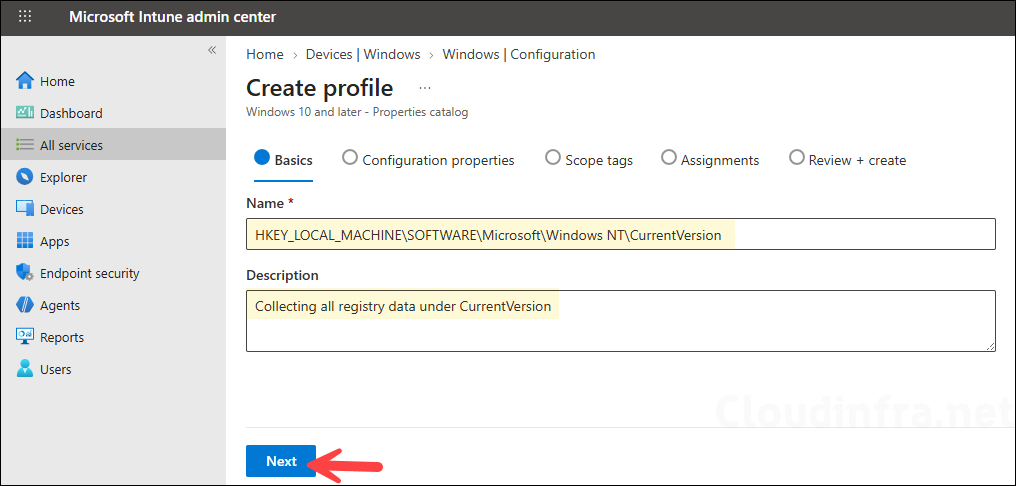
- On the Basics tab, enter a meaningful Name and Description for the policy, then click Next.
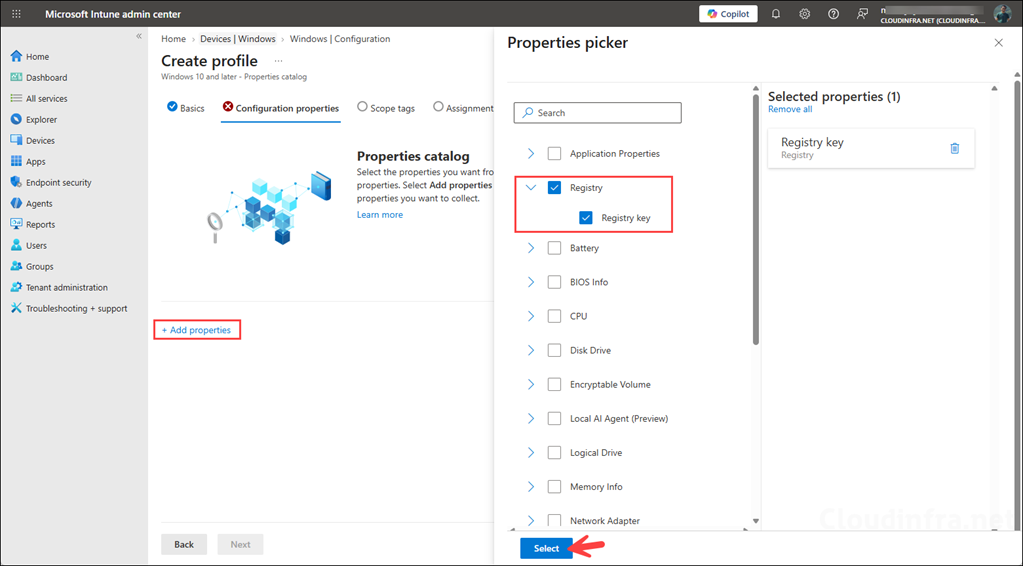
- On the Configuration properties tab, click Add properties. In the Properties picker, select Registry, and then click Select.
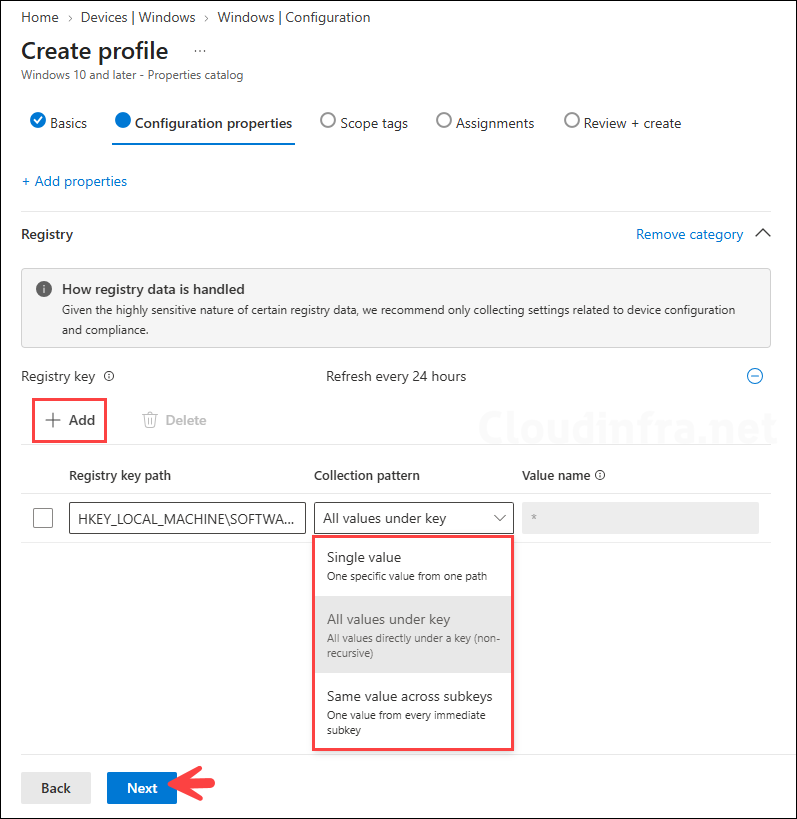
Click + Add and provide the following information to configure the registry data you want Intune to collect:
- Registry key path: Registry inventory currently supports values under HKEY_LOCAL_MACHINE (HKLM) only. Enter the HKLM registry path that contains the value you want Intune to collect.
- Collection pattern: Select how Intune should collect registry data from the specified key. The drop-down provides the following options:
| Collection method | Description |
|---|---|
| Single value | Collects one specified registry value from a registry key |
| All values under key | Collects all values directly underneath the specified registry key |
| Same value across subkeys | Collects a specified value from the immediate subkeys underneath the selected registry key |
- Value name: Enter the name of the registry value you want Intune to collect. This field applies when you select Single value or Same value across subkeys as the collection pattern.
In my example, I have configured the registry collection with the following settings:
- Registry key path: HKEY_LOCAL_MACHINE\SOFTWARE\Microsoft\Windows NT\CurrentVersion
- Collection pattern: All values under key
- Value name: *
- Scope tags (optional): A scope tag in Intune is an RBAC label you add to resources (policies, apps, devices) to limit which admins can see and manage them. For more Information, read: How to use scope tags in Intune.
- Assignments: Assign the policy to an Entra security group that contains the target devices.
- Review + create: Review the policy summary and click Create.
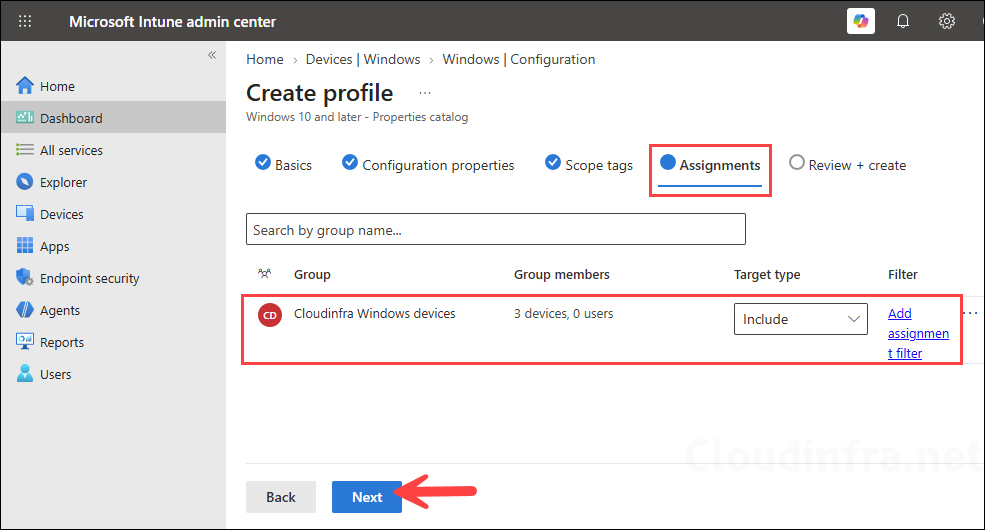
The policy will be applied the next time the device checks in with Intune. If you want to accelerate the process, you can manually initiate an Intune sync on the device. For different ways to trigger a manual sync, refer to the guide Manually Sync Intune Policies on Windows [11 Ways].
Monitoring Intune Policy Deployment
Sign in to the Intune admin center and go to Devices > Configuration. Select the Device Configuration profile you created for registry data collection. At the top of the page, you can see a summary of the deployment status, including Succeeded, Error, Conflict, Not applicable, and Pending. Click View report to view more detailed status information for the targeted devices.
View Registry Values in Intune
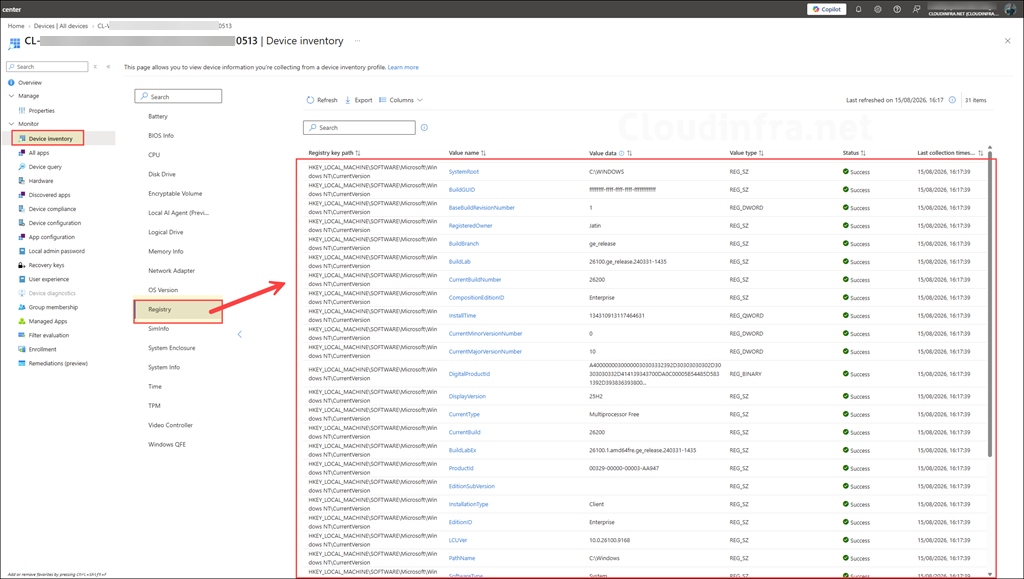
Once the device receives the Properties Catalog policy and uploads its inventory data, you can view the collected registry information directly from the device record in Intune. After assigning the policy, allow up to 24 hours for the registry inventory data to be collected and reported back to Intune.
To view the collected registry data, go to Intune admin center > Devices > Windows, select the target Windows device, and then navigate to Monitor > Device Inventory. Select the Registry category to view the registry information collected through the Properties Catalog policy.
Export Registry Data to CSV
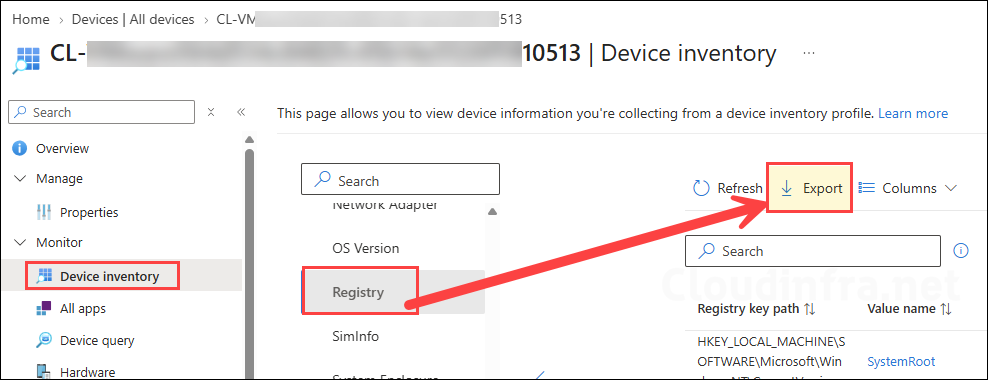
You can export the collected registry data to a CSV file from the Device Inventory page. Once the registry information is displayed, click Export to download the data for further analysis or reporting.
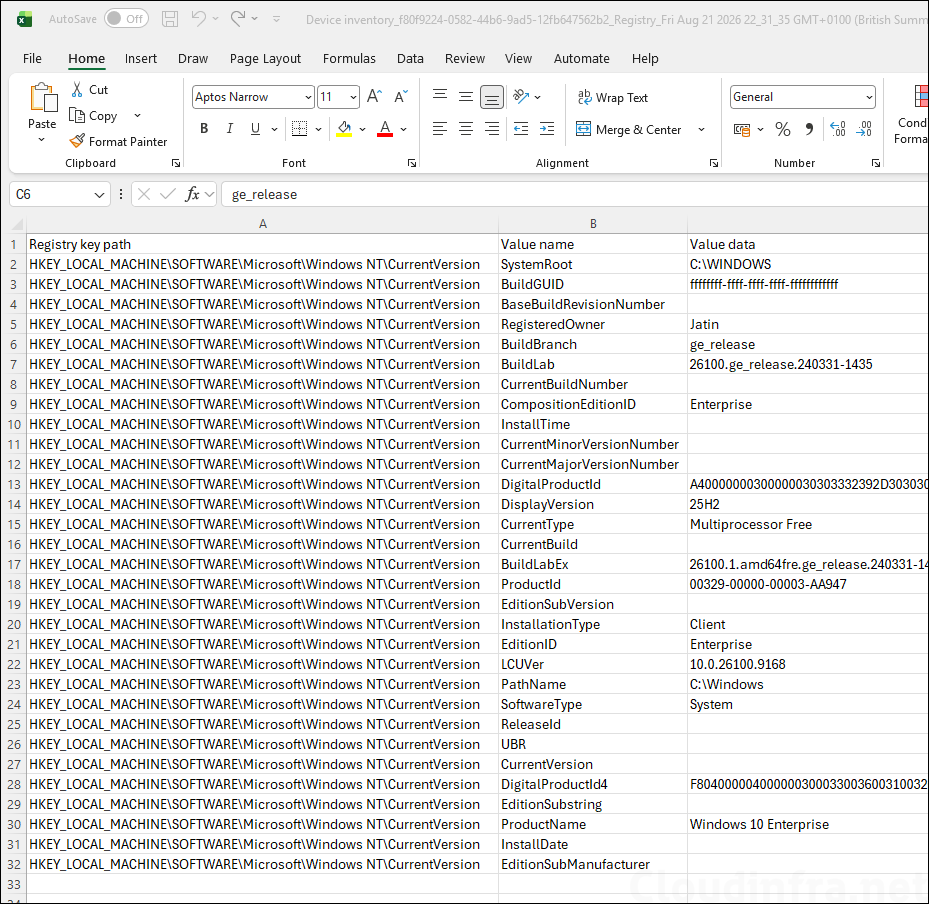
The screenshot below shows how the collected registry data appears in the exported CSV file.
Troubleshooting
For troubleshooting registry collection, first confirm that the Properties Catalog policy is assigned to the device and allow sufficient time for inventory to complete. On the Windows device, review the Microsoft Device Inventory Agent logs located at C:\Program Files\Microsoft Device Inventory Agent\Logs. These logs can help identify issues with inventory processing, registry collection, and data upload to Intune.
You can also collect diagnostic logs remotely from the Intune admin center. For detailed steps, refer to Collect Intune Logs From Windows Devices.
FAQs
Can Intune Properties Catalog read Windows Registry values?
Yes. It can collect selected registry values from managed Windows devices and display them in Device Inventory.
What happens if the registry key or value isn’t found on the device?
If the configured registry key or value doesn’t exist, Intune reports the collection result as Not found for that device. Other configured registry values continue to be collected normally.
Can I generate a report of registry collection data for all devices?
Not currently. Registry data collected through Properties Catalog is viewed per device under Device Inventory. Intune doesn’t yet provide a built-in organization-wide report for registry inventory, although Microsoft plans to add broader reporting and exploration capabilities in future releases.
What license is required to collect registry data using Intune?
Registry data collection through Properties Catalog and Device Inventory is included with Microsoft Intune Plan 1. No Intune Suite or Advanced Analytics add-on license is required for this capability.
Which registry hive is supported?
Registry collection currently supports HKEY_LOCAL_MACHINE (HKLM) only.
Can Intune collect HKCU registry values?
No. HKEY_CURRENT_USER (HKCU) and other user-specific registry hives aren’t currently supported.
How many registry keys can Intune collect?
You can collect up to 100 registry keys per device.
What is the maximum registry value size?
Each registry value collected by Intune can be up to 6 KB.
Can Properties Catalog modify registry values?
No. Registry collection is read-only and is intended for inventory and reporting. Use Intune configuration policies, PowerShell, or remediations to modify registry settings.
How long does registry inventory take to appear?
The initial device inventory collection can take up to 24 hours.
Where can I troubleshoot registry collection?
Review the Microsoft Device Inventory Agent logs at C:\Program Files\Microsoft Device Inventory Agent\Logs.
