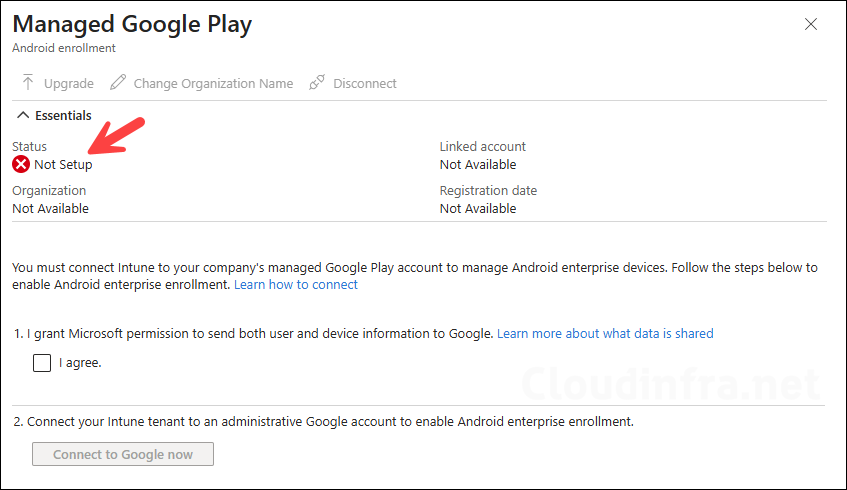
Managed Google Play is a required prerequisite for managing Android Enterprise devices in Microsoft Intune. Before you can enroll Android Enterprise personally owned work profile, corporate-owned work profile, fully managed, or dedicated devices, you must connect your Intune tenant to a Managed Google Play account. This connection allows Intune to communicate with Google’s Android Enterprise services, sync approved Play Store apps, deploy managed apps, and enable Android Enterprise enrollment scenarios.
Recommended account to use
Create a dedicated Microsoft Entra user account with a mailbox just for the purpose of this connection. Do not use an administrator account or use this account for any other activities. The account used during setup is associated with Android Enterprise management tasks in the Intune tenant.
For production environments, avoid using a personal Gmail account or a named user account that may be removed later. It’s also recommended to add more administrators after the connection is established, and Google recommends having at least two owners for redundancy.
As of August 2024, you can link your Microsoft Entra account to a Google account instead of using an enterprise Gmail account. Its recommended using Microsoft Entra account to connect to Google Play. Current Microsoft Intune tenants who have already associated a Gmail account with Intune will continue to be supported.
Steps to Connect Intune with Managed Google Play
Let’s go through the steps to connect Intune with Managed Google Play on Intune Admin Center:
- Sign in to the Microsoft Intune admin center > Go to Devices > Enrollment.
- Select the Android tab.
- Under Prerequisites, select Managed Google Play.
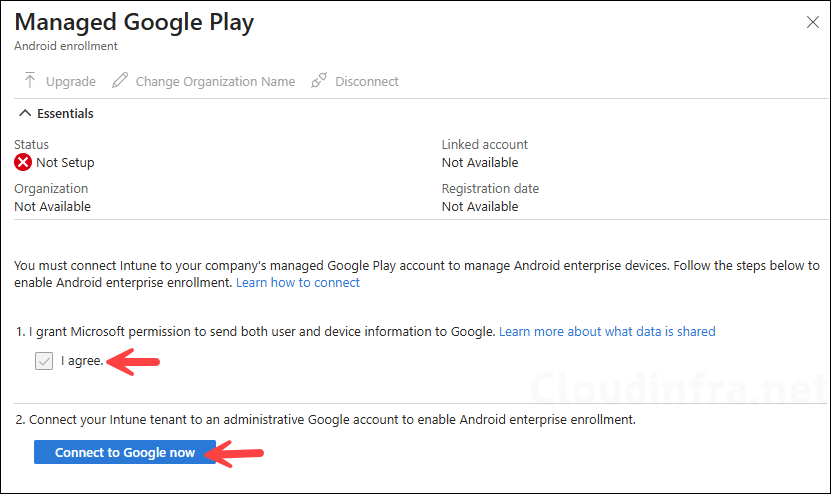
- Select I agree to grant Microsoft permission to send user and device information to Google.
- Click Connect to Google now and follow the on-screen steps to complete the Managed Google Play connection.
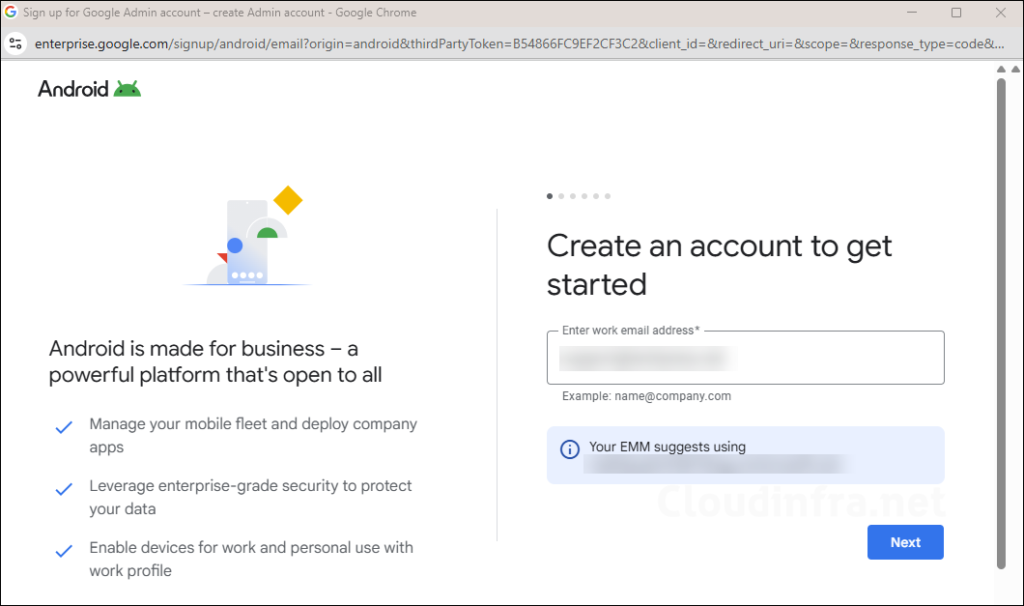
- On the Google sign-in page, confirm that the prefilled Microsoft Entra account is the correct account you want to associate with Android Enterprise management for this Intune tenant. You can also use a different work email address, as I did. It is recommended not to use an administrator account for this purpose. Instead, create a dedicated account such as IntuneGooglePlay@<domain.com> or a similar naming convention. Furthermore, ensure that the account has an active mailbox associated with it.
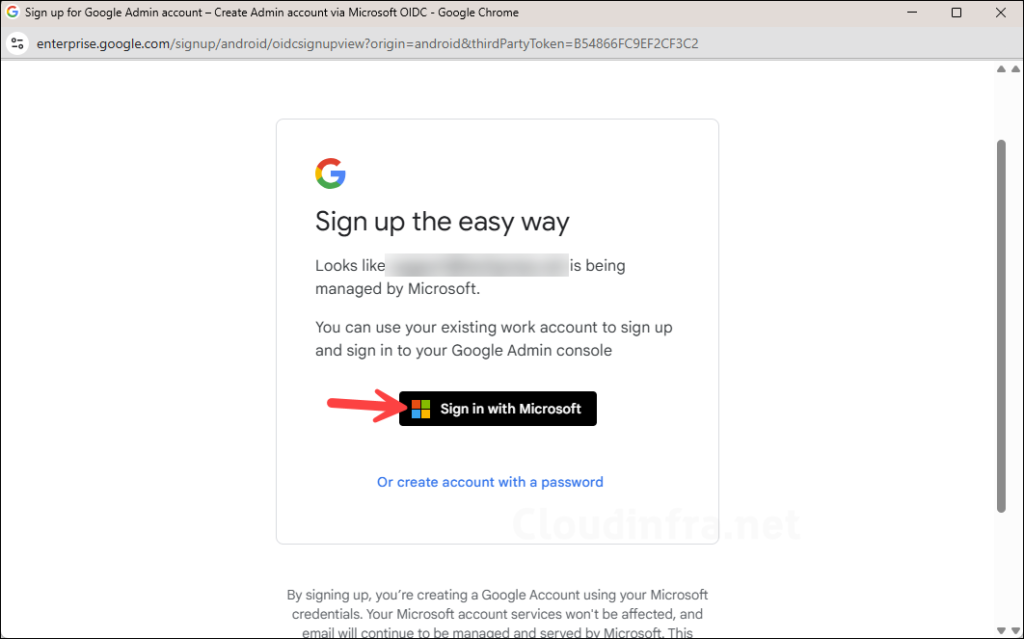
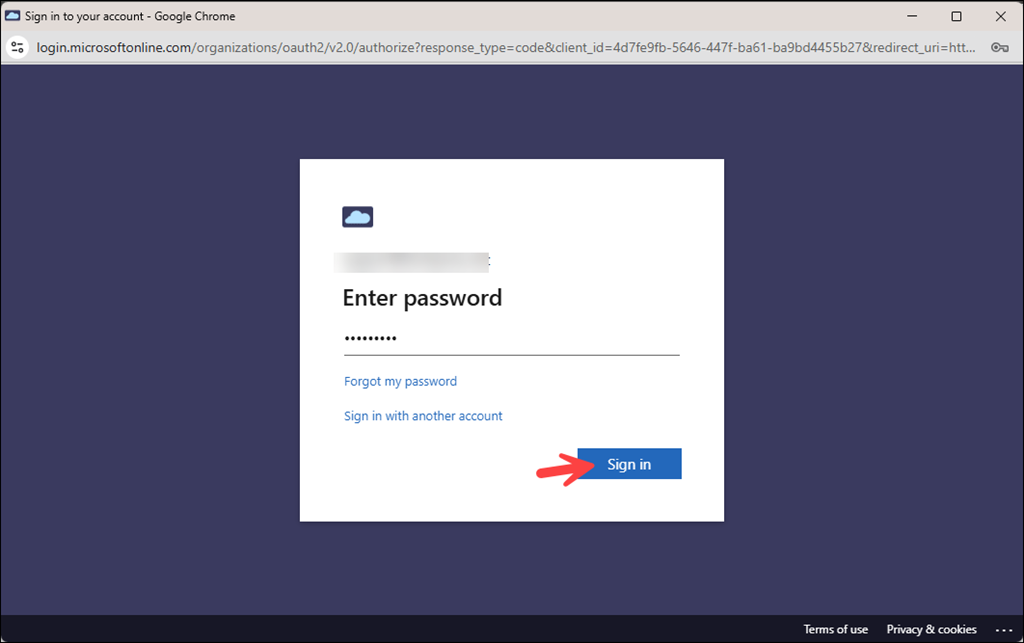
- Click on Sign in with Microsoft.
- Enter the password for authentication and click Sign in.
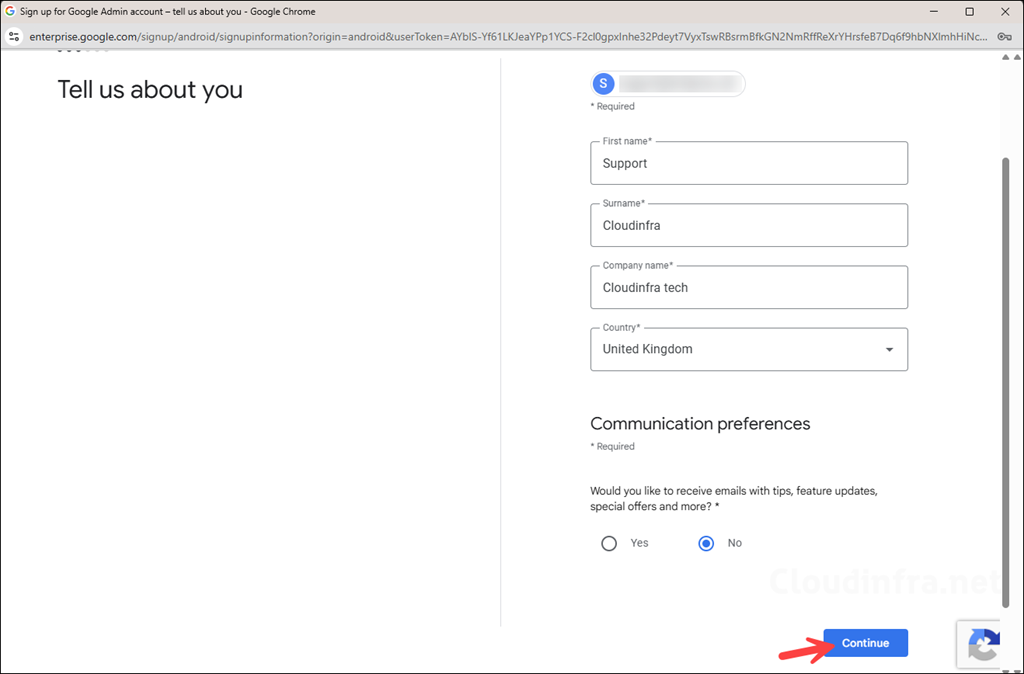
- Provide the required account details, such as First name, Surname, and other requested information, and then click Continue.
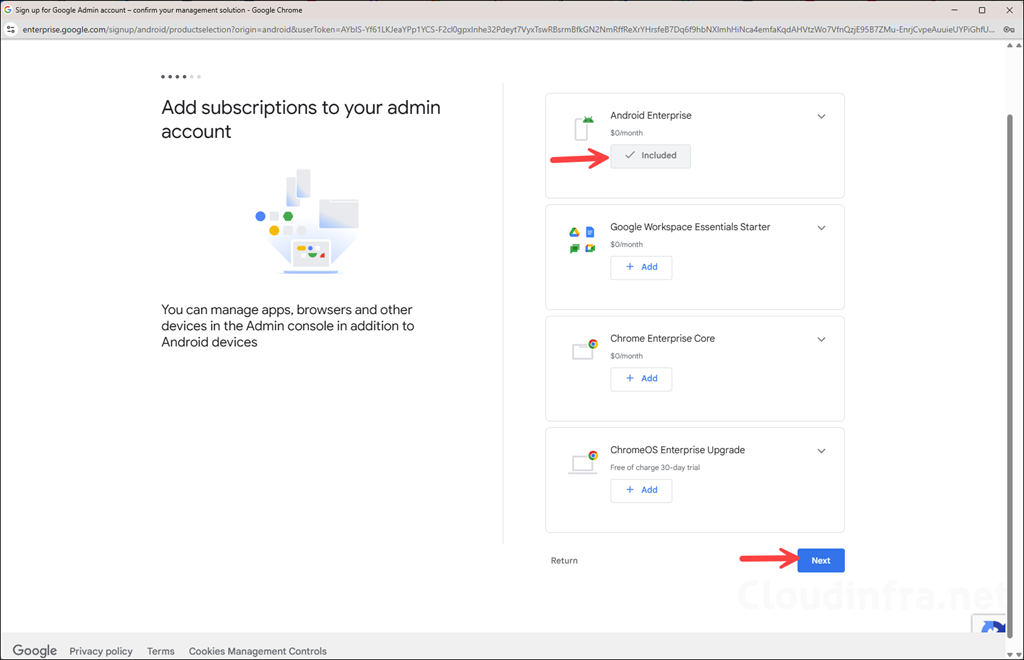
- Android Enterprise will be pre-selected. Keep the default selections and click Next.
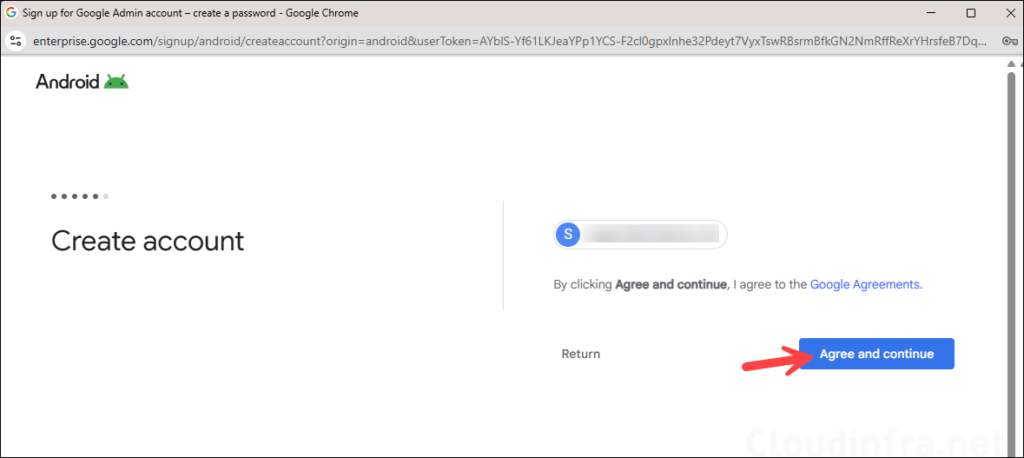
- Click Agree and continue.
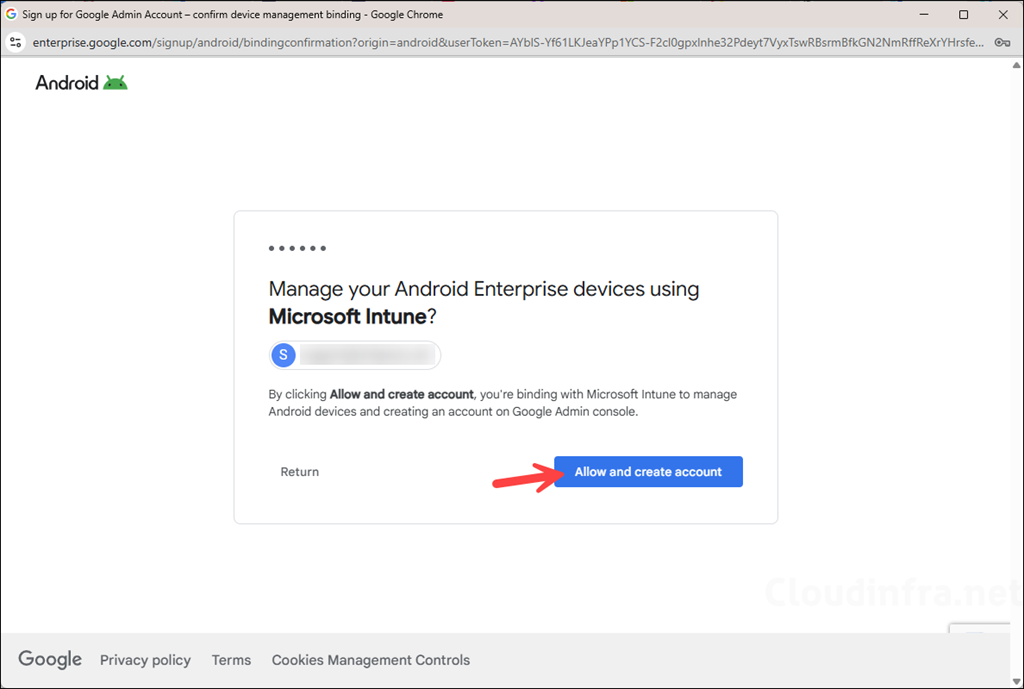
- Click Allow and create account.
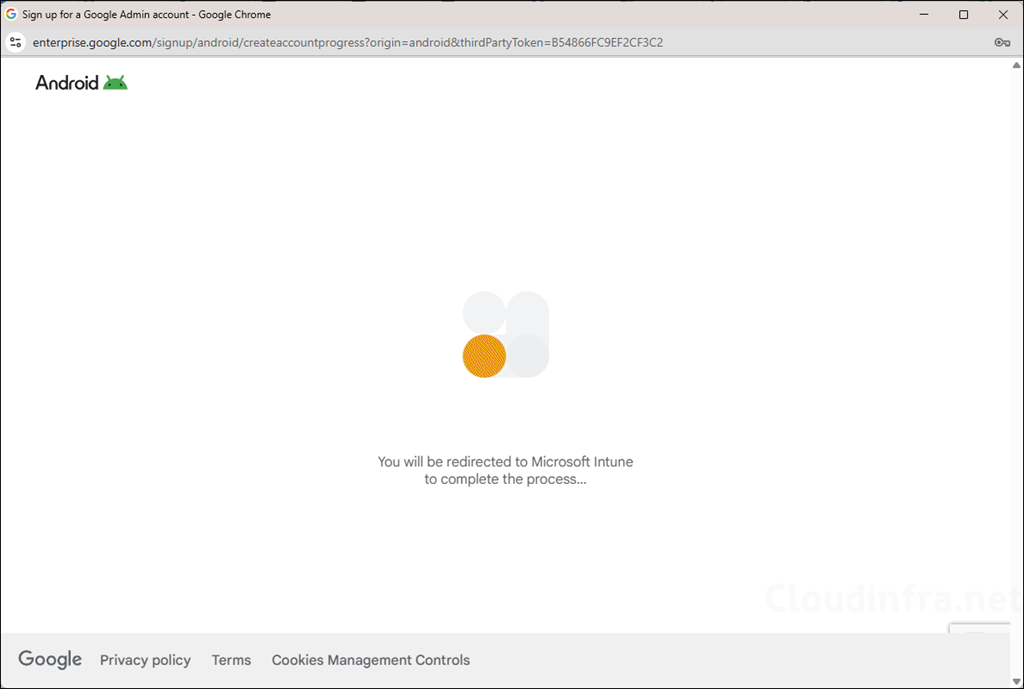
- On the next screen, you will see a message: You will be redirected to Microsoft Intune to complete the process. Wait for a few seconds for redirection to complete.
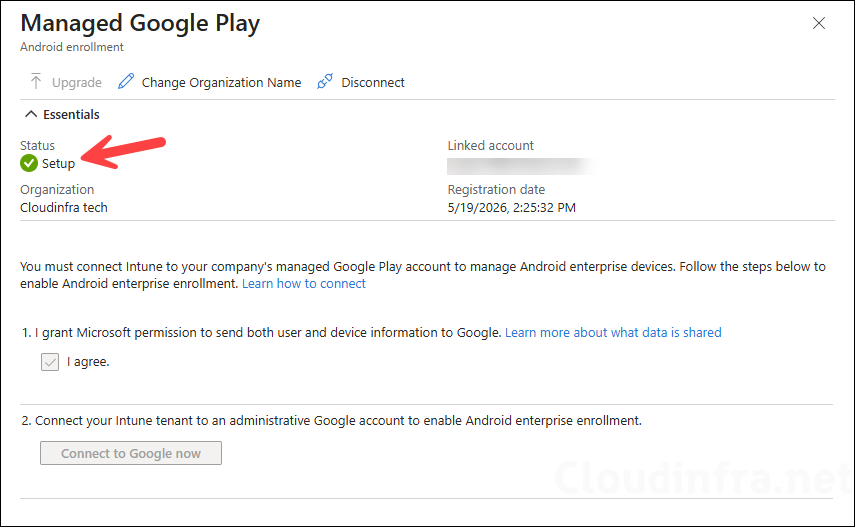
- That’s it, the Managed Google Play connection with Intune is now set up successfully. Ensure that the status shows a green check mark next to the setup. Also, verify the linked account and organization name.
Troubleshooting
Managed Google Play option is not available
Confirm that you are signed in with an account that has the Intune Administrator role or a custom role with organization read and update permissions.
Launch Google opens but sign-in fails
Use Microsoft Edge or Google Chrome and try an InPrivate or Incognito window. Browser security zone configuration can affect the interaction between Microsoft and Google domains. The domains portal.azure.com, play.google.com, and enterprise.google.com may need to be in the same security zone.
Sign in with Microsoft option is missing
Confirm that the Microsoft Entra account has an active mailbox. If the Microsoft sign-in option is missing, you might need to connect an MX record to the domain used for Exchange Online.
Apps are not visible after approval
After selecting a Managed Google Play app, select Sync in Intune. App sync between Intune and Managed Google Play can be manual, so you may have to select Sync after approving a new app.
Avoid disconnecting Managed Google Play unless required
Disconnecting Managed Google Play disables Android Enterprise device management for the tenant. Before disconnecting, Android Enterprise personally owned work profile, corporate-owned work profile, fully managed, and dedicated devices must be retired. Disconnecting can unenroll Android Enterprise devices from Intune.
FAQs
Is Managed Google Play required for Android enrollment in Intune?
Yes. Managed Google Play is required for Android Enterprise enrollment scenarios in Intune, including personally owned work profile, corporate-owned work profile, fully managed, and dedicated devices.
Should I use a Gmail account or Microsoft Entra account?
Microsoft recommends using a Microsoft Entra account to connect to Google Play. Existing tenants already connected with a Gmail account continue to be supported.
Can I change the Managed Google Play organization name later?
Yes. In the Intune admin center, go to Devices > Android > Enrollment > Managed Google Play, then select Change organization name. The name must be 2 to 50 characters long, and only certain characters are supported.
What happens after Managed Google Play is connected?
You can configure Android Enterprise enrollment profiles, approve Managed Google Play apps, sync apps into Intune, and assign apps and policies to Android users or devices.
Can I disconnect Managed Google Play?
Yes, but it should be avoided unless required. Disconnecting disables Android Enterprise management and can unenroll Android Enterprise devices from Intune.
Disconnect Intune and Managed Google Play Connection
You can also disconnect the Intune and Managed Google Play connection by selecting the Disconnect button. Before selecting Yes, carefully read the warning message. Microsoft recommends retiring all Android Enterprise devices before disconnecting the Managed Google Play connection. Disconnecting it disables Android Enterprise device management for the tenant and can unenroll Android Enterprise devices from Intune.
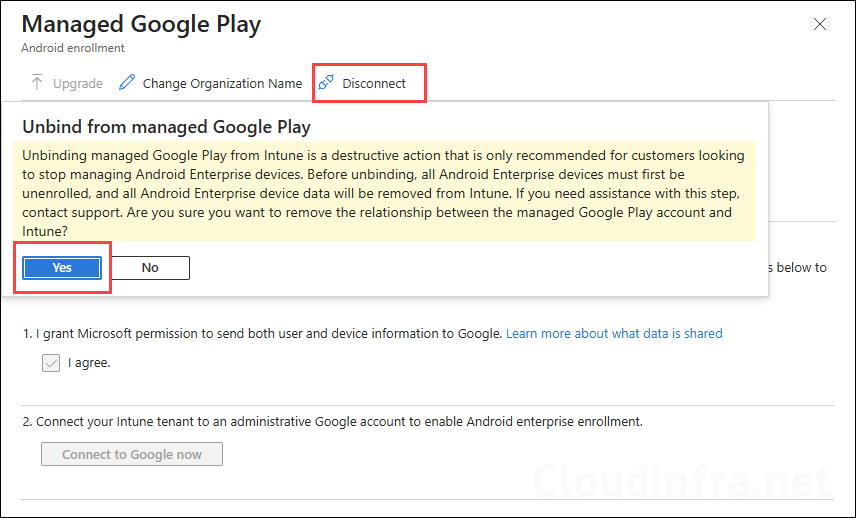
Once the disconnection process starts, the status changes to Unbinding.
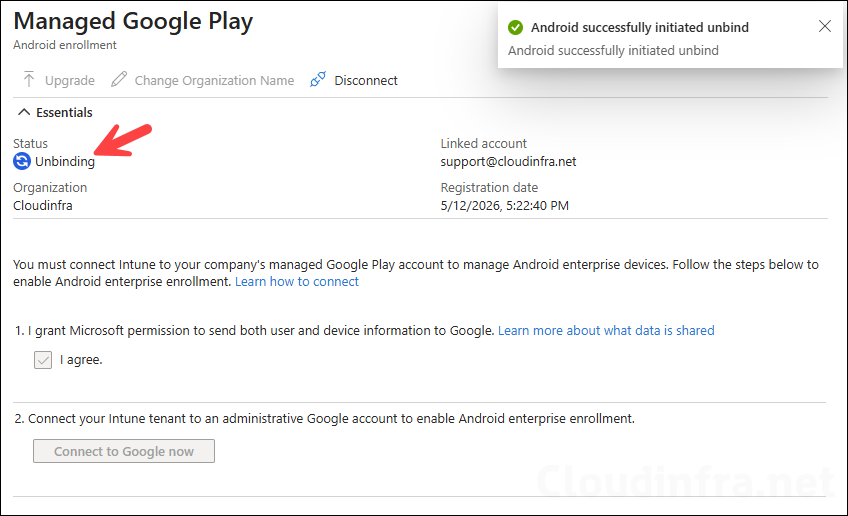
Managed Google Play Intune connection is successfully disconnected.