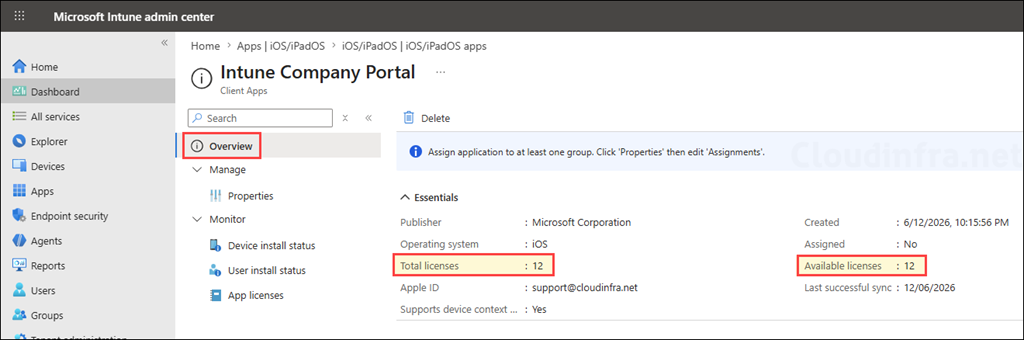
Apple Volume Purchase Program (VPP) is used to purchase, manage, and deploy Apple apps and books to managed iOS/iPadOS and macOS devices. Content tokens, which are also known as VPP tokens or location tokens, contain volume purchase license information. By synchronizing these tokens with Intune, you can manage purchased apps and books, track license usage, and monitor the availability of purchased licenses.
Contents
What Is a Content Token?
Mobile device management (MDM) services such as Microsoft Intune assign apps and books to users or devices by communicating with Apple Business. To establish and maintain this connection, a content token is required. Content tokens are valid for one year and must be renewed before they expire. If a content token expires, synchronization of app and book licenses between Apple Business and the MDM service stops, preventing the management and assignment of purchased content.
You can download content token from Apple business portal and upload it to the Intune admin center. This allows Intune to synchronize license information, track available and assigned licenses, and ensure that app installations do not exceed the number of licenses your organization owns.
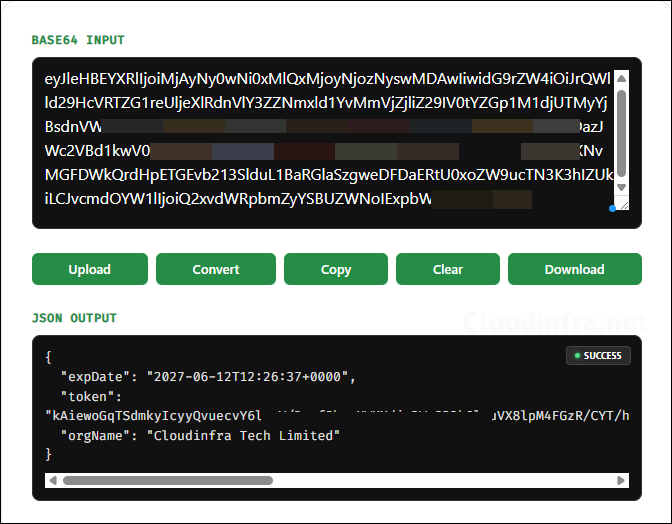
The screenshot below shows the information contained in the content token file. It contains the expiry date of the token, which is 1 year from the date of creation, OrgName, and the token. Later in the post, I will show you how to download this token file and upload it into Intune.
Supported App Types
Apple Business mainly supports two app types for app distribution through Apps and Books:
- Store apps: These are public apps available in the Apple App Store, including free and paid apps. You can add or purchase licenses for these apps in Apple Business and then sync them to Intune using a content token.
- Custom Apps: These are private apps developed specifically for your organization or a selected group of organizations. Custom Apps are not publicly listed for everyone in the App Store and are made available only to approved Apple Business organizations.
Prerequisites
Before creating and syncing content tokens with Intune, make sure you have the following:
- Apple Business account for your organisation.
- Microsoft Intune tenant with Intune administrator permissions.
- App licenses assigned to one or more organizational units.
- Access to download the content token from Apple Business.
- A content token can be connected to only one device management solution at a time. If you previously used the token with another MDM solution, remove it there before importing it into Intune.
- A content token can be used with only one Intune tenant. Do not use the same token across multiple Intune tenants.
- Intune automatically synchronizes content token information with Apple once every 24 hours. You can also start a manual synchronization at any time.
- After importing a content token into Intune, do not import the same token into another device management solution, as this can cause the loss of app license assignments and user records.
Important points about content token
Download Content Token from Apple Business
Let’s see the steps to download Content Token from Apple Business
- Step 1: Sign in to Apple Business using an account that has permissions to get licenses for apps and books. Preferably use a dedicated Managed Apple Account for MDM and app license management instead of a named individual admin account. This is recommended because the token can become invalid if the password is changed for the Managed Apple Account used to download the token. A dedicated account makes token ownership easier to track and renew.
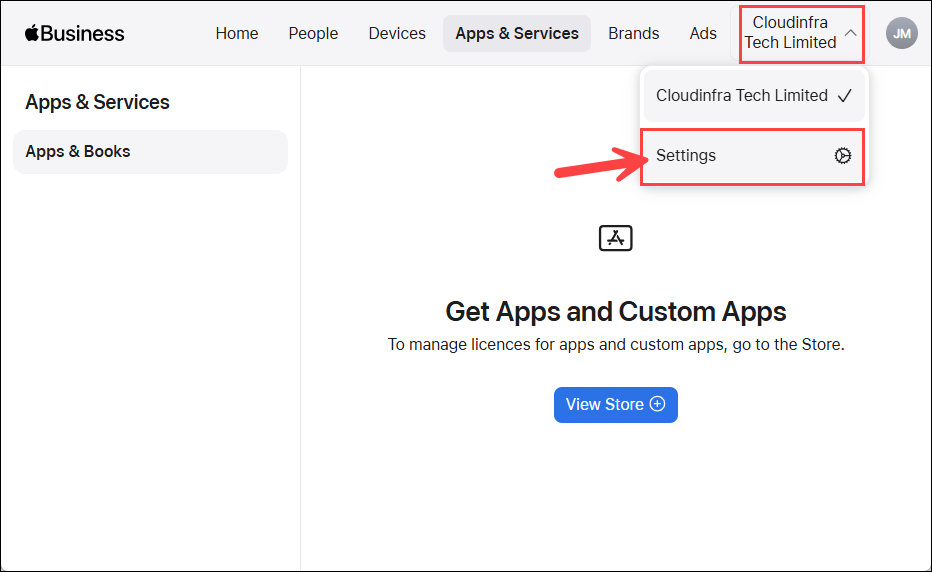
- Step 2: Create an organization unit (OU) or use an existing one. As the only organization existing in my organization is the default one, I will therefore create an organisation unit called Cloudinfra-iOS-London. I also added another organisation unit called Cloudinfra-iOS-Paris. You can add region-specific users to these OUs to manage the apps and books. To create an OU, click on your organisation name, then click on Settings.
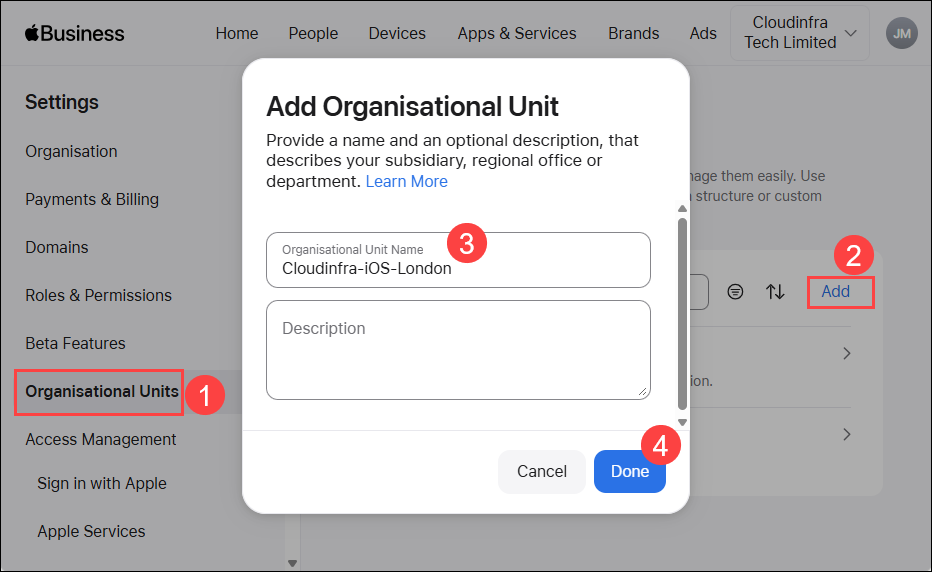
- Step 3: Click Organisational Units under Settings, then click Add. Enter an Organisational Unit name and, optionally, a description. Finally, click Done to create the organisational unit.
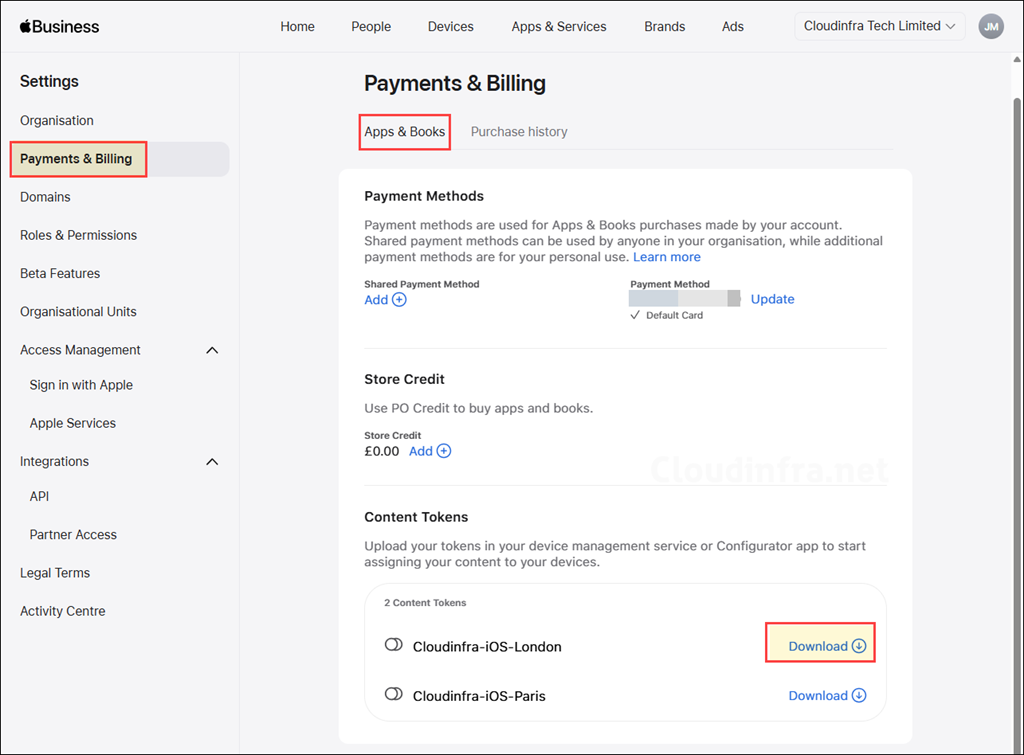
- Step 4: Now go to Payments & Billing > Apps and Books. Under Content Tokens, you will see the available organisational units. Click Download next to the organisational unit that you want to synchronize. For example, I will download the content token for the Cloudinfra-iOS-London organisational unit and upload it to Intune. If you also want to manage apps and books purchases for the Paris region, download the content token for that organisational unit as well and upload it to Intune.
Upload Content Token to Intune
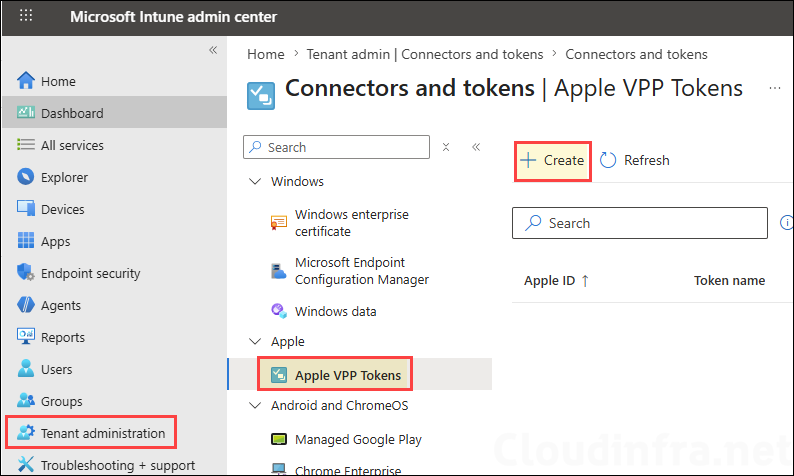
After downloading the content token from Apple Business, upload it to Intune. Go to Intune admin center > Tenant administration > Connectors and tokens > Apple VPP Tokens, and then click Create.
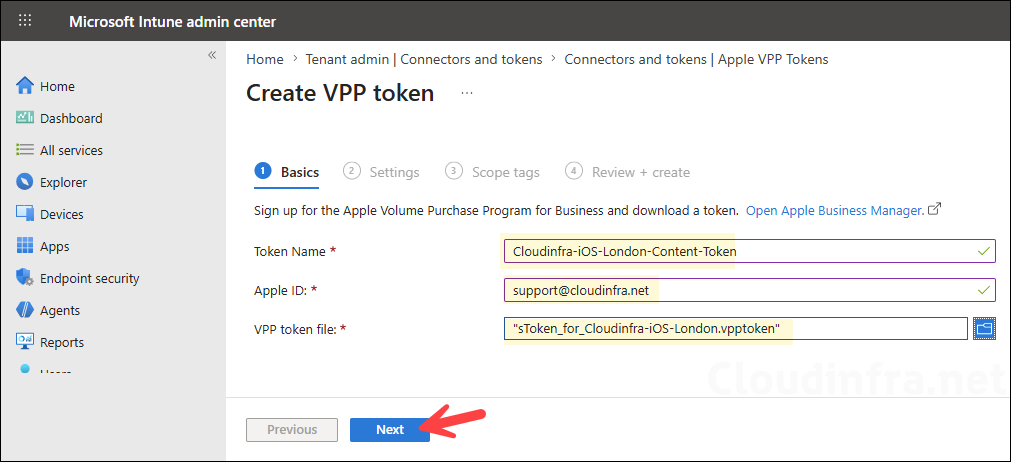
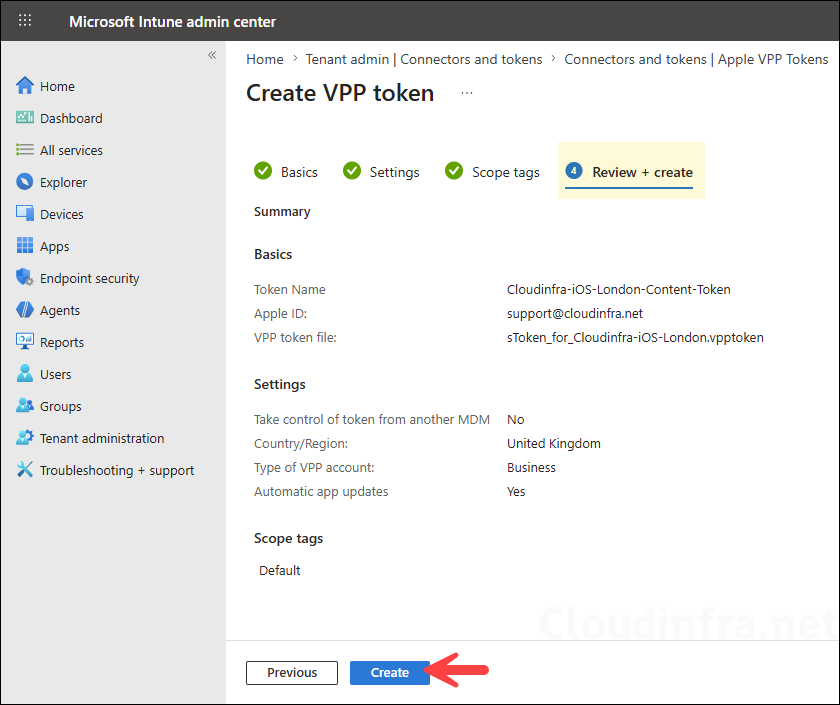
Provide the token name, Managed Apple ID which was used to download the token, and the downloaded VPP token file, and click Next.
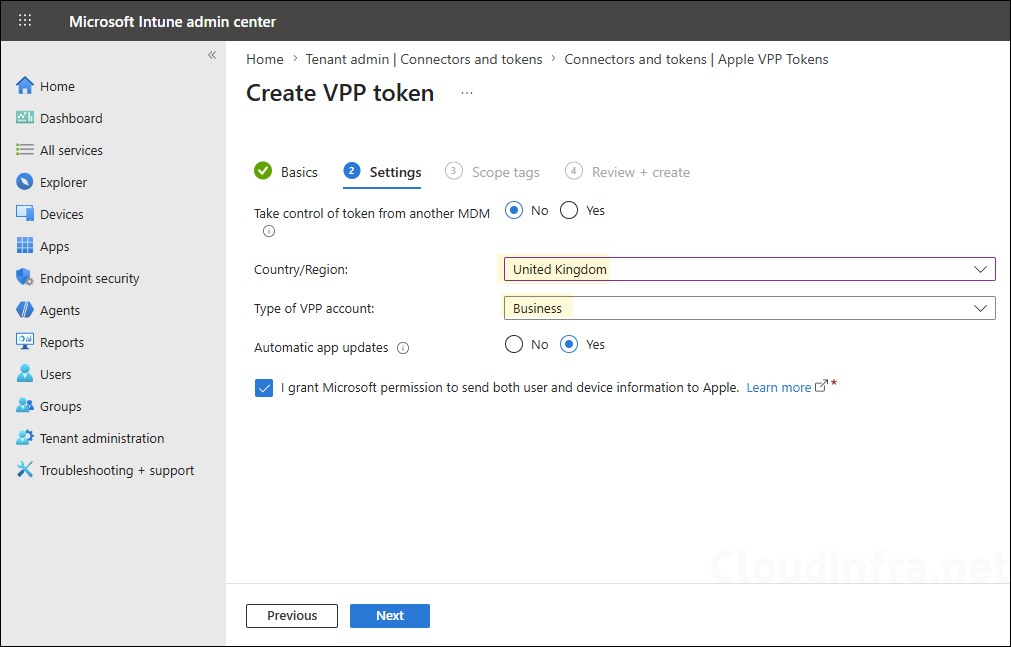
Under the Settings tab, configure the following settings:
- Take control of token from another MDM: If you set this to Yes, the token will be reassigned to your Intune tenant from another MDM solution.
- Country/Region: Select the VPP country/region store. Intune synchronizes VPP apps for all locales from the specified VPP country/region store.
- Type of VPP account: Select either Business or Education.
- Automatic app updates: I will recommend you set this to Yes, as this will enable Intune to detect app updates in the app store and automatically push the updates to the device.
- I grant Microsoft permission to send both user and device information to Apple: You must select this checkbox to proceed. Click Next.
- Scope tags (optional): A scope tag in Intune is an RBAC label that you assign to resources such as policies, apps, and devices to control which administrators can view and manage them. For more information, see How to use scope tags in Intune.
- Review + create: Review the summary and click Create.
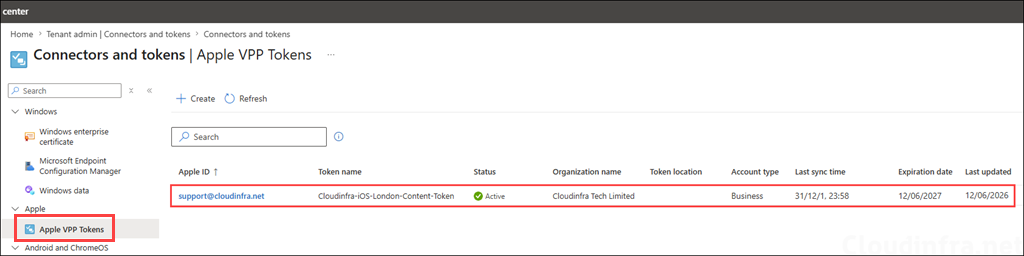
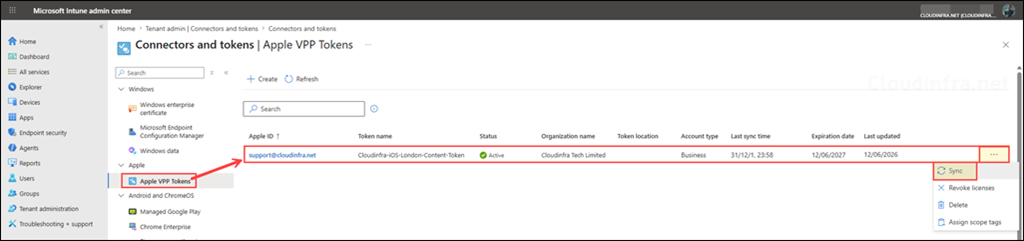
The Apple VPP token has now been successfully uploaded to Intune. You can view the uploaded token on the Apple VPP Tokens page. The token details include the Apple ID, Token Name, Status, Organization Name, Token Location, Account Type, Last Sync Time, Expiration Date, and Last Updated information.
Buy App Licenses on Apple Business
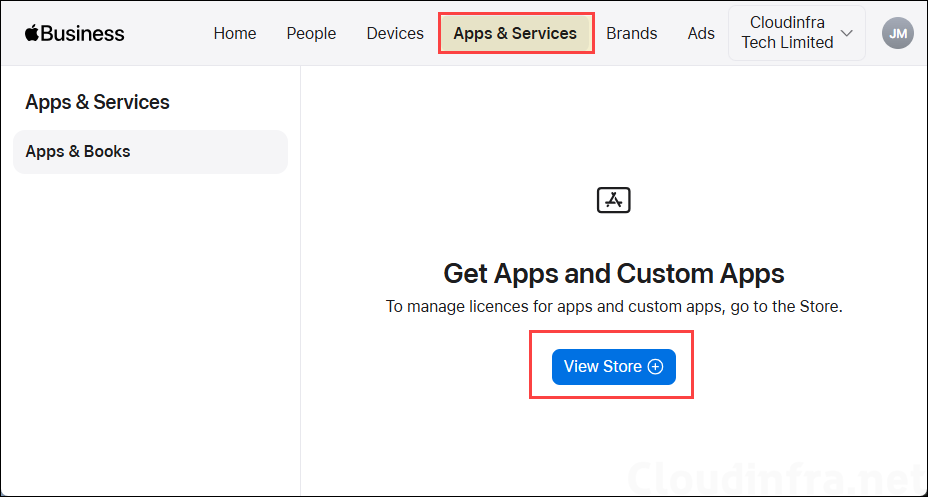
You can now start purchasing apps and books in Apple Business from the App Store. Sign in to Apple Business, click Apps & Services, and then select View Store.
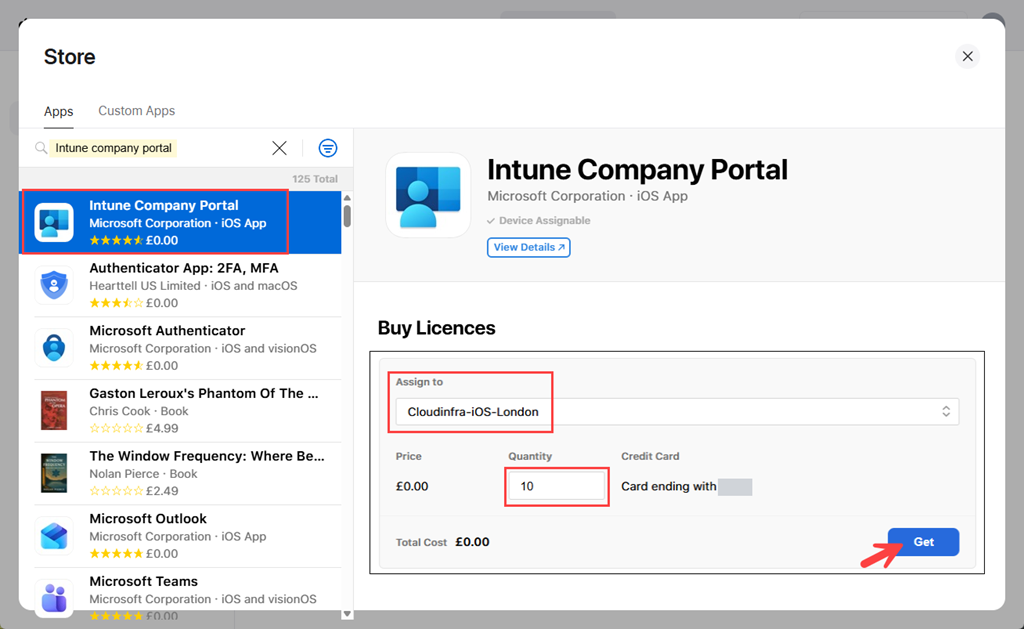
Search for the app you want to purchase, for example, Intune Company Portal. Click the app, and on the right-hand side, set Assign to to the organizational unit (OU) that you want to assign the app to. Enter the required license quantity, and then click Get to acquire the app.
Sync Purchased Apps and Books with Intune
Once you purchase apps and books in Apple Business, they will automatically synchronize with Intune. To manually initiate a sync, go to Intune admin center > Tenant administration > Connectors and tokens > Apple VPP Tokens.
Locate the token you want to synchronize, click the three dots (…) on the right-hand side, and then select Sync. This will immediately synchronize your purchased apps and books from Apple business to Intune.
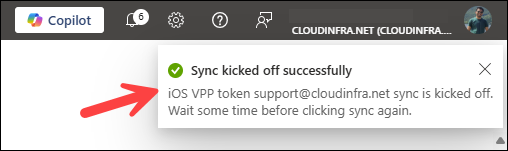
After clicking Sync, a notification will appear in the top-right corner of the screen indicating that the iOS VPP token sync has started. Wait a few minutes for the synchronization to complete before attempting to run another sync.
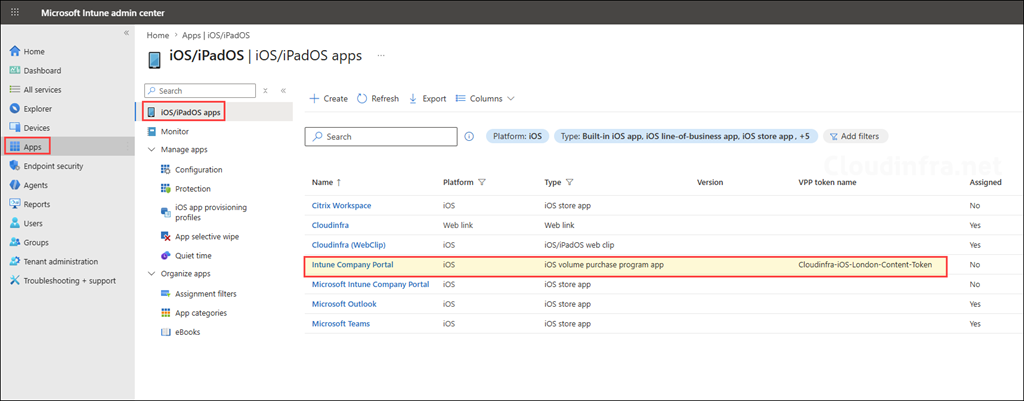
Go to Apps > iOS/iPadOS and verify that the purchased apps are now listed. The screenshot below shows that the Intune Company Portal app, which was purchased through the Volume Purchase Program (VPP), has been synchronized with Intune and is now visible in the app list.
Notice the VPP token name used to synchronize the app Cloudinfra-iOS-London-Content-Token. The app has not yet been assigned, so you can click on it and assign it to your managed iOS/iPadOS users or devices.
Click the VPP-synchronized app to view its license information, including the total number of licenses and available licenses. For example, I initially purchased 10 licenses for the Intune Company Portal app and later added 2 more, bringing the total to 12 licenses. As a result, the app can be installed on a maximum of 12 devices.