
In this blog post, I will show you how to download Microsoft Edge ADMX templates and add them to an Active Directory Central Store or a Windows 11 computer. These templates make Microsoft Edge settings available in Group Policy, allowing you to centrally configure and manage browser settings for your users and devices.
If you manage Microsoft Edge through Microsoft Intune, you can use the built-in Settings Catalog to configure browser settings. For this method, you do not normally need to download or import Edge ADMX templates, as the required settings are already available in Intune.
Contents
Microsoft Edge ADMX Template Files
ADMX template files are XML-based files containing OS and application policy settings for managing operating systems and applications like Edge. There are three administrative templates available for Microsoft Edge.
| Template | Purpose | Matching English language file |
|---|---|---|
| msedge.admx | Microsoft Edge browser settings | en-US\msedge.adml |
| msedgeupdate.admx | Microsoft Edge Update settings | en-US\msedgeupdate.adml |
| msedgewebview2.admx | Microsoft Edge WebView2 settings | en-US\msedgewebview2.adml |
Step 1: Download Microsoft Edge Policy Templates
- Open the Microsoft Edge for Business download page.
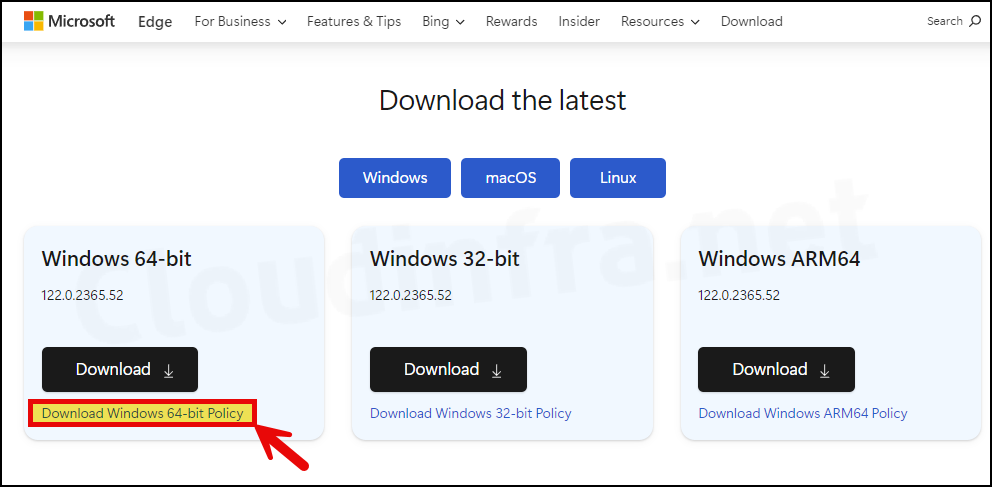
- Click on Download Windows 64-bit Policy or Download Windows 32-bit Policy, depending upon the Windows OS version installation. This will download the latest version of policy definitions.
If you scroll down the page, you will find that Microsoft also provides Edge policy files for older versions. Select the required channel/version, build, and platform, then click Get Policy Files to download the templates. I recommend downloading the latest version, as it includes the most up-to-date Microsoft Edge policy settings.
For this demonstration, I will download the Windows 64-bit policy files, as my organization primarily uses 64-bit Windows 11 devices. However, you can also select the 32-bit or ARM64 versions if required.
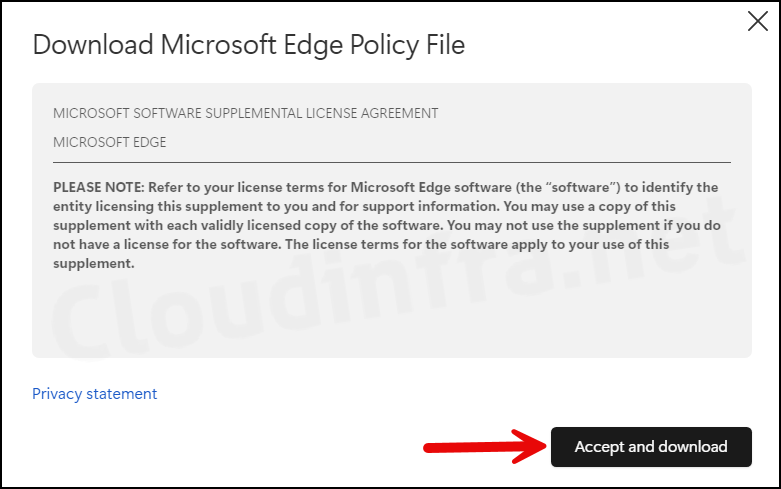
- Click on Accept and download.
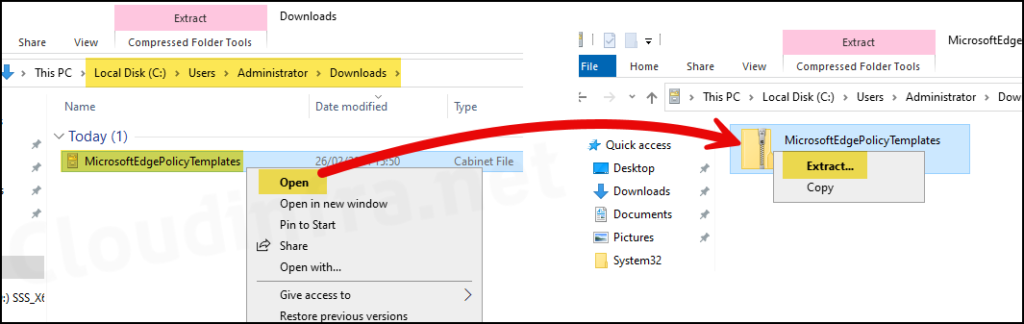
- It will download a file named MicrosoftEdgePolicyTemplates.cab into the Downloads folder. Right-click on it and select Open, then extract the contents, resulting in a zip file named MicrosoftEdgePolicyTemplates.
- Extract the contents of the MicrosoftEdgePolicyTemplates.zip file. Open the extracted folder and locate below folder.
MicrosoftEdgePolicyTemplates\windows\admx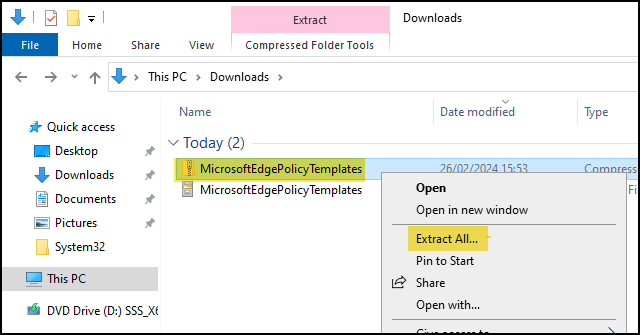
If File Explorer does not extract the CAB, run the following commands in Command Prompt. Update the source path if necessary:
mkdir C:\Temp\EdgePolicyExtract
expand.exe "%USERPROFILE%\Downloads\MicrosoftEdgePolicyTemplates.cab" -F:* "C:\Temp\EdgePolicyExtract"
Step 2: Add Edge Templates to the Central Store
If you want to configure Edge policies for domain-joined computers, you can add the templates to the Active Directory Central Store. This allows administrators to use the same templates when editing domain GPOs. The Central Store is located at the following path:
\\<domain>\SYSVOL\<domain>\Policies\PolicyDefinitions

For example:
\\corp.techpress.net\SYSVOL\corp.techpress.net\Policies\PolicyDefinitions
In this example, I am using corp.techpress.net. Make sure to replace it with the DNS name of your Active Directory domain before opening the path.
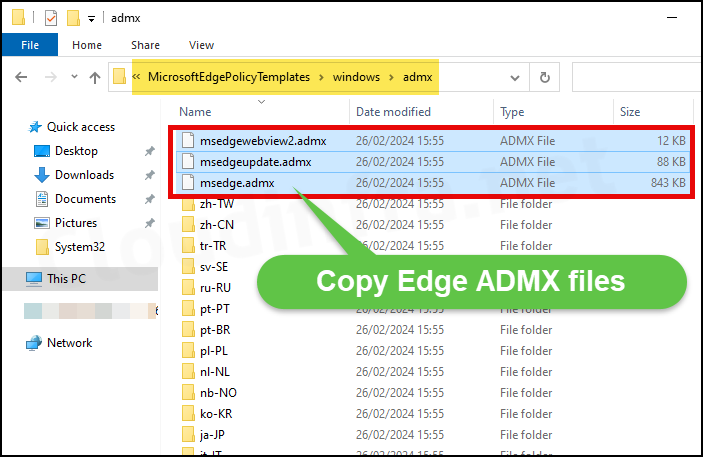
- Copy the required Edge ADMX files from windows\admx.
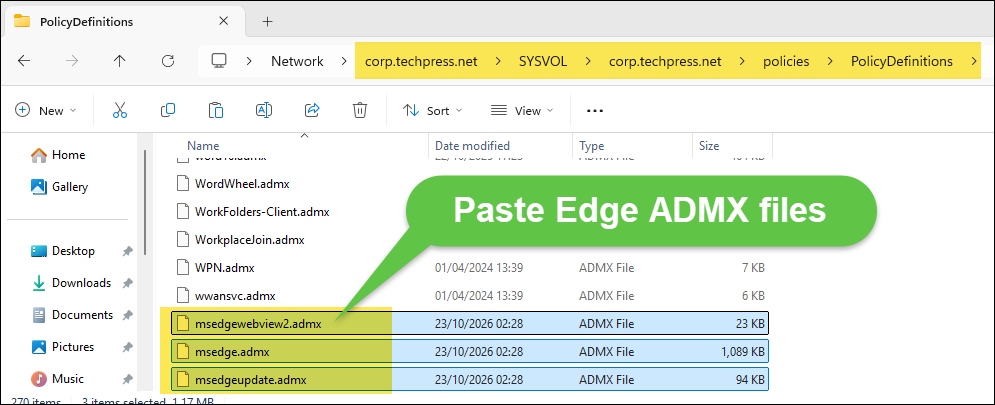
- Paste the Edge ADMX files into the Central store location from any of your domain controllers.
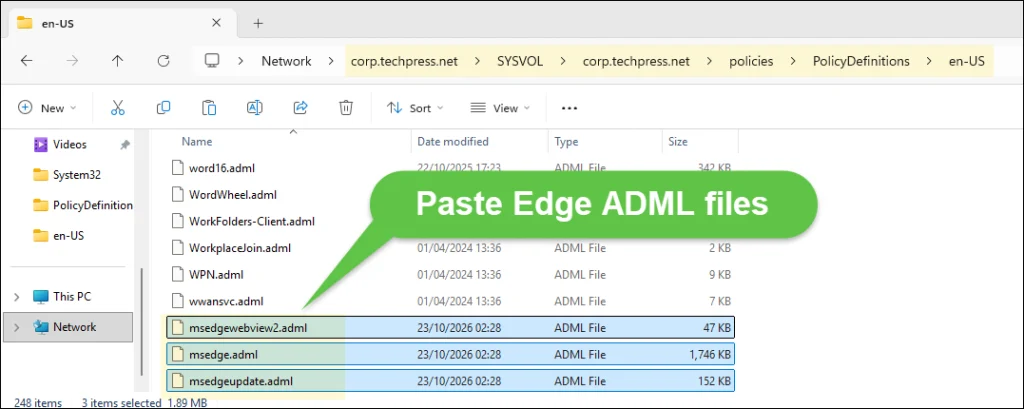
- Copy their matching English ADML files from the MicrosoftEdgePolicyTemplates\windows\admx\en-US folder and paste them into the \\<domain FQDN>\SYSVOL\corp.techpress.net\Policies\PolicyDefinitions\en-US folder.
Make sure the ADMX files and their matching ADML files come from the same downloaded package. Mixing files from different releases can cause errors when you open Group Policy Editor.
| File type | Central Store |
|---|---|
| ADMX | \\<domain>\SYSVOL\corp.techpress.net\Policies\PolicyDefinitions |
| English ADML | \\<domain>\SYSVOL\corp.techpress.net\Policies\PolicyDefinitions\en-US |
If your domain does not already have a Central Store, you will need to create one with the Windows policy templates and their language folders before adding the Edge files. Once a Central Store exists, the editor uses it for domain policy templates. Create and Manage Central Store – Windows Client | Microsoft Learn.
The Central Store is replicated between domain controllers through SYSVOL. If you do not see the new templates from another administration computer straight away, allow time for replication to complete and then reopen the editor.
Step 3: Create and link an Edge GPO
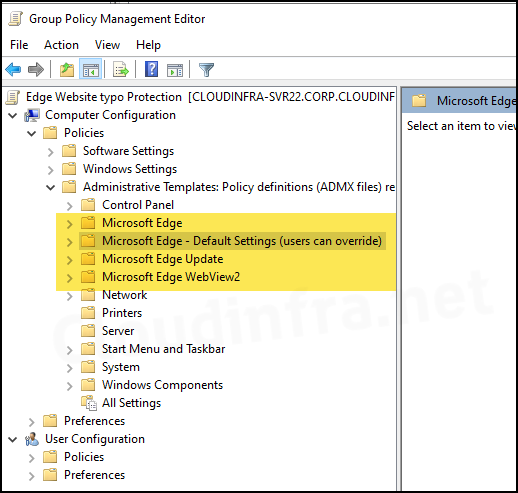
Now that we have imported the Microsoft Edge ADMX policy templates into the Active Directory Central Store, the Microsoft Edge policy settings will be available in the Group Policy Management Console under the Administrative Templates folder. Follow the steps below to locate these settings and configure Microsoft Edge policies for your domain-joined devices as required.
- Sign in to a domain controller or a domain-joined computer that has the Group Policy Management Console (GPMC) installed and can access the Active Directory Central Store.
- Press Windows + R to open the Run dialog box.
- Type
gpmc.mscand press Enter to launch the Group Policy Management Console. - Create a new Group Policy Object (GPO) or edit an existing GPO.
- Navigate to either Computer Configuration > Policies > Administrative Templates or User Configuration > Policies > Administrative Templates.
- You will find the Microsoft Edge and Microsoft Edge – Default Settings (users can override) folders containing the available browser policy settings. Select the required policy and configure it according to your organization’s requirements.
When browsing the templates, you may see both Microsoft Edge and Microsoft Edge – Default Settings (users can override). Use the first category when you want to enforce a setting that users cannot change. The second category provides recommended defaults that users can override. Make sure to check the individual policy, as some settings are only available as mandatory policies.
Once configured, ensure that the GPO is linked to the appropriate Organizational Unit (OU), domain, or site so that the settings apply to the intended users or computers.
Example: Hide the Edge first-run experience
To demonstrate how to configure an Edge policy, we will use the setting that hides the first-run experience. Open the GPO editor and go to the following location:
Computer Configuration > Policies > Administrative Templates > Microsoft EdgeOpen Hide the First-run experience and splash screen, select Enabled, and save the setting.
This setting configures the HideFirstRunExperience policy, which hides the initial setup experience when users open Edge for the first time. If you also want to control browser sign-in or synchronisation, you will need to configure the relevant policies separately.
Make sure to restart Edge after the policy has applied. When checking the first-run behaviour, use a test account or browser profile that has not already completed the setup experience.
Use Local Group Policy on Windows 11
If you only want to configure Edge on a single Windows 11 computer, you can copy the templates to the local PolicyDefinitions folder. You can then use Local Group Policy Editor (gpedit.msc) to configure the settings on that computer.
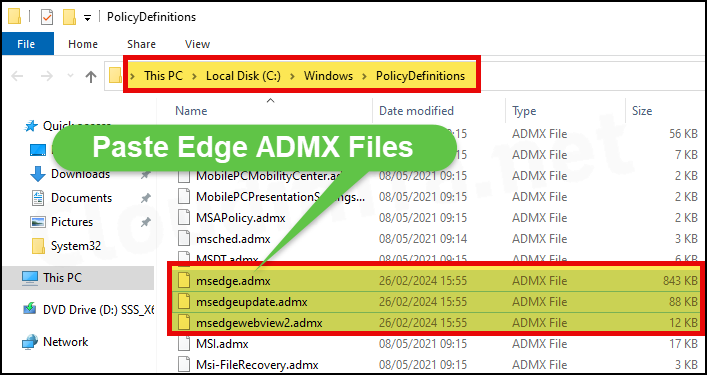
- Copy the required Edge ADMX files located in the MicrosoftEdgePolicyTemplates\windows\admx folder.
- Paste the ADMX files in %systemroot%\PolicyDefinitions folder.
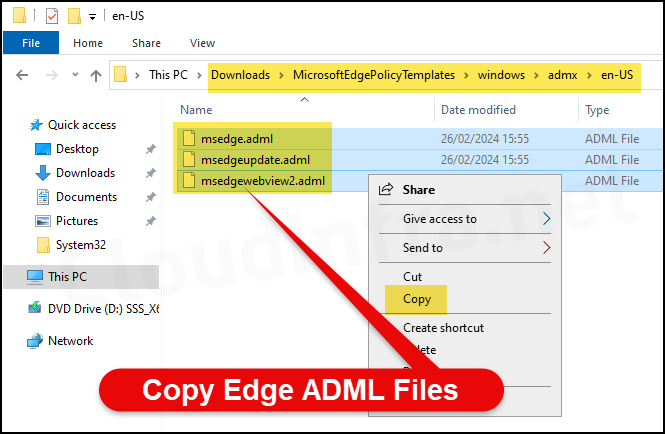
- Copy their matching English ADML files from the MicrosoftEdgePolicyTemplates\windows\admx\en-US folder.
- msedge.adml
- msedgeupdate.adml
- msedgewebview2.adml
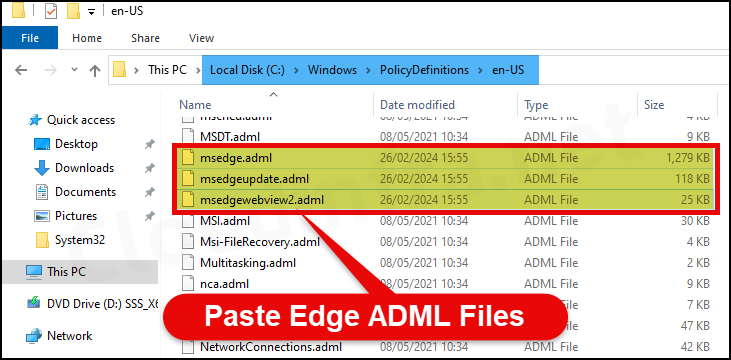
- Paste the .adml files into the folder %systemroot%\PolicyDefinitions\en-US folder.
That’s it! You have successfully imported the Microsoft Edge ADMX policy templates on your local Windows 11 computer. You can now use the Local Group Policy Editor (gpedit.msc) to configure and manage Microsoft Edge browser settings. Any changes you make to Microsoft Edge policies through the Local Group Policy Editor will apply only to this computer and will not affect other devices on your network.
Configure Edge Settings using Local Group Policy Editor
After importing the Microsoft Edge ADMX policy templates on your local Windows 11 computer, you can use the Local Group Policy Editor (gpedit.msc) to configure and manage Microsoft Edge policies. The steps below show you how to configure a Microsoft Edge policy using the Local Group Policy Editor.
- Press the Win + R keys to open the Run dialog box.
- Type
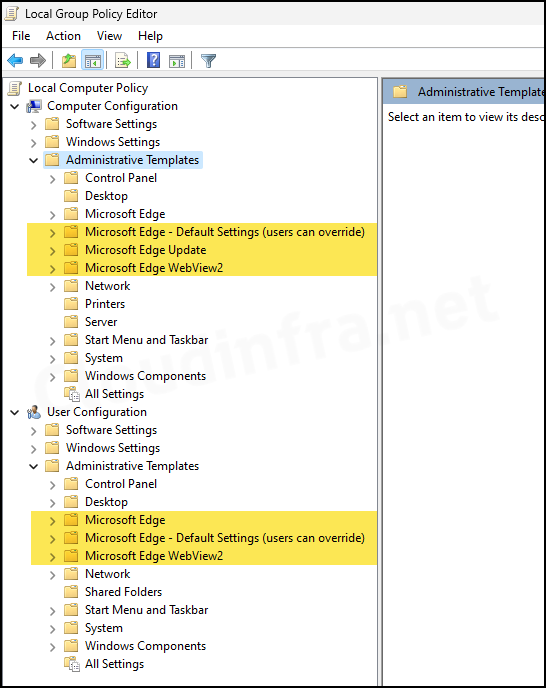
gpedit.mscto open your device’s Local group policy editor. - Expand the Administrative Templates folder to find the imported templates.
When browsing the templates, you may see both Microsoft Edge and Microsoft Edge – Default Settings (users can override). Use the first category when you want to enforce a setting that users cannot change. The second category provides recommended defaults that users can override. Make sure to check the individual policy, as some settings are only available as mandatory policies.
Verifying Edge Policies
Once you have configured and applied the GPO, you can check whether the target computer has received it. Open Command Prompt on the device and run the following command to refresh Group Policy:
gpupdate /forceAfter the policy refresh has completed, restart Edge if the setting requires it. You can then enter the following address in the browser to view its policies:
edge://policyClick Reload policies and look for the setting you configured. Check its value and status to confirm that Edge has implemented the policy. If the policy does not appear in Edge, you can use gpresult to check whether the computer received the domain GPO. Open Command Prompt as an administrator on the target computer and run:
gpresult /scope computer /rIf you prefer to review the results in a browser, you can generate an HTML report using the following command:
gpresult /scope computer /h "%TEMP%\Edge-Computer-Policy.html" /fOpen the report and look for Configure Microsoft Edge in the list of applied GPOs. If you configured user settings, run the following command from the affected user’s session to check the user policy results:
gpresult /scope user /rOn ARM64 Windows, use gpresult.exe in %windir%\SysWOW64 for HTML reports.
Manage Microsoft Edge through Intune
If your devices are managed through Microsoft Intune, you can configure Edge using the built-in Settings Catalog. The Edge settings are already available there, so you do not normally need to download and upload the ADMX templates. You can create a configuration profile using the following steps:
- Sign in to the Intune admin center.
- Go to Devices > Manage devices > Configuration.
- Select Create > New policy.
- Choose Windows 10 and later and the Settings catalog.
- Enter a name, then select Add settings.
- Search for Microsoft Edge and select the required settings.
- Configure the values, assign a test group, and create the policy.
- Review deployment status and verify the result on the device.
If you cannot find a particular Edge setting in the Settings Catalog, check Microsoft’s documentation for that policy to confirm its supported management methods before creating a custom configuration.
Troubleshooting
If the templates do not appear or a configured setting does not apply, the following checks can help you find the cause. Start by checking whether the setting is visible in the editor, and then check whether the target device has received the policy.
| Issue | What to check |
|---|---|
| Microsoft Edge folder is missing | Confirm you updated the store used by the editor. Reopen the editor after copying files. |
| Windows policy categories disappear after creating a Central Store | Confirm the store contains the Windows template set as well as Edge templates. |
| Resource or language error | Check that each ADMX has the corresponding ADML from the same release in the correct language folder. |
| Duplicate namespace error | Check for an old or renamed ADMX copy in the active store. Keep backups outside it. |
| A setting is visible but has no effect | Check its supported versions, platform, scope, and restart requirements. |
| Domain GPO is missing from the applied list | Review the GPO link, target OU, filtering, and replication. |
| Policy appears in Edge, but behaviour differs | Inspect its status and value, then check the individual policy documentation for restrictions and applicability. |
You can also check Microsoft’s Edge policy reference to see whether a setting has been deprecated or is no longer supported. Even if a setting appears in the updated templates, the browser on the target device must support it.
Updating the Templates Later
If you want to use settings introduced in a newer Edge release, download the updated policy package and replace the relevant ADMX and matching ADML files together. Before doing this, keep a copy of the existing files outside the active template store so that you can restore them if required.
Once you have updated the files, reopen Group Policy Editor and check that the settings are displayed correctly. You can then configure the policies you need and test them on a suitable device before applying them to the rest of your environment.

Could you make a tutorial for installing this into the local group editor for use on a single computer?
Hi Rick, I have added the steps for importing ADMX into the Local group policy editor. thanks.
Hello Jatin,
Thanks alot for the clear explanation. Can i use the same templates to upload in Intune? will this work?
Best
Nikitha
Yes, you can Import the same Edge ADMX and ADML template files in Intune. Devices > Configuration > Import ADMX.
THANK YOU !!!
Excellent instructions, clear and precise. Got me to what I needed to do…