
When you upload an installer to Microsoft Intune (line-of-business MSI or Win32 apps packaged as .intunewin), Intune stores the payload in Microsoft-managed storage and does not provide a native “download the original uploaded installer” option in the Intune admin center. If you lose the original packaging sources, you can still recover the content using endpoint cache locations during deployment.
When You Might Need Win32 App or MSI Retrieval
There could be many scenarios when you may need to download a Win32 app or MSI Installer file from Intune. For example, I recently encountered a scenario while upgrading the Zoom application across all devices. The existing Zoom versions on users devices were outdated, and MSI files for those older versions were no longer available online.
In such situations, uninstalling the application can be challenging. Although the msiexec command with the UninstallString was available, it did not work in this case. The only remaining option was to retrieve the MSI file that had been deployed to users devices and use it for uninstallation.
Another common scenario is when you inherit an existing Intune tenant or take over ownership from a different team or vendor, and the original packaging source files are no longer available. Win32 app may have been uploaded as an .intunewin months or years ago, and the only copy of the installer, transforms (MST), patches (MSP), or supporting files might exist inside that original package. This becomes a blocker when you need to validate what was deployed, repackage the app with updated detection logic, fix a broken install command, or rebuild the app in a new tenant after a migration.
You may also need MSI or Win32 retrieval for audit and troubleshooting reasons. For example, when an application starts failing on a subset of devices, you may need to compare the deployed installer payload against the vendor’s current download. This is to confirm whether the issue is caused by a changed installer, a missing dependency, or an outdated transform. Similarly, if you are responding to a security incident or compliance request, you might have to confirm the exact binaries that were distributed through Intune during a specific period, including any embedded scripts or configuration files.
In all these cases, being able to retrieve the original MSI or Win32 app content from Intune helps you avoid rework. It reduces risk during upgrades and gives you a reliable rollback path when vendors remove or replace older versions without notice.
Contents
Prerequisites
- A test Windows device (recommended).
- Local admin access on the device.
Download/Retrieve MSI App Installer from Intune
Line-of-business (LOB) MSI apps in Intune are delivered through Windows MDM app management channel. During deployment, Windows temporarily stages the MSI locally so the installer can run, and then it may get removed after the install completes. Because Intune does not provide a download option for a previously uploaded MSI, the most practical recovery method is to re-trigger the deployment on a test device. Copy the MSI from the local MDM cache during the short staging window.
Where does Intune Cache MSI file?
The most commonly observed staging path for Intune-delivered LOB MSI on Windows is:
C:\Windows\System32\config\systemprofile\AppData\Local\mdm
If your MSI is deployed in a user context (less common for LOB MSI, but possible depending on how it was targeted and executed), also check the user profile equivalent:
C:\Users\<UserName>\AppData\Local\mdm
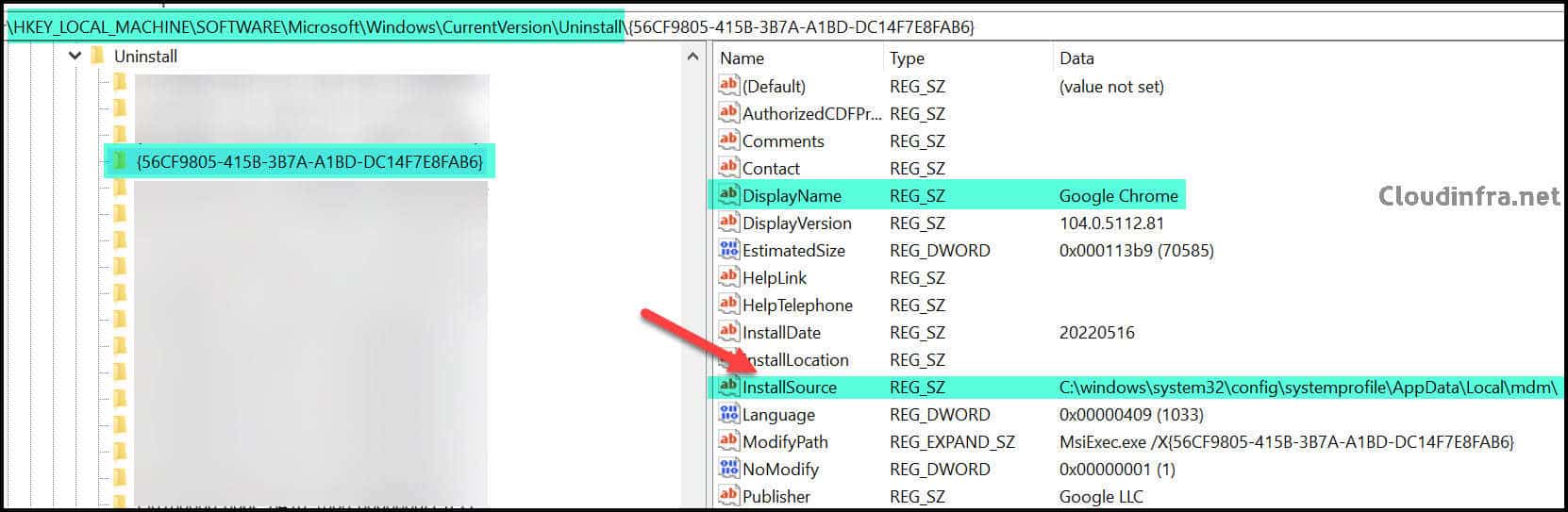
To find the cached location of an application deployed via Intune, check the InstallSource registry entry under
HKEY_LOCAL_MACHINE\SOFTWARE\Microsoft\Windows\CurrentVersion\Uninstall on a device where the application is already deployed. Once you identify the location, deploy the same application to a new device and continuously monitor this path. Intune caches the application setup files in this location, allowing you to copy them to another folder.
For example, in below screenshot, the InstallSource value for Google Chrome is shown as
C:\Windows\System32\config\systemprofile\AppData\Local\mdm. In this case, you will need to monitor this location to retrieve the Google Chrome installation files.
If you do not find the application under
HKEY_LOCAL_MACHINE\SOFTWARE\Microsoft\Windows\CurrentVersion\Uninstall, also check the following registry path, HKEY_LOCAL_MACHINE\SOFTWARE\WOW6432Node\Microsoft\Windows\CurrentVersion\Uninstall to locate the InstallSource value.
This same process applies to other applications as well. In the case of the Zoom 5.4 application, the InstallSource location was shown as C:\Users<username>\AppData\Local\mdm, where Intune cached the setup files.
Steps to Download/Retrieve MSI Installer
Follow below steps to download or retrieve LOB app/MSI application files uploaded on Intune:
- Assign the LOB MSI app to a test device as a required app.
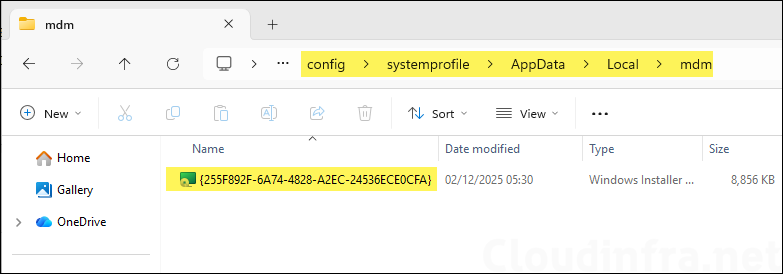
- On the device, open this folder in File Explorer: C:\Windows\System32\config\systemprofile\AppData\Local\mdm and sort by date modified.
- Trigger app installation by forcing a manual sync.
- As soon as the MSI appears, copy it immediately to another folder, for example, C:\Temp\RecoveredMSI\
- Verify the MSI by checking its file size and properties.
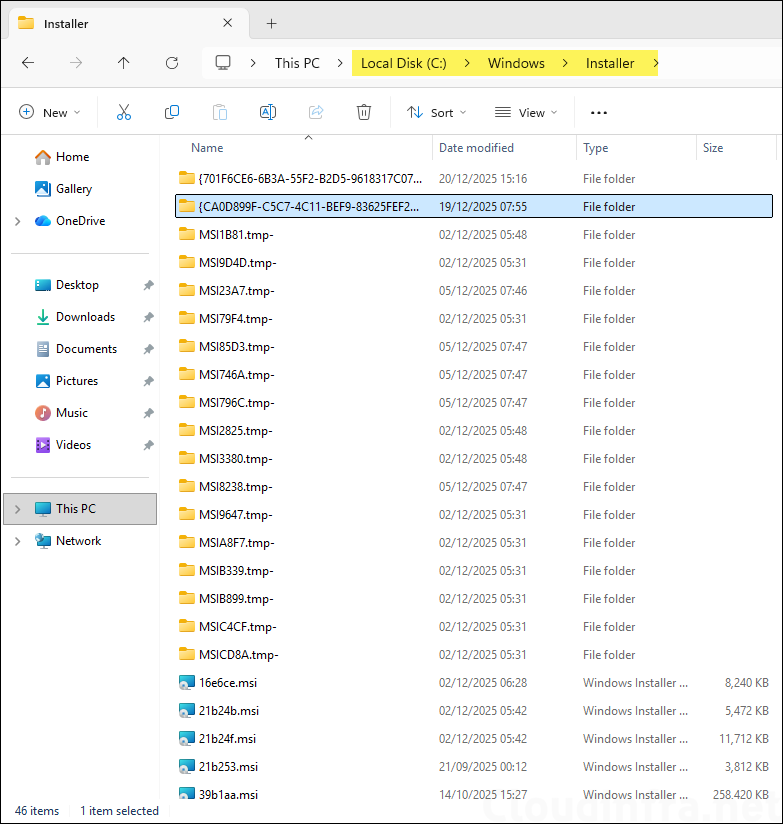
You might be able to recover MSI payloads from C:\Windows\Installer after MSI installation, depending on what Windows kept cached and whether the application remains installed. Treat this as a fallback method because it is not the same as “download the original Intune upload,” and it may not include transforms or supporting content.
Download/Retrieve Win32 App Content from Intune
Win32 apps in Intune are delivered as an encrypted .intunewin package and processed on the endpoint by the Intune Management Extension (IME). Intune does not provide a native “download the original installer payload” option in the admin center, so the most practical recovery approach is to capture the extracted install content from the device while IME is staging and executing the app.
Microsoft confirms that you can inspect an .intunewin by renaming it to .zip and that it contains Contents and Metadata, including Detection.xml (with encryption information). For more information, refer to the link: Support Tip – Understanding the flow behind deployment, delivery, and processing of a Win32 application through Intune – Intune | Microsoft Learn. In practice, the “golden moment” for recovery is when IME has decrypted and unzipped the payload into C:\Windows\IMECache, which contains the raw content that the install command runs from.
Steps to Download/Retrieve Win32 App Files
Similar to MSI app files, you can easily download or retrieve Win32 app files as well. Open these locations on the target device before you trigger the Win32 app deployment and copy the Win32 app source files. It’s best to copy the files either from Staging folder or the IMECache folder. Below are three important locations with respect to Win32 app caching on a target Windows device.
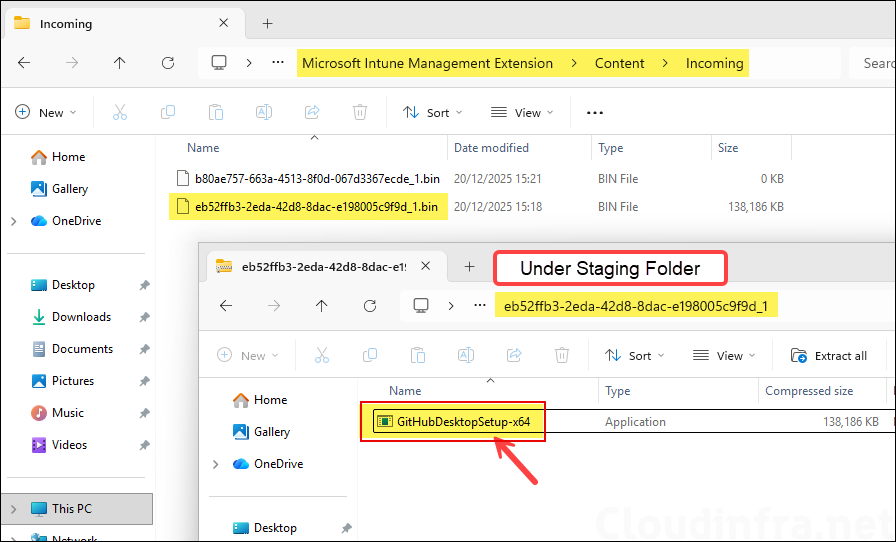
- Incoming folder (downloaded encrypted payload): C:\Program Files (x86)\Microsoft Intune Management Extension\Content\Incoming
- Staging folder (decrypt/unzip staging area): C:\Program Files (x86)\Microsoft Intune Management Extension\Content\Staging
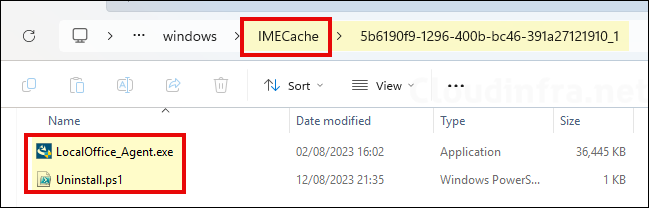
- IMECache folder (extracted working content used for detection and install): C:\Windows\IMECache
Steps:
- Assign the Win32 app to a test device as a required app.
- On the device, open and monitor all of the above folders.
- Trigger app installation by forcing a manual sync.
- Go to the folder C:\Windows\IMECache and find the extracted and decrypted Win32 app content. Quickly copy it to another folder, for example, C:\Temp\RecoveredWin32apps\.
- You can copy Win32 app content from the Staging folder as well: C:\Program Files (x86)\Microsoft Intune Management Extension\Content\Staging. Below screenshot shows the decrypted Win32 app content in the Staging folder, which includes the GitHub Desktop setup installer. Copy the file to another folder before it gets deleted by IME.
Conclusion
In this blog post, we covered the practical options for retrieving MSI (LOB) and Win32 app setup files that were previously uploaded to Intune. Since the Intune admin center still does not provide a native option to download uploaded installer payloads, the most reliable recovery method is to re-trigger deployment to a controlled test device and capture the installer during the staging window.
For LOB MSI apps, the MSI is typically staged under the MDM cache path, while Win32 apps are processed by the Intune Management Extension (IME) and can be recovered from IME staging locations. Most commonly C:\Windows\IMECache or the Staging folder. After installation succeeds, IME may clean up these cached files automatically, so you should copy the installer content to a safe location as soon as it appears.
Again, to summarize:
- C:\Program Files (x86)\Microsoft Intune Management Extension\Content\Incoming folder holds the downloaded encrypted payload (often a
.bin). This is not directly usable. - C:\Program Files (x86)\Microsoft Intune Management Extension\Content\Staging is a temporary workspace where IME decrypts the downloaded payload. It is the area where IME expands/unpacks the payload, prepares the folder structure and metadata needed for execution, and may perform intermediate file operations before it is ready to run. Staging content is typically more transient and can be recreated or cleaned up as IME progresses.
- C:\Windows\IMECache: This is where IME places the prepared, runnable content that the Win32 install command actually executes against (for example, where setup.exe or install.cmd is run from). This is also the most useful location for recovery because it usually contains the “final” extracted content in a usable format.
