
Android Enterprise corporate-owned devices with work profile, commonly referred to as COPE, are company-owned Android devices that are assigned to a single user but also allow personal use. This enrollment method creates a separate work profile on the device so that corporate apps and data remain managed by Intune, while the user’s personal apps and personal data remain separate.
It is a suitable option when the organization owns the device but still wants to allow users to use the personal side of the phone. COPE devices are intended for corporate and personal use, and admins can manage certain device-level settings such as password requirements, Bluetooth, data roaming, and factory reset protection.
If your Android device type is a corporate-owned, fully managed user device (COBO), refer to this step-by-step guide: Enroll Android Fully Managed (COBO) Devices in Intune.
Contents
COPE vs. COBO vs. COSU: Key Difference
In my previous post, I provided detailed steps with a demo on corporate-owned, fully managed user devices (COBO). Let’s now understand COPE, below table highlights key differences between COPE, COBO, and COSU Android enrollment methods.
| Enrollment type | Ownership | User type | Personal use allowed | Common use case |
|---|---|---|---|---|
| COPE (corporate-owned devices with work profile) | Corporate-owned | Single user | Yes | Company phone with work and personal separation |
| COBO (corporate-owned, fully managed user devices) | Corporate-owned | Single user | No | Company phone used only for work |
| COSU (corporate-owned dedicated devices) | Corporate-owned | Shared or kiosk | No | Kiosk, scanner, shared frontline device |
Prerequisites
| Requirement | Details |
|---|---|
| Intune tenant | Microsoft Intune must be configured as the MDM authority. |
| User license | The enrolling user must have an Intune-supported license assigned. |
| Managed Google Play | Your Intune tenant must be connected to Managed Google Play. |
| Android version | Device must run Android 8.0 or later. |
| Google Mobile Services | Device must have Google Mobile Services and be able to connect to Google services. |
| Device state | Device should be new or factory reset before enrollment. |
| Network | Device must have internet access during enrollment. |
| Conditional Access | Exclude the Microsoft Intune cloud app from policies that block enrollment before the device becomes compliant. |
To enhance both device security and the user experience, first create a device compliance policy for Android devices. Below are the recommended compliance policy settings you should configure for Android devices.
- Block rooted devices
- Require Google Play Protect
- Require encryption
- Set minimum OS version
- Set minimum security patch level
- Require a device password
Additionally, create a device configuration policy to apply recommended device restrictions. Below are the recommended device configuration/restrictions policies you should apply to Android devices.
- Block screen capture
- Block data roaming
- Block USB file transfer
- Configure Bluetooth behavior
- Configure camera access
- Configure default app permission behavior
- Configure work profile password requirements, etc.
To further improve the user experience, create app configuration policies for the applications deployed to the devices. This ensures that when users launch the apps, they are automatically preconfigured with your organization’s settings. Below are some optional app configuration policies you can create for Android users:
| App | Example configuration |
|---|---|
| Outlook | Preconfigure account setup |
| Edge | Configure homepage, sync, sign-in behavior |
| Teams | Configure sign-in and app behavior |
| Defender | Configure onboarding and security settings |
Let’s now look at the steps to configure Android COPE devices in the Intune admin center.
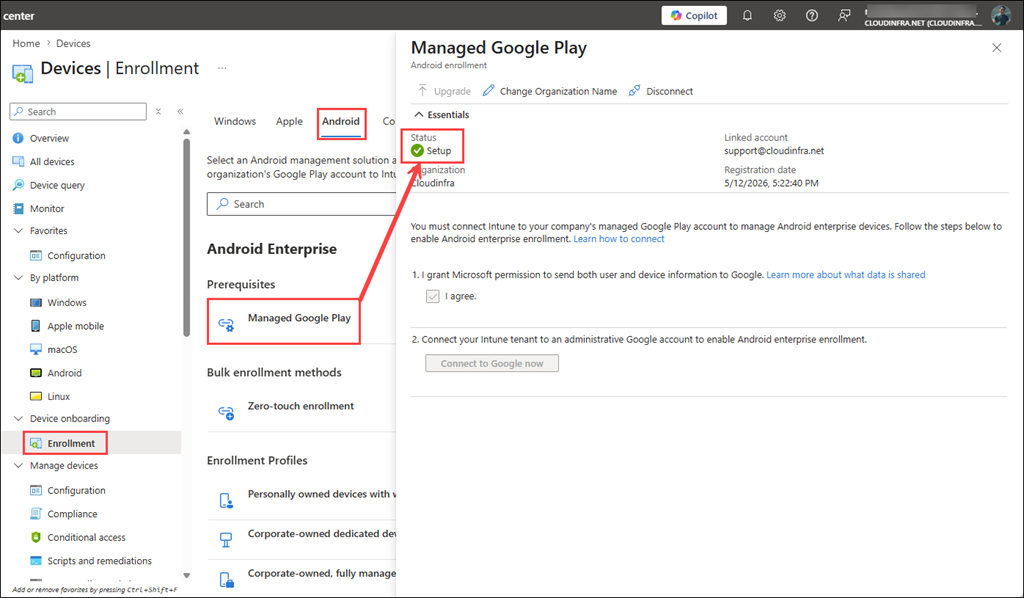
Step 1: Connect Intune to Managed Google Play
Android Enterprise enrollment requires a Managed Google Play connection. This connection allows Intune to manage Android Enterprise devices and deploy Managed Google Play apps.
- Sign in to the Microsoft Intune admin center > Go to Devices > Enrollment.
- Select the Android tab.
- Under Prerequisites, select Managed Google Play.
- Select I agree to grant Microsoft permission to send user and device information to Google.
- Click Connect to Google now and follow the on-screen steps to complete the Managed Google Play connection.
Step 2: Create a Device Group
You need a Microsoft Entra security group to target apps, compliance policies, configuration profiles, and device restrictions to COPE devices. You have two options:
Option 1: Static group with enrollment time grouping
This is useful when you want the device added to a group immediately during enrollment.
- Go to Groups > All groups > New group.
- Configure the group as follows:
- Group type: Security
- Group name: Android COPE Devices
- Membership type: Assigned
- Do not manually add devices to this group.
- Create the group.
Enrollment time grouping is supported for Android Enterprise corporate-owned work profile, fully managed, and dedicated enrollment policies. In my other post for Android corporate owned fully managed devices (COBO), I have provided the steps to configure the enrollment time grouping. Create a group and follow the steps here: Setup Enrollment time grouping.
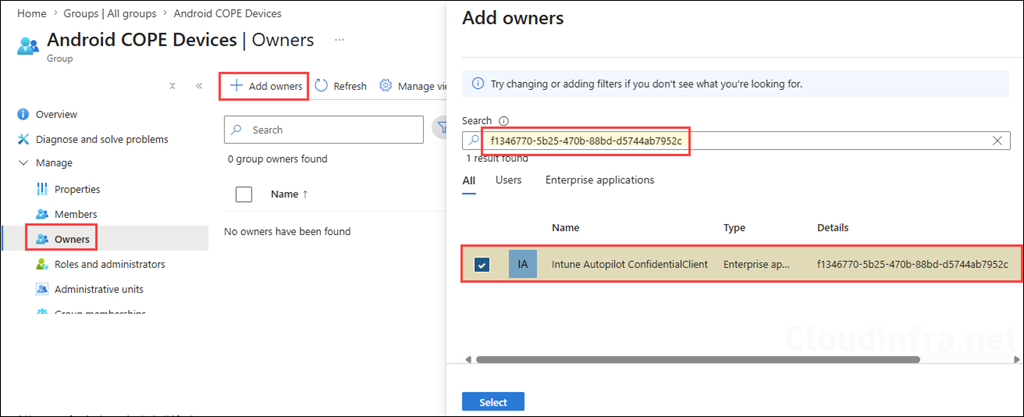
For the purpose of demonstration, I have created a static assigned Entra security group and added the Intune Autopilot ConfidentialClient (f1346770-5b25-470b-88bd-d5744ab7952c) service principal as the owner of the group to complete the enrollment time grouping step. I will use this group (Android COPE Devices) to deploy apps, compliance policies, device configuration profiles, etc.
Option 2: Dynamic device group
You can also create a dynamic device group based on the enrollment profile name. Below is the dynamic query you can use while creating the group. If you have named your Android COPE enrollment profile differently than what is used in the below query, update the profile name accordingly.
(device.enrollmentProfileName -eq "Android COPE Enrollment Profile")Intune can dynamically populate device groups using the enrollmentProfileName property after devices enroll with a specific Android Enterprise enrollment profile.
Step 3: Create the COPE Enrollment Profile
The enrollment profile generates the token and QR code used to enroll Android Enterprise corporate-owned devices with work profile. Let’s select corporate-owned devices with work profile and create a profile.
- Sign in to the Microsoft Intune admin center.
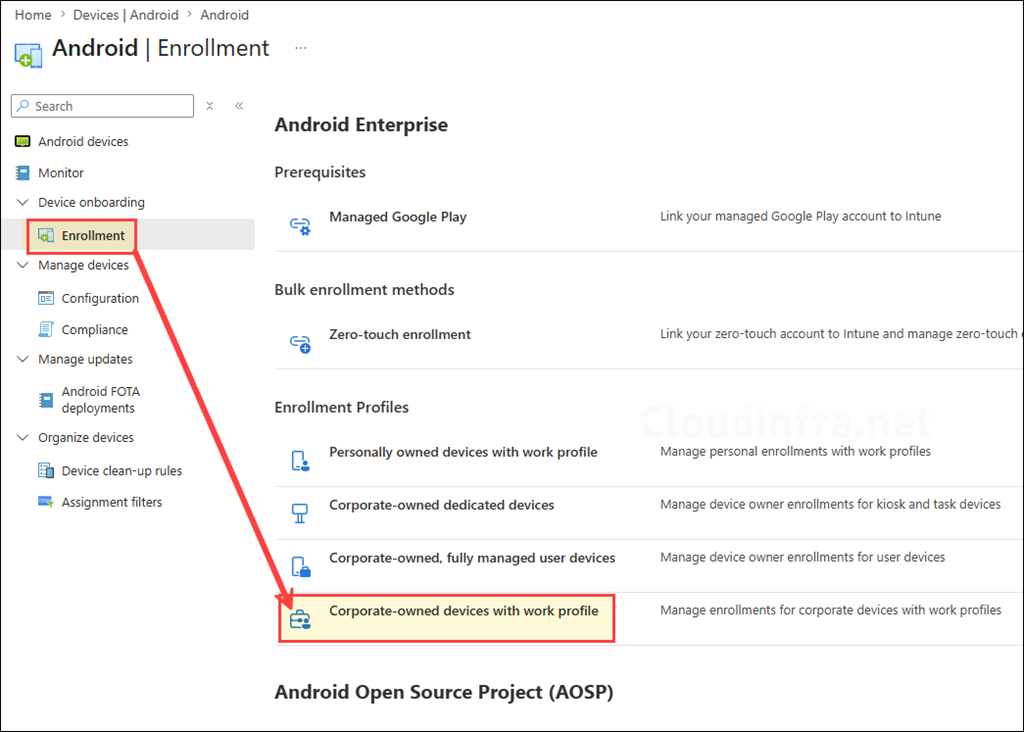
- Go to Devices > Enrollment.
- Select the Android tab.
- Under Android Enterprise > Enrollment Profiles, select Corporate-owned devices with work profile.
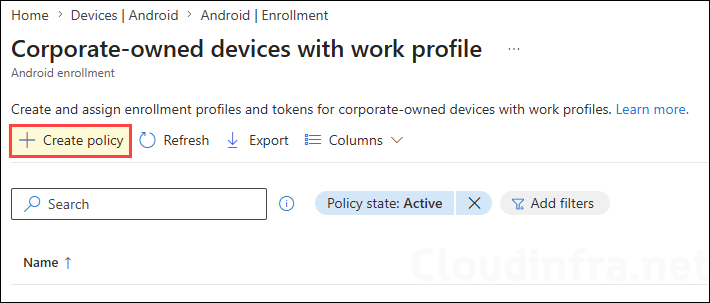
- Select Create policy.
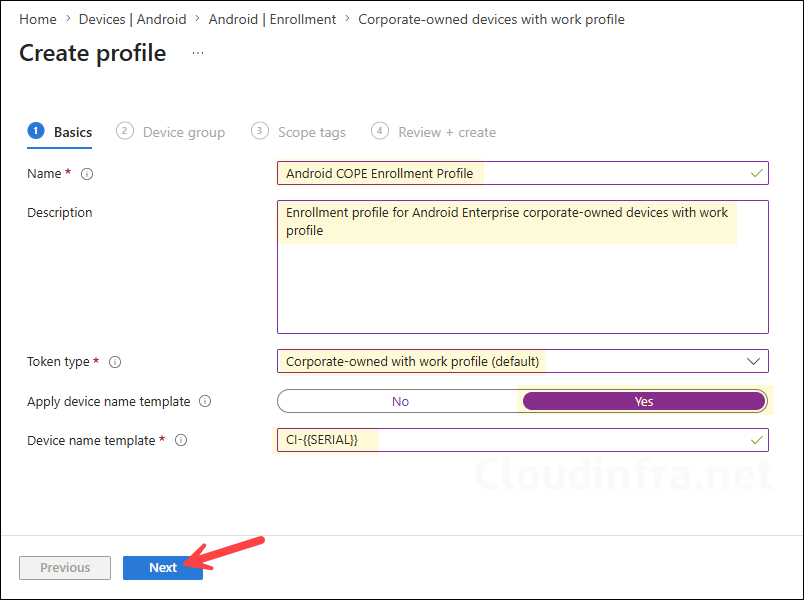
- On the Basics page, configure:
- Name: Android COPE Enrollment Profile
- Description: Enrollment profile for Android Enterprise corporate-owned devices with work profile
- Token type: Corporate-owned with work profile
- Optionally apply device name template, select Yes, and provide the device name template.
Create a unique name for your devices. Names must be 63 characters or less, and can contain letters (a-z, A-Z), numbers (0-9), and hyphens. Variables supported: {{SERIAL}}, {{SERIALLAST4DIGITS}}, {{DEVICETYPE}} (i.e. AndroidForWork or AndroidEnterprise), {{ENROLLMENTDATETIME}}, {{rand:x}} for x random integers where x is a whole number under 10. {{USERNAME}} or {{UPNPREFIX}} on user-affiliated devices for user’s full name or alias. Changes to the naming template apply only to new enrollments.
Device name template
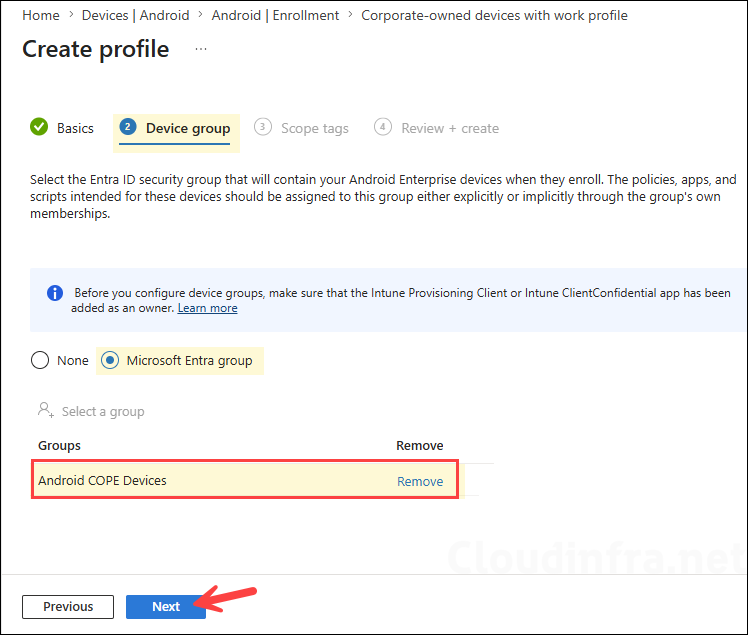
- Under the Device group tab, you can either select None or Microsoft Entra group. Since we have already created an Entra security group called Android COPE Devices for this purpose (Step 2), we will add it here.
- Scope tags (optional): A scope tag in Intune is an RBAC label that you assign to resources such as policies, apps, and devices to control which administrators can view and manage them. For more information, see How to use scope tags in Intune.
- Review + create: Review the deployment summary and click Create.
Step 4: Deploy Managed Google Play Apps
For Android Enterprise COPE devices, apps should be deployed from Managed Google Play.
- Go to Apps > Android > Select Create.
- Platform: Android
- Category: Store app and then select Managed Google Play app.
- Click on Select.
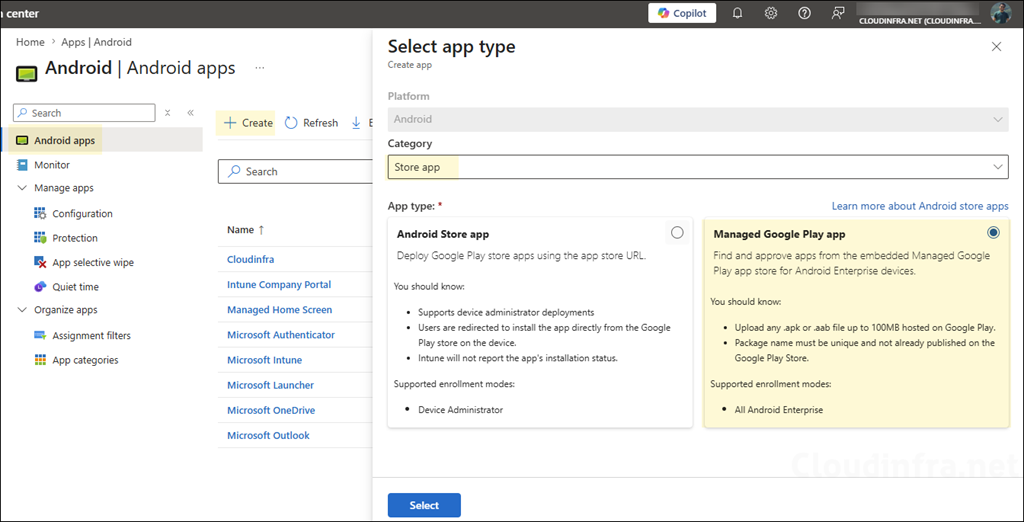
- Search for the required apps, click on Select, and then click the Sync button.
- Microsoft Outlook
- Microsoft Teams
- Microsoft Edge
- Microsoft OneDrive
- Microsoft Defender
- Assign the app as Required or Available to the Android COPE device group we created earlier.
Apps are installed from Managed Google Play for Android Enterprise corporate-owned work profile devices, and app updates are automatically handled when the app developer publishes updates to Google Play.
Step 5: Access the Enrollment Token and QR Code
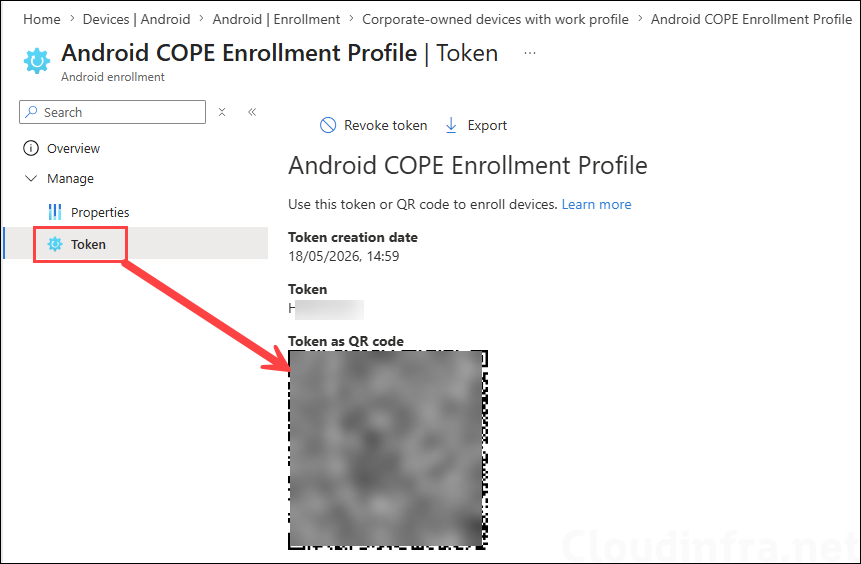
After the enrollment profile is created, Intune generates an enrollment token and QR code. The token appears as an eight-digit string and a QR code. The QR code or token is then used to enroll the Android device.
- Go to Devices > Enrollment.
- Select the Android tab.
- Under Android Enterprise > Enrollment Profiles, select Corporate-owned devices with work profile.
- Select the enrollment profile you created.
- Select Token.
- Note the QR code and token. Share this QR code with the user for Android device enrollment using this profile.
Step 6: Enroll the Android Device Using QR Code
For a brand-new device, start from the initial setup screen. For an existing device, perform a factory reset first. Do not tap the Start button. Instead, tap six times on the home screen to launch the QR code setup and begin the enrollment process, as shown in the video below.
Step 7: Verify the Android Device in Intune
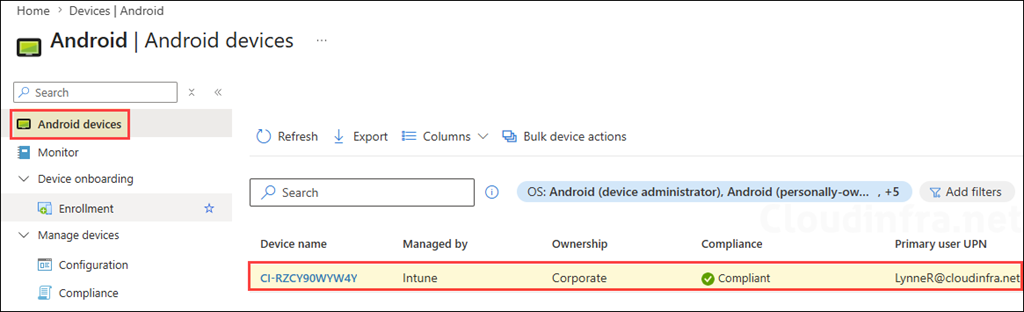
After enrolling the Android device, let’s verify the device object in the Intune admin center. Go to Intune admin center > Devices > Android > Android devices and verify that the enrolled device is listed. Furthermore, note the device naming convention. We configured CI-{{SERIAL}} as the naming convention, and the device has been renamed accordingly.
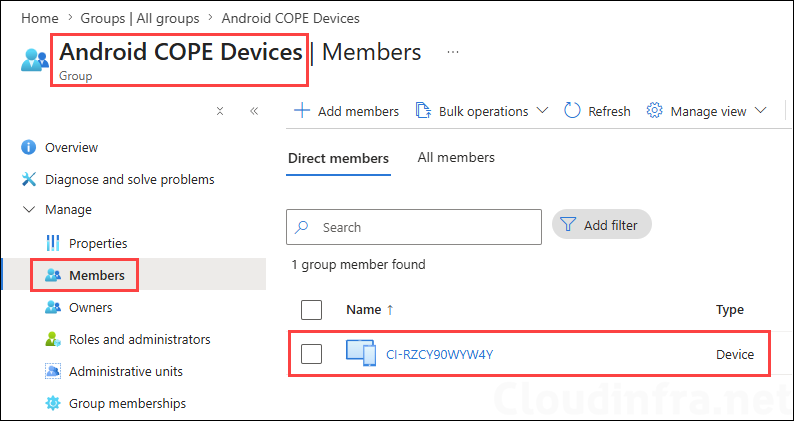
Enrollment Time Grouping in Action
The Android device we just enrolled was automatically added to the Entra security group that we configured in the Android COPE Enrollment Profile using the enrollment time grouping. We have used this group for deployment of apps, assignment of device compliance policy, and device restriction policy so that the device is ready for security configuration as soon as it’s enrolled by the user.
Important Notes
- The Microsoft Intune app is automatically installed during COPE enrollment and is required. It cannot be uninstalled.
- The Microsoft Authenticator app is also automatically installed during enrollment and is required.
- If the Intune Company Portal app is deployed to a COPE device and the user launches it, the user is redirected to the Microsoft Intune app, and the Company Portal icon is hidden.
- Tokens for corporate-owned devices with work profile do not expire automatically. If you revoke a token, the token can no longer be used, but already enrolled devices are not affected.
- For COPE devices,
afw#setupand NFC enrollment are supported only on Android 8 to Android 10 and are not available on Android 11. - For Android 15 COPE devices, if the device is reset from the Settings app, you may need to re-enter the Google account associated with the configuration due to factory reset protection behavior.
- Android 15 Private Space is considered a personal profile, and Intune does not support MDM management inside Private Space.
Troubleshooting
| Issue | Possible cause | Fix |
|---|---|---|
| QR code does not scan | Browser zoom or screen scaling issue | Increase browser zoom or display the QR code on another screen. |
| Enrollment fails after sign-in | Conditional Access blocks Microsoft Intune during enrollment | Exclude the Microsoft Intune cloud app from CA policies that require compliant devices or block all cloud apps during enrollment. |
| Device appears enrolled, but policies do not apply | Device was restarted before enrollment was completed | Wipe the device and enroll again. Do not restart during enrollment. |
| Work profile is not created | Wrong enrollment method or token used | Confirm you selected Corporate-owned devices with work profile enrollment profile. |
| Device not added to group | Dynamic group processing delay or wrong enrollment profile name | Confirm enrollmentProfileName value and wait for group processing. |
| Required apps not installing | App not approved or not assigned correctly | Confirm Managed Google Play app approval, sync status, and assignment. |
| User sees Company Portal instead of the Intune app | Company Portal deployed unnecessarily | For COPE, use the Microsoft Intune app enrollment flow. Company Portal redirects to Intune app on COPE devices. |
FAQs
What is Android Enterprise COPE in Intune?
Android Enterprise COPE is an enrollment method for corporate-owned Android devices that are assigned to a single user and allow both work and personal use. Intune creates a work profile for corporate apps and data while keeping the user’s personal apps and data separate.
Is Company Portal required for COPE enrollment?
No. Corporate-owned devices with work profile use the Microsoft Intune app during enrollment. Personal Android work profile enrollment uses the Company Portal app.
Do COPE devices need to be factory reset?
Yes. Android Enterprise corporate-owned enrollment methods are designed for new or factory-reset devices. For an existing device, perform a factory reset before starting enrollment.
Can users install personal apps on a COPE device?
Yes. COPE allows personal use. Users can install personal apps on the personal side of the device, while Intune manages work apps and work data inside the work profile.
Can Intune see personal apps and personal data?
No. With Android Enterprise work profile management, Intune manages the work profile. Personal apps and personal data remain outside the work profile.
Which app is automatically installed during COPE enrollment?
The Microsoft Intune app is automatically installed and required. Microsoft Authenticator is also automatically installed and required during enrollment.
Can I use Zero Touch or Samsung Knox Mobile Enrollment?
Yes. Android Enterprise corporate-owned devices can be enrolled using QR code, Google Zero Touch, Samsung Knox Mobile Enrollment, NFC, or token entry, although some methods have Android version limitations for COPE. QR code enrollment is generally the simplest option for testing and small-scale rollout.
Should I use enrollment time grouping or dynamic groups?
Use enrollment time grouping when you want devices added to a group immediately during enrollment. Use dynamic groups when you want devices grouped automatically after enrollment based on the enrollment profile name. For faster policy delivery during enrollment, enrollment time grouping is usually the better option.
Conclusion
Android Enterprise corporate-owned devices with work profile, or COPE, is a useful Intune enrollment method when your organization owns the Android device but still allows users to use it personally. It provides a clear separation between work and personal data while allowing IT admins to deploy corporate apps, compliance policies, configuration profiles, and selected device-level restrictions.
