
In this guide, I will show you the steps on how to deploy EXE applications using Intune. Most software vendors provide applications as .msi or .exe. Intune can deploy MSI as line-of-business (LOB) apps, but when you are deploying an EXE installer, you will have to package the application EXE and its supporting files into an .intunewin file and deploy it using the Windows app (Win32) method.
To demonstrate the deployment of an EXE installer, I will take an example of Notepad ++ app. You can use the same steps and guidance in this post to deploy any other .EXE installer file using Intune.
Contents
1. Download Application Installer
The first step is downloading the application’s source (.exe) file from the software vendor’s website. In this example, we’ll use Notepad++ as our sample application and place the installer into a new folder.
2. Find Silent Install and Uninstall Switches
Most applications can be managed using the command line. Refer to the application’s documentation for supported install and uninstall switches, typically found in the installation guide or user manual.
For Notepad++, this information is available in the Notepad++ Online User Manual. Scroll to the Installer Options section, which documents the /S switch for silent installation. Ensure that you use an uppercase S, as the lowercase version is not supported. To uninstall the application, use the Uninstall.exe file located in the installation directory and append the /S switch to perform a silent uninstallation.
Silent install command
npp.8.4.9.Installer.x64.exe /S
Silent Uninstall command
C:\Program Files\Notepad++\uninstall.exe” /S
3. Test Silent Install and Uninstall Commands Locally
It is a best practice to first test installing and uninstalling the application manually on a few devices. This helps confirm that the installation and uninstallation commands work as expected.
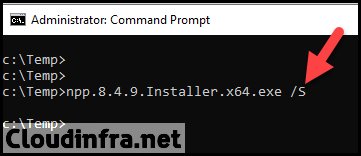
Test Silent Install
To test the silent installation of notepad ++ application using command line, follow below steps:
- Open Command Prompt as an administrator.
- Navigate to the folder with the Notepad++ exe installer file (e.g., npp.8.4.9.Installer.x64.exe).
- Execute the .exe file with the “/S” switch for silent installation (ensure “S” is in uppercase).
- The installation will be completed silently without any prompts.
- To verify the installation, click Start > Run > Type appwiz.cpl and press Enter. Check to confirm that the application has been installed successfully.
Test Silent Uninstall
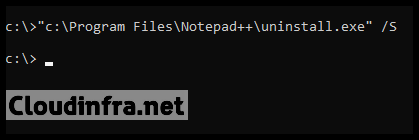
To test the silent uninstallation of notepad ++ application using command line, follow below steps:
- Open Command Prompt as an administrator.
- Run the following command: “C:\Program Files\Notepad++\uninstall.exe” /S.
- The uninstallation process should proceed silently without any user prompts.
- Check your Start menu or program list to see if the application has been uninstalled.
If the uninstallation is successful without any prompts, you have verified that the silent uninstall command works correctly.
Once you’ve confirmed that both the installation and uninstallation switches work as expected, you are ready to create the deployment of the .exe file (app) from the Intune admin center.
4. Create an IntuneWin file
You cannot deploy .exe files directly using Intune. Instead, you must use the Windows app (Win32) deployment method, which only supports the .intunewin file format. As a result, the .exe installer must be repackaged into an .intunewin file.
You can refer to the blog post How to Create an IntuneWin File for detailed steps on creating an .intunewin file. In the following sections, I will show you how to deploy the .intunewin file from Intune admin center.
5. Create Win32 App in Intune
- Sign in to the Intune admin center at https://intune.microsoft.com.
- Go to Apps > All apps.
- Select + Create, then in App type choose Windows app (Win32).
- Click on the Select app package file to select your .intunewin file.
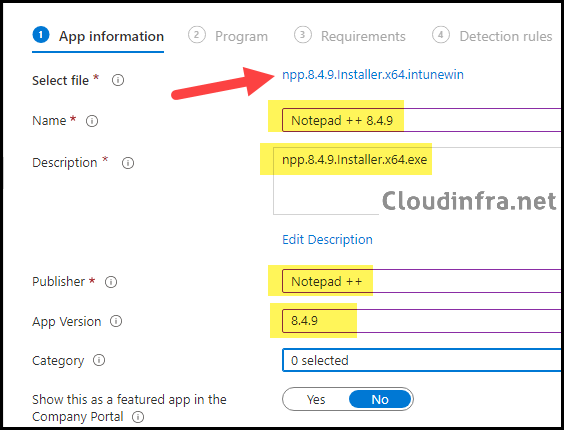
- On the App information page, provide below details:
- Name: Notepad ++ 8.4.9
- Description: Brief description of the app and version.
- Publisher: Notepad ++
- Any optional information (category, logo, etc.) to match your requirements.
Click Next.
- Program:
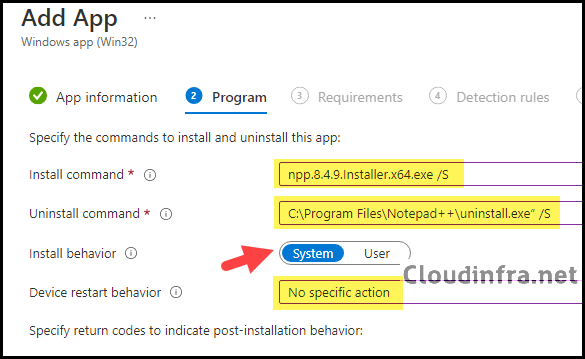
- Install command: npp.8.4.9.Installer.x64.exe /S
- Uninstall command: C:\Program Files\Notepad++\uninstall.exe” /S
- Installation time required (mins): Keep default
- Allow available uninstall: Keep default
- Install behavior: System
- Device restart behavior: No specific Action
- Specify return codes to indicate post-installation behavior: Keep default
If you encounter error code 0x80070002 for this app, verify that the Install and Uninstall commands are entered correctly. For more information about this error code, refer to the post: Fix Intune Win32 App Install Error 0x80070002.
Note
- Requirements: Set requirements so Intune only targets applicable devices:
- OS architecture (x64 vs. x86).
- Minimum Windows version.
- Detection Rules: Detection rules are critical because they determine whether Intune considers the app installed. You can use multiple detection rules, and all rules must be met. If the app is Required and Intune detects it is not present, Intune will attempt to offer it again (approximately within 24 hours).
Option A: File or folder exists (simple)
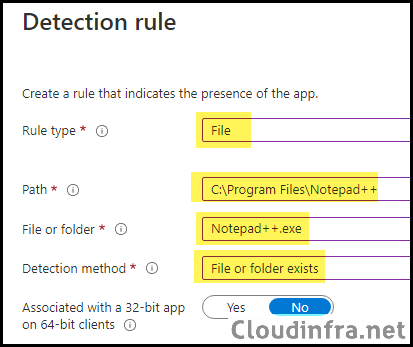
This detection method checks whether a specific file or folder exists on the target devices. If it is detected, the app is marked as successfully installed. This approach is simple to use but does not verify the application version. For Notepad ++ i have used this method to detect the app:
- Select Manually configure detection rules and click on +Add to add a detection rule:
- Rule Type: File
- Path: C:\Program Files\Notepad++
- File or folder: Notepad++.exe
- Detection method: File or folder exists.
- Associated with 32-bit app on 64-bit clients: No
Option B: File version
If you want to detect the exact version of the application installed on the devices, use the following detection method.
- Rule type: File
- Path: C:\Program Files\Notepad++
- File: notepad++.exe
- Detection method: String (version) and set the expected version.
Option C: Custom Detection Script
For more complex application detections, you can use a script to verify whether the app is installed. As an example, the script below demonstrates how to detect the Notepad++ application.
Detect-Notepad++.ps1
$exe = "C:\Program Files\Notepad++\notepad++.exe"

if (Test-Path $exe) {
    $v = (Get-Item $exe).VersionInfo.FileVersion
    if ($v -ge "8.4.9") {
        Write-Output "Detected Notepad++ version $v"
        exit 0
    }
}

exit 1- Dependencies: Click Next.
- Supersedence: Click Next.
- Scope tags (optional): A scope tag in Intune is an RBAC label that you assign to resources such as policies, apps, and devices to control which administrators can view and manage them. For more information, see How to use scope tags in Intune.
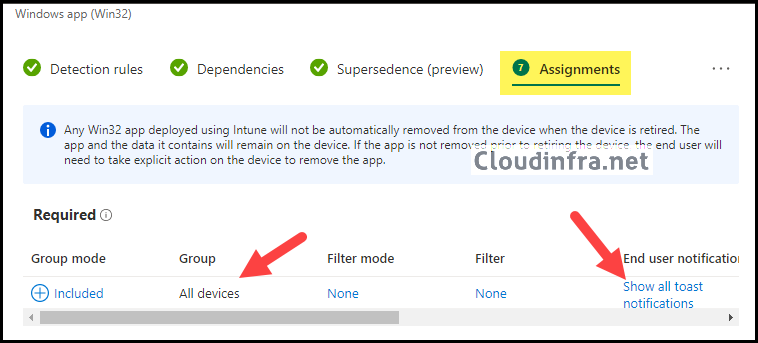
- Assignments: Assign the app to Microsoft Entra security groups that include the target users or devices. As a best practice, start with a small pilot group, and once validated, expand the assignment more broadly. For guidance on assignment strategy, see Intune assignments: User groups vs. Device groups.
- Review + create: Review the deployment summary and click Create.
Monitoring App Deployment Progress
- From the Intune admin center, go to Apps > All apps.
- Search for the app deployment you have created.
- Check the app status from the Overview page or for more and Device install Status or User install status.
Sync Intune Policies
The device check-in process might not begin immediately. If you’re testing this policy on a test device, you can manually kickstart Intune sync from the device itself or remotely through the Intune admin center.
Alternatively, you can use PowerShell to force the Intune sync on Windows devices. Restarting the device is another way to trigger the Intune device check-in process.
Verify app installation using appwiz.cpl
Once the application has been installed on the target devices, sign in to one of the user’s devices and follow these steps to ensure the application is installed.
- Press Win + R to open the Run dialog box.
- Type appwiz.cpl and press Enter to open Programs and Features.
- Check the app in the list of applications to confirm if it has been installed successfully.
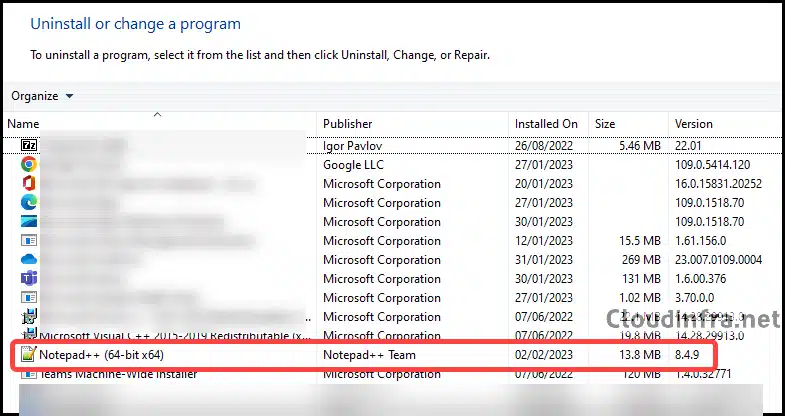
That’s it! We’ve successfully deployed an application using Intune. In the following section, we will learn how to uninstall .exe apps using Intune.
How to Uninstall EXE Applications using Intune
Now that we understand how to deploy .exe applications using Intune, what if you want to uninstall the app using Intune?
Let’s consider the example of the Notepad++ app, which we deployed by creating a Windows app (Win32) package from the Intune admin center. To uninstall this app, we will use the same Win32 app deployment. Here are the steps to uninstall it:
- From the Intune admin center > Apps > All apps.
- Search for the app Notepad ++ 8.4.9 and click on it.
- Go to Properties under Manage.
- Click on Edit next to Assignments.
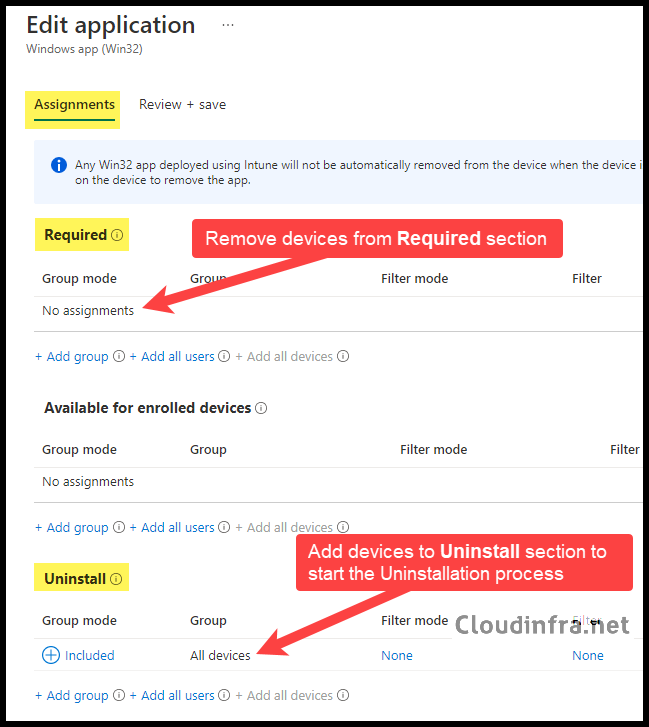
- Remove the devices from the Required section and add them to the Uninstall section to uninstall Notepad ++ 8.4.9.
When you add devices in the Uninstall section of the Assignments tab, the uninstall command provided in the Program tab of the application will be executed on the target devices.
Other Methods for Deploying EXE Apps via Intune
In addition to the Win32 app deployment method discussed above, you can also use other methods available in the Intune admin center to deploy .exe-based applications.
- Microsoft Store app (new): Search for the app in the Microsoft Store app (new) store and deploy the app directly.
- PowerShell Script method: You can create a PowerShell script that installs the application on Windows devices. Test the script manually on one or two Windows devices and then create a PowerShell script deployment on Intune admin center.
- Enterprise app catalog: Enterprise App Catalog is a collection of pre-packaged Win32 applications prepared by Microsoft and made available for deployment through the Intune admin center. The catalog includes both Microsoft and third-party applications. For more information, refer to the post How To Update Enterprise App Catalog Apps.
- Winget: Winget is a command-line tool to install applications on Windows devices. For understanding how Winget works, refer to the link Install and Manage Apps using WinGet.
Frequently Asked Questions (FAQs)
1. How do I find Silent Install or Uninstall switches for any EXE?
Check the application’s installation or user manual for the executable file to find the Silent Install and Uninstall switches. This information is often also available on the application vendor’s website.
If you can’t find the information there, consider contacting the vendor or a third-party source from which you obtained the application to obtain this essential information.
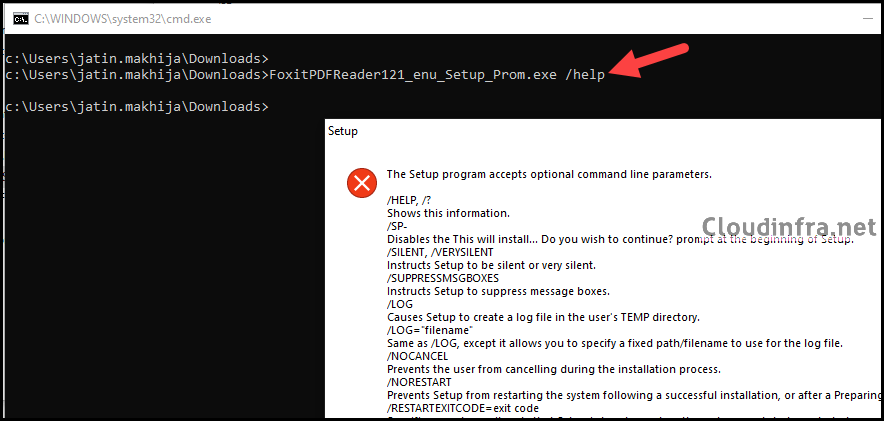
Specific .exe files offer built-in help via the command prompt. You can typically access this help by running the executable followed by switches like /? /h or /help.
For example, a command like FoxitPDFReader121_enu_Setup_Prom.exe /help can display a pop-up box containing information about the available switches that can be used with the command. This can be a useful way to discover command-line options for specific applications.
2. Can I use the same method to package a MSI file as I did for EXe files?
For MSI apps, you can use Line-of-business apps method, as it is easy to use but less flexible than Win32 app deployment method. Alternatively, package the MSI installer into an Intunewin file and deploy it using Win32 app method. For detailed steps, refer to the post Deploy MSI using Intune Win32 App Method.
3. I deployed a Win32 app to the device using Intune, but it didn’t install.
If you’ve followed the steps to create a Windows app (Win32) deployment as outlined in the blog post and the app isn’t appearing on end-user devices, you can try the following troubleshooting steps:
- If you recently created the deployment and assigned the app to the target device, please allow some time for the application to download and install. The process may take a few hours to complete. You can speed up the process by manually initiating a device check-in.
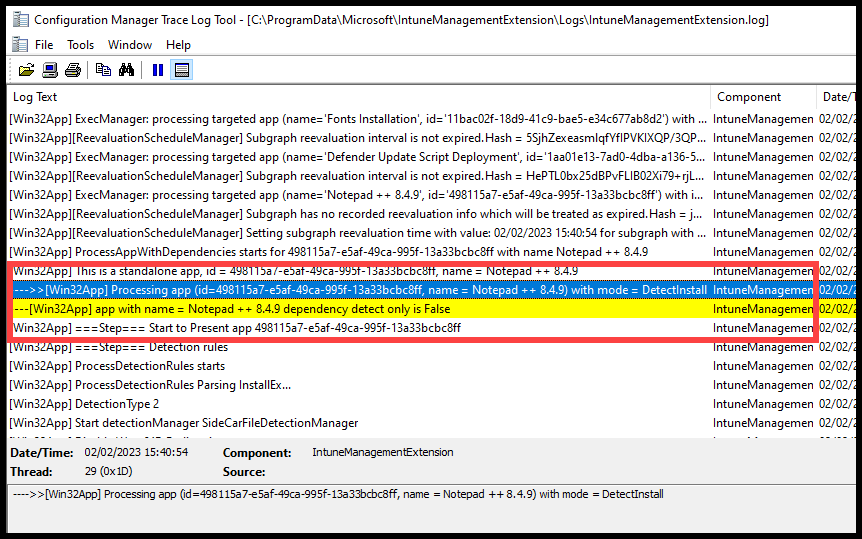
- Check the logs on one of the target devices to gather more information about the deployment. Intune Management Extension logs are located at C:\ProgramData\Microsoft\IntuneManagementExtension\Logs. Open the most recent IntuneManagementExtension.log file and review it for any issues. For more information on IME logs, refer to below post.
You can also collect Intune logs from target devices remotely via Intune admin center. For more information, refer to the post Collect Intune logs from Windows Devices.

Helpful but I am still struggling with install and uninstall commands. I am a newbie so bear with me but the exe is just called setup.exe for a few of the applications I want to install. I packaged it all using the IntuneWinAppUtil and put the install command as setup.exe /S but that didn’t work. I also tried setup.exe /quiet.