In this guide, I will show you how to force upgrade to Windows 11 26H2 manually. Microsoft released the Windows 11 26H2 feature update on September 29, 2026, and it is available to download from Microsoft’s software download center. For more details, refer to the techcommunity link: An IT pro’s guide to Windows 11, version 26H2 – Windows IT Pro Blog.
For eligible devices running Windows 11 24H2 or 25H2, the upgrade uses a small enablement package (eKB), which reduces installation time compared with a full operating system upgrade. 25H2 was also delivered as an enablement package, unlike 24H2. Learn about new features in Windows 11 26H2 here: What’s new in Windows 11, version 26H2 for IT pros | Microsoft Learn.
For organizations using Intune, you can create a feature update policy to deploy Windows 11 26H2 to managed Windows 11 devices. However, if you are experiencing issues with the remote deployment or want to install the latest feature update immediately on a specific device, you can manually force the installation.
Prerequisites
- Confirm Windows 11 requirements: CPU, RAM, storage, UEFI + Secure Boot, and TPM 2.0. If TPM/Secure Boot are disabled, enable them in firmware. Windows 11 Specs and System Requirements.
- Back up important files and keep your BitLocker recovery key available.
- Connect your laptop to power and use a reliable internet connection.
- Sign in with an administrator account.
- Install pending Windows updates and restart.
- Review the Windows 11 26H2 known issues.
- For an organisation-managed device, coordinate the upgrade with your IT team.
Devices running Windows 11 26H1 cannot upgrade directly to 26H2 because they use a different Windows core.
Force Install Windows 11 26H2 Manually
Let’s go through the steps to manually install the Windows 11 26H2 feature update on a device.
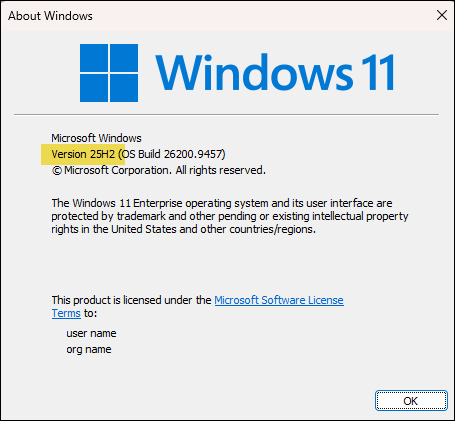
- Check the current feature update installed on Windows 11.
- Press Win + R keys to open the Run dialog box.
- Type
winverand press Enter.
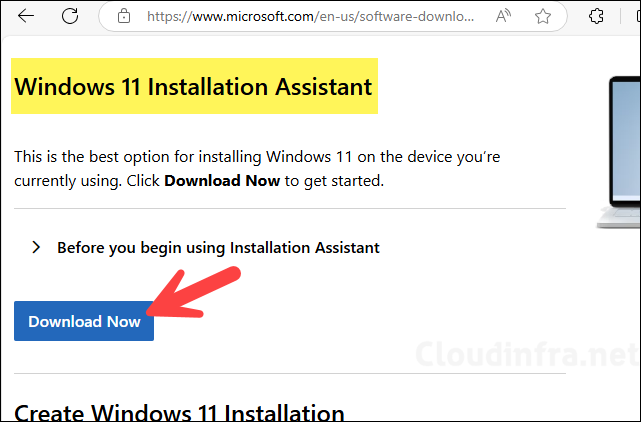
- Download the Windows 11 Installation Assistant from the official Microsoft website: Download Windows 11.
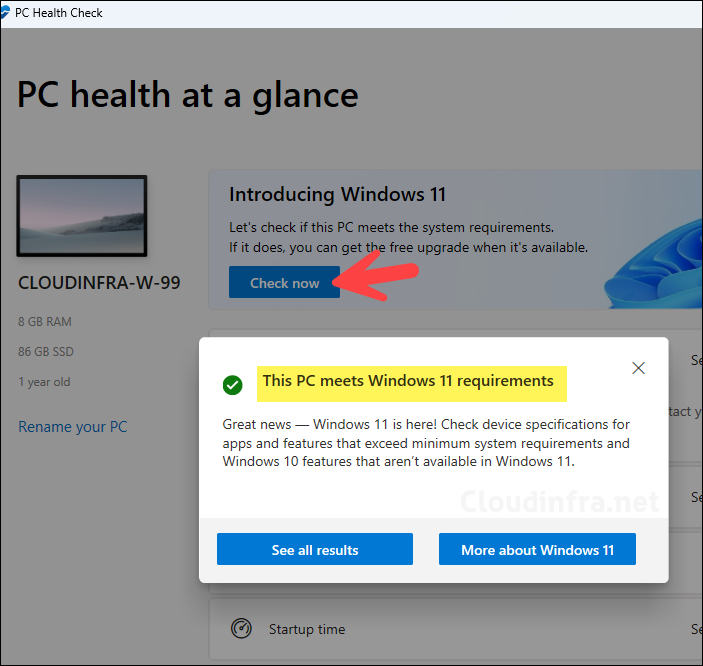
- Download and install the Windows PC Health Check app on the device using this link: Get Windows PC Health Check App. After installation, launch the app and click Check now to verify whether the device meets the requirements for upgrading to Windows 11 26H2.
If you get this error: PC Doesn’t Meet Windows 11 minimum System Requirements, refer to this link: #pc-doesn’t-meet-requirements.
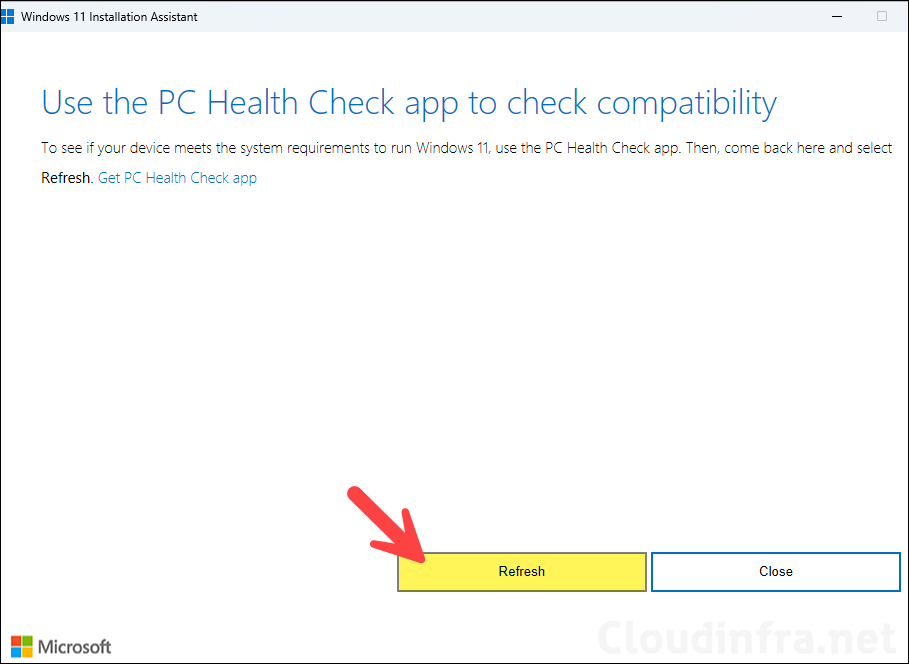
- After you have used PC health check app and confirmed that your system meets the requirement for an upgrade. Launch Windows 11 Installation Assistant and click on the Refresh button.
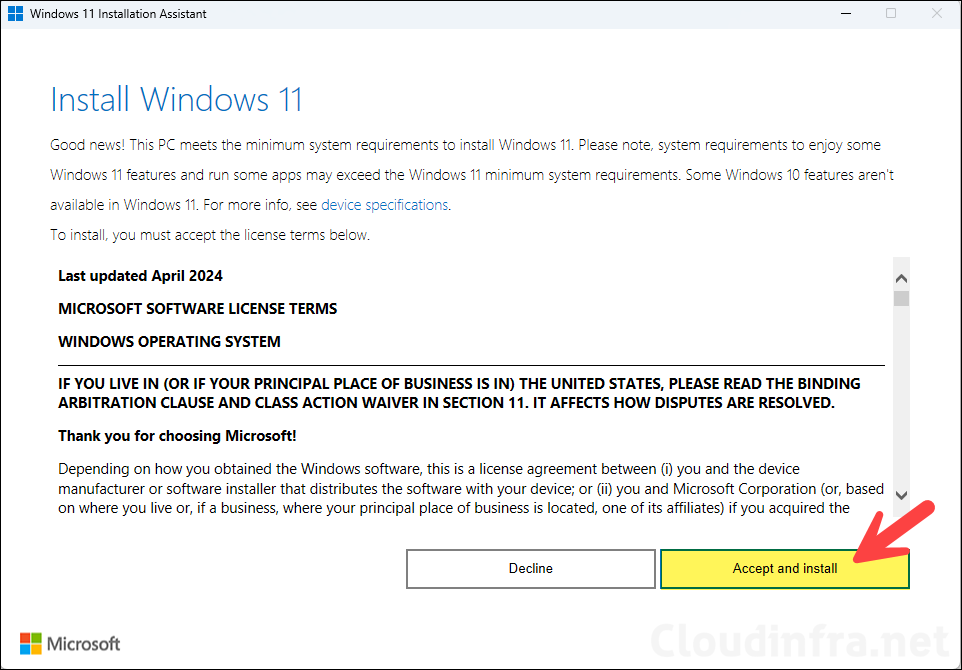
- Click on Accept and Install.
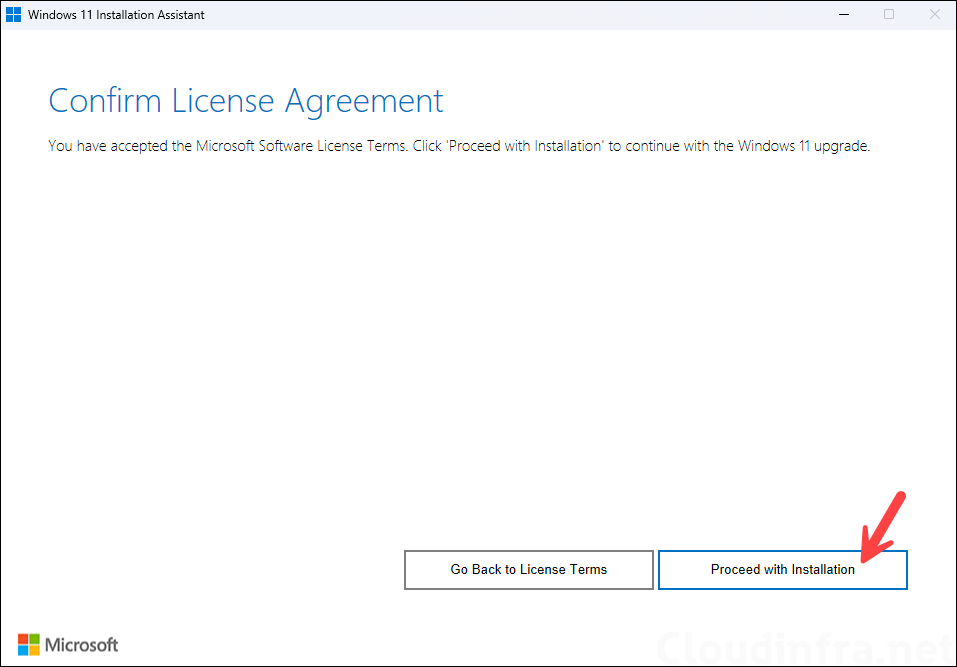
- Click on Proceed with Installation.
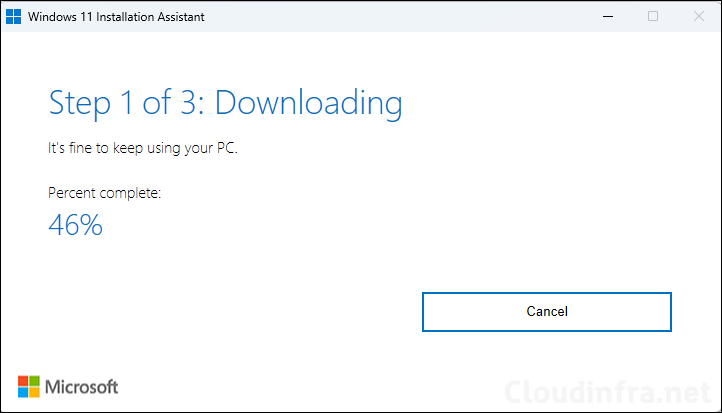
- Downloading the latest Windows 11 udpates.
- Verifying download.
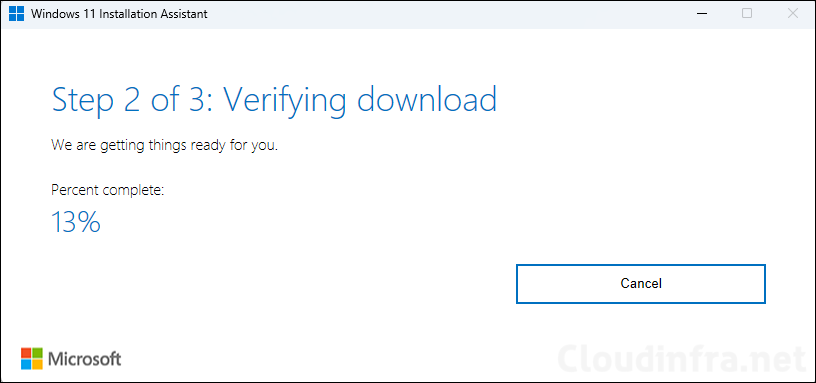
- Installing updates.
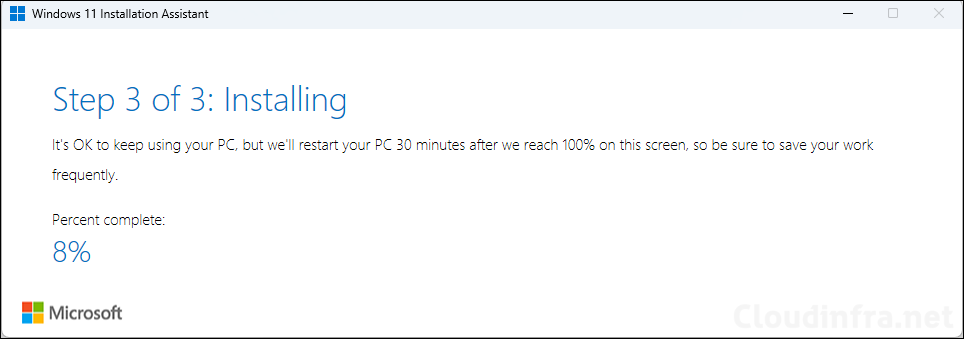
- It may take up to 30 minutes and a device reboot to update the operating system to feature update 26H2. To check and confirm if your device is successfully upgraded, you can run
winvercommand once again.- Press Win + R keys to open the Run dialog box.
- Type
winverand press Enter.
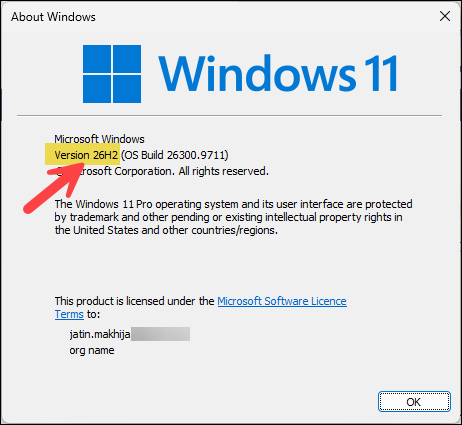
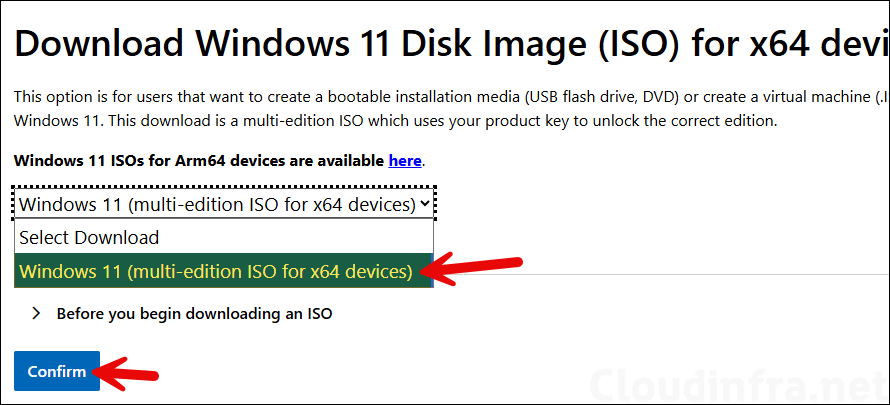
Another method you can use is to download and install the official Windows 11 26H2 ISO file.