
Microsoft released Windows 11 26H2, also known as the Windows 11 2026 update, on 29 September 2026. For eligible devices running Windows 11 24H2 or 25H2, the upgrade uses a small enablement package (eKB), which reduces installation time compared with a full operating system upgrade. 25H2 was also delivered as an enablement package, unlike 24H2. Learn about new features in Windows 11 26H2 here: What’s new in Windows 11, version 26H2 for IT pros | Microsoft Learn.
Using the Intune admin center, you can upgrade managed Windows devices to Windows 11 version 26H2 using a feature updates policy. You can target a specific group of devices, control when the upgrade becomes available, and monitor deployment progress centrally. In this guide, I will explain the prerequisites, steps to deploy Windows 11 26H2 using Intune, ways to verify the upgrade, and troubleshooting checks for devices that fail to update.
If you have installed the latest updates on Windows 11 25H2, most of the features introduced in Windows 11 26H2 are already there but not yet active. When you upgrade to the 26H2 feature update, those features will be activated on your computer through the enablement package.
Contents
Important Details About Windows 11 26H2
| Item | Details |
|---|---|
| Windows release | Windows 11, version 26H2 |
| General availability | 29 September 2026 |
| OS build series | 26300 |
| Home and Pro support ends | 10 October 2028 |
| Enterprise and Education support ends | 9 October 2029 |
Which Devices Can Use an Enablement Package?
Windows 11 24H2, 25H2, and 26H2 share a common operating system foundation. The 26H2 enablement package, KB5121794, activates the new release on eligible 24H2 and 25H2 devices. KB5124010, released on 22 September 2026, or a later cumulative update is a prerequisite. Check that your pilot devices have this servicing prerequisite before investigating why the feature update is missing or not installing.
Devices running Windows 11 26H1 cannot upgrade to 26H2. 26H1 uses a different Windows core and will have an upgrade path to a future Windows release. Keep these devices outside your 26H2 deployment groups.
Important
Prerequisites
Before you create a deployment on the Intune admin center for deploying 26H2. Ensure that the following prerequisites are met:
| Prerequisite | Details |
|---|---|
| Intune enrollment | Devices must be enrolled in and managed by Microsoft Intune. |
| Licenses | Windows 10/11 Enterprise E3 or E5 (included in Microsoft 365 F3, E3, or E5) Windows 10/11 Education A3 or A5 (included in Microsoft 365 A3 or A5) Windows Virtual Desktop Access E3 or E5 Microsoft 365 Business Premium. Licenses and Entitlements | Microsoft Learn. |
| Microsoft Entra join | Devices must be Microsoft Entra joined or Microsoft Entra hybrid joined. |
| Windows edition | Windows Pro, Pro Education, Enterprise, or Education. Windows Enterprise LTSC is not supported by this feature update policy. |
| Windows version | For the enablement-package upgrade, devices must run Windows 11 24H2 or 25H2. Windows 11 26H1 cannot upgrade to 26H2. |
| Cumulative update | Install KB5124010, released on 22 September 2026, or a later cumulative update before applying the 26H2 enablement package.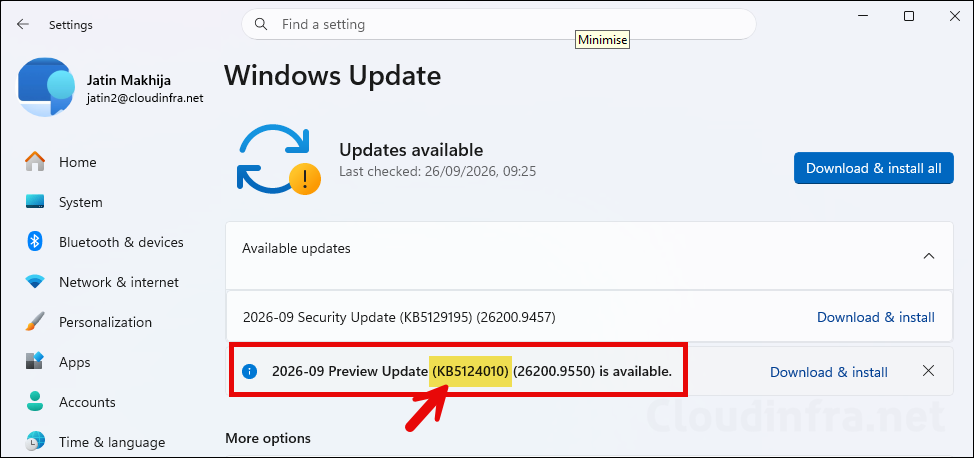 |
| Network connectivity | Devices must have internet access and connectivity to the required Intune, Windows Update, and Windows Autopatch endpoints. |
| Diagnostic data | Set diagnostic data level to Required as minimum. |
| Required service | Ensure the Microsoft Account Sign-In Assistant service (wlidsvc) is enabled. |
Steps to Upgrade to Windows 11 26H2 Using Intune
Follow the steps given below to upgrade Windows 11 devices to the 26H2 feature update.
Step 1: Create Phased Deployment Device Groups
If you are starting from scratch, I recommend creating phased deployment Microsoft Entra security groups, also known as rings. This approach allows you to roll out Windows updates gradually across your environment. Below is an example group structure you can use:
- Test ring devices
- Pilot ring devices
- Early adopters
- Production ring devices 01
- Production ring devices 02, and so on
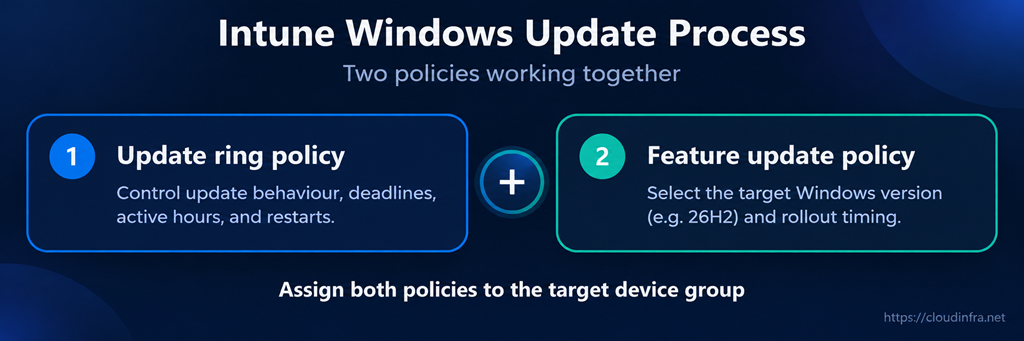
To deploy Windows updates using Intune, you need to configure two policy types: Update ring policy and Feature update policy. Update ring policies control how updates are delivered to devices, including restart behaviour, user experience, deferral settings, and update deadlines. Feature update policies define the specific Windows feature update version that devices should remain on. When a feature update policy is assigned, it locks the device to the specified Windows version and prevents it from automatically upgrading to a later version until you update the policy.
If you have not created update ring policies in your environment yet, follow the next section, where I explain update ring policies in detail, including how to configure the feature update deferral setting. If you have already established update ring policies, you can skip directly to the Create a Feature update policy section.
The screenshot below shows how update ring policies and feature update policies work together to support a controlled and phased Windows feature update deployment.
Step 2: Create an Update Ring Policy (Skip if already exists)
To deploy quality updates and feature updates to Windows 11 devices, you need to create an Update ring policy in Intune. An update ring policy is a Windows Update for Business (WUfB) configuration that defines how and when Windows devices receive updates.
Quality updates are regular monthly cumulative updates, typically released on Patch Tuesday, which is the second Tuesday of each month. These updates focus on security fixes, bug fixes, performance improvements, and reliability enhancements. They do not usually introduce major new features or large operating system changes.
A feature update is a major Windows release that introduces new features, design changes, security improvements, and functionality enhancements. Unlike quality updates, feature updates are larger, version-based upgrades. Examples include Windows 11 24H2, 25H2, and 26H2.
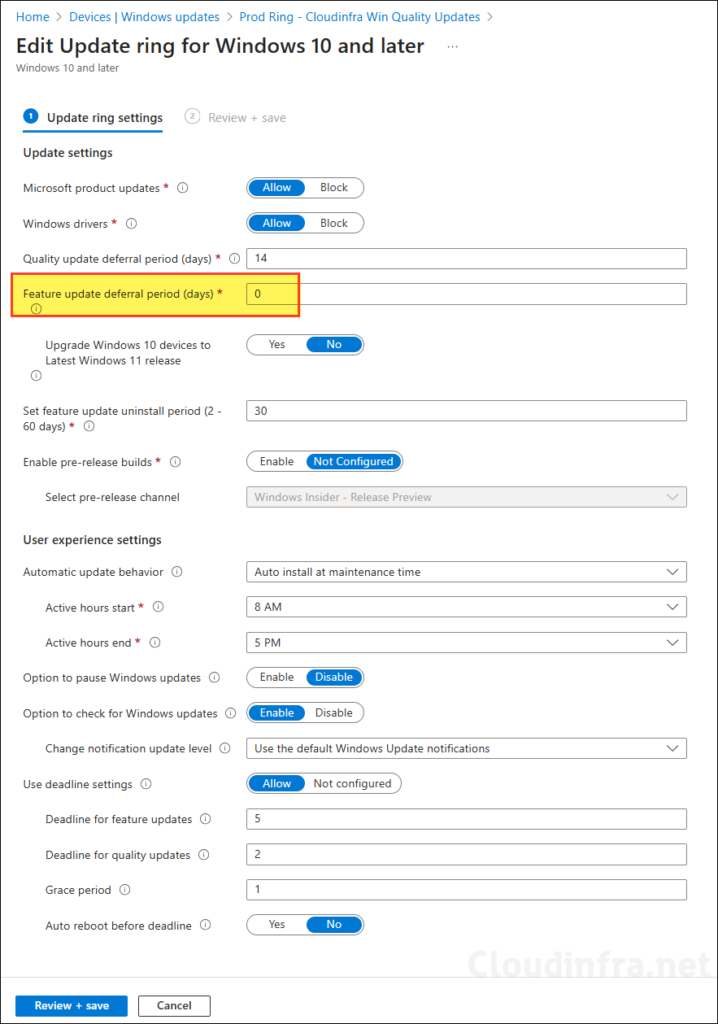
You can create multiple update ring policies and assign them to specific device groups, such as test ring devices, pilot ring devices, and production ring devices. For a test ring, you can configure a more aggressive update policy so updates are installed as soon as they are released. For example, you can set Quality update deferral period (days) and Feature update deferral period (days) to 0 and configure Automatic update behavior with broader active hours. Since these are test devices, installing updates during business hours should have minimal or no impact on business operations.
In addition to the test ring, you can create separate update ring policies for a pilot ring, early adopters ring, and finally a production ring, which usually contains most of the organization’s business devices. The production ring should be targeted only after the update has been tested and validated through the earlier rings, such as test and pilot groups.
Below is a basic example of an update ring and group assignment structure that you can use in your environment.
| Update Ring | Entra Group Assignment |
|---|---|
| Test update ring | Test ring devices |
| Pilot update ring | Pilot ring devices |
| Early adopters update ring | Early adopter devices |
| Production update ring | All production devices |
The values for Quality update deferral period (days) and Feature update deferral period (days) determine how long a device waits before installing an update after Microsoft releases it. The default value for both settings is 0. You can configure a deferral period of 0 to 30 days for quality updates and 0 to 365 days for feature updates.
If you are planning to test a new feature update, such as Windows 11 version 26H2, on test devices, I recommend setting the Feature update deferral period (days) to 0 so the update can be offered immediately without delay. For production devices, you may want to use a more cautious approach by deferring the feature update, for example, by 180 days. This provides enough time to test, validate, and document the new version before deploying it more broadly across production devices.
Feature Update Policy
Windows feature update policies work together with your Update ring policies to ensure that devices do not receive a Windows feature update version later than the version specified in the feature update policy.
In this guide, I will explain two scenarios for upgrading devices to Windows 11, version 26H2. The first scenario applies when no feature update policy currently exists. The second scenario applies when a feature update policy is already in place, for example, a Windows 11 25H2 feature update policy.
When you do not have an existing feature update policy, you can create a new one and assign it to a test ring of devices first. After successful testing, you can extend the deployment to the pilot group, followed by the early adopters group, and finally the production group. This phased approach helps ensure a gradual and controlled rollout of the latest Windows feature update across your organization.
When you already have an existing feature update policy, for example, a Windows 11 25H2 feature update policy assigned to all devices, avoid modifying the Feature update to deploy setting to a newer version in the existing policy. Updating this setting could start the upgrade process for all devices assigned to that policy. It is not a best practice to roll out a new feature update without testing first. This is because of the following:
- Some in-house applications may not be compatible with the newer feature update (Windows 11 26H2).
- Some devices may not be ready or suitable for the upgrade.
- Deployment or compatibility issues may occur during the upgrade and should be identified and fixed during testing.
In the next section, I will exclude the devices that I want to upgrade to Windows 11 26H2 from the existing Windows 11 25H2 feature update policy. If you do not have any existing feature update policy assigned to these devices, you can skip this step and move directly to the next section to create a new feature update policy for 26H2.
Excluding devices from the existing feature update policy is optional. According to Microsoft, if multiple feature update policies are assigned to the same device, the Windows Update service offers the latest applicable feature update version. However, I prefer to migrate device groups gradually from the old feature update policy to the new feature update policy. Once all required groups have been moved and the upgrade has been completed successfully, the old feature update policy can be deleted.
Manage Windows Feature Updates – Microsoft Intune | Microsoft Learn.
Step 3: Exclude Devices from Existing Feature Update Policy (Optional)
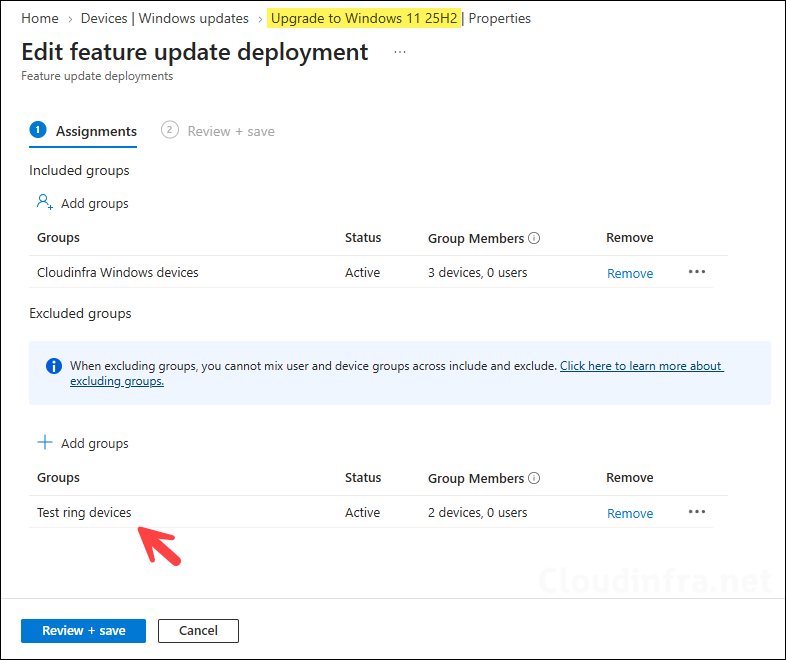
If you already have an existing feature update policy, keep it unchanged and create a new feature update policy specifically for upgrading devices to Windows 11 26H2. When assigning the new policy to groups such as Test ring, Pilot ring, and Production ring, make sure these groups are excluded from any existing feature update policies, such as a policy that currently targets devices for Windows 11 25H2.
As shown in the screenshot below, I have excluded the Test ring devices group from my existing Windows 11 25H2 feature update policy. In the next section, I will create a new feature update policy for Windows 11 26H2 and assign it to the Test ring devices group.
According to Microsoft, if multiple feature update profiles are targeted to the same device, Windows Update service will offer the latest applicable feature update version. However, as a best practice, I prefer to exclude devices from older feature update profiles before assigning a newer one. This helps keep the deployment clean and avoids any potential policy confusion or conflicts.
Step 4: Create a New Feature Update Policy
Once you have excluded the Test ring devices group from the existing feature update policy, create a new feature update policy to set the Windows 11 feature update to 26H2 by following the below steps:
- Go to the Intune admin center > Devices > Windows updates > Feature updates > Create profile.
Deployment settings
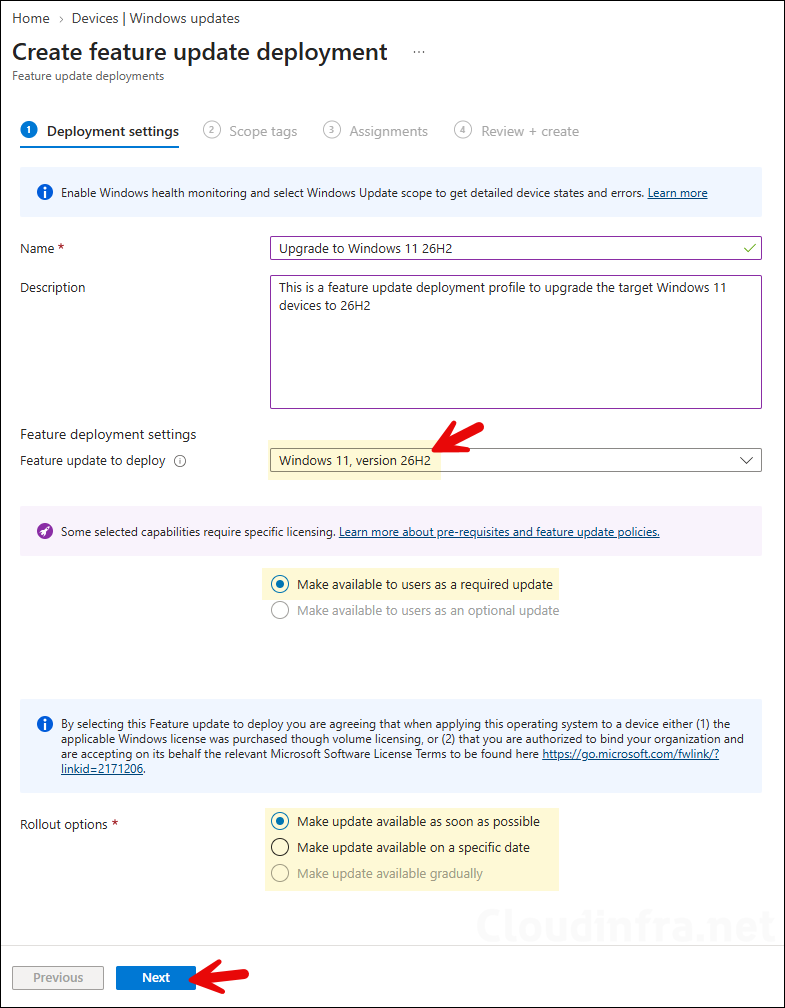
On the Deployment settings tab, configure the following options:
- Name: Enter a name for the feature update policy, for example, Upgrade to Windows 11 26H2.
- Description: Provide a short description for the policy.
- Feature update to deploy: Use the drop-down list to select Windows 11, version 26H2.
- Make available to users as a required update: Select this option if you want the feature update to be automatically installed on the targeted devices.
- Make available to users as an optional update: Select this option if you want the feature update to be offered to users as an optional update. The update will be available on targeted devices, but it will not be downloaded or installed automatically. Users must go to Windows Update settings and click Download to start the installation.
- Rollout options: Choose how the feature update should be made available to targeted devices:
- Make update available as soon as possible: This is the default option. The feature update is made available to targeted devices without delay.
- Make update available on a specific date: Use this option to select the date when the feature update should become available to targeted devices.
- Make update available gradually: Use this option to roll out the feature update over a defined period. Intune automatically distributes the update across subsets of targeted devices based on the start date, end date, and rollout duration you configure. For more information, refer to Microsoft Learn: Make updates available gradually.
- Scope tags (optional): A scope tag in Intune is an RBAC label that you assign to resources such as policies, apps, and devices to control which administrators can view and manage them. For more information, see How to use scope tags in Intune.
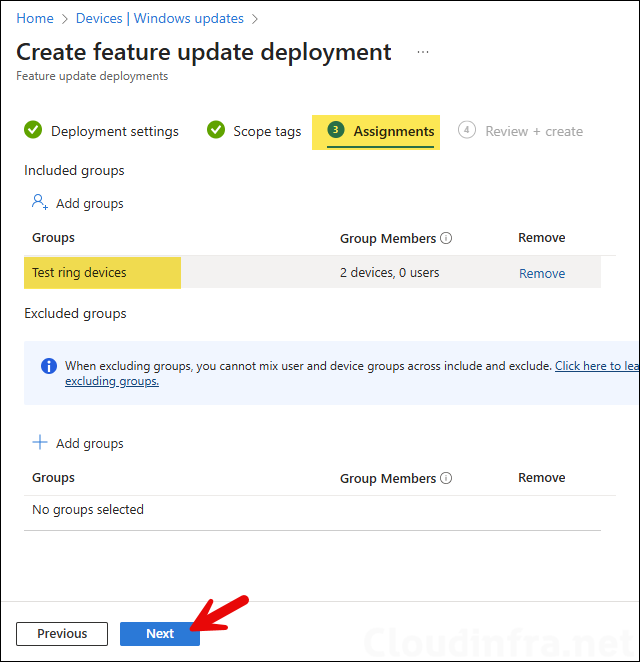
- Assignments: Assign the policy to Microsoft Entra security groups that include the target devices.
The screenshot below shows that the Test ring devices group has been targeted for the upgrade. This is the same group that we excluded from the existing Upgrade to Windows 11 25H2 feature update policy. All devices in the Test ring devices group will now be offered the Windows 11 26H2 feature update.
- Review + create: Review the deployment summary and click Create.
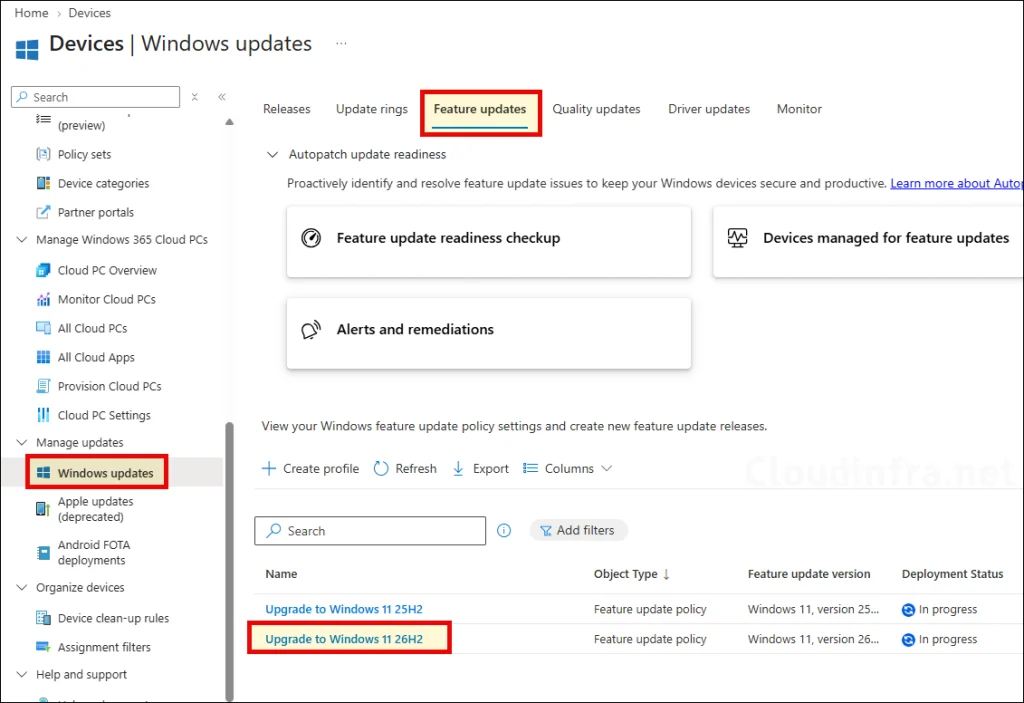
After successfully testing the update on the Test ring devices, Add the pilot ring devices group to the Windows 11 26H2 feature update policy and exclude the pilot group from the existing Windows 11 25H2 feature update policy. Validate the update on the pilot devices before expanding the deployment further. Continue this process by adding additional groups in phases, such as Early adopters and Production ring devices, until the Windows 11 26H2 update has been gradually rolled out across the organization.
Monitoring Feature Update Deployment
After deploying the policy to upgrade devices to Windows 11 26H2, you can track the deployment progress using the Windows Feature Update Report in Intune. For detailed steps on generating this report, understanding the information it provides, and exploring other available reporting options, refer to my related post: Export Windows Feature Update Report From Intune.
End User Experience
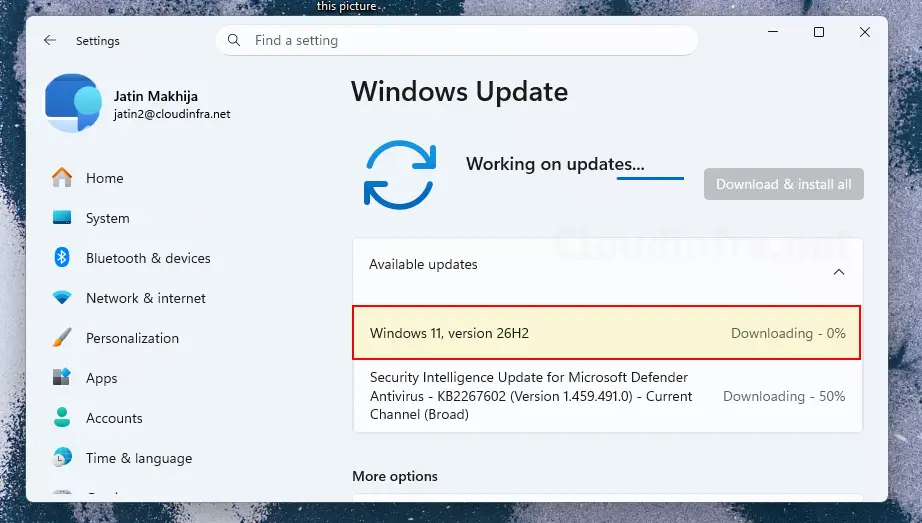
Once the device checks in with Intune, the new feature update policy will be applied. Users will receive a notification, and a restart will be required to complete the installation process.
Windows devices regularly check in with Intune to receive new policy updates. However, if you want to speed up the process, you can force an Intune sync from the device. Restarting the device can also trigger the Intune device check-in process.
Troubleshooting
If you experience any issues with the Windows 11 26H2 feature update deployment, there are several places you can check to identify what went wrong. You can review Intune policy deployment status, Windows Update reports, event logs, and Windows Update logs on the affected device. Let’s take a look:
1. Investigate Event Viewer logs
- Press Windows Key + R to open the Run dialog box.
- Type
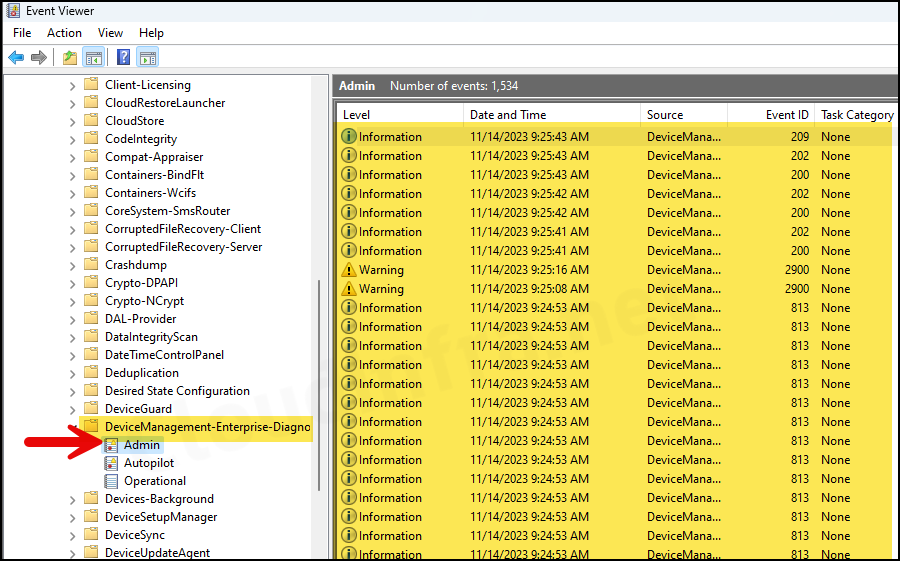
eventvwrand press Enter to open Event Viewer. - Navigate to Application and Services logs > Microsoft > Windows > DeviceManagement– Enterprise-Diagnostics-Provider > Admin. Review each of the logs to find the one related to your deployment and check the error message if any.
2. Verify If Safeguard hold is applied
If a Safeguard Hold is applied to a device for the feature update version deployed through Intune, the upgrade may not proceed until the hold is removed or resolved. To learn more about Safeguard Holds and how to opt out when required, refer to Microsoft’s guidance on opting out of Safeguard Holds.
You can check the GStatus registry value to see whether Windows reports a safeguard hold.
- Press Windows + R, type regedit, and press Enter.
- Paste this path into the Registry Editor address bar:
HKEY_LOCAL_MACHINE\SOFTWARE\Microsoft\Windows NT\CurrentVersion\AppCompatFlags\Appraiser\GWXIn the right pane, check GStatus:
| GStatus value | Meaning |
|---|---|
| 0 | A safeguard hold is in effect. |
| 2 | A safeguard hold is not in effect. |
To identify the hold, go to the below registry key:
HKEY_LOCAL_MACHINE\SOFTWARE\Microsoft\Windows NT\CurrentVersion\AppCompatFlags\TargetVersionUpgradeExperienceIndicators
Expand the relevant target-release subkey GE26H2 to check and confirm the below values.
| Registry value | What to check |
|---|---|
| GStatus | Whether a hold is recorded for that release. |
| GatedBlockId | The safeguard hold ID. |
| GatedBlockReason | The recorded reason, which might be generic. |
3. Check Reports on Intune admin center
Export feature update reports to investigate the deployment’s status. Confirm that the deployment is in the offering state; the update won’t be deployed if it’s paused or scheduled. For instructions on exporting Feature update reports, refer to the link: Export Windows Feature Update Report from Intune.
4. Check if Diagnostic Data Level is set to the Required
Sometimes, if the Telemetry or Diagnostic data level is not set to Required, feature updates deployed through Intune may not be offered to devices. Ensure that the Diagnostic data setting is configured as Required. For more information about configuring Telemetry or Diagnostic data settings, refer to my guide: Configure Windows Diagnostic Data Using Intune [3 Ways].
5. When Downloading or installation fails
If the update fails to download or install, check to make sure if there is enough free space in the C: drive. Open PowerShell console and run below command to check:
Get-Volume -DriveLetter C |
    Select-Object DriveLetter,
        @{Name='FreeSpaceGB'; Expression={
            [math]::Round($_.SizeRemaining / 1GB, 2)
        }}
6. Can You Roll Back the Upgrade?
Do not treat changing the target version back to 25H2 as a rollback method. Feature update policies do not downgrade Windows. Before production deployment, test the recovery options available on your pilot devices. Intune provides an update-ring uninstall action, but successful recovery depends on the update and the device’s uninstall eligibility. The action can also cause an immediate restart without user deferral.
7. Windows 11, 26H2 Known Issues
Windows 11, version 26H2 known issues and notifications | Microsoft Learn
