
In this blog post, I will show you the steps to rename a Windows device using Intune. You can easily rename Windows devices remotely from the Intune admin center. For supported Windows devices, this action updates the computer name on the device and the device name that appears in Intune and Microsoft Entra ID after the next check-in. For more information about remote device action, refer to the Microsoft learn page: Remote Device Action: Rename Device – Microsoft Intune | Microsoft Learn.
Use Cases for Renaming a Windows Device
- You use a Windows Autopilot deployment profile to configure device hostnames based on a specific template but want to change specific devices after deployment.
- Your organization has special devices for specific purposes, such as batch processing or line-of-business apps, and you want the device names to reflect that. For example, Batch-Win-11, LAB-Win-11, etc.
As of today, the Rename device remote action in Intune supports the following platform types:
- Android Enterprise:
- Corporate-owned fully managed (COBO)
- Corporate-owned dedicated (COSU)
- Corporate-owned work profile (COPE)
- iOS/iPadOS: Supervised devices
- macOS: Corporate-owned
- Windows: Corporate-owned devices
Important: Renaming Microsoft Entra hybrid joined Windows devices from Intune is not supported. Hybrid joined devices must be renamed using domain based methods such as on-premises Active Directory tools or management scripts, not from the Intune admin center.
In this post, I will show you different ways to rename a Windows device to update the device name in Intune and Entra:
- Using the Microsoft Intune admin center.
- Renaming the device directly on the device itself.
- Renaming the display name in the Company Portal website.
- Renaming a Windows device using the Entra admin center.
- Renaming a Windows device using PowerShell.
Prerequisites
- The device is Intune enrolled and appears in Devices > All devices.
- For the Intune remote action, the device is corporate-owned and either:
- Microsoft Entra joined, or
- Co-managed and Microsoft Entra joined (for Windows).
- Your admin account has a role that allows running remote actions, such as:
- Help Desk Operator
- School Administrator
- A custom Intune role that includes remote tasks / Set device name and read permissions on managed devices.
Note: The Rename device remote action uses the Accounts CSP behind the scenes and can also be triggered via Microsoft Graph’s
setDeviceNameaction.
Contents
1. Rename a Windows Device from Intune Admin Center
Follow these steps to rename a Windows device from the Intune admin center.
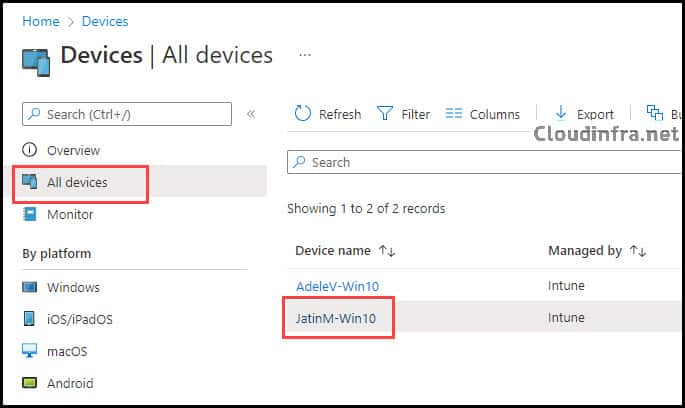
- Sign into the Intune admin center > Devices > All Devices.
- Search for the device you want to rename and click on it.
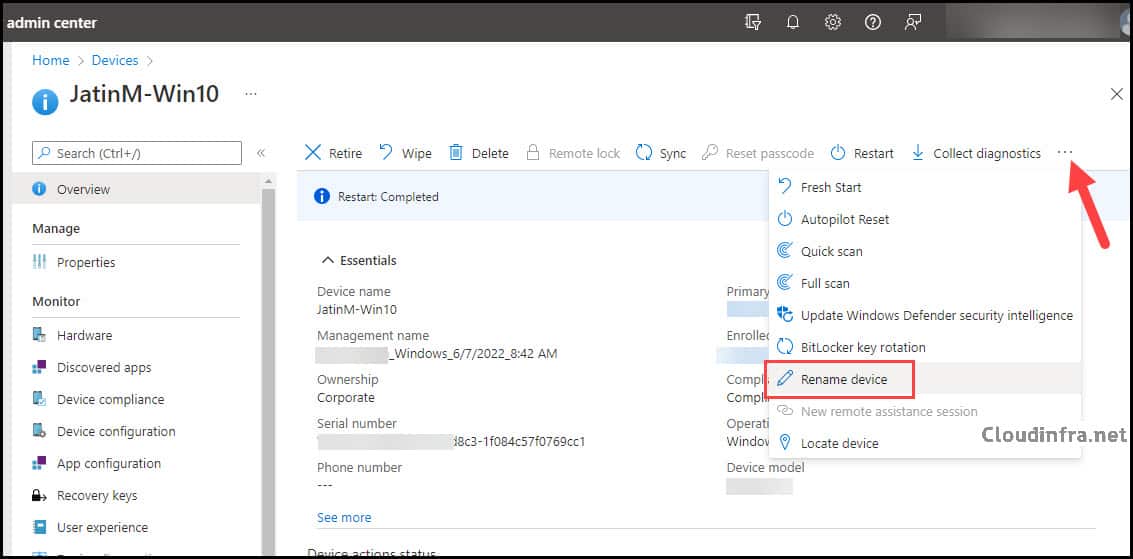
- On the device overview page, click the three dots on the right and select Rename device.
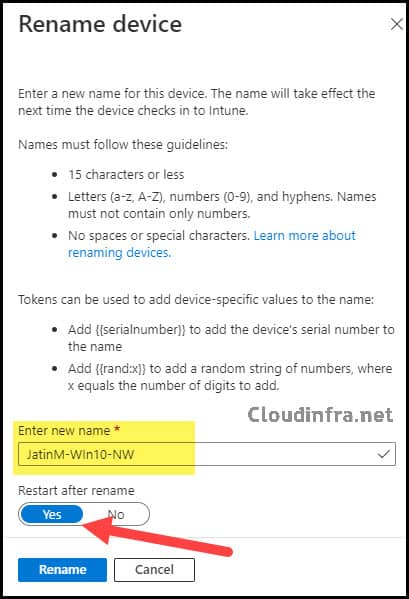
Device rename guidelines for Windows
When renaming a Windows computer, it is best to follow the standard Windows computer name rules. For Windows devices, follow the guidelines below:
- 15 characters or less.
- Letters
a–z,A–Z, numbers0–9, and hyphens.- The name must not consist of only numbers.
- No spaces or special characters.
- In the Rename device pane, Enter new name: Provide a new computer name.
- Restart after rename: If you select Yes, the device will automatically reboot. If you choose No, you will need to manually restart the device. Please note that the new name will not take effect until the device is restarted.
- Click Rename to initiate the remote action.
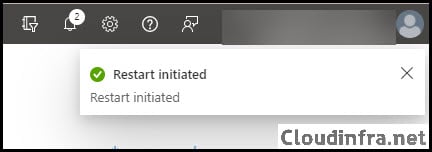
- After you click Rename, Intune admin center will show a notification that the rename (and optional restart) has been initiated. You can track the status on the device’s Overview > Device actions status panel.
End User Experience
When the rename action is configured to restart the device, the user will see a message: You’re about to be signed out. Your device administrator has scheduled a reboot.
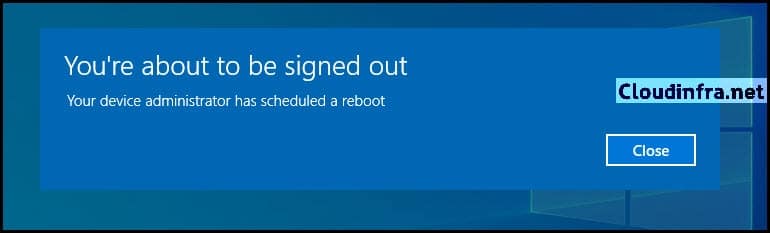
- The user typically has about two minutes before the device restarts.

- The device then restarts.

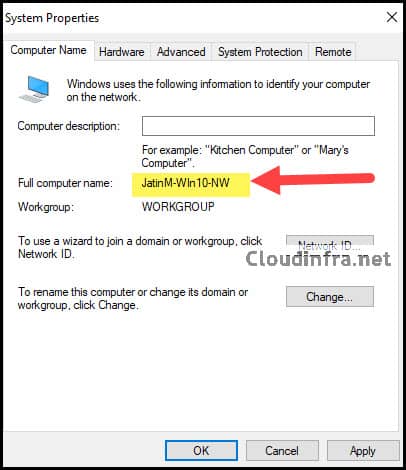
Verify that the device has been renamed
- Press Win + R to open the Run dialog box.
- Type
sysdm.cpland press Enter to open System Properties. - On the Computer Name tab, verify the Full computer name.
After the device checks in with the cloud, the updated name will be reflected in:
- Intune admin center.
- Microsoft Entra admin center for that device object.
Bulk rename Windows devices from Intune
You can also rename multiple Windows devices at once. The bulk rename action uses the same naming rules and simply applies them to multiple devices at once.
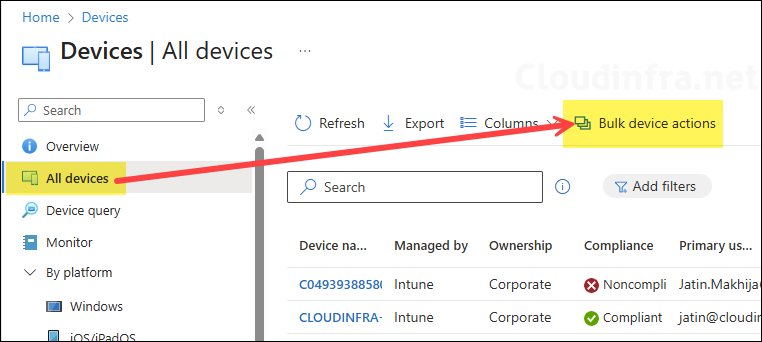
- From Intune admin center, go to Devices > All devices.
- Select Bulk device actions.
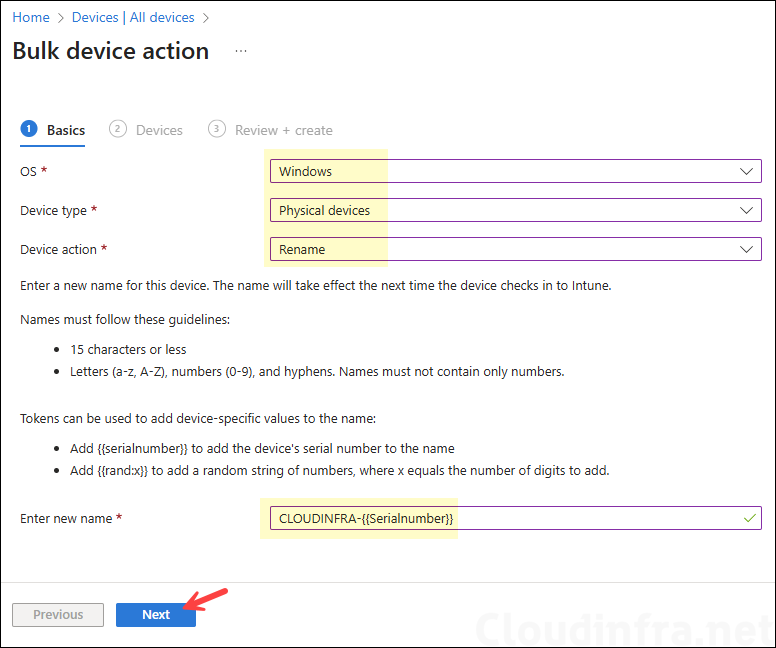
- On the Basics page:
- OS: Windows
- Device action: Rename
- Enter new name: Specify a pattern, for example:
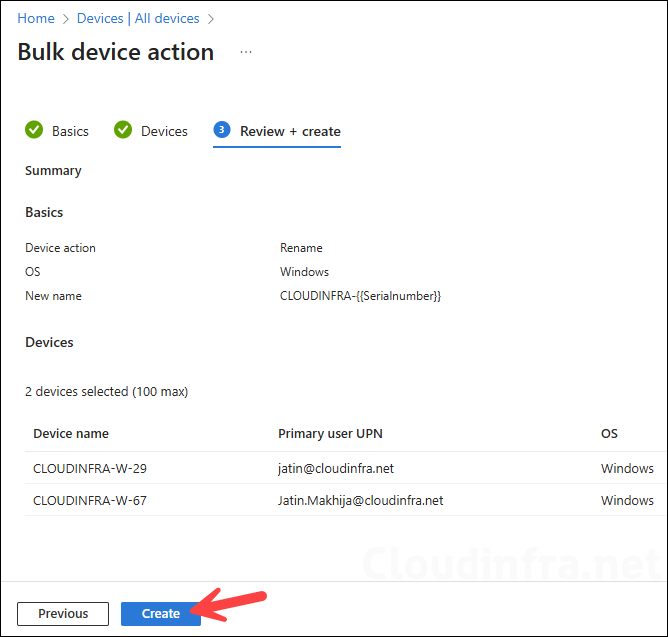
- CLOUDINFRA-{{serialnumber}}
- LAPTOP-{{rand:4}}
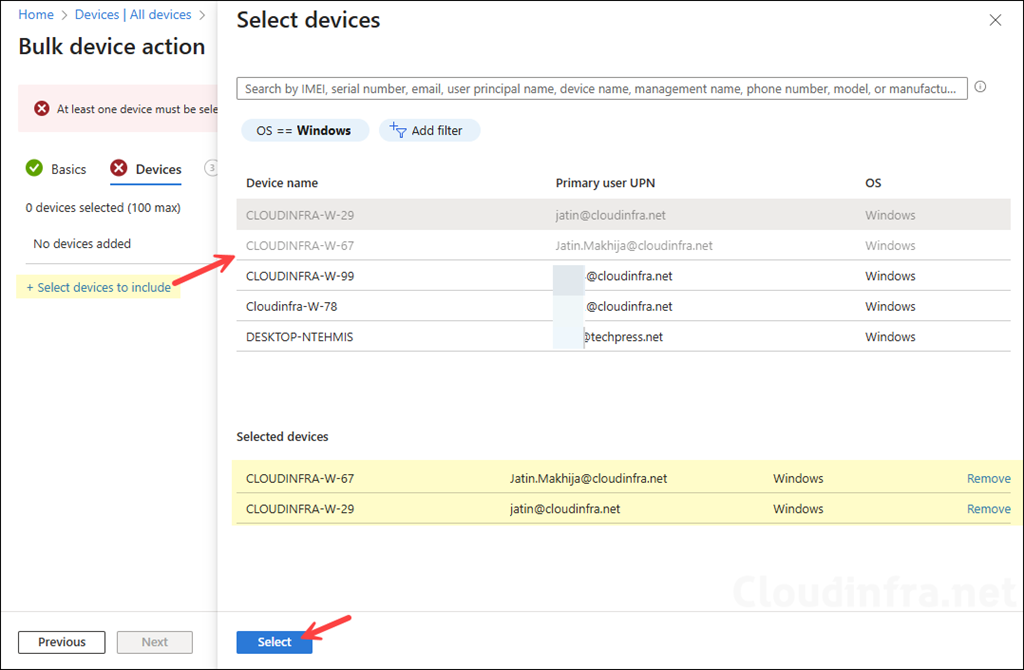
- Click Select devices to include and select all the devices that you want to rename.
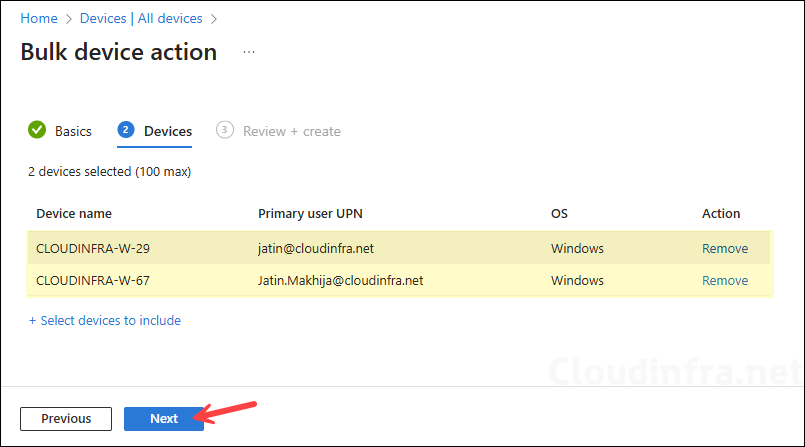
- Under the Devices tab, you will see all the selected devices. Review the list and click Next.
- On the Review+create screen, click Create to start the bulk rename operation.
2. Rename a Windows Device Manually
The second option is to rename a Windows device locally from the device itself.
- Press Win + R to open the Run dialog box.
- Type
sysdm.cpland press Enter to open System Properties. - On the Computer Name tab, click Change.
- Enter the new computer name, following the Windows naming guidelines, and select OK.
- Restart the device when prompted.
For Microsoft Entra joined or registered devices that are Intune managed, the new computer name will be synchronized back to Entra ID and the Intune admin center during the next device check-in.
3. Rename a Windows Device Using Company Portal Website
The third option is to change how the device appears to the end user in the Company Portal.
- Sign into the Company Portal website at https://portal.manage.microsoft.com.
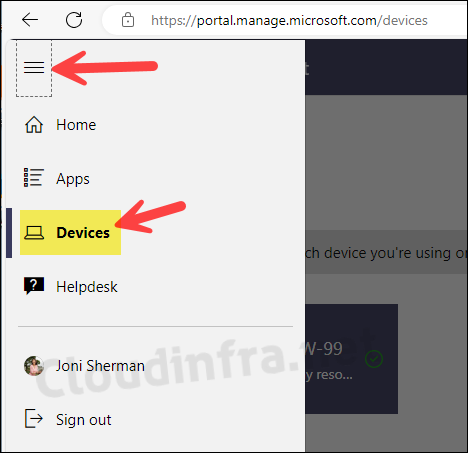
- Click the hamburger menu in the top left and select Devices.
- Select the Intune-enrolled device you want to rename.
- Click Rename, provide a new device name, and click Rename again.
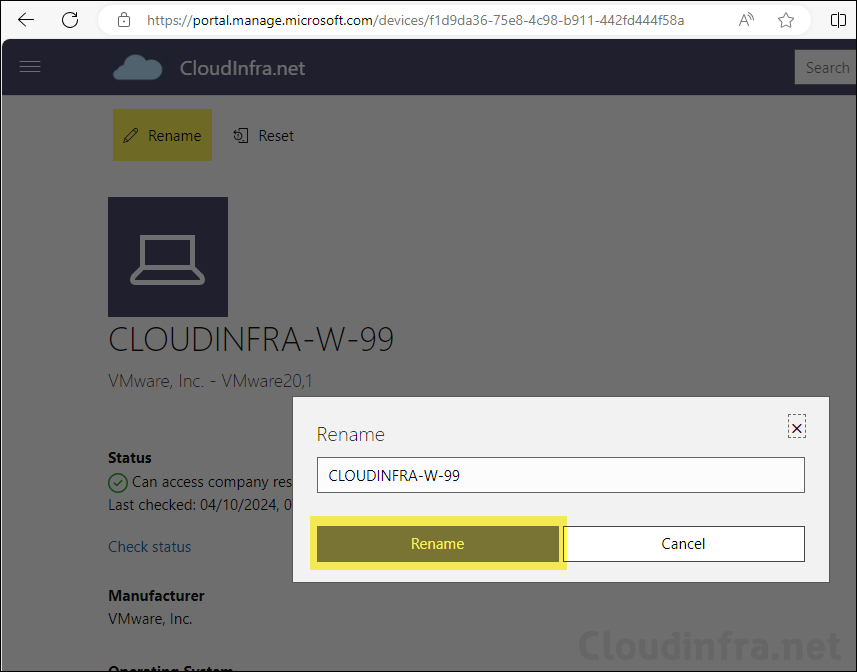
The rename action in the Company Portal app or Company Portal website only changes the device name displayed in Company Portal for that user. It does not change the actual Windows computer name or the management name in the Intune admin center.
You do not need to reboot the device just for the Company Portal display name change, although a reboot is harmless.
4. Rename a Windows Device using Entra admin center
You can also rename a Microsoft Entra joined Windows device object from the Entra admin center. For Entra joined devices that are Intune managed, the new name will propagate and appear in both Entra and Intune after the device syncs.
- Sign in to the Entra admin center at https://entra.microsoft.com.
- Expand Entra ID > Devices > All devices.
- Select the device you want to rename.
- Click Manage, then choose the Rename device option.
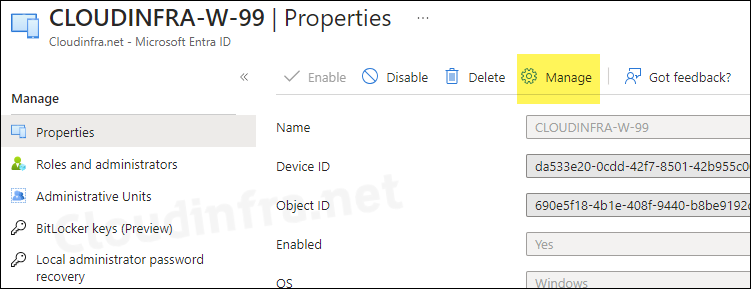
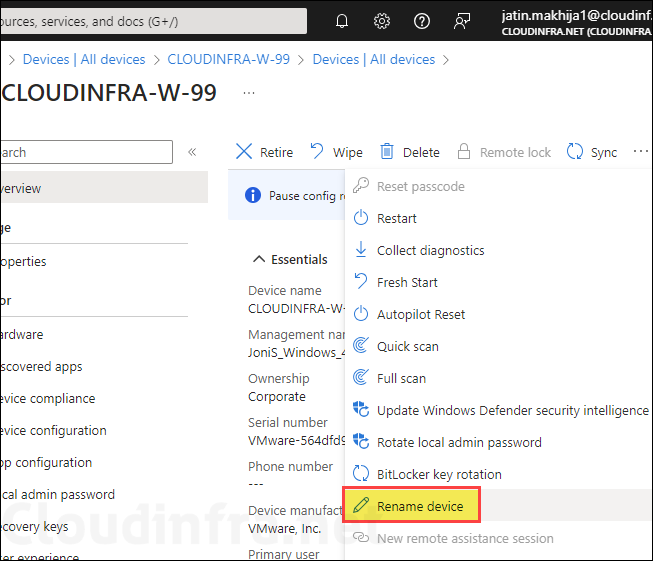
After you rename the device in Entra and the device next checks in, the new name will be visible in:
- Entra admin center
- Intune admin center (for that managed device)
Remember that Entra hybrid joined Windows devices should still be renamed using on-premises domain tools, not via Intune’s rename device remote action.
5. Rename a Windows Device Using PowerShell
Finally, you can rename a Windows device using PowerShell. This can be run locally or deployed via an Intune PowerShell script or remediation.
Example:
Rename-Computer -NewName "Cloudinfra-W-77" -Force -RestartThis command:
- Renames the local computer to Cloudinfra-W-77.
- Forces the rename.
- Immediately restarts the device so the new name applies.
You can package similar commands in:
- An Intune PowerShell script
- An Intune remediation.
- A custom Win32 app used during Autopilot or post-deployment
After the rename and reboot, Entra ID and Intune will pick up the new computer name during the next device sync.
Conclusion
In this blog post, we explored several ways to rename an Intune managed Windows device:
- Intune admin center remote action (recommended for admins, supports bulk rename, and can restart devices automatically).
- Manual rename on the device itself.
- Company Portal website rename for the end user display name only.
- Entra admin center rename for Entra joined device objects and Intune.
- PowerShell based renaming, optionally deployed through Intune.
For corporate Windows endpoints that are Microsoft Entra joined or co-managed, the Intune Rename device remote action remains the most straightforward method because it lets you standardize naming centrally without requiring local admin access to the device. Just be sure to:
- Follow Windows naming guidelines (ideally 15 characters or less).
- Avoid using the remote rename action on Microsoft Entra hybrid joined devices.
- Understand that Company Portal rename is purely a user-facing display change.

Which default role(s) have this right? I expected Cloud Device Administrator would have it, but it’s greyed out.
IMO you should mention those methods only works for Entra joined devices, Hybrid entra ones have to be renamed in AD DS.