
With the Intune June 2026 service release, Microsoft introduced support for multiple managed accounts (MMA) in a single app through Intune Mobile Application Management (MAM). Previously, users could add only one organizational account to a managed app, such as Outlook or Teams. This can create challenges for users who need to access resources from multiple organisations, such as consultants, contractors, and employees who work across different Microsoft 365 tenants.
With this new capability, users can add and use multiple managed accounts within the same app, provided the app supports this feature. At the time of writing, Microsoft is gradually rolling out Multiple Managed Accounts (MMA) feature. If it’s not yet available in your environment, you may need to wait until the rollout is complete.
Microsoft Intune Mobile Application Management (MAM) enables organisations to protect corporate data within mobile apps without enrolling the entire device into Intune. App protection policies (APP) help secure company information through controls such as data transfer restrictions, PIN requirements, encryption, and selective corporate data removal.
About Intune MAM and APP
Contents
What are Multiple Managed Accounts (MAM) in Intune MAM?
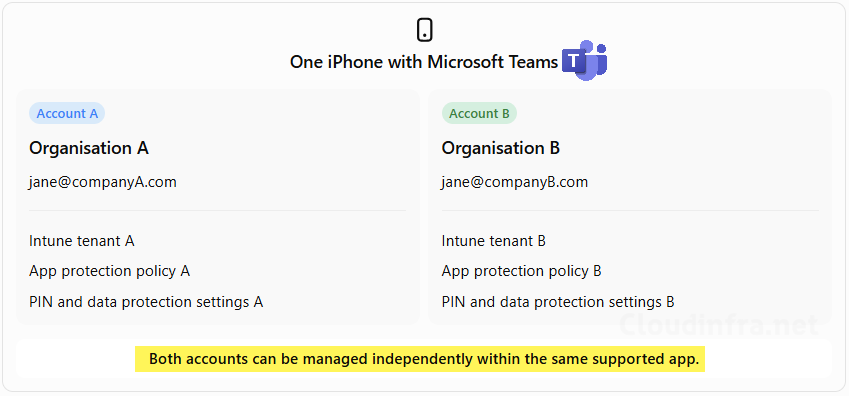
Multiple Managed Accounts (MMA) is an Intune application management capability that allows users to sign in with more than one MAM-protected work or school account within a supported mobile application. Each managed account has its app protection policy, which is applied independently based on the organisation and user associated with that account.
There is no separate policy or switch in Microsoft Intune to enable Multiple Managed Accounts (MMA). The feature is supported directly by compatible applications, such as Microsoft Teams and Outlook on iOS/iPadOS, allowing users to add multiple managed organizational accounts within the same app. PowerApps currently does not support multiple managed accounts.
The example below demonstrates how multiple managed accounts work in the Microsoft Teams app on an iOS device. Two organisational accounts are configured in the same Teams app, one from Organisation A and another from Organisation B. Both accounts are protected by their respective Intune app protection policies, allowing users to switch between organisations while keeping corporate data securely managed according to each organisation’s security requirements.
Supported Apps and Platforms
MMA currently supports below applications and platforms:
| Application | Platform | Minimum app version |
|---|---|---|
| Microsoft Teams | iOS/iPadOS | 8.10.0 or later |
| Microsoft Outlook | iOS/iPadOS | 5.2626.0 or later |
Supported Device Management Scenarios
MMA supports the following account and device management combinations. MMA does not change the fundamental limitation that a device cannot be simultaneously enrolled into multiple MDM management environments.
For example, a device enrolled into Organisation A’s Intune tenant may also allow a MAM-only account from Organisation B in a supported application. Both accounts can receive their respective app protection policies, but Organisation B does not take over MDM management of the device.
| Scenario | Supported |
|---|---|
| Two MAM-only managed accounts | Yes |
| Multiple MAM-only accounts from different tenants | Yes |
| One MDM + MAM account and additional MAM-only accounts | Yes |
| Multiple MDM enrolments on the same device | No |
| Applications integrated with the Intune SDK and specifically enabled for MMA | Yes |
| Applications protected using only the Intune App Wrapping Tool | No |
Prerequisites
Before testing MMA, ensure that the following requirements are met:
- The supported version of Outlook or Teams is installed on the iOS/iPadOS device.
- Each organisational account has the required Intune licensing and is appropriately targeted by an app protection policy in its own tenant.
- If the device is enrolled, existing app configuration policies do not restrict the app to a single organisational account. (Refer to the end section of the blog post to know more on this).
- Any applicable Conditional Access requirements are satisfied.
Segmented View vs. Mixed View
The app can be in a segmented view or mixed view. Applications like Outlook or Microsoft Teams, which support multiple managed accounts, handle managed accounts in one of these two ways. Let’s go through these and understand them in more detail.
Segmented view in Microsoft Teams
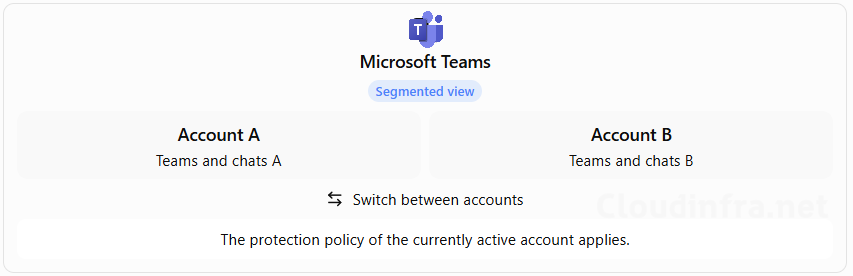
A segmented view displays content from one account at a time. When the user switches to another account, the application changes its active identity and enforces the policy associated with that account. For example, a consultant can switch between Teams accounts belonging to two organisations without removing and re-adding either account. Each account’s PIN, conditional launch settings, and data transfer restrictions are enforced independently.
Administrators can selectively wipe one managed account in Teams without affecting the other managed accounts.
Mixed view in Microsoft Outlook
Microsoft Outlook supports mixed views, where content from multiple accounts can appear together, such as in a combined inbox or calendar. Because the application displays information from different identities within the same view, separating policy enforcement becomes more complicated.
Microsoft therefore applies a full lockdown approach to mixed views. The following restrictions apply in a mixed view:
- Cut, copy, and paste are blocked, including within the shared application view.
- Screen captures and screenshots are blocked.
- Other data protection controls default to the most restrictive behaviour.
These restrictions apply even when an individual account’s app protection policy would otherwise permit certain actions. This behaviour can affect mixed views containing one managed account and one or more unmanaged accounts.
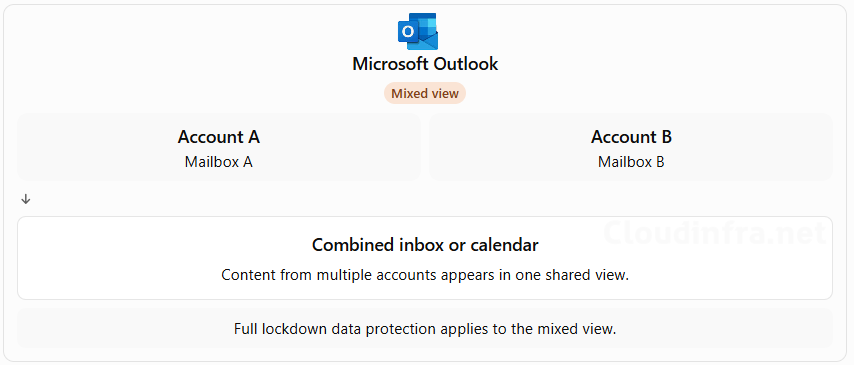
An administrator may configure copy and paste as allowed in an app protection policy, but users may still experience restrictions when working in Outlook’s mixed views. This is expected MMA behaviour rather than necessarily an indication that the app protection policy has been configured incorrectly.
Block Multiple Managed Accounts (MMA)
Some organisations may not want users to add multiple managed accounts within corporate applications. For example, an organisation may require Outlook and Teams to be used exclusively with the corporate account associated with the enrolled device. This can be particularly important on corporate-owned devices where access to external organisational accounts is not permitted.
Microsoft does not currently provide a dedicated MMA enable/disable setting. However, administrators can use an existing application configuration setting called IntuneMAMAllowedAccountsOnly to restrict supported apps to a single managed account on Intune-enrolled iOS/iPadOS devices.
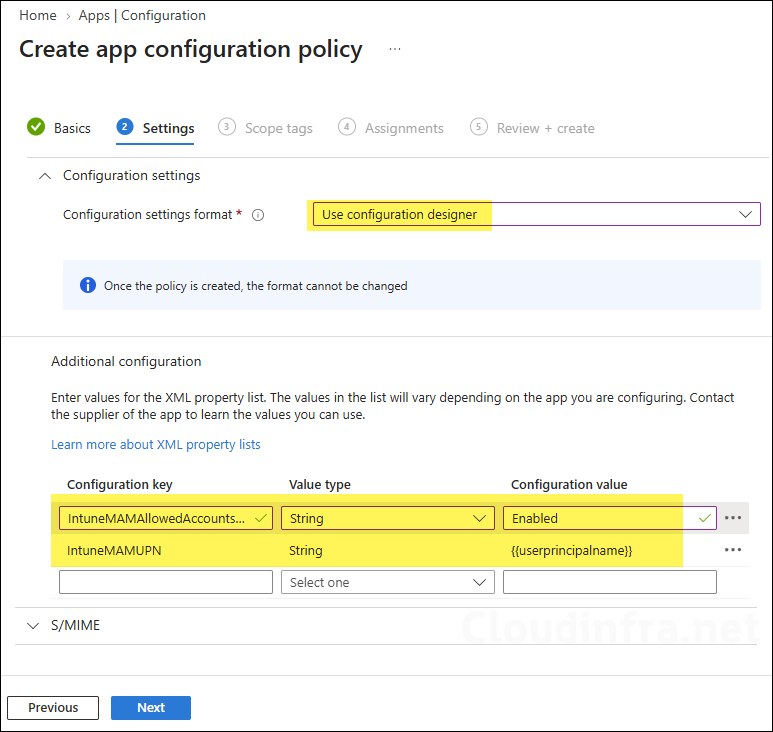
When enabled, this setting permits only the account identified by the IntuneMAMUPN configuration key. Other accounts, including additional MAM-managed accounts, are blocked from being added to the app. To create a policy to block multiple managed accounts in a managed app, follow the steps below:
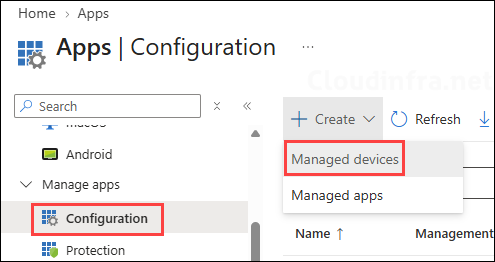
- Sign in to Microsoft Intune admin center > Apps > Configuration > + Create > Managed devices.
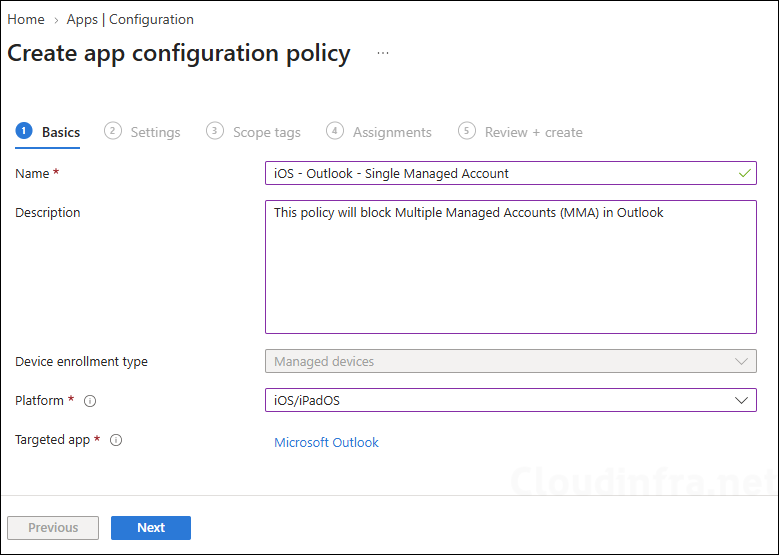
- On the Basics tab, enter the required details and select the app in which you want to block Multiple Managed Accounts (MMA). In this demonstration, I will select Microsoft Outlook, but you can choose a different supported app if required.
| Setting | Value |
|---|---|
| Name | iOS – Outlook – Single Managed Account |
| Description | Provide a description |
| Device enrollment type | Managed devices |
| Platform | iOS/iPadOS |
| Targeted app | Microsoft Outlook |
- On the Settings tab, set Configuration settings format to Use configuration designer. Scroll down to the Additional configuration section, then add the configuration key and value provided below.
| IntuneMAMAllowedAccountsOnly | String | Enabled |
| IntuneMAMUPN | String | {{userprincipalname}} |
- Scope tags (optional): A scope tag in Intune is an RBAC label that you assign to resources such as policies, apps, and devices to control which administrators can view and manage them. For more information, see How to use scope tags in Intune.
- Assignments: Select Add groups and select the Microsoft Entra ID group containing the enrolled iOS/iPadOS devices that must be restricted to a single organisational account.
- Review + create: Review the deployment summary and click Create.
Frequently asked questions
Is Multiple Managed Accounts enabled by default in Intune?
MMA is an application capability rather than an Intune policy setting. Once the feature is available and the app supports it, eligible managed accounts can be added, subject to applicable sign-in and account restrictions.
Can users add managed accounts from different Microsoft 365 tenants?
Yes. MMA supports managed accounts from different organisations within a supported application. Each account is subject to the app protection policy defined by its own organisation.
Does MMA allow devices to be enrolled into multiple Intune tenants?
No. A device may have one MDM + MAM managed account and additional MAM-only accounts, or multiple MAM-only accounts. Multiple simultaneous MDM management environments are not supported.
Does MMA allow users to transfer corporate data between managed accounts?
MMA is not a mechanism for bypassing data protection restrictions between organisations. Each account remains subject to its applicable app protection policy. In shared mixed views, additional restrictions are enforced to protect information from different identities.
Can an administrator selectively wipe one account without affecting the others?
Yes. You can use selective wipe of an individual managed account without affecting other managed accounts in the app.
Does enabling IntuneMAMAllowedAccountsOnly disable MMA across the entire Intune tenant?
No. This setting restricts account sign-in within the targeted managed application on the devices receiving the configuration. It is not a tenant-wide MMA disable setting. Administrators should deploy the appropriate app configuration policy to each supported application that needs to be restricted.
Can administrators allow multiple managed accounts in Teams but restrict Outlook to one account?
Yes. Because the account restriction is configured for a targeted application, administrators can configure organisation allowed accounts mode for Outlook while leaving Teams without that particular restriction, or vice versa, on the relevant enrolled devices.
Conclusion
Multiple Managed Accounts extends Microsoft Intune MAM by allowing supported applications to protect more than one organisational account within the same app. It is particularly useful for consultants, contractors, and organisations working across multiple Microsoft 365 tenants.
Microsoft Teams uses a segmented view to enforce protection for the active account, while Outlook supports mixed views that apply additional restrictions when information from different accounts appears together.
For organisations that require only one corporate account, administrators can use the IntuneMAMAllowedAccountsOnly app configuration setting to enforce single-account access on Intune-enrolled iOS/iPadOS devices.
However, this setting is not a universal MMA disable switch and does not provide the same control for unenrolled MAM-only devices. Administrators should review the supported applications, deployment scenarios, and existing account restrictions before deciding how to implement this feature.
References
The following Microsoft documentation provides additional information about MMA, supported applications, and account restriction settings.
