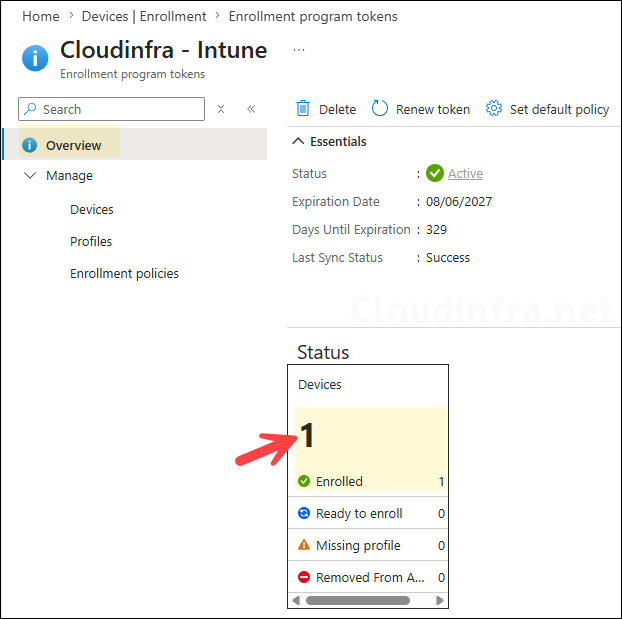
In this post, we will go through the end-user steps for enrolling a company-owned or organization-owned iPhone or iPad in Microsoft Intune. These steps are performed directly on the target device after the administrator has completed the required configuration in Apple Business and the Intune admin center.
For this guide, we will use Apple Automated Device Enrollment, commonly referred to as ADE. ADE is designed for company-owned Apple devices and allows an organization to apply its Intune enrollment settings automatically. Devices enrolled through ADE can also be placed into supervised mode, which gives the organization additional management capabilities.
Contents
Prerequisites
Before starting the enrollment, make sure the following requirements are met:
- The iPhone or iPad is new or has been erased and returned to its factory settings.
- The device has been added to Apple Business.
- The device is assigned to the Microsoft Intune device management service in Apple Business.
- The device has been synchronized with Intune.
- An Automated Device Enrollment (ADE) profile has been assigned to the device.
- You have a reliable Wi-Fi or mobile internet connection.
- You have your organization’s Microsoft Entra account username and password.
- Managed Apple ID user account.
Automated Device Enrollment must normally start from a new or fully erased device. When the device connects to Apple during activation, it retrieves the enrollment settings assigned by the organization.
Enrollment Steps
The screens displayed during enrollment may differ slightly depending on the iOS or iPadOS version and the Setup Assistant screens configured by your Intune administrator.
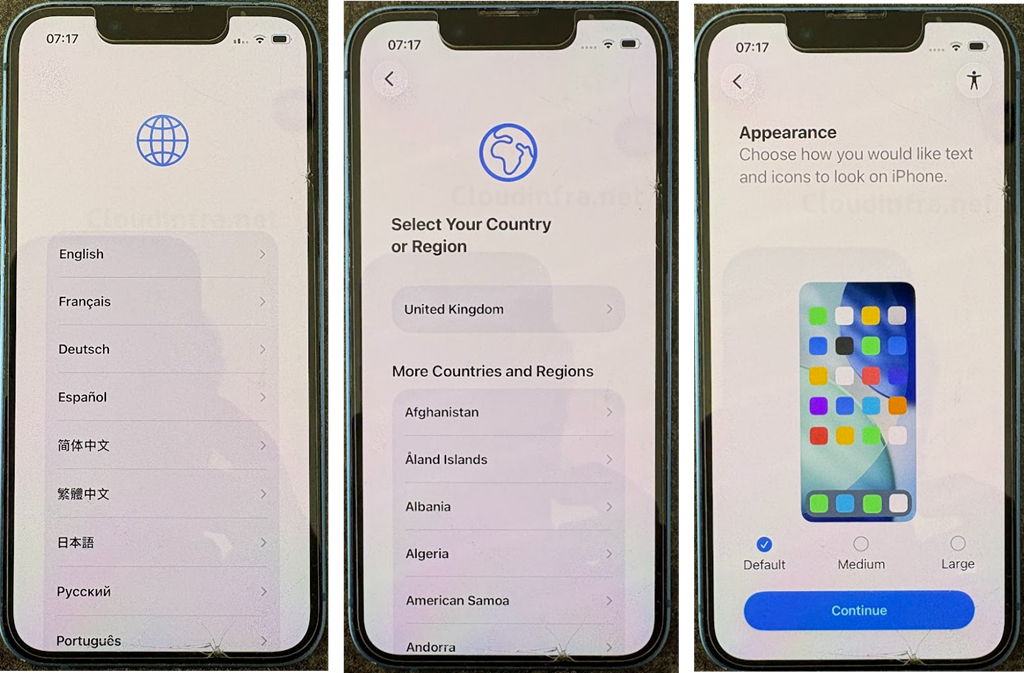
Step 1: Turn on the iPhone or iPad by pressing and holding the power button. The Hello screen will appear. Swipe up from the bottom of the screen or press the Home button, depending on the device model, to start the Setup Assistant.
Select the language you want to use on the device and then choose your country or region. These settings determine the language, date, time, and regional formats used on the device. Next, select the appearance of text and icons to default, medium, or large, and tap Continue.
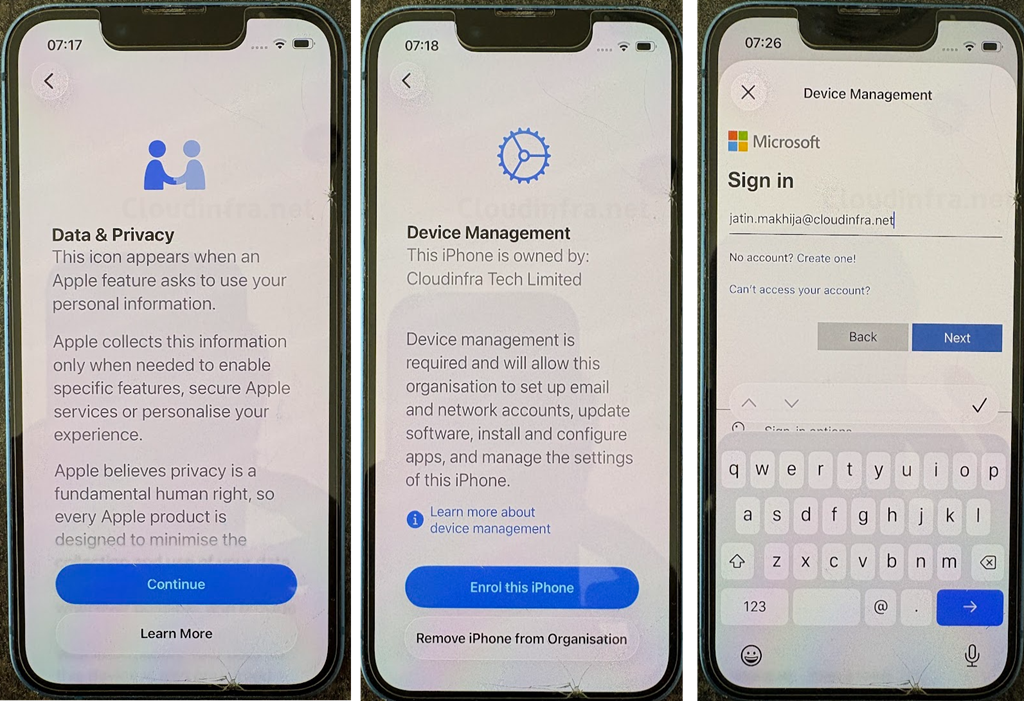
Step 2: Tap Continue on the Data & Privacy screen. The Remote Management screen displays a message explaining that the iPhone or iPad is owned by your organization. Tap on Enrol this iPhone/iPad to start the enrollment process. A Microsoft sign-in screen will appear if the enrollment policy uses Setup Assistant with modern authentication. Enter your organization’s Microsoft Entra username, for example: jatin.makhija@cloudinfra.net. Click Next.
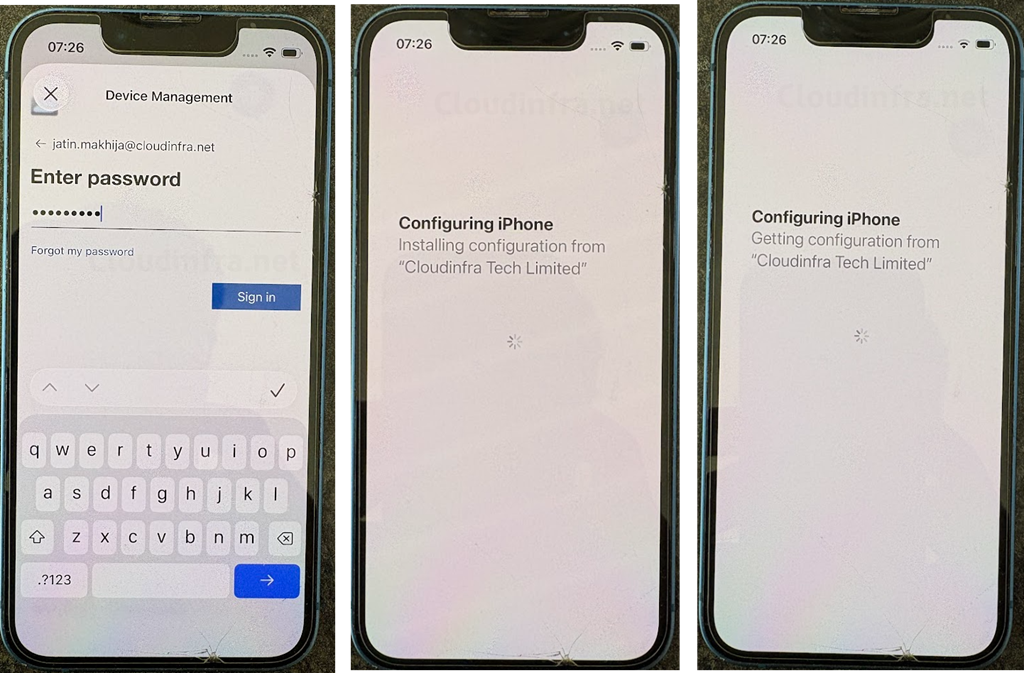
Step 3: Enter your password. This sign-in associates the user with the device and starts the Intune enrollment process.
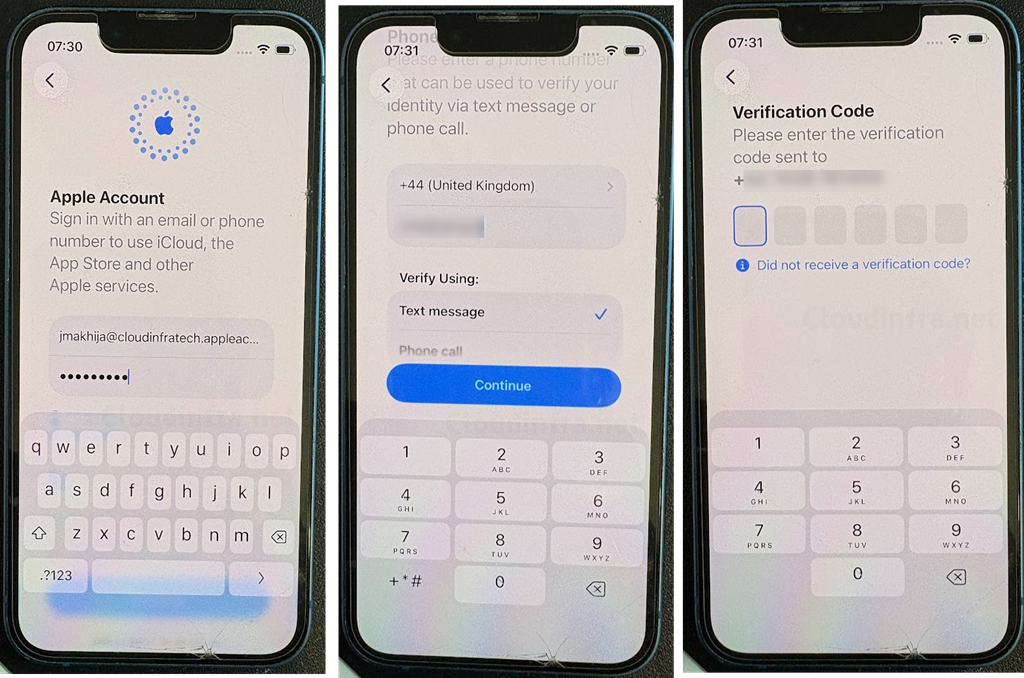
Step 4: Sign in to your managed Apple account. If you don’t have one, you need to request this from the administrator. Confirm your associated phone number using a text message or phone call.
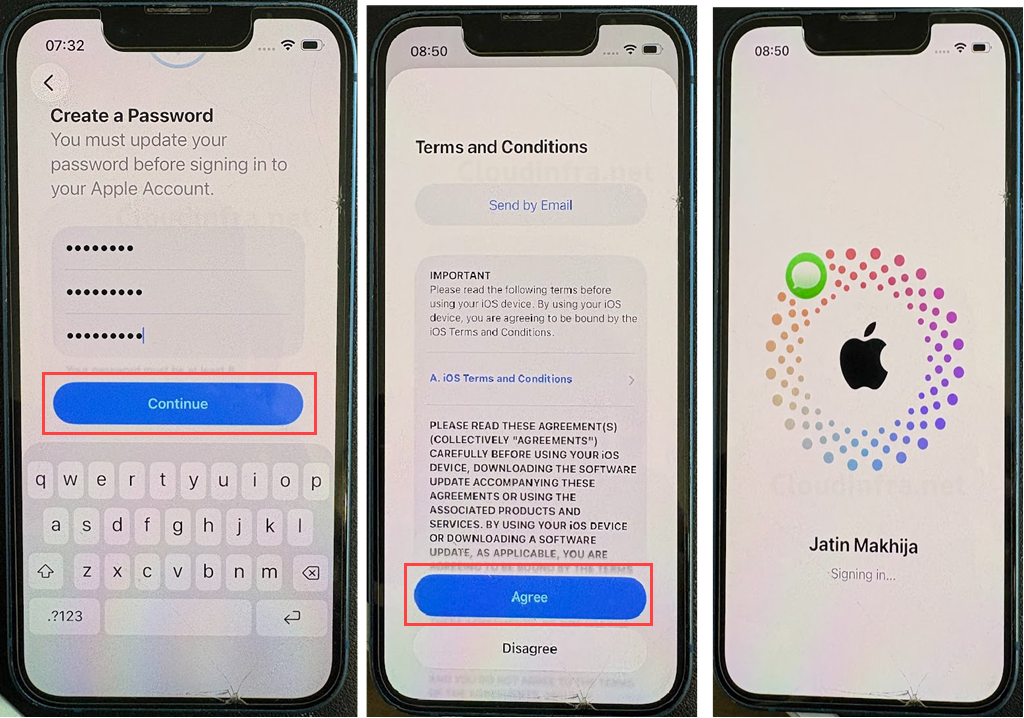
Step 5: On the next screen, you may be prompted to change or update the password for your Managed Apple Account. Follow the on-screen instructions to update the password. On the Terms and Conditions screen, tap Agree to continue.
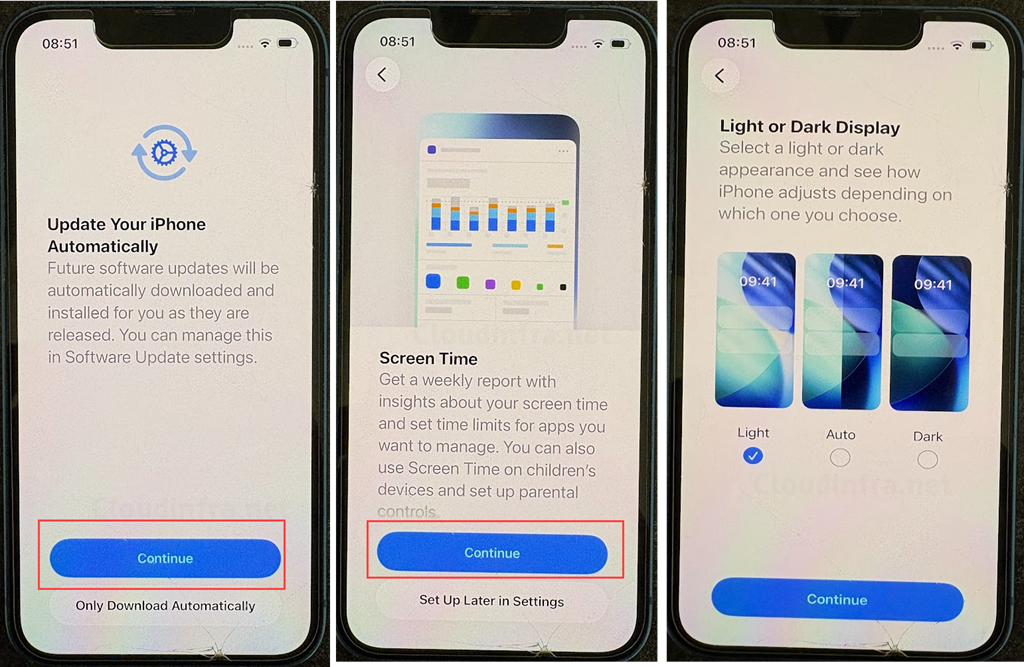
Step 6: The screenshots below show the screens for updating your device, enabling Screen Time reporting, and selecting a display appearance option: Light, Dark, or Automatic.
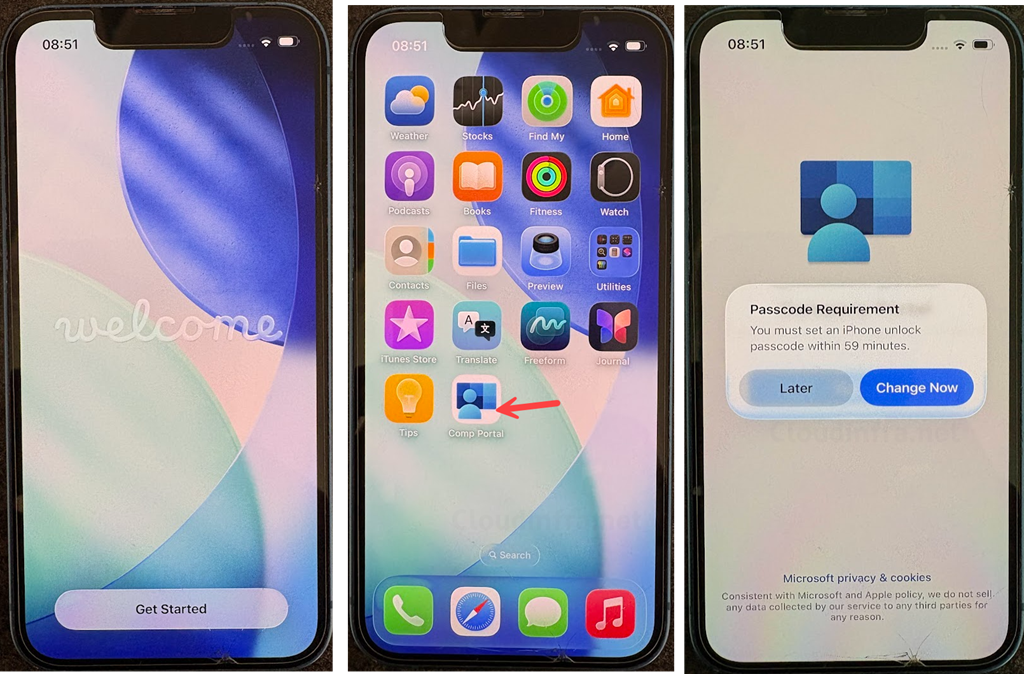
Step 7: You will now land on the welcome screen. As we had selected the company portal app installation in the automated device enrollment profile, you will find it installed on your device. Open the app; you may get a passcode requirement pop-up. Tap on Change Now to set the passcode.
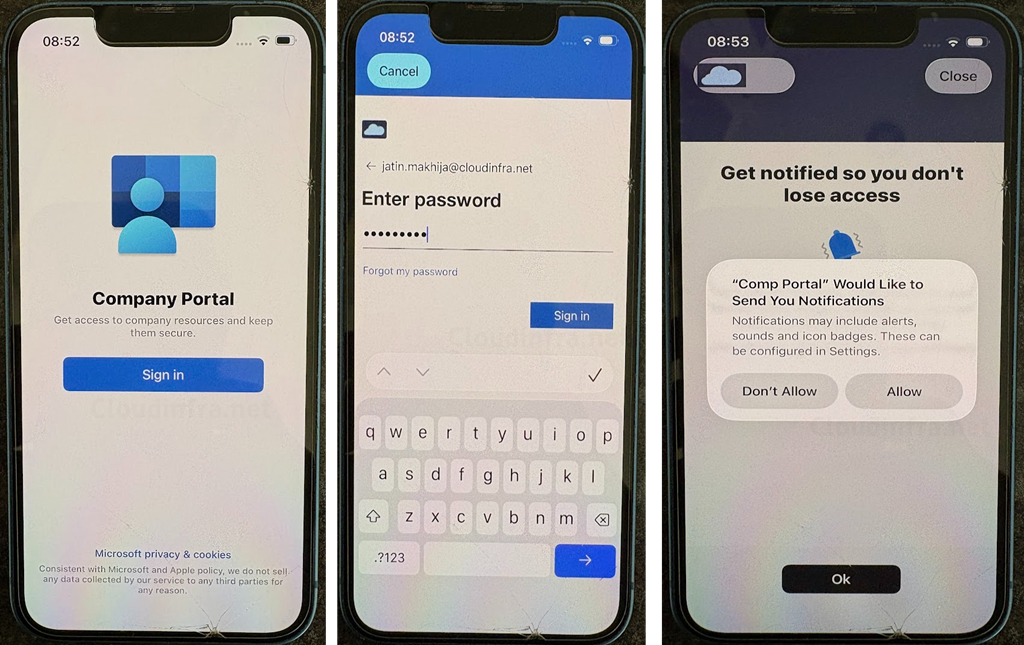
Step 8: Tap on Sign in on the company portal app, enter the password, and tap on Allow on the notification pop-up.
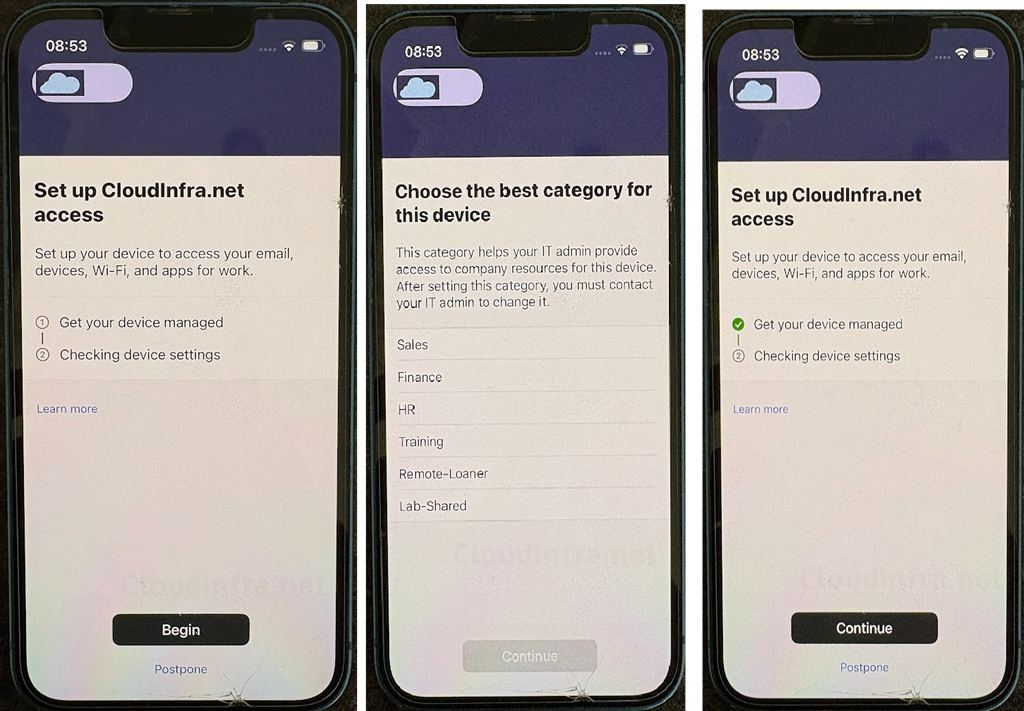
Step 9: Tap on Begin > Select your device category if you get this screen, and then tap on Continue.
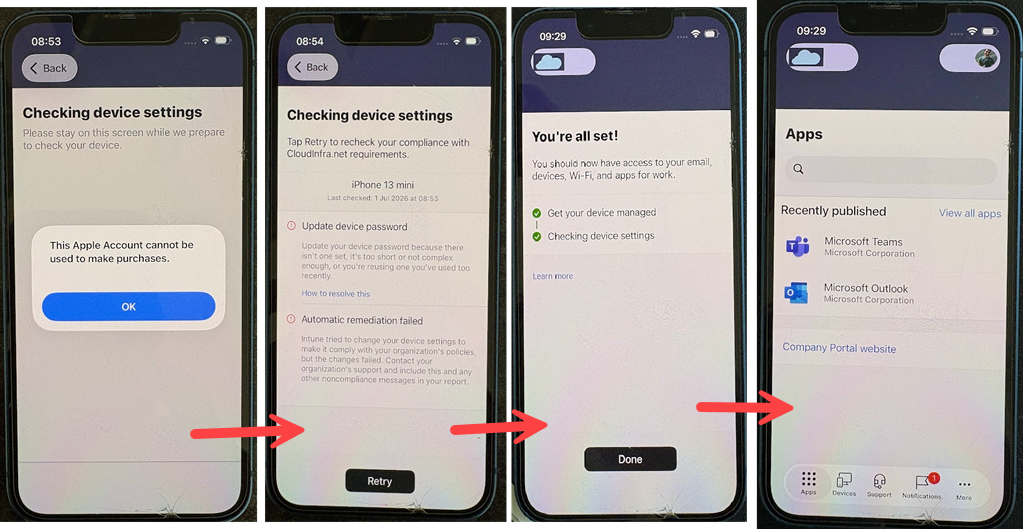
Step 10: You will see a pop-up message stating, “This Apple Account cannot be used to make purchases.” Tap OK. If you have updated the device passcode, tap Retry. The device will check and confirm that the passcode has been configured. Once the check is complete, tap Done. You will then see the apps published to your device, such as Microsoft Teams and Microsoft Outlook.
Verify iOS device enrollment on Intune admin center
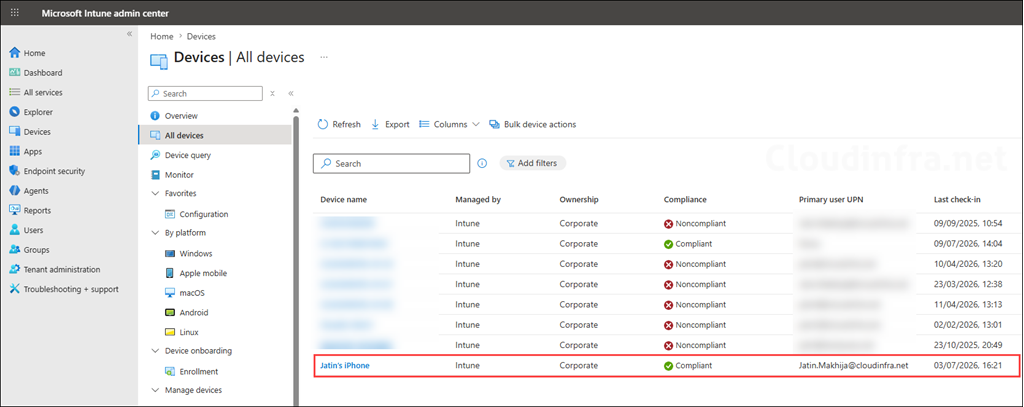
Go to Intune admin center > Devices > All Devices and check if the newly added device is showing in the list of devices. Also verify its compliance status, Primary user UPN, and Last check-in time.
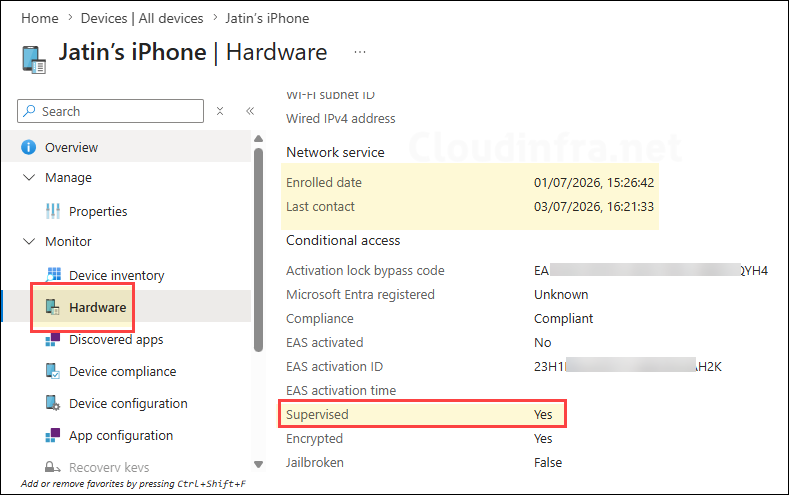
Click on the device and check hardware properties. One of the properties is to check and confirm if the device is supervised.
You can also check the enrollment status of the device from the enrollment program tokens overview page.