
In this post, I will show you how to enroll Android Enterprise corporate-owned dedicated devices in Microsoft Intune step-by-step. Corporate-owned dedicated devices, also known as COSU devices, are organization-owned Android devices used for a specific purpose, such as kiosk devices, inventory scanners, ticketing devices, digital signage, warehouse devices, reception tablets, or shared frontline worker devices. These devices are not intended for personal use and normally do not have a primary user assigned to them.
With Microsoft Intune, you can enroll these devices as Android Enterprise dedicated devices, deploy required apps, configure Microsoft Managed Home Screen, and lock the device into single-app or multi-app kiosk mode. You can also apply device restrictions to control what end users can access.
Contents
Dedicated Devices vs. Fully Managed Devices
Before configuring the enrollment profile, it is important to understand when to use this enrollment type. The table below outlines the different Android enrollment methods available in Intune and their corresponding use cases.
| Enrollment type | Use case | User association |
|---|---|---|
| Corporate-owned dedicated device (COSU) | Kiosk, shared, task-based, or single-purpose devices | Usually userless |
| Corporate-owned fully managed device (COBO) | Corporate-owned device assigned to one employee | Single primary user |
| Corporate-owned device with work profile (COPE) | Corporate-owned device with separate work and personal areas | Single primary user |
| Personally owned work profile | BYOD Android devices | User-owned device |
Prerequisites
- Connect Intune with Managed Google Play; refer to this guide for steps: Connect Intune with Managed Google Play – Step-by-Step.
- Android OS version 8.0 or later.
- Intune MDM authority set to Microsoft Intune.
Recommended
To enhance both device security and the user experience, first create a device compliance policy for Android devices. Below are the recommended compliance policy settings you should configure for Android devices.
- Block rooted devices
- Require Google Play Protect
- Require encryption
- Set minimum OS version
- Set minimum security patch level
- Require a device password
Additionally, create a device configuration policy to apply recommended device restrictions. Below are the recommended device configuration/restrictions policies you should apply to Android devices.
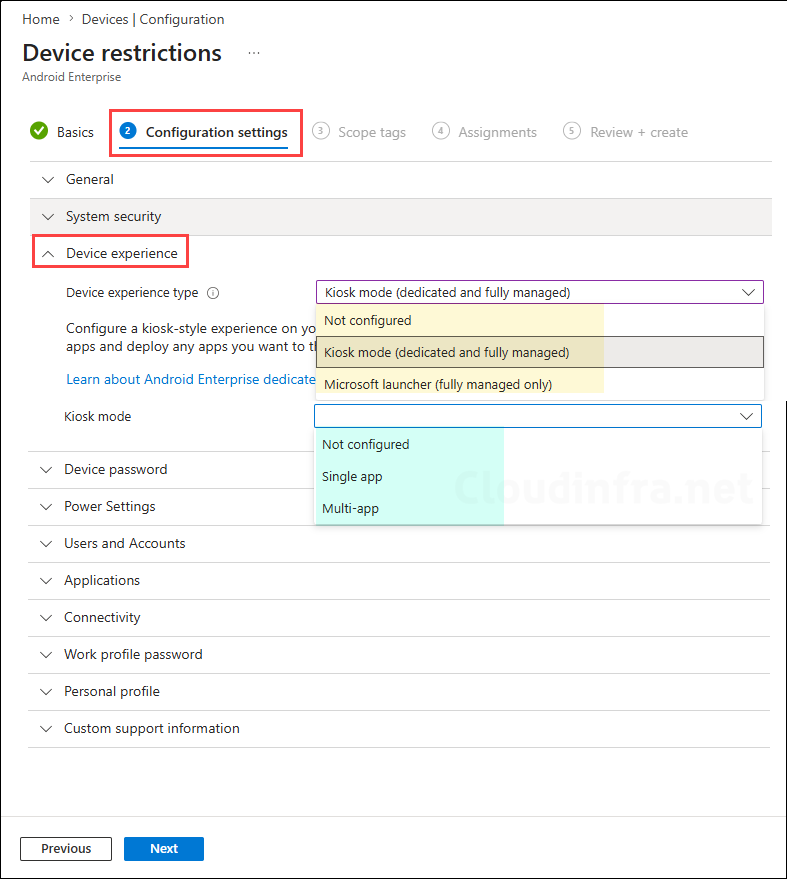
- Set device experience to kiosk mode and set it to either single-app or multi-app depending upon your requirement.
- Block screen capture
- Block data roaming
- Block USB file transfer
- Configure Bluetooth behavior
- Configure camera access
- Configure default app permission behavior
- Configure work profile password requirements, etc.
- Configure a Wi-Fi profile is required.
- Deploy Certificate profile is required.
- Create and deploy a VPN profile if required.
To further improve the user experience, create app configuration policies for the applications deployed to the devices. This ensures that when users launch the apps, they are automatically preconfigured with your organization’s settings. Below are some optional app configuration policies you can create for corporate-owned dedicated Android devices:
| App | Example configuration |
|---|---|
| Outlook | Preconfigure account setup |
| Edge | Configure homepage, sync, sign-in behavior |
| Teams | Configure sign-in and app behavior |
| Defender | Configure onboarding and security settings |
Step 1: Create a Device Group
You need a Microsoft Entra security group to target apps, compliance policies, configuration profiles, and device restrictions to COSU devices. You have two options:
Option 1: Static group with enrollment time grouping
This is useful when you want the device added to a group immediately during enrollment.
- Go to Groups > All groups > New group.
- Configure the group as follows:
- Group type: Security
- Group name: Android COSU Devices
- Membership type: Assigned
- Do not manually add devices to this group.
- Create the group.
Enrollment time grouping is supported for Android Enterprise corporate-owned work profile, fully managed, and dedicated enrollment policies. In my other post for Android corporate owned fully managed devices (COBO), I have provided the steps to configure the enrollment time grouping. Create a group and follow the steps here: Setup Enrollment time grouping.
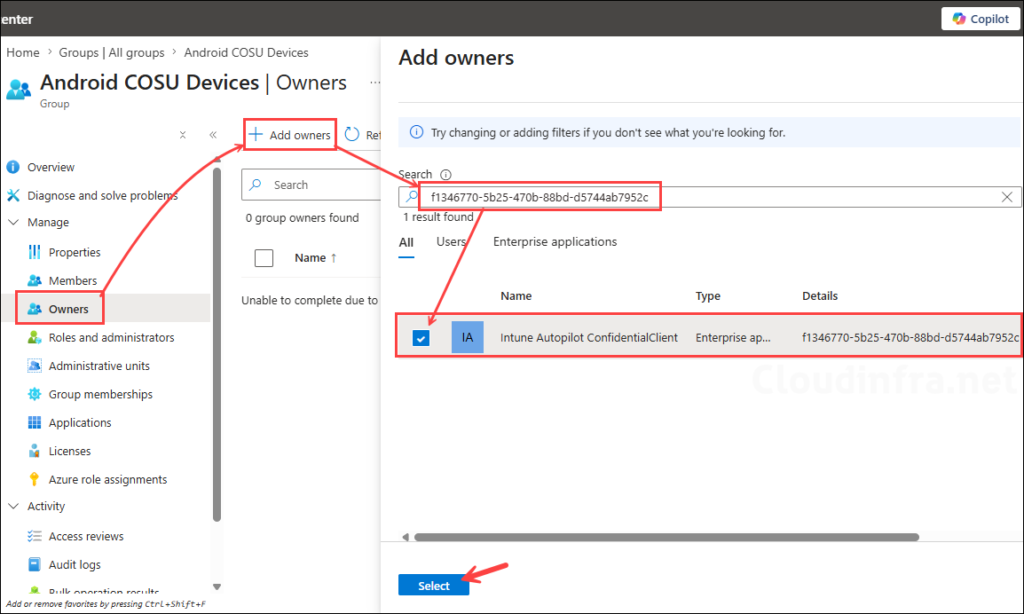
For the purpose of demonstration, I have created a static assigned Entra security group and added the Intune Autopilot ConfidentialClient (f1346770-5b25-470b-88bd-d5744ab7952c) service principal as the owner of the group to complete the enrollment time grouping step. I will use this group (Android COSU Devices) to deploy apps, compliance policies, device configuration profiles, etc.
Option 2: Dynamic device group
You can also create a dynamic device group based on the enrollment profile name. Below is the dynamic query you can use while creating the group. If you have named your Android COSU enrollment profile differently than what is used in the below query, update the profile name accordingly.
(device.enrollmentProfileName -eq "Android COSU Enrollment Profile")Intune can dynamically populate device groups using the enrollmentProfileName property after devices enroll with a specific Android Enterprise enrollment profile.
Step 2: Create an Android Enrollment Profile
Now, create an enrollment profile for Corporate-owned dedicated devices on the Intune admin center. Let’s see the steps:
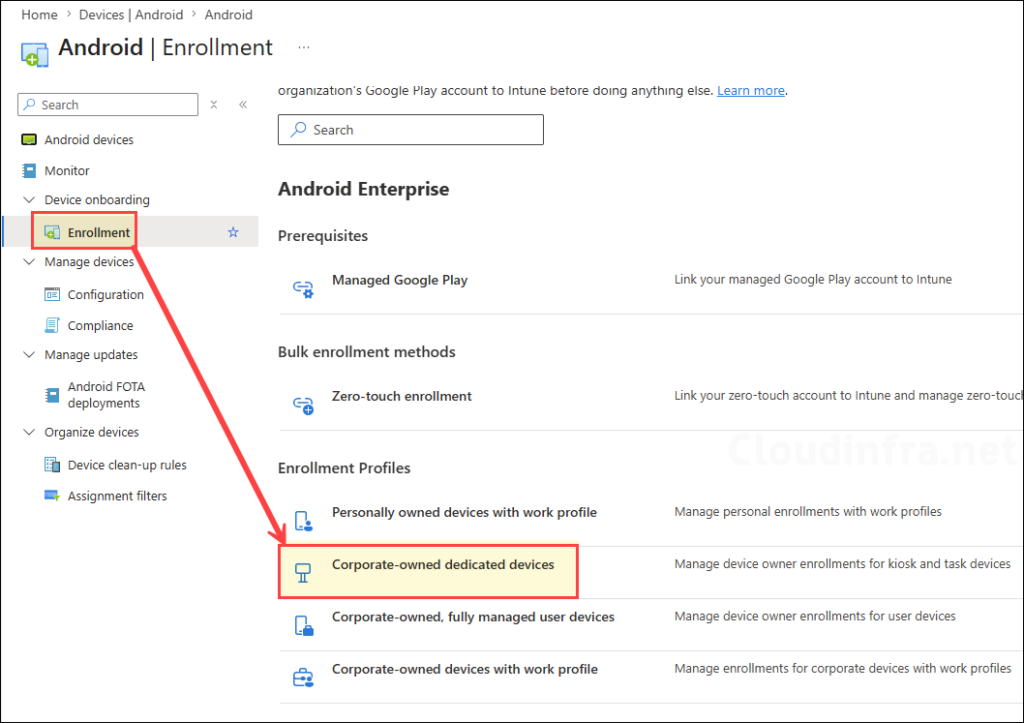
- Sign in to the Microsoft Intune admin center > Android > Enrollment > Corporate-owned devices dedicated devices.
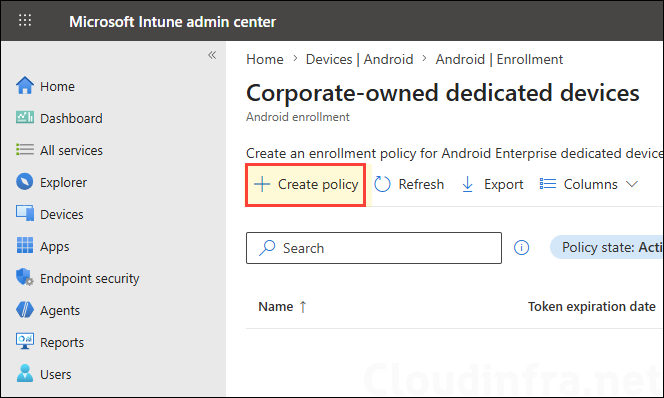
- Select Create policy.
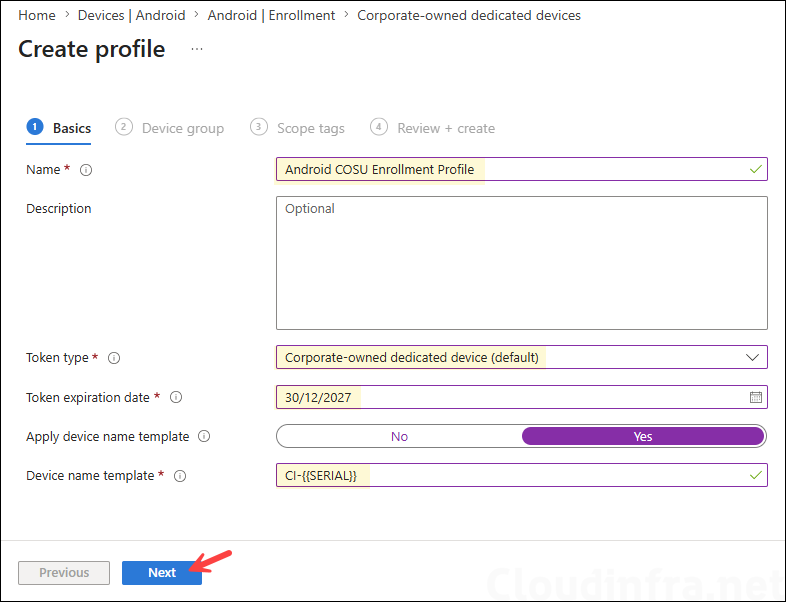
- On the Basics page, configure:
- Name: Android COSU Enrollment Profile
- Description: Enrollment profile for Android Enterprise corporate-owned dedicated devices.
- Token type:
- Corporate-owned dedicated device (default): As a standard Android Enterprise dedicated device. These devices are enrolled in Intune without a user account and aren’t associated with a user. These devices aren’t intended for personal apps or apps such as Microsoft Outlook or Google Mail that require user-specific account data.
- Corporate-owned dedicated device with Microsoft Entra ID shared mode. As a standard Android Enterprise dedicated device that’s automatically set up with Microsoft Authenticator and configured for Microsoft Entra shared device mode during enrollment. These devices are enrolled in Intune without a user account and aren’t associated with a user. These devices are intended for use with apps that integrate with Microsoft Entra shared device mode and allow for single sign-in and sign-out between users across participating apps. Read more about these options here: #create-an-enrollment-profile.
- Token expiration date: Enter the date you want the token to expire, up to 65 years in the future. The token expires on the selected date at 12:59:59 PM in the time zone it was created. Acceptable date format: MM/DD/YYYY or YYYY-MM-DD.
- Optionally apply device name template, select Yes, and provide the device name template.
Create a unique name for your devices. Names must be 63 characters or less, and can contain letters (a-z, A-Z), numbers (0-9), and hyphens. Variables supported: {{SERIAL}}, {{SERIALLAST4DIGITS}}, {{DEVICETYPE}} (i.e. AndroidForWork or AndroidEnterprise), {{ENROLLMENTDATETIME}}, {{rand:x}} for x random integers where x is a whole number under 10. {{USERNAME}} or {{UPNPREFIX}} on user-affiliated devices for user’s full name or alias. Changes to the naming template apply only to new enrollments.
Device name template
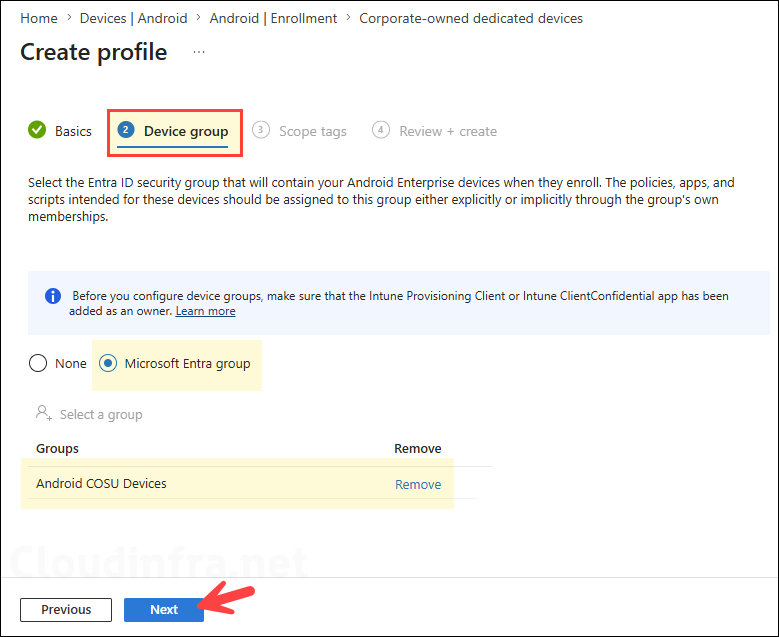
- Under the Device group tab, you can either select None or Microsoft Entra group. Since we have already created an Entra security group called Android COSU Devices for this purpose (Step 1), we will add it here.
- Scope tags (optional): A scope tag in Intune is an RBAC label that you assign to resources such as policies, apps, and devices to control which administrators can view and manage them. For more information, see How to use scope tags in Intune.
- Review + create: Review the deployment summary and click Create.
Step 3: Deploy Managed Google Play Apps
Sync the apps you want to install on the corporate-owned dedicated devices and assign them to the Android COSU Devices group we created earlier. This group will have all your Android devices enrolled via the corporate-owned dedicated devices profile.
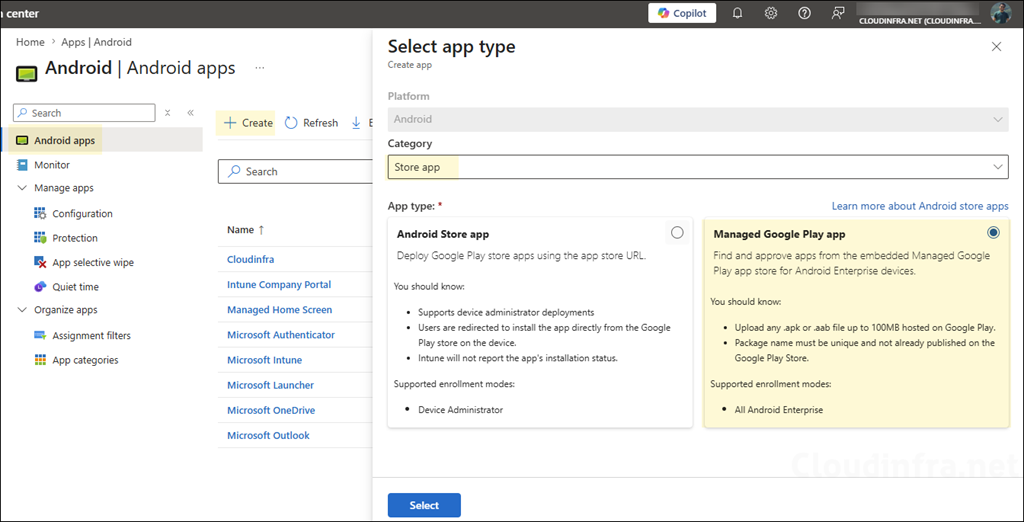
- Go to Apps > Android > Select Create.
- Platform: Android
- Category: Store app and then select Managed Google Play app.
- Click on Select.
- Search for the required apps, click on Select, and then click the Sync button.
- Assign the app as Required or Available to the Android COSU device group.
Step 4: Create a Device Configuration Profile (Optional)
Based on the experience you want to configure, select Kiosk Mode or Microsoft Launcher to start configuring the experience on your devices. If you don’t select a device experience type, users will see the device’s default home screen experience (see Demo 1).
Step 5: Access the Enrollment Token and QR Code
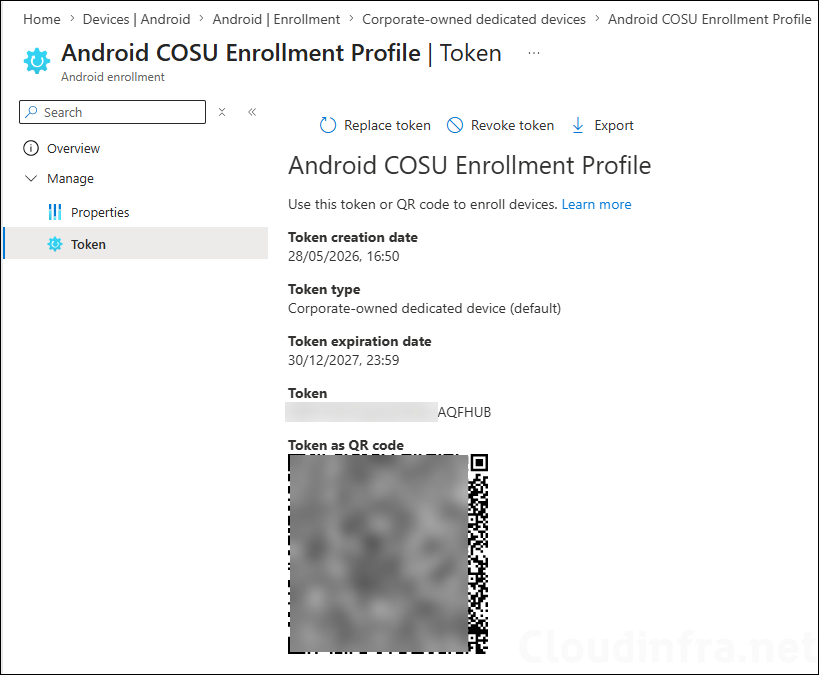
After the enrollment profile is created, Intune generates an enrollment token and QR code. The token appears as an eight-digit string and a QR code. The QR code or token is then used to enroll the Android device.
- Go to Devices > Enrollment.
- Select the Android tab.
- Under Android Enterprise > Enrollment Profiles, select Corporate-owned dedicated devices.
- Select the enrollment profile you created.
- Select Token.
- Note the QR code and token. Share this QR code with the user for device enrollment.
Step 6: Enroll the Android Device Using QR Code
For a brand-new device, start from the initial setup screen. For an existing device, perform a factory reset first. Do not tap the Start button. Instead, tap six times on the home screen to launch the QR code setup and begin the enrollment process, as shown in the video below.
Demo 1: Android Enterprise Corporate-Owned Dedicated Device Enrollment (COSU): Without Kiosk Config
Demo 2: Android Enterprise Corporate-Owned Dedicated Device Enrollment (COSU): Single-app Kiosk Mode
Recommended Configuration Summary
| Area | Recommended configuration |
|---|---|
| Enrollment profile | Corporate-owned dedicated device |
| Token type | Standard dedicated or Entra shared device mode |
| Device group | Dynamic group based on enrollment profile name or use a static assigned Entra group with enrollment time grouping. |
| Apps | Deploy as Required |
| Managed Home Screen | Required for multi-app kiosk |
| Device restrictions | Configure kiosk mode and block unnecessary settings |
| Compliance policy | Assign to device group |
| Conditional Access | Use carefully. For app sign-in scenarios, consider Entra shared device mode. |
| Reset method | Prefer Intune wipe when reprovisioning devices |
