
If you no longer need Snipping Tool on a Windows 11 device, you can uninstall it using Settings, WinGet, or PowerShell. If you manage devices using Microsoft Intune, you can also use an app removal policy on supported devices.
The method you choose depends on whether you want to remove the app for one user, remove it from a shared device, or manage removal across your organization. Removing the app for the signed-in user does not necessarily remove it for other users or prevent it from being installed again. Therefore, you might consider blocking the app as well. Refer to the steps on how to block Snipping Tool app: 3 Ways To Block Snipping Tool In Windows 11.
In this post, I will walk you through four ways to uninstall Snipping Tool from Windows 11. I will also explain how to verify the removal and reinstall the app if it is needed later.
Contents
Before you begin
Before uninstalling Snipping Tool, save any screenshots or screen recordings you want to keep and close the application. Uninstalling the app may remove locally stored application data, so make sure you have saved any important files.
If you would like to uninstall Snipping Tool from a single device, the easiest method is through Windows Settings. However, if you want more control over the removal process, you can use PowerShell to uninstall the app for existing users or remove the provisioned app package so that it is not automatically installed for new users.
Keep in mind that uninstalling Snipping Tool does not completely prevent users from taking screenshots. Other Windows features and third-party applications may still allow users to capture their screens. If your goal is to restrict screen capture across the device, you should review and configure additional security controls based on your organization’s requirements.
Method 1: Uninstall Snipping Tool using Settings
- Press Windows + I to open Settings.
- Go to Apps > Installed apps.
- Search for the Snipping Tool.
- Select the three-dot menu next to the app and choose Uninstall.
- Select Uninstall again when prompted.
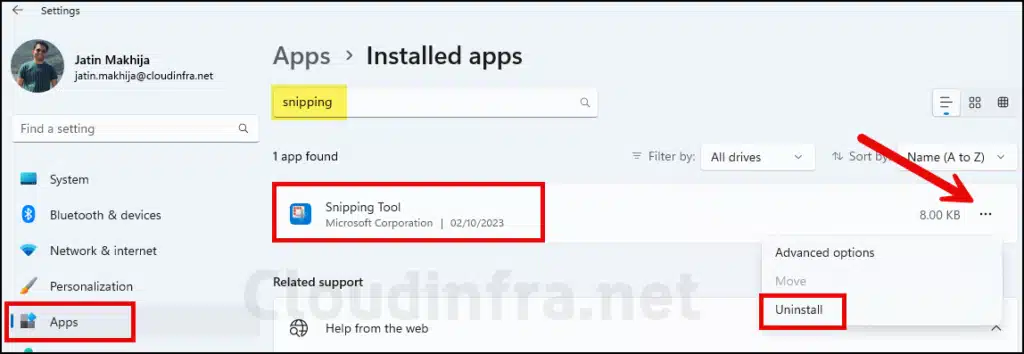
After the process finishes, search for Snipping Tool again on the Installed apps page. It should no longer appear for your account. If the device is shared, check the other user accounts separately. Removing the app from your account does not confirm that it has been removed for everyone.
Method 2: Uninstall Snipping Tool using WinGet
WinGet is Microsoft’s command-line package manager. If it is available on your device, you can use it to identify and uninstall Snipping Tool.
Open Windows Terminal under the account whose app you want to remove, and run:
winget list --name "Snipping Tool"

or simply

winget list snipping
Check the returned application name before continuing. If the name is Snipping Tool, run:
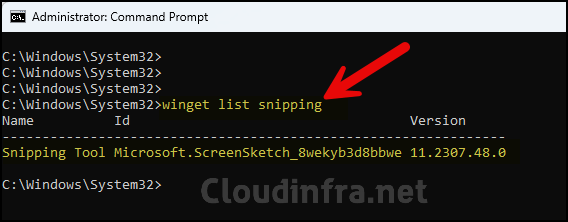
winget uninstall --name "Snipping Tool" --exactThe quotation marks keep the application name together and --exact requires an exact match. There is no need to copy a fixed version number from another device. If the name differs, for example because of the device’s display language, use the application’s exact ID from the list output:
Alternatively, you can use the version number information to uninstall the app.
winget uninstall --name Snipping Tool --version 11.2302.48.0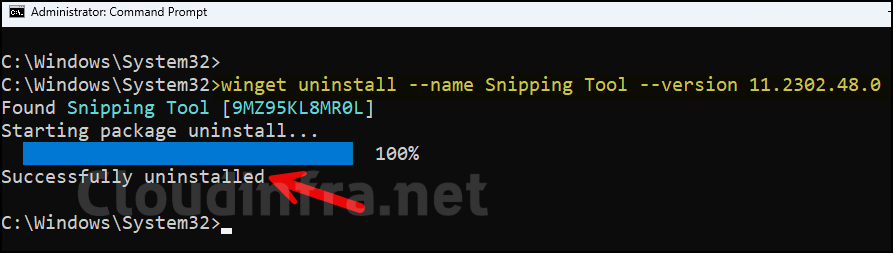
winget uninstall --id "<ID from the list output>" --exactReplace the placeholder before running the command. After removal, run the list command again to check the result. Do not treat this check as confirmation that the app is removed from every user account. For more information, refer to Microsoft’s WinGet uninstall command documentation.
Method 3: Uninstall Snipping Tool using PowerShell
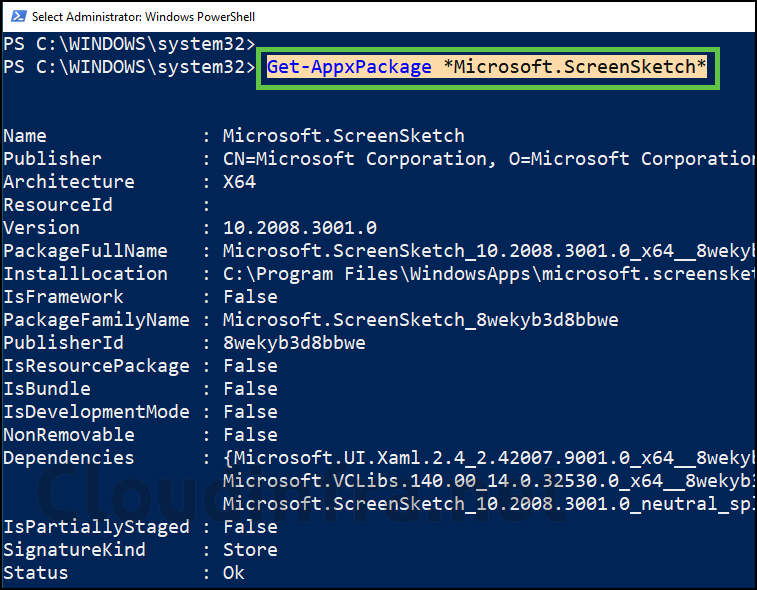
Snipping Tool uses the package name Microsoft.ScreenSketch, which is the package identity displayed in PowerShell, even though the application is called Snipping Tool in Windows.
To uninstall Snipping Tool from a Windows 11 device, first check whether the application is installed by running Get-AppxPackage *Microsoft.ScreenSketch* command. This command displays information about the installed Snipping Tool package, including its name, version, and installation location.
Get-AppxPackage *Microsoft.ScreenSketch*

Or

Get-AppxPackage -Name Microsoft.ScreenSketch |
    Select-Object Name, PackageFullName
Remove Snipping Tool for the current user
If the correct Snipping Tool package is returned, you can proceed with uninstalling it. In this example, I am using an elevated PowerShell window (Run as administrator). However, running PowerShell as an administrator does not automatically remove the application for all users. To uninstall Snipping Tool for all existing users, you must use the -AllUsers parameter with Remove-AppxPackage. If you want to remove Snipping Tool only for the current user, open a normal PowerShell window and run the command without the -AllUsers parameter.
Get-AppxPackage *Microsoft.ScreenSketch* | Remove-AppxPackage
This removes the app for the account running PowerShell. Running PowerShell with a different administrator account would target that account instead.

Remove Snipping Tool for All Users
Open Windows PowerShell as administrator. Check the packages registered on the device:
Get-AppxPackage -AllUsers -Name Microsoft.ScreenSketch |
    Select-Object Name, PackageFullName, PackageUserInformation
For an app installed as a bundle, Microsoft advises targeting the parent bundle when using Remove-AppxPackage -AllUsers. The following commands look for that bundle first and use the main package if no bundle is returned:
$packages = Get-AppxPackage -AllUsers -Name Microsoft.ScreenSketch -PackageTypeFilter Bundle

if (-not $packages) {
    $packages = Get-AppxPackage -AllUsers -Name Microsoft.ScreenSketch -PackageTypeFilter Main
}

$packages | Select-Object -ExpandProperty PackageFullName -Unique |
    ForEach-Object {
        Remove-AppxPackage -Package $_ -AllUsers -ErrorAction Stop
    }
For more information, refer to Microsoft’s Remove-AppxPackage documentation.
Remove the provisioned package for new users
Windows can retain a provisioned copy of an app that is used when new user profiles are created. Removing existing user’s installations and removing this provisioned copy are separate tasks. In an elevated Windows PowerShell window, check for the provisioned package:
Get-AppxProvisionedPackage -Online |
    Where-Object DisplayName -eq 'Microsoft.ScreenSketch' |
    Select-Object DisplayName, PackageName
If a package is returned, remove it:
Get-AppxProvisionedPackage -Online |
    Where-Object DisplayName -eq 'Microsoft.ScreenSketch' |
    ForEach-Object {
        Remove-AppxProvisionedPackage -Online -PackageName $_.PackageName -ErrorAction Stop
    }
This prevents that provisioned package from being installed for newly created profiles. It does not, by itself, remove the app from existing accounts. If you want both outcomes, complete both sections. If the query returns nothing, no matching provisioned package was found. That does not prove the app is removed from existing accounts. For more information, refer to Microsoft’s Remove-AppxProvisionedPackage documentation.
Method 4: Uninstall Snipping Tool using Microsoft Intune
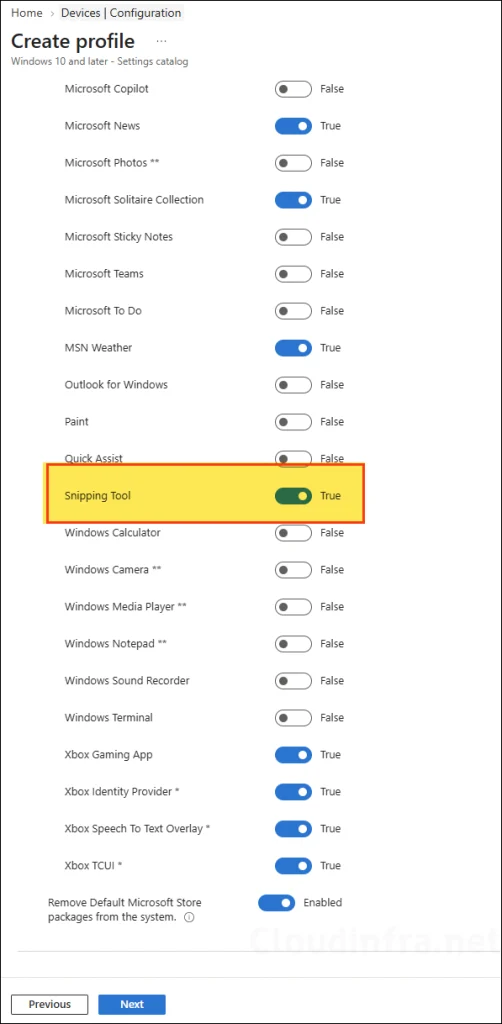
You can use the Remove Default Microsoft Store packages from the system policy setting in Intune to remove selected built-in Microsoft Store applications from managed Windows devices. Only the applications you select in the policy will be targeted for removal, while unselected applications will remain installed. The underlying setting is documented in Microsoft’s RemoveDefaultMicrosoftStorePackages policy reference.
Create an Intune Policy
- Sign in to the Microsoft Intune admin center > Go to Devices > Manage devices > Configuration. > Select Create > New policy.
- Select the Windows platform used to manage your Windows 11 devices.
- Select the Settings catalog as the profile type, then select Create.
- Enter a name such as Uninstall Snipping Tool – Windows 11.
- Configuration tab: Use the settings picker to search for Remove Default Microsoft Store packages from system, then navigate to Administrative Templates > Windows Components > App Package Deployment. Select the setting Remove Default Microsoft Store packages from system.
- Enable the toggle switch Remove Default Microsoft Store packages from system and set the toggle switches to True for the apps you want to remove. If you would like to keep the app and do not want to remove it, keep it at its default toggle setting, which is false.
For more information and step-by-step instructions on creating an Intune policy to remove pre-installed Microsoft Store apps, including Snipping Tool, refer to my guide: Remove Pre-Installed Microsoft Store Apps via Intune.
Verify that Snipping Tool has been removed
Run the below command to check and confirm if Snipping tool has been removed for the current user.
Get-AppxPackage -Name Microsoft.ScreenSketchIf the command completes without an error and returns no package, Snipping Tool is not registered for that account.
For all other users across the device, run the following as administrator:
Get-AppxPackage -AllUsers -Name Microsoft.ScreenSketchIf you also removed the provisioned package, check that separately:
Get-AppxProvisionedPackage -Online |
    Where-Object DisplayName -eq 'Microsoft.ScreenSketch'
Reinstall Snipping Tool if required
Option 1: Using Microsoft Store
If you previously removed Snipping Tool using an Intune policy, first change the Snipping Tool removal setting to False and sync the device to apply the updated policy. Keep in mind that changing this setting allows Snipping Tool to be installed again, but it does not automatically reinstall the application.
To reinstall Snipping Tool, open the Microsoft Store, search for Snipping Tool, and verify that the publisher is Microsoft Corporation. Click Get or Install to download and install the application. Once installed, launch the Snipping Tool to confirm that it works correctly.
If you are unable to reinstall Snipping Tool on a managed device, check whether another app removal policy or application control policy is still blocking the installation or use of the application.
Option 2: Using Winget
Since we previously used the winget command to uninstall Snipping Tool, we can also use it to reinstall the application on the device. Run the following command in PowerShell or Command Prompt to install Snipping Tool using winget.
winget install 9MZ95KL8MR0L
Frequently asked questions
Does uninstalling Snipping Tool prevent all screenshots?
No. Removing this app does not remove every screen capture capability. Consider other installed applications and built-in capture features when assessing your organization’s requirements.
Why is Snipping Tool still available to another user?
You may have removed it only for your own account. Check its registration using Get-AppxPackage -AllUsers in an elevated PowerShell window.
Why does the Intune profile show Not applicable?
Check the device’s edition, version, updates, and policy compatibility. The app removal policy is not a supported method for Windows 11 Pro devices.
Can users reinstall the app after a manual removal?
Users may be able to reinstall Snipping Tool if Microsoft Store access and organizational policies allow it. Uninstalling Snipping Tool using Windows Settings, WinGet, or PowerShell does not permanently block the application from being installed again. To prevent users from reinstalling or running Snipping Tool, you must configure an appropriate application control or restriction policy. 3 Ways To Block Snipping Tool In Windows 11.
