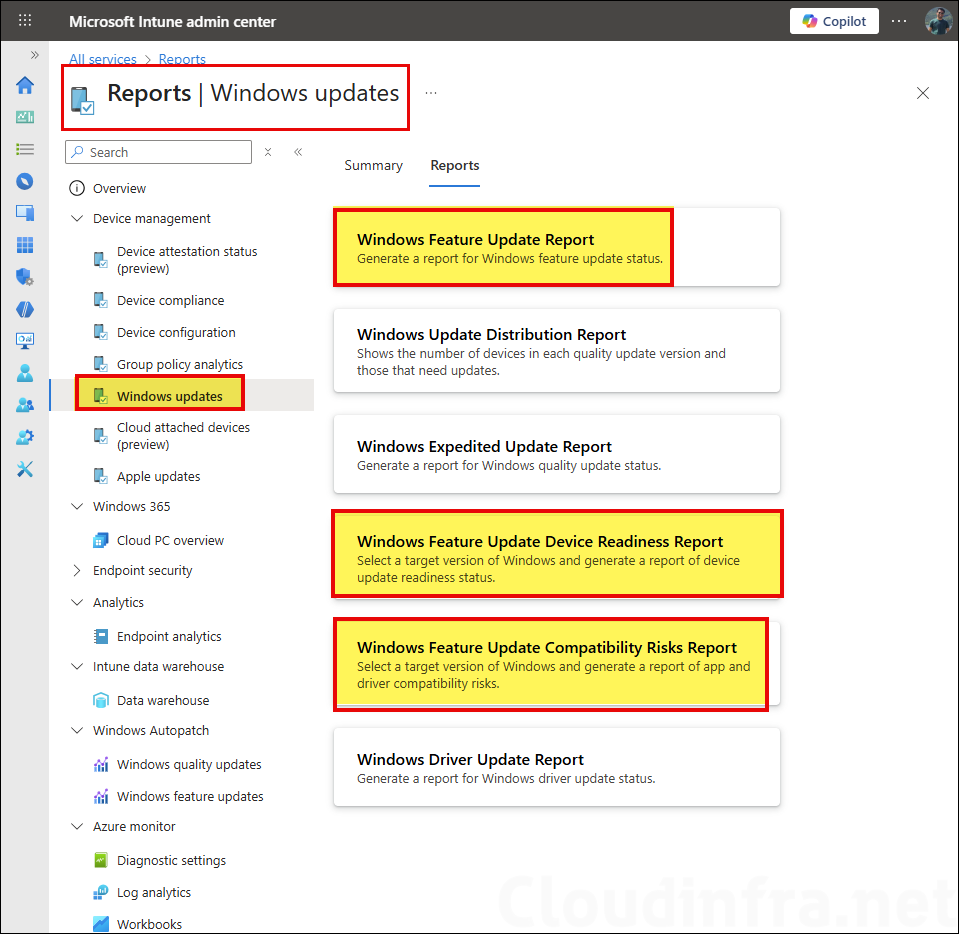
To monitor and troubleshoot Windows feature update deployments through Intune, you can use built-in reports to track deployment progress and identify potential issues. Intune provides multiple reports to help you monitor feature update deployments. From the Intune admin center, go to Reports > Windows updates. Under the Reports tab, you will find the following feature update reports:
- Windows feature update report: Provides an overview of feature update deployment status, including success, failure, and in-progress states.
- Windows feature update device readiness report: Shows whether devices meet the prerequisites for the targeted feature update and highlights readiness blockers.
- Windows feature update compatibility risks report: Identifies potential application, driver, or hardware compatibility issues that could prevent devices from upgrading successfully.
Contents
Prerequisites
To use feature update reports in Intune, ensure the following prerequisites are in place:
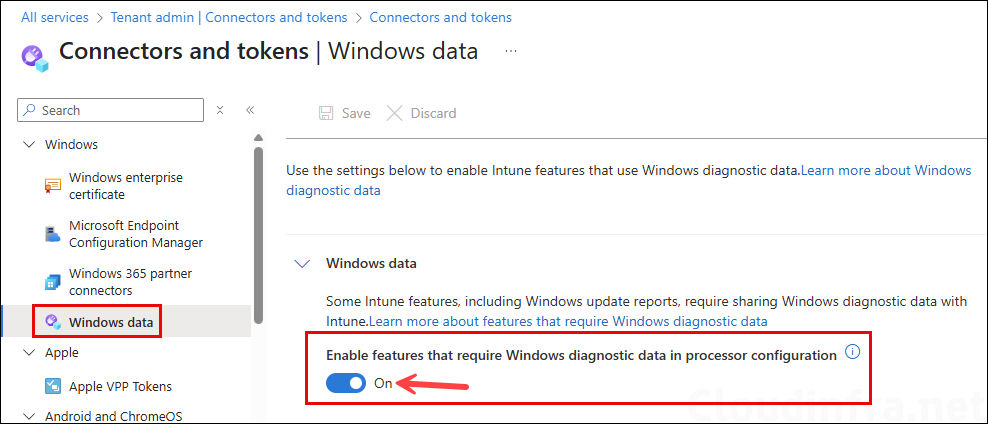
- Windows diagnostic data: Most feature update reporting depends on Windows diagnostic data and a tenant-level Windows data toggle in Intune. Make sure below is in place:
- Windows diagnostic data is set to Required (or higher) on devices. Refer to the post for steps to configure it Configure Windows Diagnostic Data Using Intune [3 Ways].
- In Intune, enable the tenant setting for Windows data processing: Tenant administration > Connectors and tokens > Windows data and turn on the setting that enables features requiring Windows diagnostic data.
- Ensure that the devices meet the prerequisites given on this page: feature-updates#prerequisites.
- Devices must be Microsoft Entra joined or Microsoft Entra hybrid joined.
Export Windows Feature Update Report via Intune
This is the primary export method when you want device-level state for a specific feature update for Windows 10 and later policy or a summary across policies. To export the report, follow below steps:
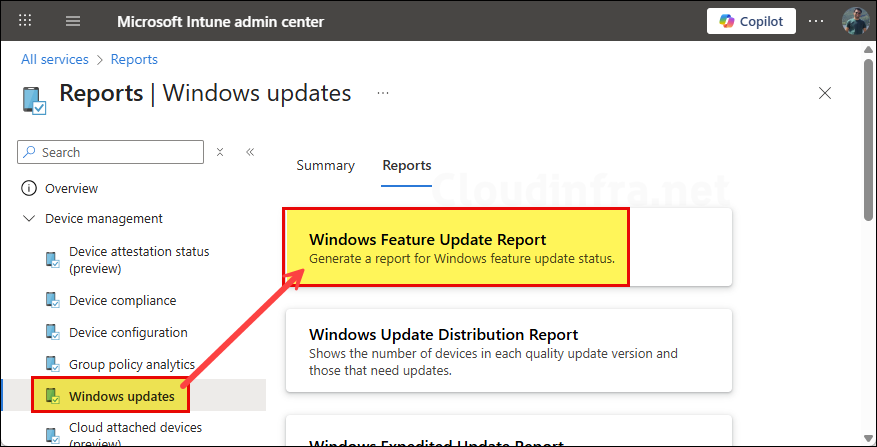
- Open the Intune admin center > Reports > Windows updates.
- Select the Reports tab > Select Windows Feature Update Report.
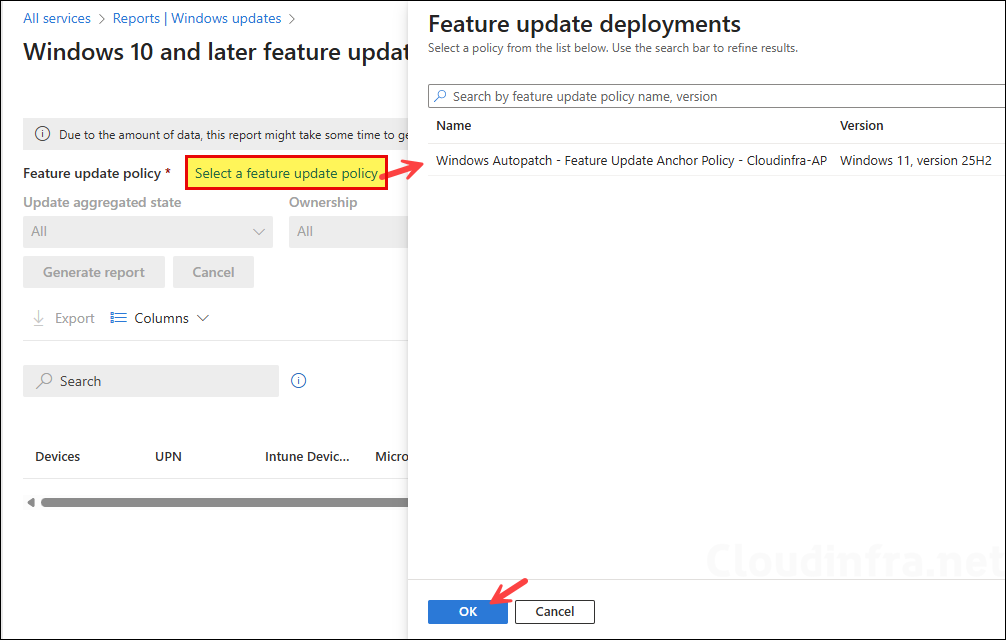
- In Select a feature update profile, choose the target feature update policy.
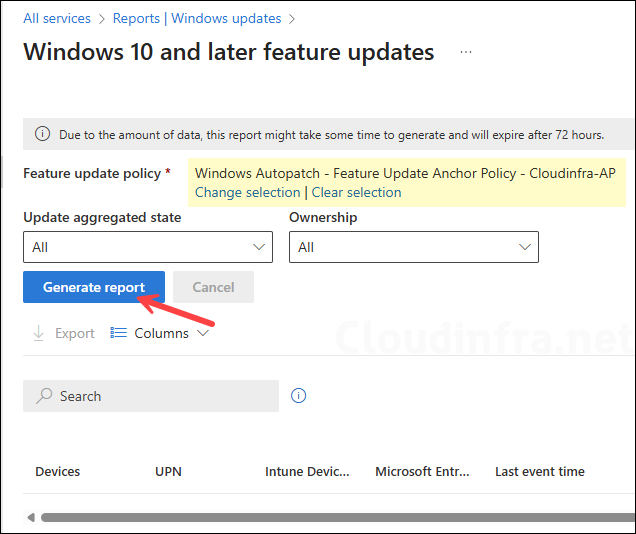
- Apply filters like Update status and Ownership (optional), and click on Generate report (or Generate again to refresh).
- Use the Export option in the report UI to download the CSV file. This report is Microsoft’s recommended broad status view for feature update policies.
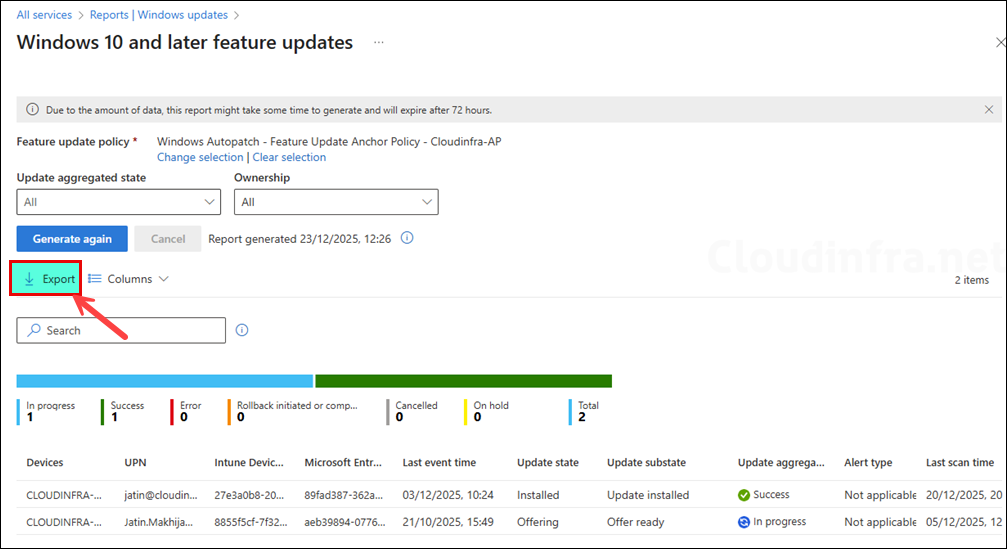
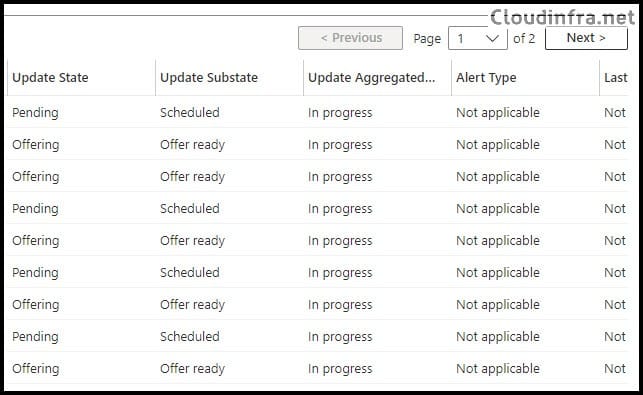
- Update State: This field provides the state of update on the device. According to Microsoft, service-side values represent the status in the service before installation begins on the device. Once client-side data is available, the client-side states replace the service-side states in the report.
- Update Substate: It provides low-level details about the update state.
Update State Update Substate Description Pending Validation The update cannot be offered due to a device or Windows Update validation issue. Pending Scheduled The update is not ready to be offered yet, but is queued to be offered later. On hold Admin paused The deployment is paused by an explicit administrator action. On hold ServicePaused Windows Update automatically put the offer on hold (service-controlled pause). Canceled Admin Cancelled The update offer was canceled by an administrator action. Canceled Service Cancelled Windows Update canceled the offer (for example, content expired or was superseded by newer content). Canceled Removed from Deployment The device was removed from the deployment scope, so the offer was canceled. Canceled Not Supported The device identity is invalid in Entra (device record not found/invalid), so offering is canceled. Offering OfferReady Windows Update is actively offering the feature update to the device. About Update State and Update Substate
To view the summary across all feature update profiles. Go to Reports > Windows updates > Use the Summary tab to see aggregated status across feature update policies. Click on Generate report or Generate again.
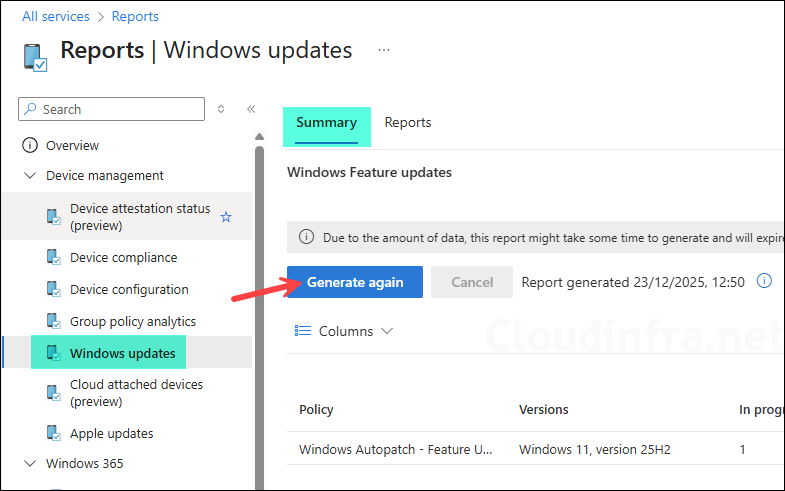
Export Windows Feature Update Compatibility Reports
This report shows whether devices meet the prerequisites for the targeted feature update and highlights readiness blockers.
- Open the Intune admin center > Reports > Windows updates.
- Select the Reports tab > Select Windows feature update device readiness report.
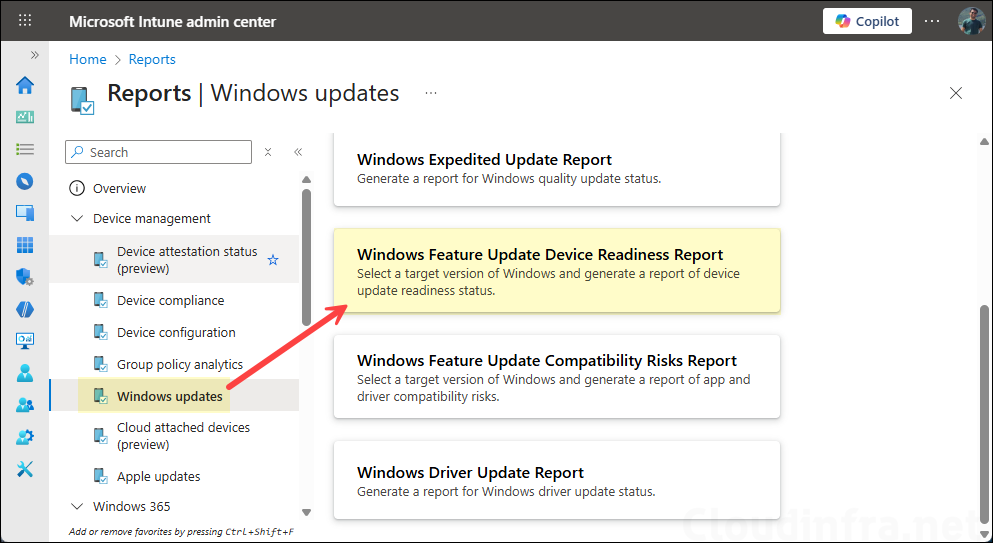
- Select the Target OS and Scope tags.
- Click on Generate report (or Generate again to refresh). Click on Export to export the report to CSV.
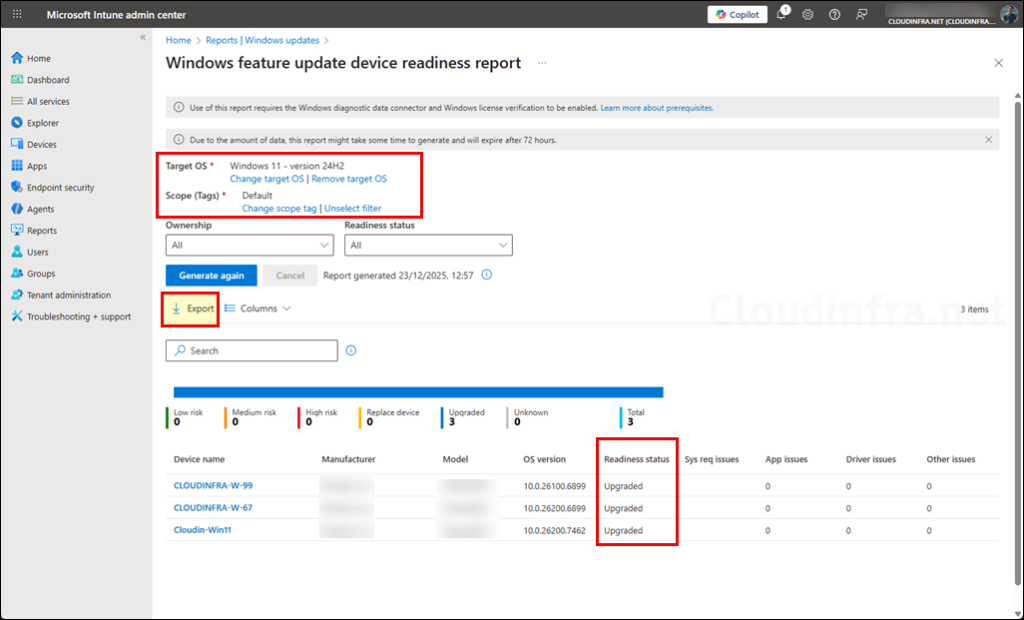
Export Windows Feature Update Compatibility Risk Report
The Windows Feature Update Compatibility Risks report shows devices with potential upgrade blockers (for example, app, driver, or hardware compatibility issues) and the associated risk details for a target Windows feature update.
- Open the Intune admin center > Reports > Windows updates.
- Select the Reports tab > Select Windows feature update compatibility risks report.
- Choose Target OS and filters like Asset type and Risk status.
- Select Generate report and export it to CSV.
Export Feature Update Report via M365 Apps Admin Center
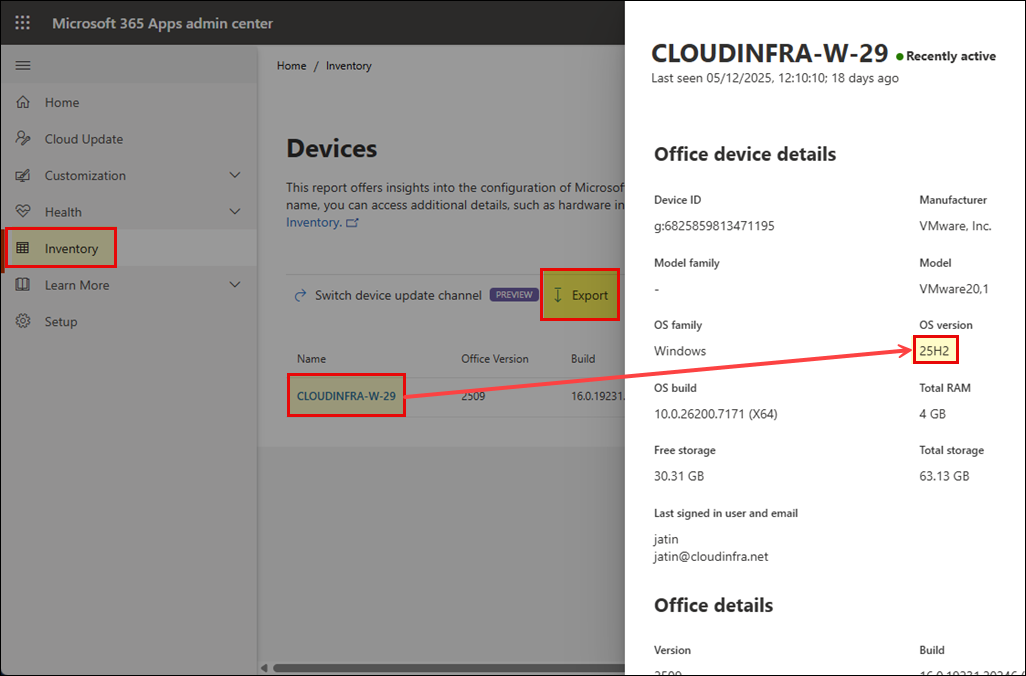
This report may not show the real-time progress of your feature update deployment, but it does provide an export of all devices along with their current feature version information. This can be useful for analyzing and identifying which devices are running the latest feature update and which devices are outdated. Before using the Microsoft 365 Apps admin center, ensure the devices are onboarded, and then follow the steps below to generate the report.
- Open Microsoft 365 Apps Admin Center > Inventory tab on the left-hand side.
- Under Data Insights > Devices, click on Show all devices.
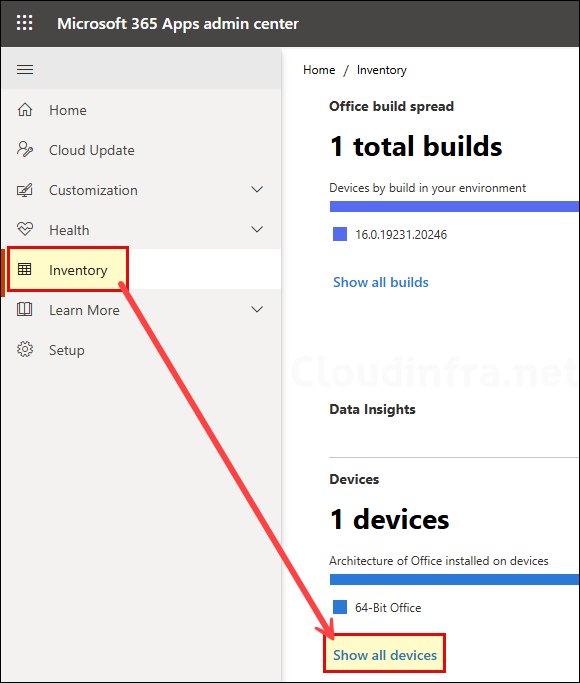
- Click on the device and check OS version information, which will show the feature update version installed on the device. Click on the Export button to export all devices with feature update information into CSV.