
When Microsoft releases a critical Patch Tuesday fix or an out-of-band security update, waiting for your normal update ring deferrals can leave devices exposed. Intune Expedite policy lets you expedite the latest applicable quality update to targeted devices without pausing or redesigning your existing update rings.
An important point to understand is that not all updates can be expedited; as of now, only Windows security updates that can be expedited are available to deploy with the Expedite policy.
Contents
How Expedited Quality Updates Work?
An expedite policy temporarily overrides relevant quality update deferrals (specified in your update rings policy) for the specific update you select and signals devices to begin download and installation as soon as possible. Below are some important concepts to understand about the expedite procedure:
- You select one update per expedite policy, identified by release date.
- Windows Update evaluates each device’s OS build and architecture and delivers the correct applicable package.
- In some scenarios, a device can install a newer update than the one you selected in the expedite policy. For more information on this scenario, refer to the link: Use Intune to expedite Windows quality updates – Microsoft Intune | Microsoft Learn.
- Expedited updates are not recommended for normal monthly quality update servicing.
- Devices with up-to-date quality updates won’t be able to redownload or reinstall the updates.
Patch Tuesday vs. Out-of-Band Naming
- Updates containing “B” typically indicate Patch Tuesday releases. It’s used to identify an update that was released on the second Tuesday of the month.
- Out-of-band security releases use different identifiers (e.g., OOB) instead of the letter B. OOB releases are provided to fix a recently identified issue or vulnerability. OOB releases are cumulative, and therefore it includes previous security or non-security releases plus additional fix.
Prerequisites
Below are the prerequisites for creating an Expedite policy in Intune:
License Requirements
Intune licensing plus a subscription that includes Windows Autopatch licensing (examples include Windows Enterprise E3/E5, Windows Education A3/A5, Windows VDA E3/E5, and Microsoft 365 Business Premium).
Device join and servicing requirements
- Devices must be Microsoft Entra joined or Microsoft Entra hybrid joined and enrolled in Intune. Workplace Join is not supported.
- Devices must run a supported Windows version that remains in support for servicing.
- Devices must be configured to get quality updates directly from Windows Update (not WSUS).
Enable reporting (recommended)
It’s recommended to set Enable features that require Windows diagnostic data in processor configuration to On for reporting purposes. This will enable device-level state and substate reporting data in the reports. To configure this, follow below steps:
- Go to Intune admin center > Tenant administration > Connectors and tokens > Windows data and set Enable features that require Windows diagnostic data in processor configuration to On.
- Ensure devices send Windows diagnostic data at Required or higher.
Create a Policy to Expedite Windows Quality Updates
We will use the Expedite policy in Intune to expedite Windows quality update deployment. In the next sections, I will show you how to create this policy and assign it to the devices.
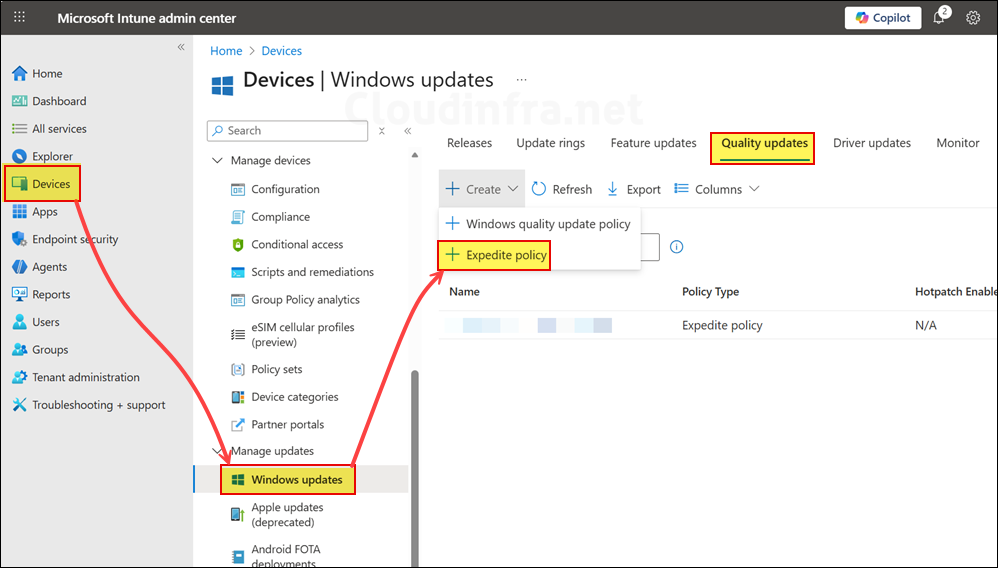
- Sign in to the Intune admin center > Devices > Windows updates > Under the Quality updates tab, click + Create and then select Expedite policy.
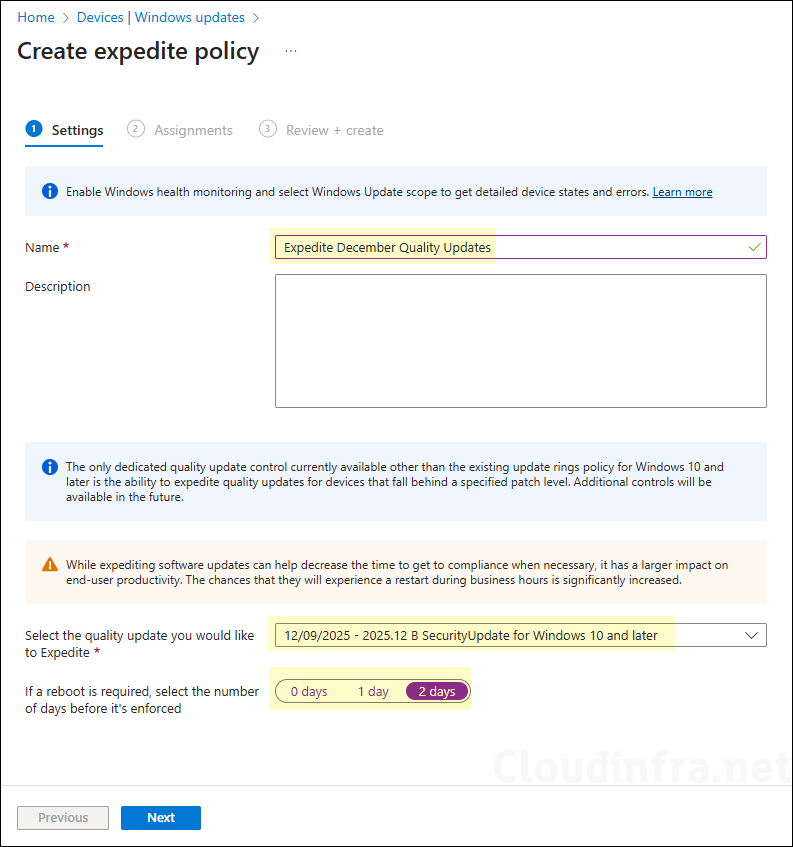
- On the Settings tab, configure the following settings and click Next.
- Name: Use a clear naming convention.
- Description: Include the CVE reference or business reason.
- Select the quality update you would like to Expedite: Use the drop-down to select the quality update you want to expedite.
- If a reboot is required, select the number of days before it’s enforced: You can choose the number of days before a device is automatically restarted. If you select 0, the device restarts immediately after the expedited updates are installed. However, if users are actively working on the device, an immediate restart can be disruptive. Although users are notified, they have limited time to save their work.
- Assignments tab: Click on Add group to add an Entra security group containing Windows devices. Start with a pilot device group (IT and test devices). Expand in waves (rings) once you confirm install and reboot experience.
- Review + create: Review the deployment summary and click on Create.
Monitor Expedited Quality Updates Deployment
Now that you have created an Expedite policy and assigned it to devices, it is important to monitor its performance to ensure expedited updates are successfully downloaded and installed. Intune provides a built-in report specifically for monitoring expedited updates, which is the recommended monitoring method.
There are also other ways to verify the current quality update version running on Windows devices, such as using the Microsoft 365 Apps admin center. The next sections cover both monitoring options.
Option 1: Windows Expedited Update Report
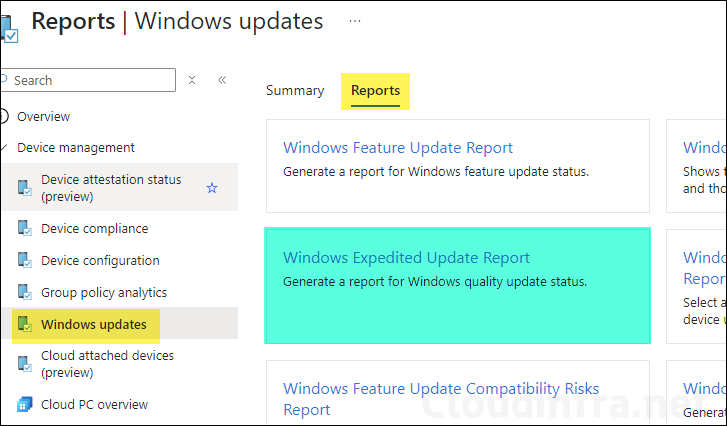
- Sign in to the Intune admin center > Reports > Windows updates > Reports tab.
- Click on Windows Expedited Update Report.
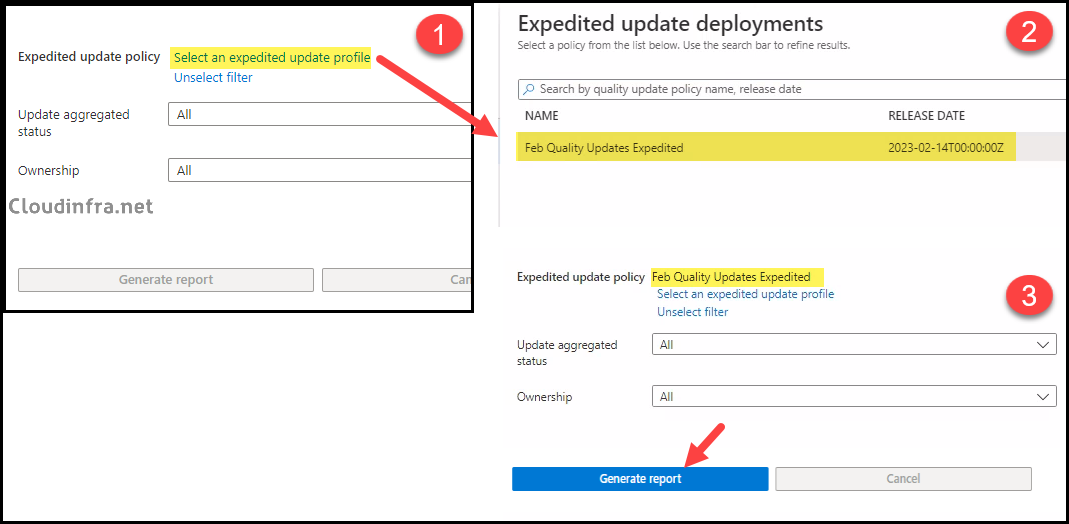
- Click on Select an expedited update profile and then select the Expedite policy, for example, Feb Quality Updates Expedited. Then, click on Generate report to generate a report on the deployment progress.
Option 2: Using Microsoft Apps admin center
Microsoft 365 App admin center can provide useful information about the devices along with the security and feature update version. You first have to onboard devices to Microsoft 365 apps admin center before you can view device inventory. Refer to the link for onboarding devices to M365 Apps admin center.
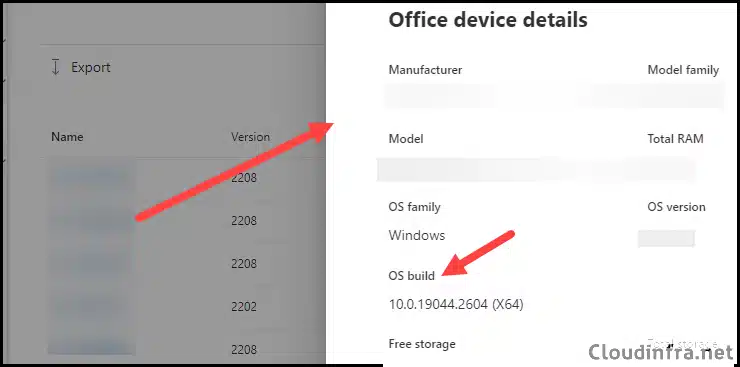
Inventory report on the Microsoft 365 Apps admin center includes OS build number. This information can help you determine the current patch level of your Windows 10/11 devices. You can then use VLOOKUP in Excel to identify the targeted devices and their patch level.
You’ll need to wait for the data to be refreshed, which also depends on “If a reboot is required, select the number of days before it’s enforced” setting in the Expedite policy. To check the OS build info, follow below steps:
- Sign in to the Microsoft 365 apps admin center.
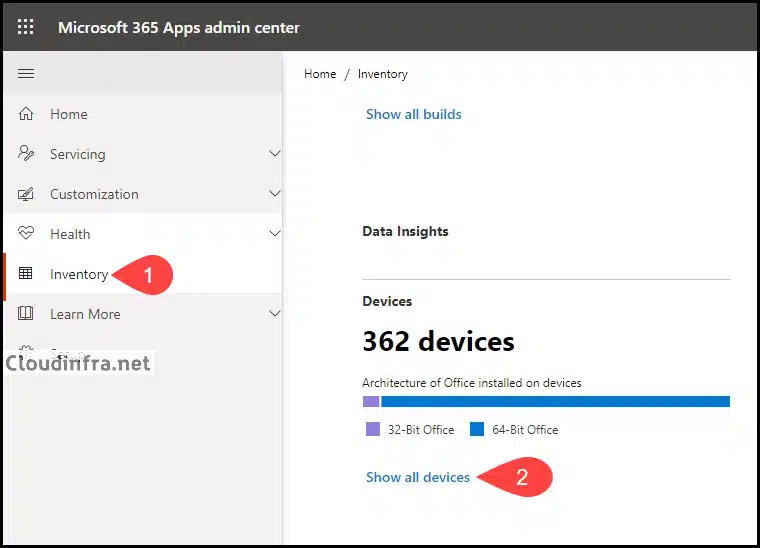
- Click on Inventory and then click on Show all devices.
- Click any device to open the details pane on the right-hand side. This pane displays information about the device, including the OS build, shown as 10.0.19044.2604 (x64), which represents the February 2023 patch level (as shown in the screenshot below).
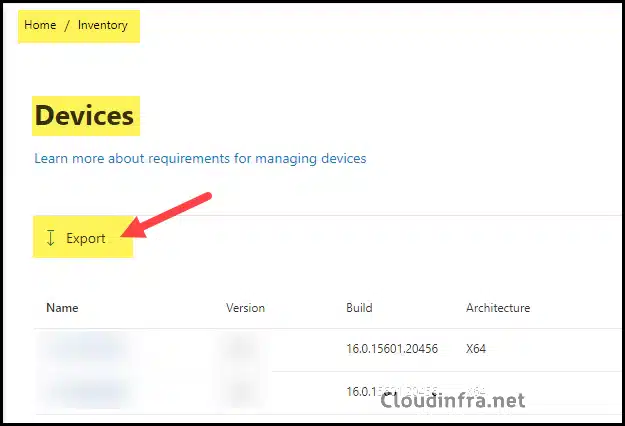
- You can also export the list of devices using the Export options on the Devices page.
Conclusion
Intune expedited quality updates provide a controlled way to accelerate critical Windows quality updates without reworking your existing update ring design. Ensure prerequisites are met (Windows Update source, join requirements, and diagnostic data collection for reporting), deploy via Expdite policy, and monitor progress using the Windows Expedited Update Report with Update State and Substate for troubleshooting.

Here is my scenario for January patch tuesday, we had the rings on pause, deferral is 7 days. We have created an expedite policy for the latest OOB, when we deployed it we also resumed the rings…the deferral period was already outdated. What I see in the reports, is that many devices have installed the normal patch tuesday and not the oob….is this the normal behvaiour? I do not find anyway this scenario…