
In this blog post, I will show you how to configure auto shutdown for azure virtual machines. This feature is incredibly valuable as it helps reduce cloud workload costs by automatically shutting down VMs when they’re not in use.
For instance, if you know that your company employees typically use virtual machines (VMs) from 9 AM to 5 PM, running these VMs beyond this time can result in unnecessary costs. To manage this, you can configure an auto-shutdown schedule for the VMs and set them to shut down at 5 PM every day automatically. This helps optimize resource usage and reduce expenses.
Auto-shutting down a VM results in the VM being shut down and placed in a stopped or deallocated stage. When a VM is in this state, you won’t incur charges for VM computing. However, it’s important to be aware that you’ll still be responsible for the storage cost associated with the VM, although this cost is generally lower than the compute cost.
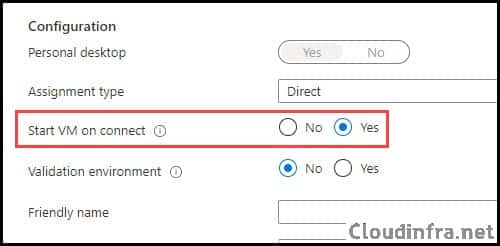
You can combine the auto-shutdown with the Start VM on connect feature in Azure Virtual Desktop (AVD). This feature will automatically power up a stopped or deallocated virtual machine when a user attempts to connect. This helps optimize resource usage and ensures that VMs are available when users need them. Below is a screenshot of the Start VM on Connect feature in Azure Virtual Desktop. For more information, refer to the post Configure Start VM on Connect for Azure Virtual Desktop – Azure Virtual Desktop | Microsoft Learn.
Contents
Configure Auto Shutdown for Azure Virtual Machines
Setting up auto shutdown for an Azure Virtual Machine is a straightforward process. Just follow these steps to configure it. For more information and other ways to configure it, like Azure PowerShell or Azure CLI, refer to the post Configure Start VM on Connect for Azure Virtual Desktop – Azure Virtual Desktop | Microsoft Learn.
- Go to https://portal.azure.com and sign in with an account that has at least Virtual Machine Contributor rights on the VM’s resource group.
- In the left-hand menu, select Virtual machines, or search for Virtual machines from the top search bar.
- On the VM blade, scroll down to the Operations section in the left menu.
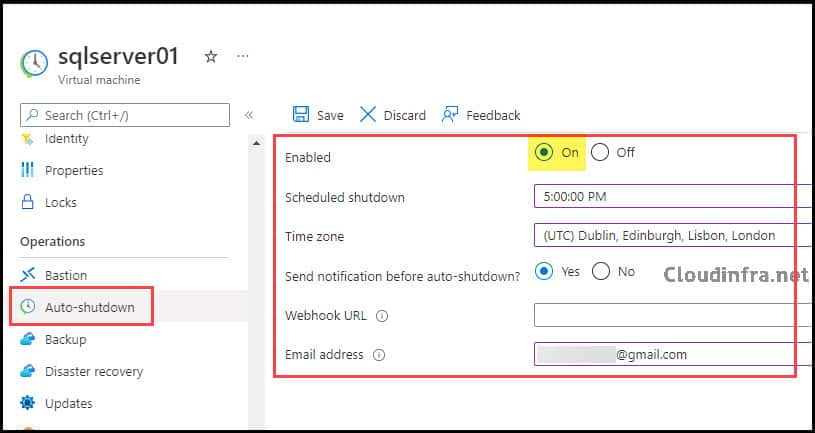
- Click Auto-shutdown.
- Select Enable: On
- Scheduled shutdown: Set the time when you want this VM to shut down every day (for example, 17:00).
- Time zone: Choose the correct time zone for your schedule. Note that the default is often UTC, so double-check this setting.
- Send notification before auto-shutdown?: Set to Yes if you want notifications.
- Webhook URL: (optional): Leave empty if you do not use webhooks, or provide a webhook endpoint if you want to trigger automation 30 minutes before shutdown.
- Email address: Enter one or more email addresses (semicolon separated) to receive an email 30 minutes before the VM shuts down.
- Click Save.
After you save the configuration, Azure sets up a schedule for that VM. At the configured time, the VM will enter the Stopped (deallocated) state, and compute charges will stop for that VM until you start it again.
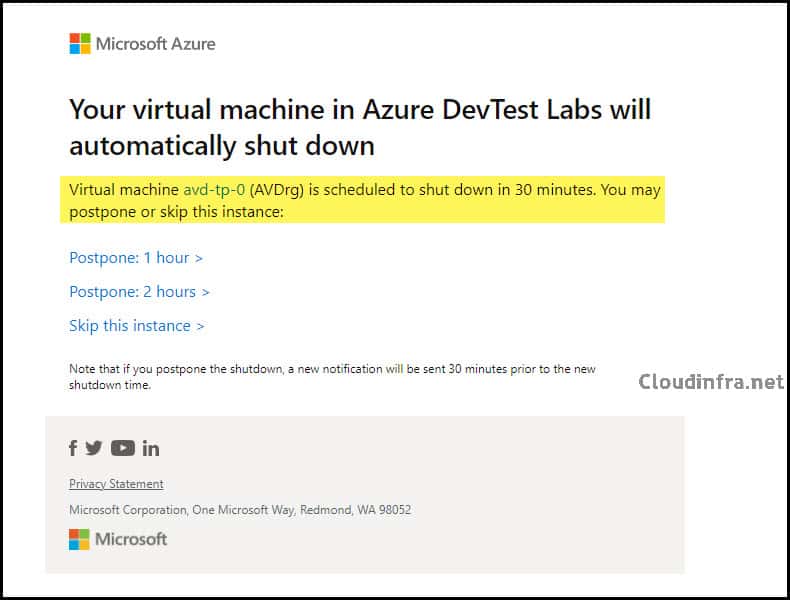
Example Auto-shutdown Email Notification
When you enable notifications and provide an email address, Azure sends an email roughly 30 minutes before the shutdown time. The email includes options to postpone or skip the shutdown for that instance.
| Email Notification (Example) |
|---|
| Your virtual machine in Azure DevTest Labs will automatically shut down Virtual machine avd-tp-0 (AVDrg) is scheduled to shut down in 30 minutes. You may postpone or skip this instance: Postpone: 1 hour > Postpone: 2 hours > Skip this instance > Note that if you postpone the shutdown, a new notification will be sent 30 minutes prior to the new shutdown time. |
Even if you are not using Azure DevTest Labs, the email text currently still references DevTest Labs. This is expected behavior, because Azure Virtual Machines re-use DevTest Labs’ scheduling and notification engine. The text might be fixed in the future.
Azure VM Auto Shutdown Email notification not received
If you configured auto shutdown and an email address but did not receive the notification, check the following:
- 30-minute rule: Auto-shutdown notifications are sent 30 minutes before the scheduled shutdown. If you set or change the schedule less than 30 minutes before the shutdown time, the current day’s run can be skipped, and the schedule will only take effect from the next day. Microsoft explicitly documents this behavior for DevTest Labs auto-shutdown schedules. Example:
- Current time: 11:00
- You set auto shutdown for 11:15 and enable notifications
- The VM will not shut down at 11:15 today and you will not receive an email
- The schedule will apply from the next day at 11:15
- Check spam / junk folder: The notification email comes from Microsoft Azure and may be filtered by your mail security solution, especially in tenant-wide deployments.
- Verify the email address format: Make sure the email address is spelled correctly. If you use multiple addresses, they must be semicolon-separated.
- Confirm Auto-shutdown is actually enabled: Go back to the VM in the Azure portal, open Auto-shutdown, and verify:
- Enable auto-shutdown is set to On
- A Scheduled shutdown time and Time zone are configured
- The configuration has been saved successfully (you should see a “schedule updated” entry in the VM’s Activity log).
- Check Activity log
- On the VM page, go to Activity log.
- Filter for operations like Add or modify schedules to confirm the platform saved your auto-shutdown configuration.
Conclusion
Auto-shutdown for Azure virtual machines is a simple but powerful cost-optimization feature:
- It automatically stops and deallocates VMs at a scheduled time, so you stop paying for compute when the VM is not needed.
- It supports email and webhook notifications 30 minutes before shutdown, with options to postpone or skip the shutdown for that instance.
- It works well in combination with Azure Virtual Desktop Start VM on connect, giving you a clean way to power VMs off out of hours and automatically start them when users connect.
For dev, test, UAT, lab, and other non-24×7 workloads, configuring auto shutdown should be a standard step. It requires only a few clicks, is easy to monitor, and can significantly reduce your monthly Azure bill.

Thank you for this guide, this works perfect for virtual machines.
But how can I configure this for AVD Session Hosts in a Hostpool?
There I can’t configure the auto shutdown.
Do you have any recommendation for me?
Thank you.
This can be useful Jatin, and I’ve used it in the past, however even Azure Start/Stop v2 is tricky to set up and manage at scale. I used to use it, but it didn’t help when people wanted access to VMs during working hours that weren’t required to be on all the time. We started using CLOUD TOGGLE, and this allows us to attach custom schedules to our VMs from within a unified dashboard. Some VMs have an ‘always off’ schedule attached, but users with access to them can turn them on, for say, 2 hours, in order to carry out their tasks, and then after that time they will be turned off automatically. This has saved us a lot of money and our idle VM spend is now very low.