
In this blog post, I will show you how to clear Google Chrome cache and cookie information. When you visit any website in a browser such as Google Chrome, information about that page is temporarily stored on your device. This cached content can include images, audio files, HTML pages, CSS styles, JavaScript files, and other resources. The cache helps reduce bandwidth usage and speeds up web pages load when you visit them again.
If you are experiencing issues such as pages not loading correctly, layouts looking broken, old content still appearing, or sign-in problems on websites, clearing your browser cache and cookies is a simple and effective troubleshooting step.
If you want to quickly check the latest version of a web page without touching your existing cache and cookies, you can also open the page in Incognito mode in Chrome (shortcut: Ctrl + Shift + N on Windows). However, for persistent or browser-wide issues, clearing cache and cookies is the better option.
In addition to cache, Chrome stores cookie information for each website you visit. Cookies store site settings, sign-in sessions, tracking information, and details about your browsing activity. Clearing cookies can help if you have issues signing in to websites or if a site is stuck in a broken state.
In this guide, we will cover:
- How to clear cache and cookies in Google Chrome on desktop (Windows and macOS)
- How to clear cache and cookies in Google Chrome on mobile (Android and iOS)
- Where Chrome stores cache and cookie files on Windows
- How to manually delete the Chrome cache folder if the in-browser method does not work
- Side effects of clearing cache and cookies
Contents
What are Cache and Cookies in Google Chrome?
- Browser cache: The browser cache is a local storage area where Chrome keeps copies of files it has downloaded from websites, such as images, CSS, and JavaScript files. These files are reused when you revisit the same site so that pages load faster and use less bandwidth.
- Cookies and other site data: Cookies are small text files created by websites to store information such as:
- Sign-in status and session information
- Site preferences and settings
- Shopping cart contents
- Tracking and analytics identifiers
When Should You Clear Chrome Cache and Cookies?
You might want to clear Chrome cache and cookies in situations such as:
- A website looks broken, does not load correctly, or shows an outdated version.
- You are stuck in a redirect loop or constantly see an error page that does not match the actual site state.
- You cannot sign in to a website, or you keep getting signed out unexpectedly.
- A web app (for example, a SaaS portal, admin console, or M365 site) behaves differently from what others see.
- You are troubleshooting general browser-related issues and want to start from a clean state.
For quick one-off testing, Incognito mode is useful. For long-term fixes, clearing cache and cookies is more reliable.
Steps to Clear Cache in Google Chrome
You can clear cache and cookies using either the Chrome menu or a keyboard shortcut. Both methods open the same Delete browsing data dialog.
Option 1: Use the Chrome menu
- Launch Google Chrome.
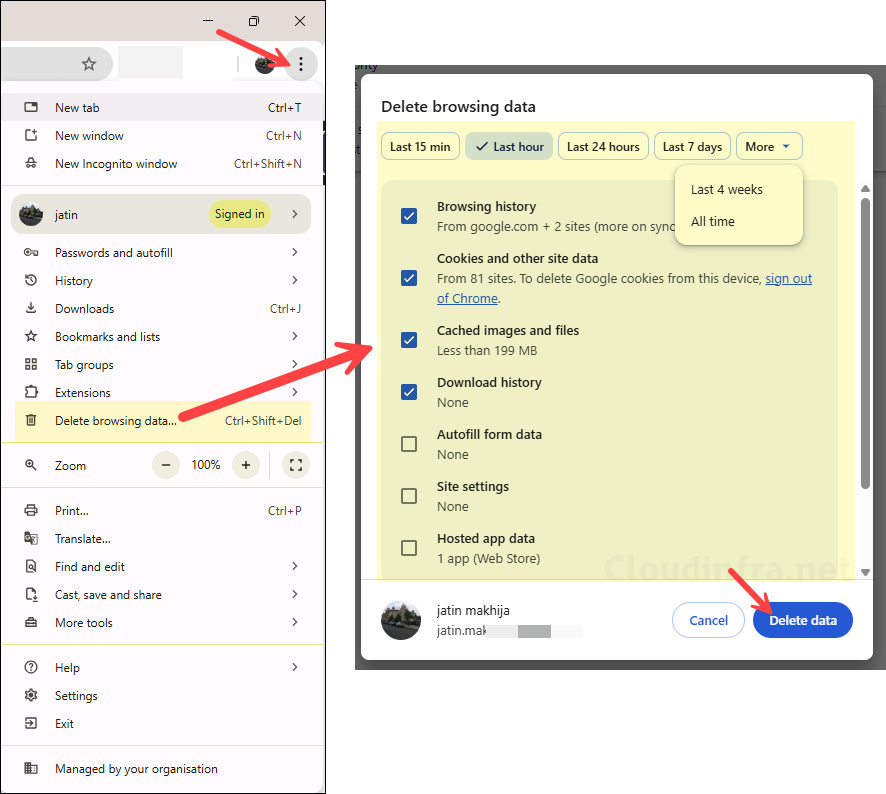
- Click the three vertical dots (More) in the top right-hand corner of the browser.
- Click Delete browsing data.
- In some builds you may see this under Settings > Privacy and security > Clear / Delete browsing data.
- Delete Browsing Data window will open in a new tab.
- Use the Time Range to select how far back you want to delete data:
- Last 15 minutes / Last hour / Last 24 hours / Last 7 days / Last 4 weeks
- All time is recommended if you are doing full troubleshooting and want to clear everything.
- Select the checkboxes for the items you would like to delete. The most important options for cache and cookie problems are (selected by default):
- Browsing history: List of websites you visited in Chrome.
- Download history: The list of files downloaded (files themselves are not deleted).
- Cookies and other site data: Site cookies, storage, sign-in sessions, and site-specific data.
- Cached images and files: Cached copies of images, CSS, JS, and other resources.
If you only want to delete cookies and cached content but keep your history, uncheck the Browsing history and Download history checkboxes.
- Keep the rest of the options at their defaults unless you explicitly would like to remove them:
- Passwords and other sign-in data
- Autofill form data
- Site settings
- Hosted app data
- Click Delete data button.
Option 2: Use the keyboard shortcut
- Press Ctrl + Shift + Delete (Windows) or Command + Shift + Delete (macOS).
- This opens the Delete browsing data dialog directly.
Confirm that cache and cookies were cleared
- Open the Delete browsing data dialog again using Ctrl + Shift + Delete.
- Check that the
- Cached images and files show a significantly smaller size or show 0 B.
- The cookies count is lower or reset.
- Browse to the website you were troubleshooting and check whether the issue is resolved.
Clear Chrome cache and cookies on Android
On Android, the process is similar, but the menu layout is slightly different.
- Open the Chrome app on your Android device.
- Tap the three dots in the top right corner.
- Tap History, then tap Clear browsing data…
- Select a time range (for example, All time).
- Select:
- Cookies and site data
- Cached images and files
- Optionally select Browsing history if you also want to remove it.
- Tap Clear data / Delete data and confirm.
Clear Chrome cache and cookies on iOS (iPhone and iPad)
On iOS, Chrome has a bottom menu, but the steps are similar.
- Open the Chrome app on your iPhone or iPad.
- Tap the three dots in the bottom right corner.
- Tap History.
- Tap Clear browsing data…
- Select a time range.
- Select:
- Cookies, Site Data
- Cached Images and Files
- Tap Clear Browsing Data, then tap again to confirm.
Location of Google Chrome Cache
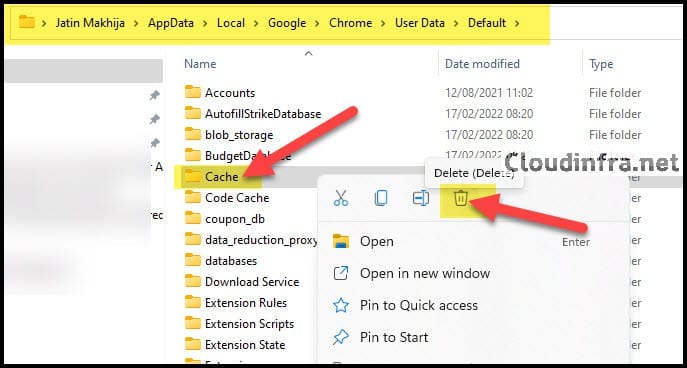
On Windows, Chrome stores cache information inside the user profile in the local app data folder. For the default profile, the path is given below:
%LocalAppData%\Google\Chrome\User Data\Default\Cache
If you use multiple Chrome profiles, each profile has its cache folder. Where <Profile Name> can be Profile 1, Profile 2, etc., or a custom profile directory name.
%LocalAppData%\Google\Chrome\User Data\<Profile Name>\Cache

Example:
%LocalAppData%\Google\Chrome\User Data\Profile 2\Cache
Location of Google Chrome Cookies File on Windows
Modern/new versions of Chrome store cookie information inside a Cookies database file in the Network folder of your profile. For the default profile, the path is given below:
%LocalAppData%\Google\Chrome\User Data\Default\Network\Cookies
For additional profiles, the path will look like:
%LocalAppData%\Google\Chrome\User Data\<Profile Name>\Network\Cookies

You cannot easily read this file directly because it is an SQLite database and parts of it are encrypted. Chrome manages it internally. It is almost always better to manage cookies from within the browser using Settings > Privacy and security > Cookies and other site data rather than editing or moving this file manually.
Manually Delete Chrome Cache Folder in AppData
In some cases, you might see that the cache size does not reduce even after clearing it from Chrome’s settings, or you might suspect the cache folder is corrupted. In that case, you can manually delete the cache folder from the disk.
Use this method only if the standard Delete browsing data option does not work. Make sure Chrome is completely closed before you proceed.
- Close all Chrome windows. Check in Task Manager that there are no
chrome.exeprocesses still running. - Press Windows + R, type the following, and press Enter:
%LocalAppData%\Google\Chrome\User Data\Default\Cache
- Locate and delete the Cache folder.
- Start Chrome again.
Chrome will automatically recreate the cache folder as you browse. This is safe because the cache only stores temporary copies of web content. If you use multiple Chrome profiles, repeat the steps for the relevant profile folder under User Data.
Side Effects of Clearing Google Chrome Cache and Cookies
Before you clear cache and cookies, be aware of the following impacts:
- You may be signed out of websites: Clearing Cookies and other site data will sign you out of most websites and reset site preferences. You might need to sign in again to your email, SaaS portals, banking sites, and other services.
- Temporary slow loading of websites: After clearing the cache, websites might load slower the first time because Chrome needs to download all resources again. Once cached again, performance returns to normal.
- Site settings and permissions may reset: Clearing cookies and site data can reset permissions such as camera, microphone, location access, and notification settings for websites. You may see prompts asking for permission again.
- Data may be removed on all synced devices: If you have Chrome sync enabled for browsing data, clearing it on one device can remove the same data from your other synced devices and your Google Account, depending on your sync configuration.
More Information
For more information, refer to the RFC: https://www.ietf.org/rfc/rfc2109.txt (HTTP State Management Mechanism).
Conclusion
Clearing Google Chrome cache and cookie information is a simple but powerful troubleshooting step when you are dealing with broken layouts, outdated pages, or sign-in issues. For most scenarios, using the Delete browsing data dialog and selecting Cookies and other site data plus Cached images and files is enough to fix common browser problems on both desktop and mobile.
If the in-browser method does not reduce the cache or you suspect corruption, you can manually delete the cache folder from the Chrome profile directory under %LocalAppData%. Just remember that clearing cache and cookies will sign you out of most websites and may temporarily slow down page loading until the cache is rebuilt. Use this process periodically or whenever you run into persistent browser issues, and you will keep Chrome running smoothly.
