
In this post, I will show you how to configure auto start for VM in an Azure DevTest Lab. Auto start lets you automatically start lab VMs on a schedule (for example, every weekday at 8:00 AM), so they are ready for your developers or testers when they begin work. When combined with auto shutdown, you can significantly reduce costs by ensuring VMs only run during business hours.
Auto start is a DevTest Labs feature. Regular standalone Azure VMs do not have built-in auto start and typically require Azure Automation, Functions, or the Start/Stop VMs v2 solution to implement the same behavior.
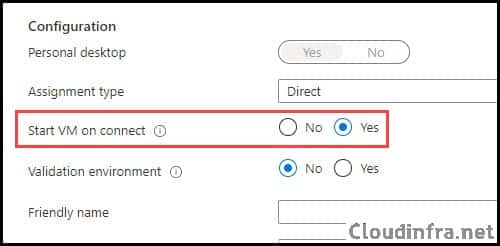
If you are using Azure Virtual Desktop (AVD), you can use the Start VM on connect feature. This feature will automatically power up a stopped or deallocated virtual machine when a user attempts to connect. This helps optimize resource usage and ensures that VMs are available when users need them. Below is a screenshot of the Start VM on Connect feature in Azure Virtual Desktop. For more information, refer to the post Configure Start VM on Connect for Azure Virtual Desktop – Azure Virtual Desktop | Microsoft Learn.
Contents
How DevTest Lab Auto Start Works
Auto start in DevTest Labs is a two-step configuration:
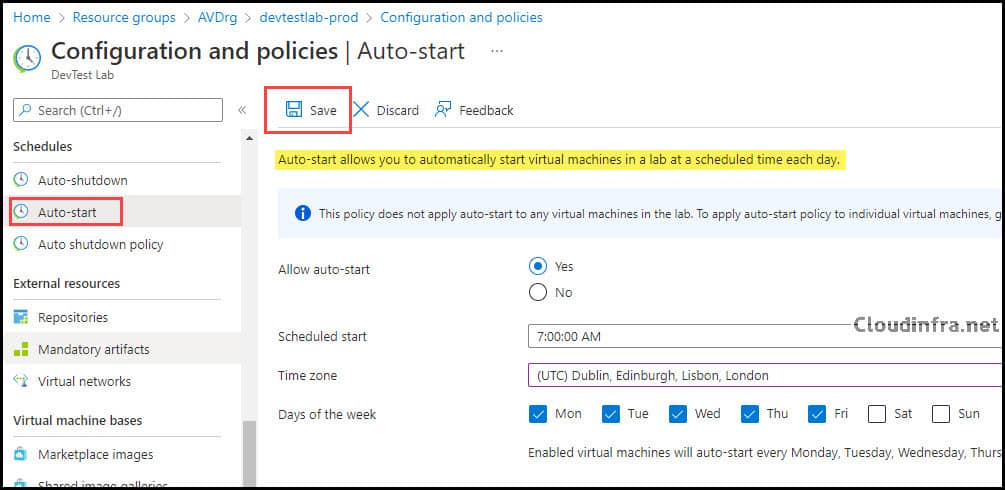
- Configure an autostart policy at the lab level: You define the schedule (time of day, time zone, and days of the week) under the lab’s Configuration and policies > Auto-start.
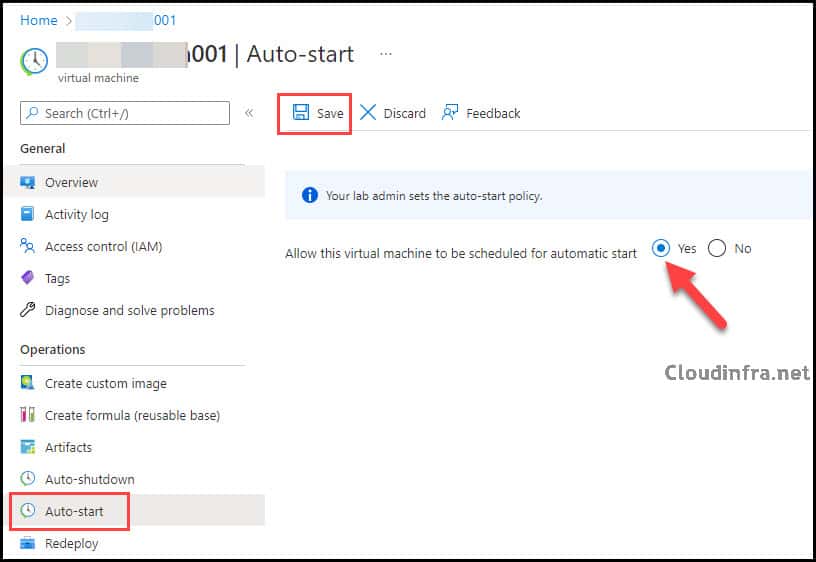
- Opt in individual VMs to use the autostart schedule: For each VM that should follow the schedule, you enable auto start on the VM’s Auto-start blade.
Prerequisites
- You must have an existing Azure DevTest Lab with one or more lab VMs created.
- Your account requires Owner or Contributor permissions on the lab to change Configuration and policies.
- You should already have auto shutdown configured for the lab or VMs if your goal is to run them only during working hours.
Steps to Configure Auto Start of Azure Virtual Machine
There are two steps to configure auto start of a virtual machine in Azure DevTest Labs. Let’s take a look at the steps:
Step 1: Configure Auto Start Policy at the Lab Level
- Go to https://portal.azure.com and sign in with an account that has permissions on the DevTest Lab.
- Open Azure DevTest Labs > Configuration and policies.
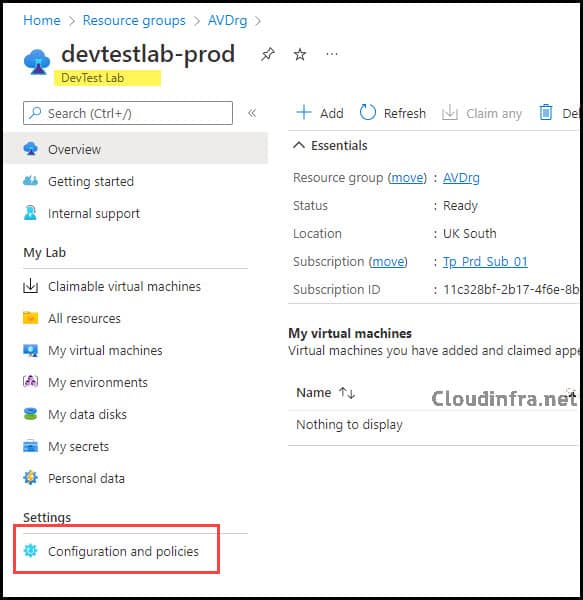
- Click Auto-start under Schedules.
- Enable and configure autostart:
- Set Allow auto-start to Yes.
- Configure:
- Scheduled start: the local time of day when VMs should start (for example, 08:00).
- Time zone: Choose the time zone that matches your working hours.
- Days of the week: select the days when VMs should automatically start (for example, Monday to Friday).
- Select Save.
This configures a lab-wide autostart policy. At this point, no VMs start automatically until you opt them in individually.
Step 2: Enable Auto Start on Individual Lab VMs
Next, you must explicitly enable auto start on each VM that should follow the lab schedule.
- Open the VM from the lab. On the VM’s Overview page, in the left navigation under Operations, select Auto-start.
- On the Auto-start page, set Allow this virtual machine to be scheduled for automatic start to Yes.
- Select Save.
Verify the VM is opted in
- After saving, the VM Overview page will show an Opted-in status for autostart.
- You can also see the autostart status for all VMs from the lab’s Overview page.
Only VMs with Allow this virtual machine to be scheduled for automatic start = Yes will be started by the lab’s autostart schedule.
Step 3: Confirm Auto Start Is Working
Below are some guidelines to confirm if auto start is working as configured.
- Confirm if the lab auto-start policy is enabled and has a future scheduled time for today and the VM is Opted in on its Auto-start blade.
- Wait until the next scheduled start time.
- At or shortly after that time: Check the VM in the Azure portal. Its Status should change to Running automatically. Open the VM’s Activity log to see platform events related to auto start.
Working with Auto Start and Auto Shutdown Together
Combine the auto start policy with auto shutdown policy, which will significantly reduce costs by ensuring VMs only run during business hours. Configure the following:
- Auto-start: to start VMs at the beginning of the day.
- Auto-shutdown: to stop and deallocate VMs at the end of the day.
Important points:
- Auto-start is controlled by the Auto-start policy plus per-VM opt-in.
- Auto-shutdown has its own Auto-shutdown schedule and optional Auto-shutdown policy that controls how much freedom lab users have to change their VM shutdown schedule. For more details about configuring auto shutdown in DevTest Labs, refer to the link: Set lab policies – Azure DevTest Labs | Microsoft Learn.
- Auto-start does not send notification emails. Only auto-shutdown supports pre-shutdown notifications via webhook and/or email.
A common pattern to ensure VMs run only during business hours.
- Auto-start: 08:00, Monday–Friday
- Auto-shutdown: 18:00, Monday–Friday
Start/Stop DevTest Lab VMs via Script
If you need more complex behavior than a single daily start time, you can:
- Use PowerShell or Azure CLI commands to start and stop DevTest Lab VMs from scripts and CI/CD pipelines. For more information, refer to the link: Use commands to start and stop lab VMs – Azure DevTest Labs | Microsoft Learn.
- Use Azure Automation runbooks to enforce a specific startup order (for example, database tier first, then application tier, then web tier). For more information, refer to the link Define VM start order with Azure Automation – Azure DevTest Labs | Microsoft Learn.
Conclusion
To configure auto start for VMs in Azure DevTest Lab:
- Configure the lab-level autostart policy under Configuration and policies > Auto-start (time, time zone, days of week).
- Opt in each VM that should follow the schedule via the VM’s Operations > Auto-start blade.
- Combine this with auto-shutdown to stop and deallocate VMs after hours and reduce costs.
