
Please note that Microsoft has deprecated the Intune PowerShell app d1ddf0e4-d672-4dae-b554-9d5bdfd93547. When you try to create this app, you may get an error code: AADSTS700016: Application with identifier d1ddf0e4-d672-4dae-b554-9d5bdfd93547 was not found in the directory.
When you try to establish a connection with Intune, the app that would previously have been created in Entra ID can no longer be created automatically. Microsoft has deprecated this app and now requires you to create your own application in Entra ID and assign the necessary permissions. I have created such an application with the required device management permissions. You can refer to the link #create-an-entra-app-registration for the steps to create this app and use it in your script.
To simplify the Autopilot device registration experience, users can register their devices themselves from the OOBE (Out-of-Box Experience) page by using the Get-WindowsAutopilotInfo -online command. Some organizations may not allow this approach and only want their IT administrators to complete this process using an administrator account, which is also a valid method.
In scenarios where a user is in a remote location and the IT administrator cannot physically access their laptop, I have used a solution that temporarily elevates the user’s roles or permissions so they can complete the device registration process. After the device is registered successfully, the elevated permissions are removed.
There are other methods to register the device, such as generating a hardware hash in a CSV file and uploading the CSV file directly to the Intune admin center. You can import the hardware hash of a device by navigating to Devices > Windows > Enrollment > Under Autopilot, clicking Devices > Click Import.
With this approach, you can pre-assign the device to a user and pre-assign the Autopilot profile. If you use this method, there is no need to grant elevated access to the user, and the IT administrator does not need to register the device from the OOBE screen. The user can reset the Windows device and follow the instructions in the Autopilot profile because the device is already pre-registered.
Below is an overview of how temporary elevated permissions can be used by a user to register their device:
• Temporarily assign the Intune Administrator role to the user.
• The user must be excluded from any conditional access policy that blocks sign-in from non-compliant devices.
• The user must be granted access to the Microsoft Intune PowerShell Service Principal (Entra ID Enterprise Application).
Once the device is registered and imported successfully, remove all elevated permissions, as they are no longer required. Use this approach only in worst-case scenarios, because it is not a best practice to assign such a role to a standard non-admin user. There is a risk that an administrator could forget to remove this permission after the device is successfully enrolled in Intune.
When users register the device from the OOBE screen by pressing Shift + F10 and running the Get-WindowsAutopilotInfo -online command, they may see a popup message (as shown in the screenshot): Approval required. Microsoft Intune PowerShell. Users will not be able to register their devices until the required permissions are granted.
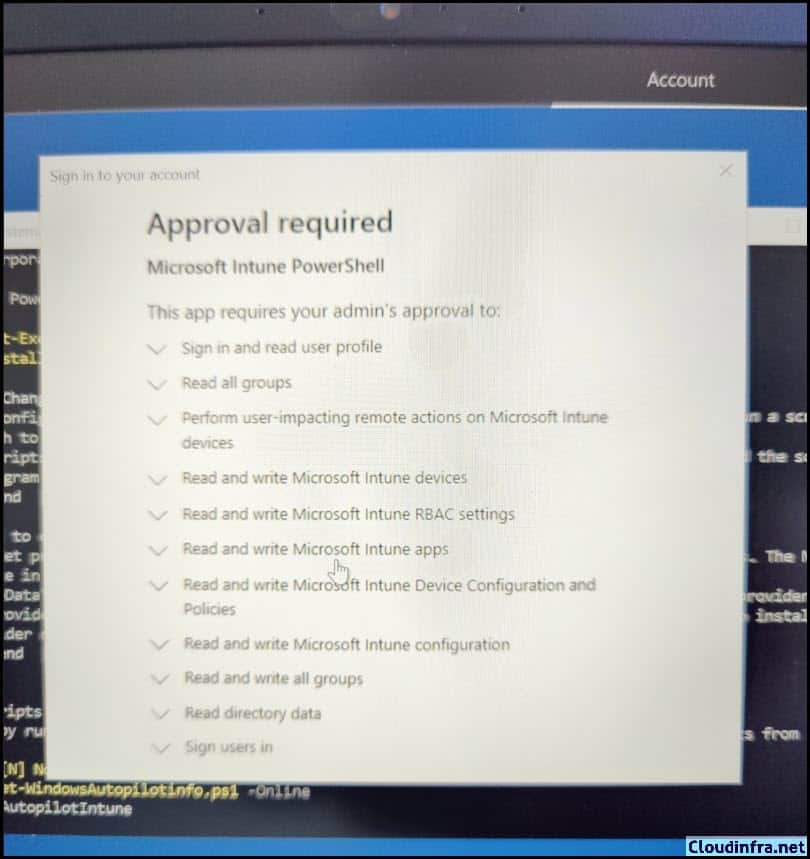
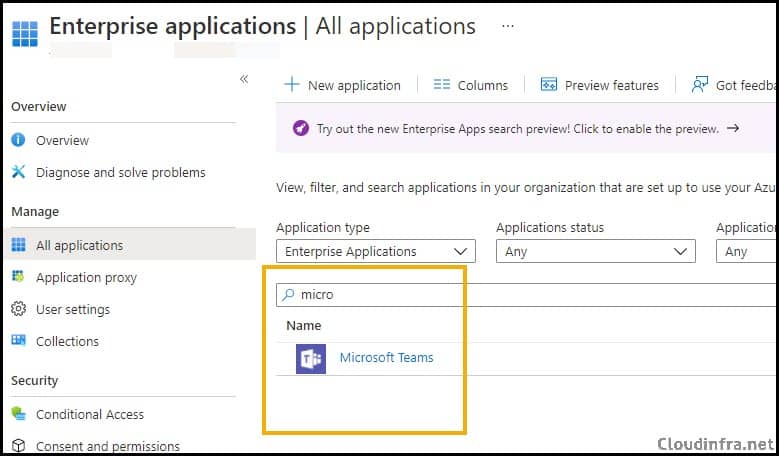
Checking the App Registrations or Enterprise Applications, I could not find an application called Microsoft Intune PowerShell. As the admin user must consent to create this application for your tenant, we must use the Connect-MSgraph -adminconsent command to create the Microsoft Intune PowerShell app in Enterprise Applications on the Entra admin center. Let’s see how to add this application.
Let’s first check the list of apps currently available under the enterprise application on my Entra ID admin center. Navigate to Entra ID admin center > Applications > Enterprise applications. At present, there is no existing Microsoft Intune PowerShell app. Let’s find out how to create one and grant users access.
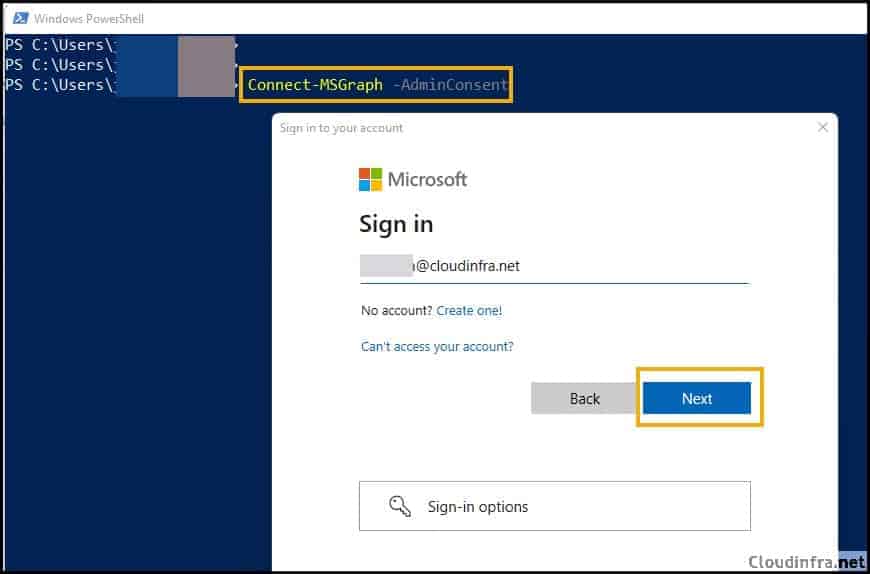
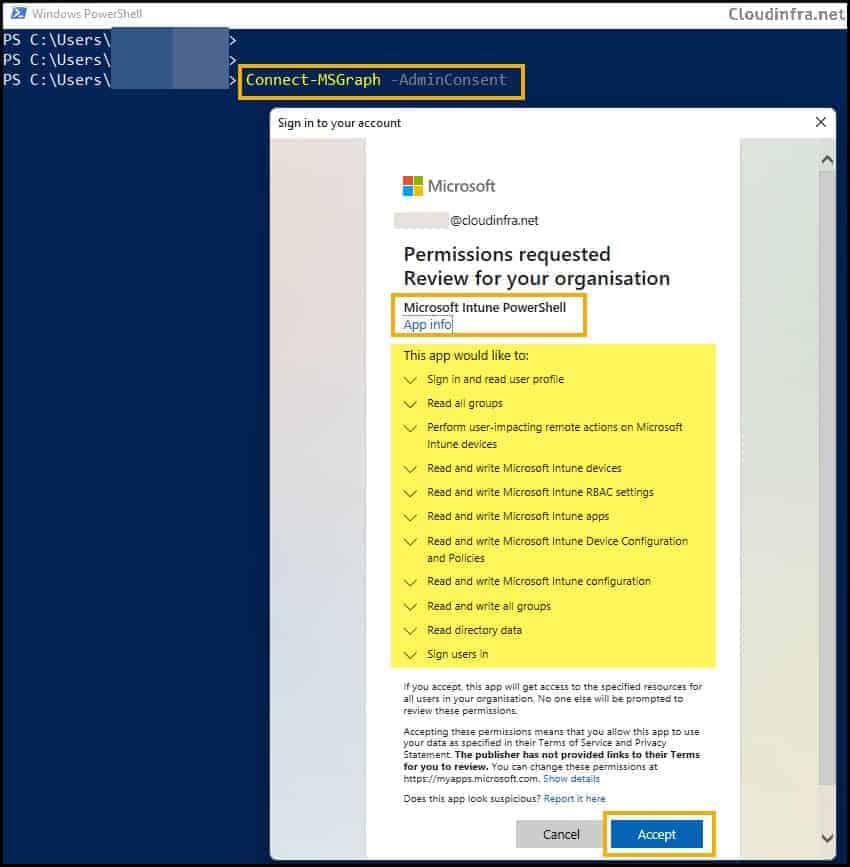
- Type the command Connect-MSGraph -AdminConsent and use administrator credentials.
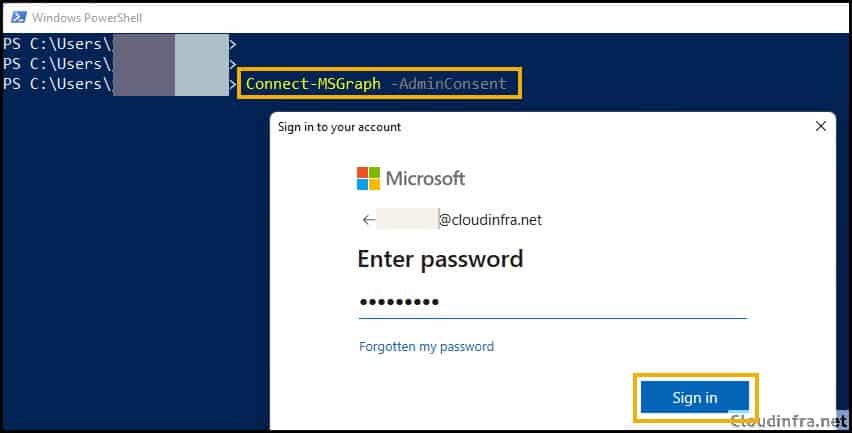
- Provide administrator password.
- Click on Accept to provide admin consent. Review the permissions for which this app will have the consent.
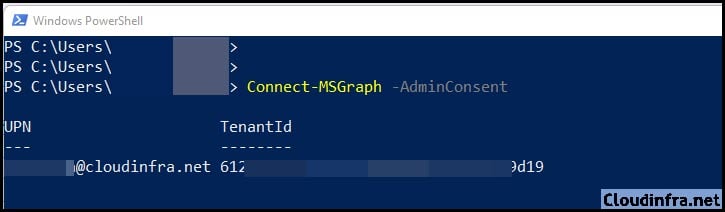
- Once you are successful, it will return UPN and Tenant ID on the portal. The command succeeded, and the Microsoft Intune PowerShell application object was added under Enterprise Applications.
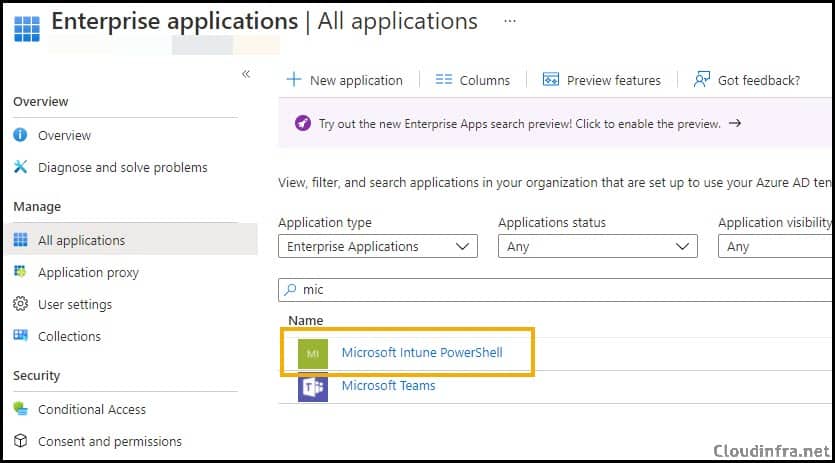
- The screenshot below shows that the Microsoft Intune PowerShell Application object has been successfully created.
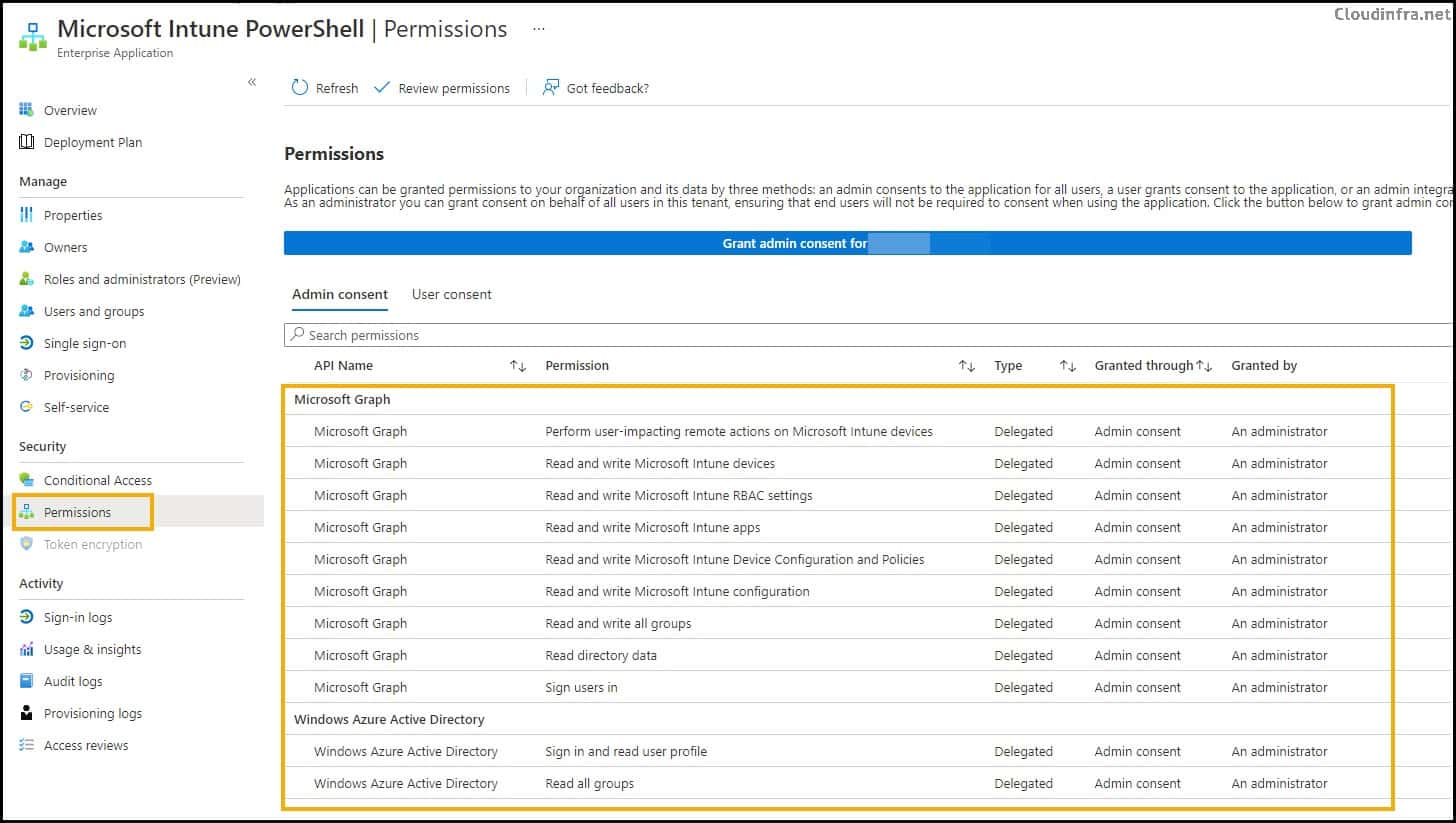
- Click on this application, and on the left-hand side, click on Permissions to learn about the admin-consent permissions provided to this app.
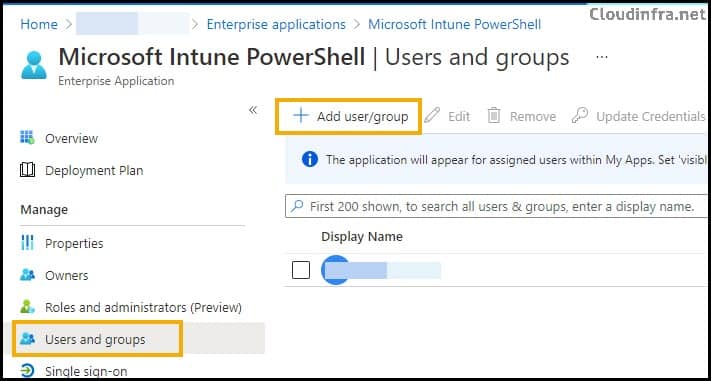
To enable users to register their devices through the Autopilot process using the OOBE screen or PowerShell console, the best practice is to create an Entra security group and use it to provide the permissions. Then, add this group to the application.
In the future, when a user wants to register or import their device, they can use their regular user account and run the Get-WindowsAutopilotinfo -online command.
This will enable device registration. Once the device is registered, removing the user from the Entra security group is important because the user was temporarily granted elevated access for this specific task. Keeping the user in this group would provide unnecessary privileges, so it’s best to remove them to maintain security.
Conclusion
In this blog post. We discussed different ways to register a device in the Microsoft Intune Admin Center. 1. Enable end users to register their new devices with temporarily elevated permissions. 2. Register Microsoft Intune PowerShell Application/service principal using Connect-MSgraph -adminconsent and add users to this application so that users have admin consent to register their devices.
