
In this blog post, I will show you the steps to enable and enforce screen saver on Windows using Intune. A screensaver on a Windows device is a graphical display that activates when the computer is inactive for a set period. It was initially designed to prevent burn-in on older monitors.
Screen saver settings are often used for user experience and, in some organizations, as part of an inactivity security policy. It’s also recommended to combine the screen saver timeout setting with “Password protect the screen saver” so the session re-authenticates after inactivity. Many security baselines require both enabling the screensaver and password protection.
Contents
Create a Screen Saver Policy in Intune
- Sign in to the Intune Admin Center > Devices > Configuration > + Create > New Policy.
- Select Platform type as Windows 10 and later. Select Profile type as Settings Catalog.
- Click on Create.
- On the Basics tab, provide a name and description of the policy. Click Next.
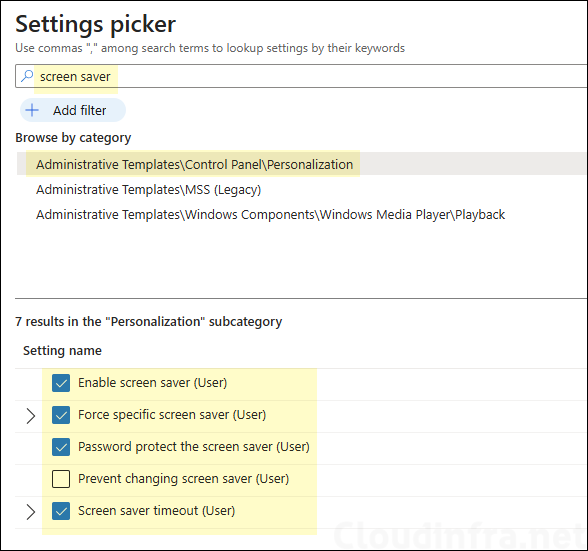
- On the Configuration settings tab, click + Add settings and search for screen saver in the settings picker. You need to select the following settings. Optionally add Password protect the screen saver setting.
| Setting Name | Value | Description |
|---|---|---|
| Enable Screen saver (User) | Enabled | Enabling this option will activate the desktop screen saver on target devices. However, it’s important to note that this setting is dependent on the configuration of the two settings, “Force specific screen saver (User)” and “Screen saver timeout (User).” If these are not configured, screen saver will not be enabled. |
| Force specific screen saver (User) | %Systemroot%\System32\ssText3d.scr | This setting allows you to specify the path to the screen saver file stored on the device. The screen saver file typically has a .scr file extension. |
| Screen saver timeout (User) | 5 | You can define the idle time duration that must elapse before initiating the screen saver on the device. The minimum time you can set for this parameter is 1 second, and the maximum is 24 hours (86,400 seconds). If you set it to 0, the screen saver will not be activated. |
| Password protect the screen saver (User) | Enabled | This is a optional setting. “Password protect the screen saver” means Windows requires the user to sign in again (enter password/PIN) to unlock the session when resuming from the screen saver. |
If you only enable Enable Screen saver (user) setting, the screen saver on targeted Windows devices will not be activated. This setting is dependent on Force specific screen saver (User) and Screen saver timeout (User) settings. So please make sure to configure all three settings.
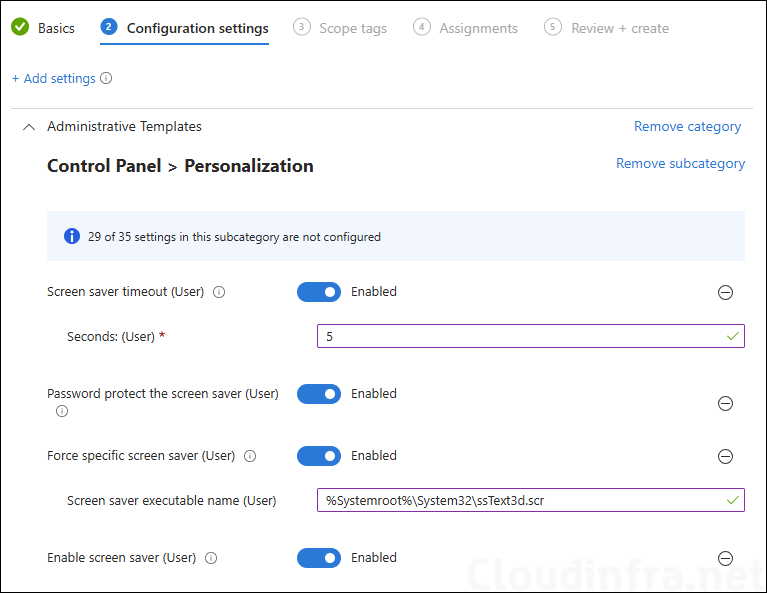
- Enable screen saver (User): Set this option to Enabled to turn on the screen saver on Windows devices.
- Screen saver timeout (User): Enable this setting and specify the idle timeout value. I have set it to 5 seconds for testing purposes. For production devices, configure this value according to your requirements. The default value is 15 minutes (900 seconds).
- Force specific screen saver (User): Enable this setting and provide the path to the screen saver executable file (.scr). This must point to a valid screen saver file. In this example, I have specified %SystemRoot%\System32\ssText3d.scr, which is a built-in Windows screen saver. If you use a custom screen saver, provide the correct file path. There are other built-in screen saver files available in the %SystemRoot%\System32\ location. You can use any of those files instead of ssText3d.scr.
- Scope tags (optional): A scope tag in Intune is an RBAC label that you assign to resources such as policies, apps, and devices to control which administrators can view and manage them. For more information, see How to use scope tags in Intune.
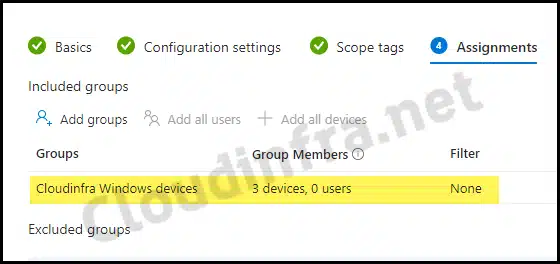
- Assignments: Assign the policy to Microsoft Entra security groups that include the target users or devices. As a best practice, start with a small pilot group, and once validated, expand the assignment more broadly. For guidance on assignment strategy, see Intune assignments: User groups vs. Device groups.
- Review + create: Review the deployment summary and click Create.
Sync Intune Policies
The device check-in process might not begin immediately. If you’re testing this policy on a test device, you can manually kickstart Intune sync from the device itself or remotely through the Intune admin center.
Alternatively, you can use PowerShell to force the Intune sync on Windows devices. Restarting the device is another way to trigger the Intune device check-in process.
Monitoring Deployment Progress
To monitor the deployment progress of a device configuration profile, follow the below steps:
- Sign in to the Intune admin center > Devices > Configuration.
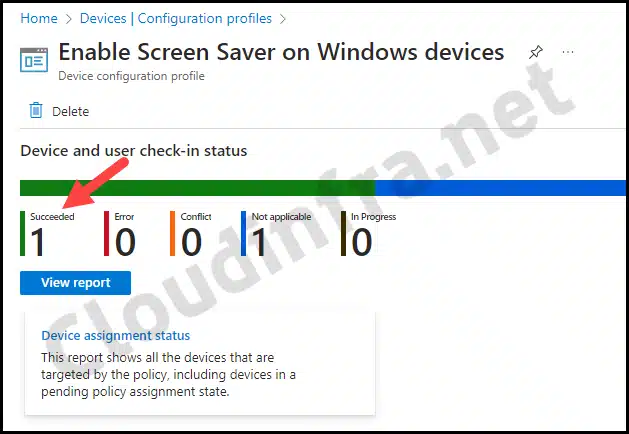
- Choose the Device Configuration profile you want to work with, and at the top of the page, you’ll see a quick view of the Success, Failure, Conflict, Not Applicable, and In Progress status.
- Click on View report to access more detailed information.
End User Experience
For testing, I assigned this policy to an Entra group containing Windows devices. Since the screen saver timeout was set to a very low value of 5 seconds, the screen saver shown below was invoked after waiting for 5 seconds.

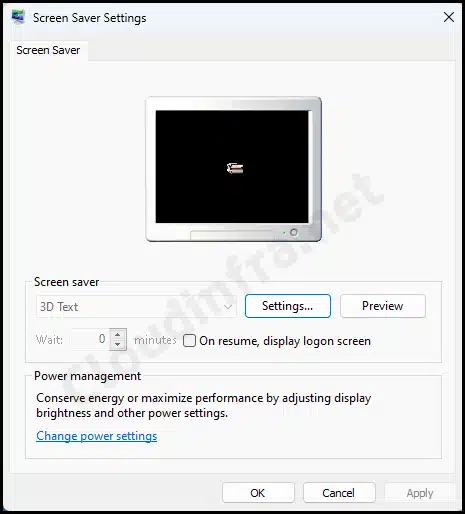
You can also access the screen saver settings window by navigating to Settings > Personalization > Lock screen > Screen saver. In this window, you will notice that the screen saver settings are greyed out and cannot be modified, as they are managed through Intune.
Troubleshooting
The screen saver device configuration profile has been successfully deployed to the target devices. If the policy does not apply as expected, you can troubleshoot the issue by following below guidance.
1. Validate Screen Saver Policy via Windows Registry
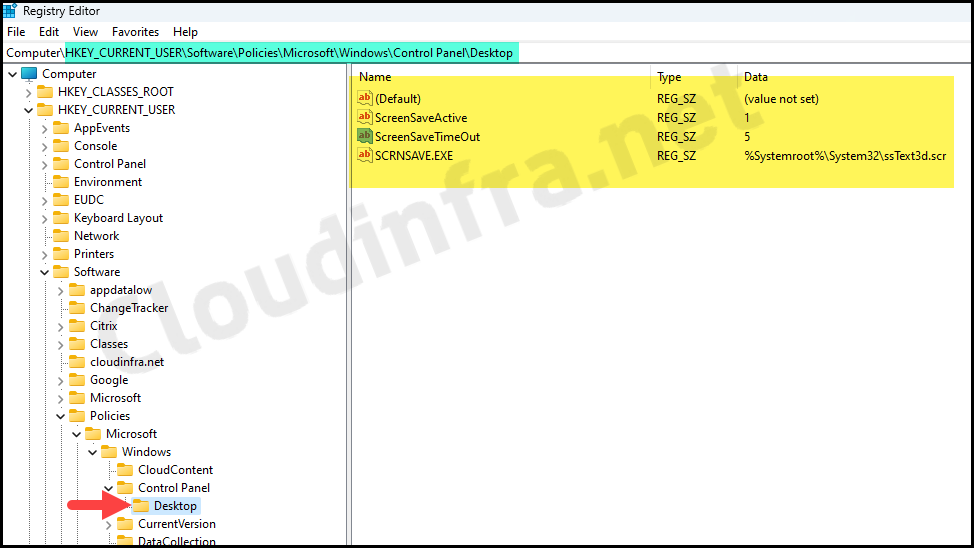
Since this is a user-scoped policy, the screen saver registry entries are stored under the HKEY_CURRENT_USER hive. After applying the screen saver policy through Intune, you will find the registry entries at:
HKEY_CURRENT_USER\Software\Policies\Microsoft\Windows\Control Panel\Desktop
This key includes the following values:
- ScreenSaveActive: 1 (value of 1 means screen saver policy is active and enabled).
- ScreenSaveTimeOut: 5 (It’s set to an idle timeout of 5 seconds).
- SCRNSAVE.EXE: %Systemroot%\System32\ssText3d.scr.
2. Validate Screen Saver Policy via Event Viewer
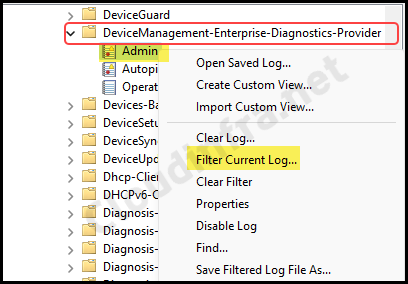
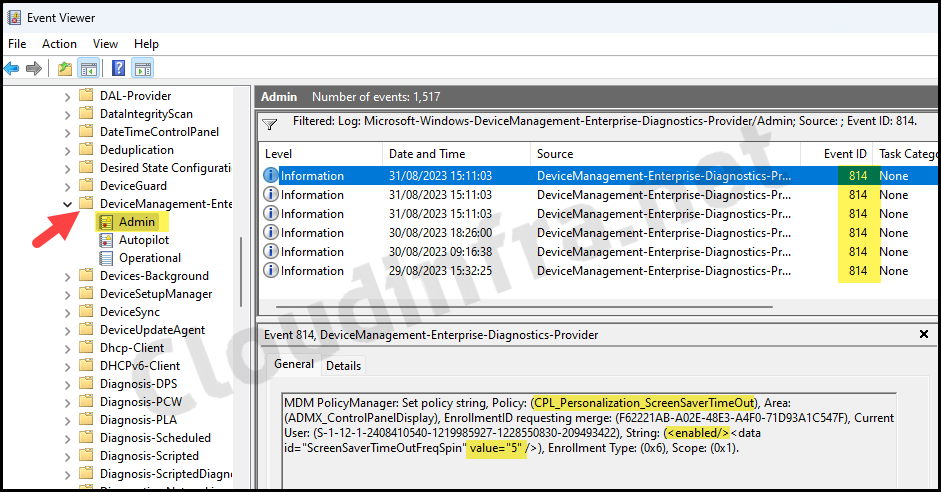
- Open Start > Event Viewer. Navigate to Applications and Services Logs > Microsoft > Windows > DeviceManagement-Enterprise-Diagnostics-Provider > Admin. Right-click on it and select Filter current log.
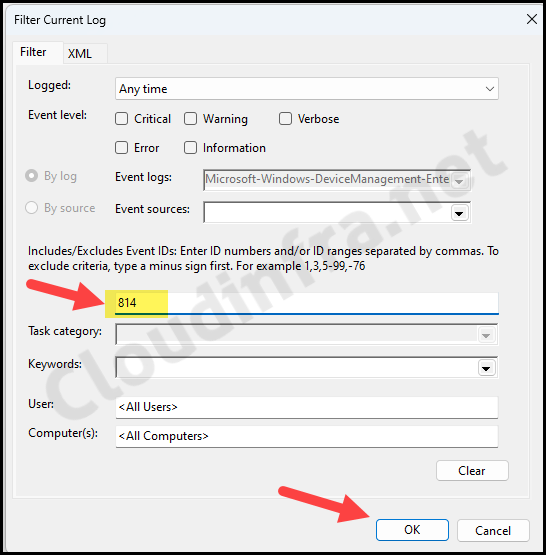
- Filter the events for event ID 814.
- Locate the log entry related to your Intune deployment. The screenshot below shows that the policy was deployed successfully, with the policy setting marked as Enabled and the ScreenSaverTimeOutFreqSpin value set to 5.
3. Location of Built-in Screensaver Files on Windows 11 Devices
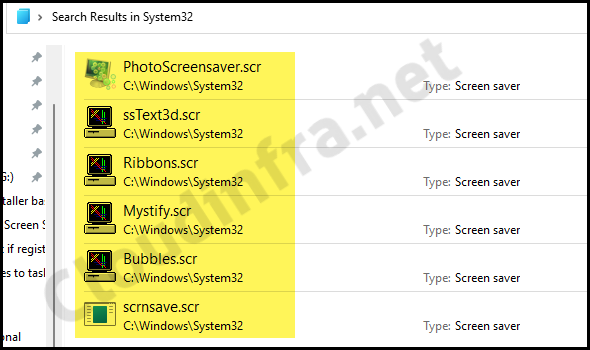
Use a screen saver file that is present on your Windows builds to avoid any issues. Typically you will find the built-in screen saver files (.scr) at %systemroot%\system32 location.
- Press Win + R to open the Run dialog box.
- Type %SystemRoot%\System32 and press Enter.
- Use the search box to look for *.scr files. This displays all files with the .scr extension, which are the built-in screen saver executables on Windows devices. You can use any of these files as a screensaver.
- Double-click each file to preview the screen saver. If you like the screen saver, you can use it in Force specific screen saver (User) setting by providing its location.
4. Screen saver does not start
- Confirm policy assignment (user is in the targeted group).
- Confirm the timeout is set to a sensible value and is not being overridden by another policy.
- Validate the user is not actively streaming video or using an app that suppresses idle detection.
5. Wrong screen saver starts (or none starts)
- Verify the .scr path exists on the device (C:\Windows\System32\…).
- If you used a custom .scr, confirm it was deployed successfully before the policy applied.
6. No password prompt on resume
- Ensure Password protect the screen saver is enabled.
- Confirm no conflicting profile is disabling password protection or controlling lock behavior differently.
7. Multi-user devices behave inconsistently
Re-check your assignment strategy. For shared devices or AVD, validate whether your approach is best handled via user groups, device groups, or both depending on your operational plan.
How to Disable Screen Saver Using Intune
To disable the screen saver for users, you can either unassign the policy or set Enable screen saver to Disabled.

Conclusion
Using Intune Settings Catalog, you can enforce a screen saver timeout consistently across Windows devices. For locking a Windows device after idle time, include Password protect the screen saver setting and verify your .scr file exists across your Windows 11 builds. If you want to set a custom screen saver, you’ll need to first copy the screen saver file (.scr) to the device and then specify the path in the Force specific screen saver (User) setting.
